
Why You Can't Edit Certain WhatsApp Templates
If you've tried editing a WhatsApp message template and found the option unavailable, you're not alone. There are several reasons why certain templates can't be modified. Here's what might be happening — and what you can do about it.
1. The Template Is Already Approved by Meta
Once a template has been approved by Meta, its content becomes locked. While you can still change the template name or category, you cannot edit the body, header, or footer text.
Solution: If you need to make content changes, you'll need to create a new template from scratch.
2. The Template Was Created via the API
Templates created directly through the WhatsApp API or a third-party partner tool may not be editable from your Enrollio dashboard. These templates are typically locked for security and consistency reasons.
3. The Template Is In Use or Was Recently Sent
If a template is currently being used in active automations or conversations — or was recently sent to families — it may be temporarily locked from editing. This helps ensure message consistency and prevents disruptions in your communications with parents.
4. The Template Falls Under a Strict Category
Certain categories, like Authentication (used for sending verification codes), have much stricter rules. Meta requires these templates to follow a specific format and wording, which means you won't be able to edit them beyond allowed parameters.
5. The Template Is Under Review or Has Been Flagged
If Meta has flagged a template for low quality or it's under review, editing will be restricted until the issue is resolved. This ensures compliance with WhatsApp's messaging policies and user experience standards.
What You Can Do
If you're unable to edit a template, here are your options:
Clone the Template
Duplicate the existing template and make the necessary changes to the new version before submitting it for approval.
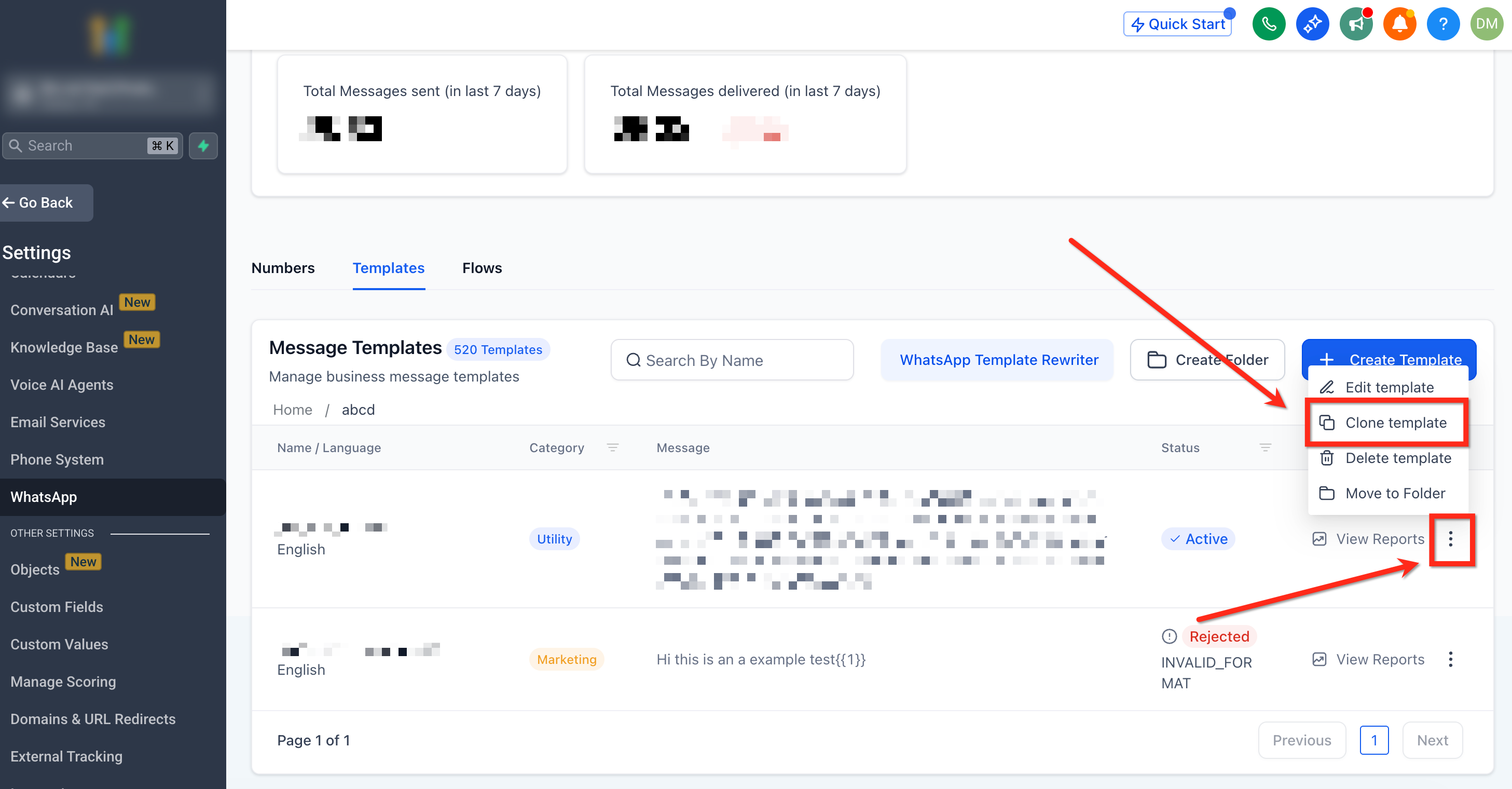
To clone an existing WhatsApp template:
- Navigate to Settings > WhatsApp > Templates
- Click the 3-dot icon next to the template
- Select Clone Template from the dropdown menu
- Rename and edit the new template
- Click Save
- Submit the new template for approval
Delete the Old Template
If the original template is no longer needed or relevant, you can delete it to keep your template list clean and up to date.
Pro Tip: When creating WhatsApp templates for parent communications, keep them flexible and reusable. Generic templates for tour confirmations, enrollment updates, and reminders are easier to maintain than highly specific ones.