
How to Enable WhatsApp in Your Enrollio Account
Connect WhatsApp Business to Enrollio so you can message parents directly from your dashboard. This guide walks you through the complete setup process, from purchasing a phone number to verifying your account.
Important: Once you connect a phone number to WhatsApp Business Platform through Enrollio, you can't use that same number in the WhatsApp Business App on your phone.
Table of Contents
- How to Sign Up With WhatsApp Business
- Phone Number Verification
- Sign-Up Requirements
- Frequently Asked Questions
How to Sign Up With WhatsApp Business
Step 1: Purchase an Enrollio Phone Number
Buy an Enrollio phone number and forward calls to your primary contact number. This will be your dedicated WhatsApp Business line.
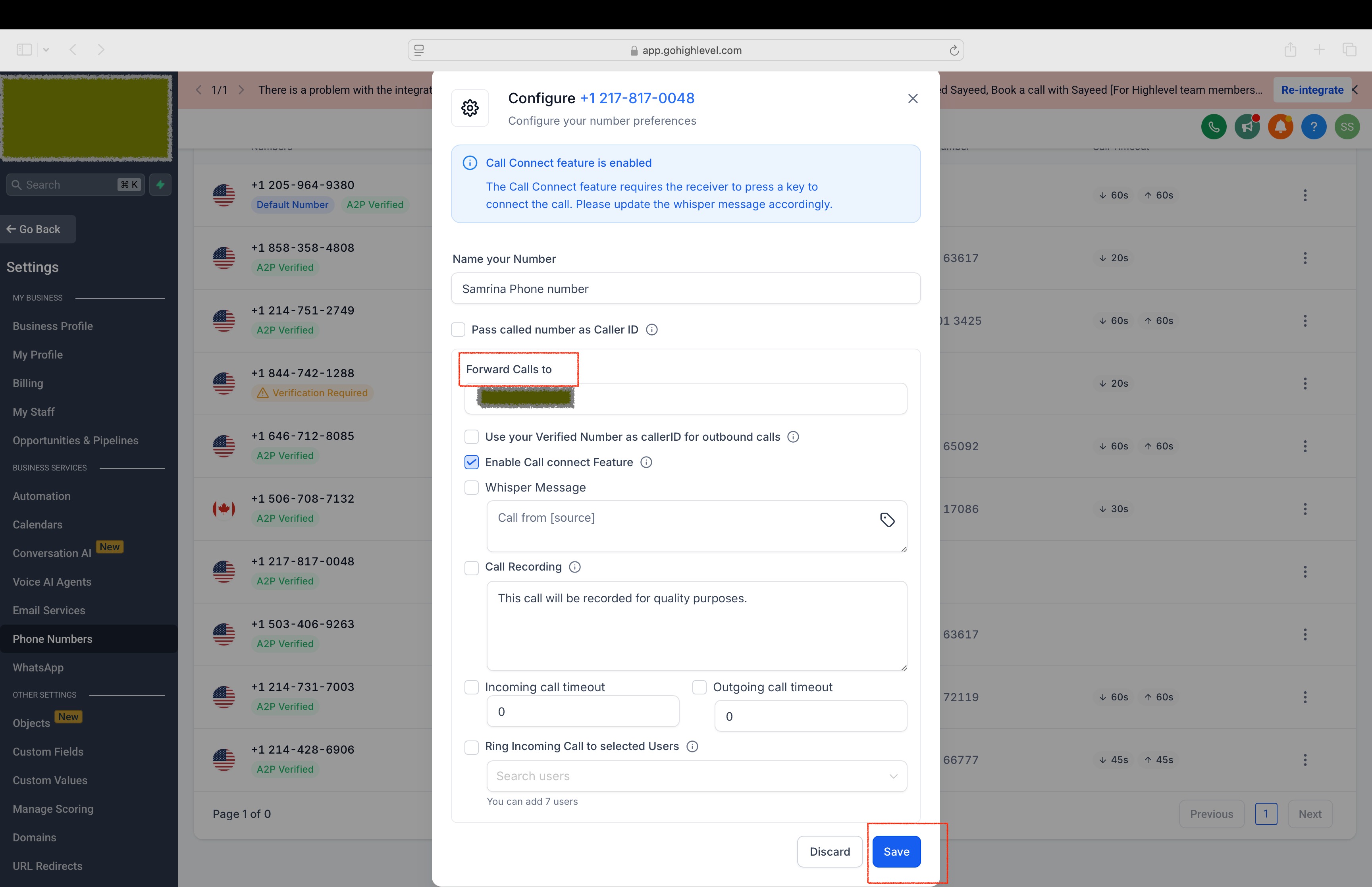
Step 2: Start the Setup Process
Navigate to Settings WhatsApp Set Up a New WhatsApp Number.
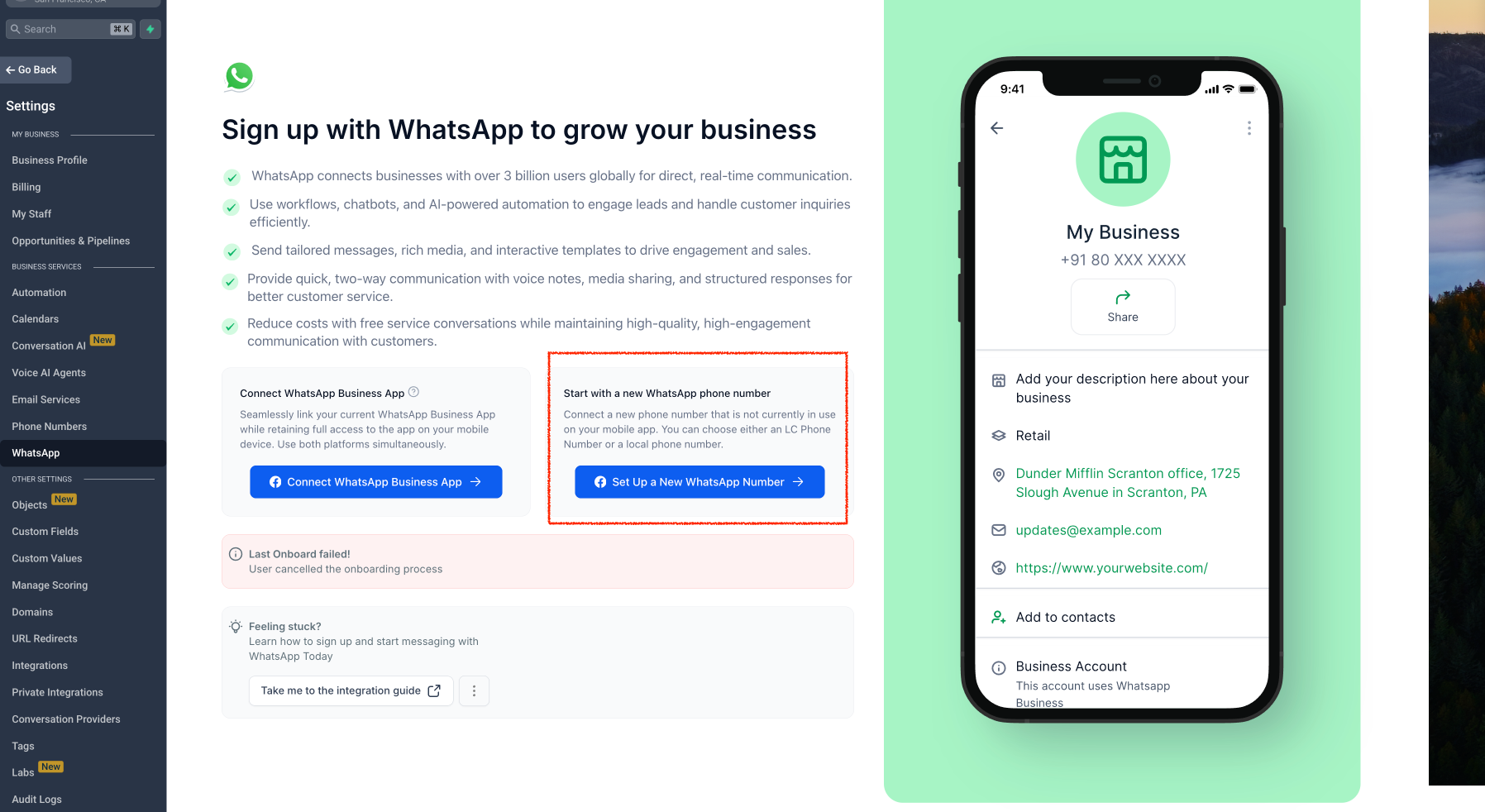
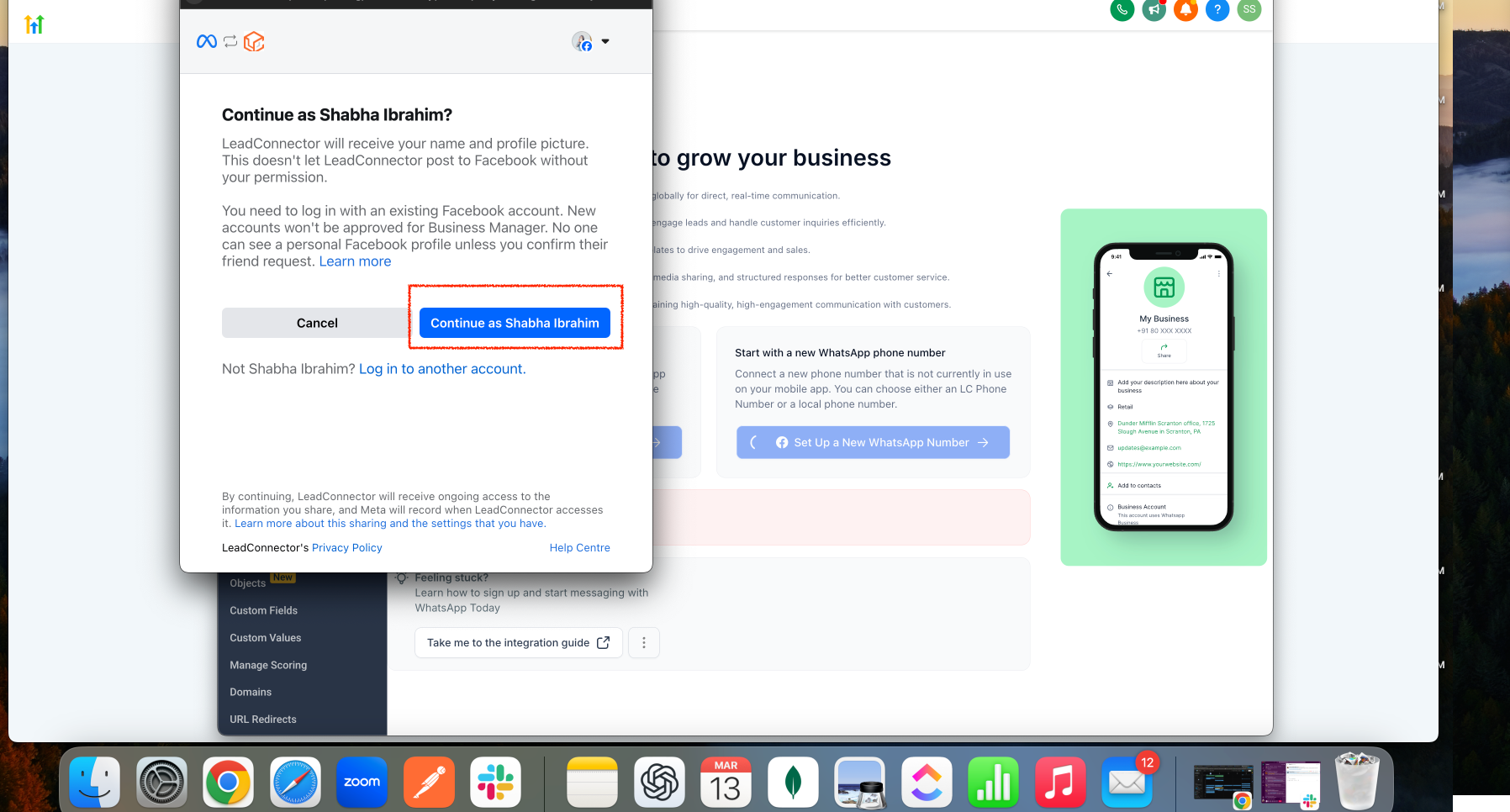
Step 3: Continue with Facebook
Click "Continue with your Facebook account" to proceed. You'll need a Facebook Business account to connect WhatsApp Business.
Step 4: Begin the Setup
Tap "Get Started" to initiate the integration process.
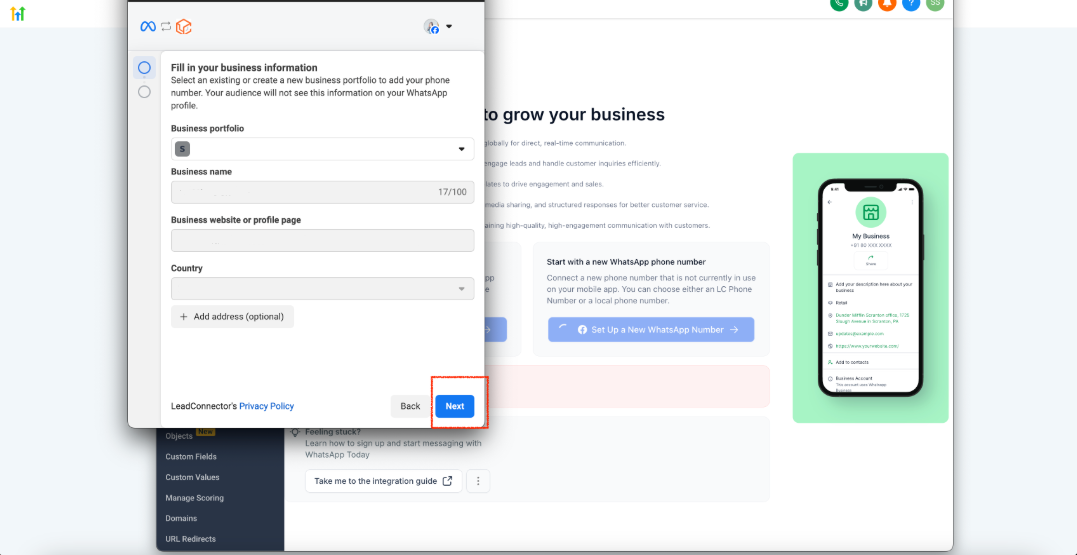
Step 5: Enter Your Center's Details
Fill in your childcare center's business information and click "Next". Make sure all details are accurate — you'll need them for verification.
Step 6: Create a WhatsApp Business Account
Select "Create WhatsApp Business Account" to set up your new business profile.
Step 7: Confirm Your Selection
Click "Next" to proceed with the account creation.
Step 8: Save Your Settings
Click "Save" to apply your settings and move to verification.
Step 9: Complete the Setup
Tap "Finish" — your WhatsApp Business Account is now integrated with Enrollio!
Phone Number Verification
Step 10: Add & Verify Your Phone Number
Click "Add Phone Number" and proceed with verification. This confirms you own the number you're connecting.
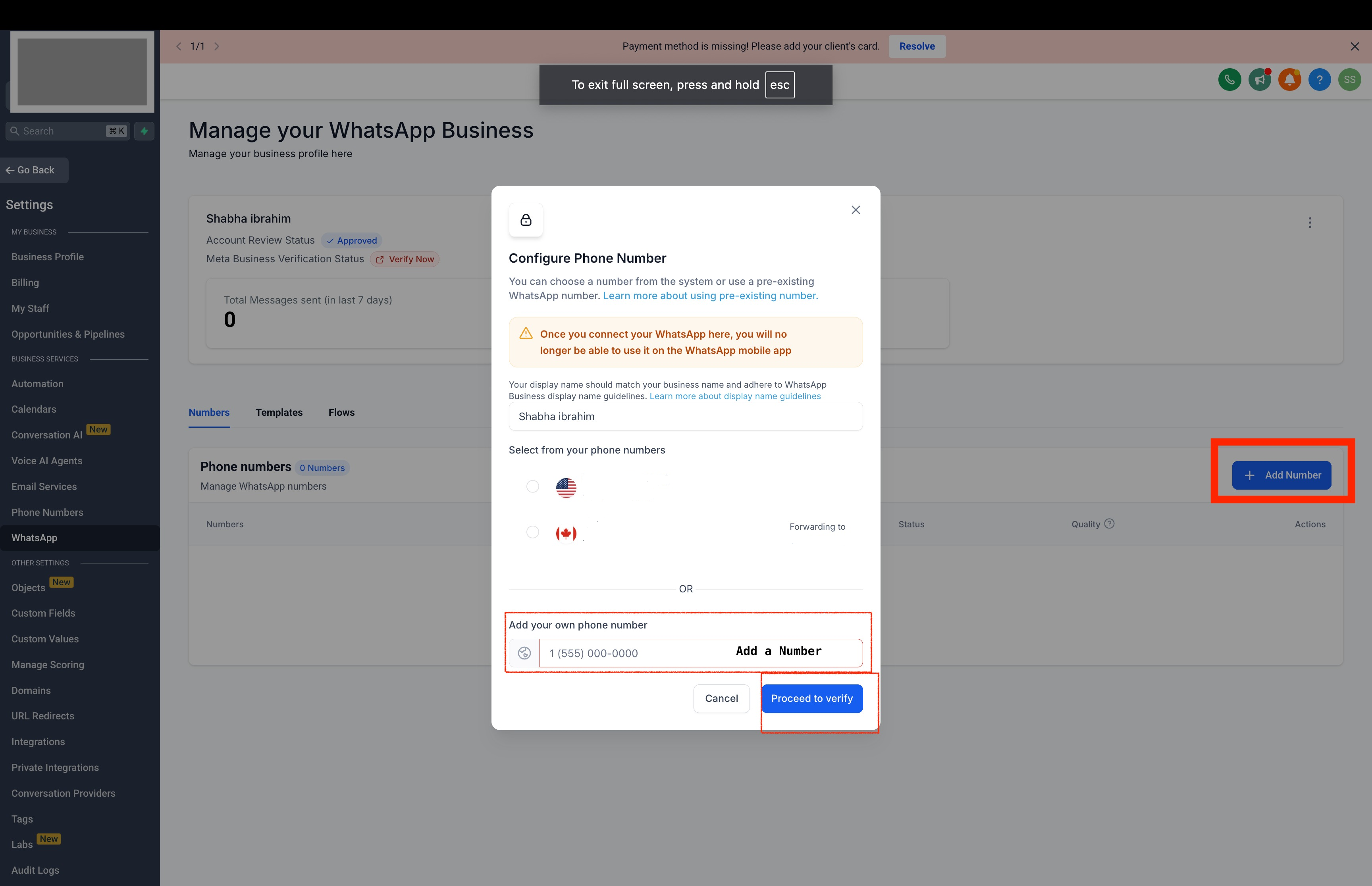
Step 11: Choose a Verification Method
Pick how you want to receive your verification code:
- Text Message: Select this to receive a one-time code via text. Navigate to your Conversations tab in Enrollio to see the code.
- Phone Call: You'll receive a verification call on your forwarded number with the code.
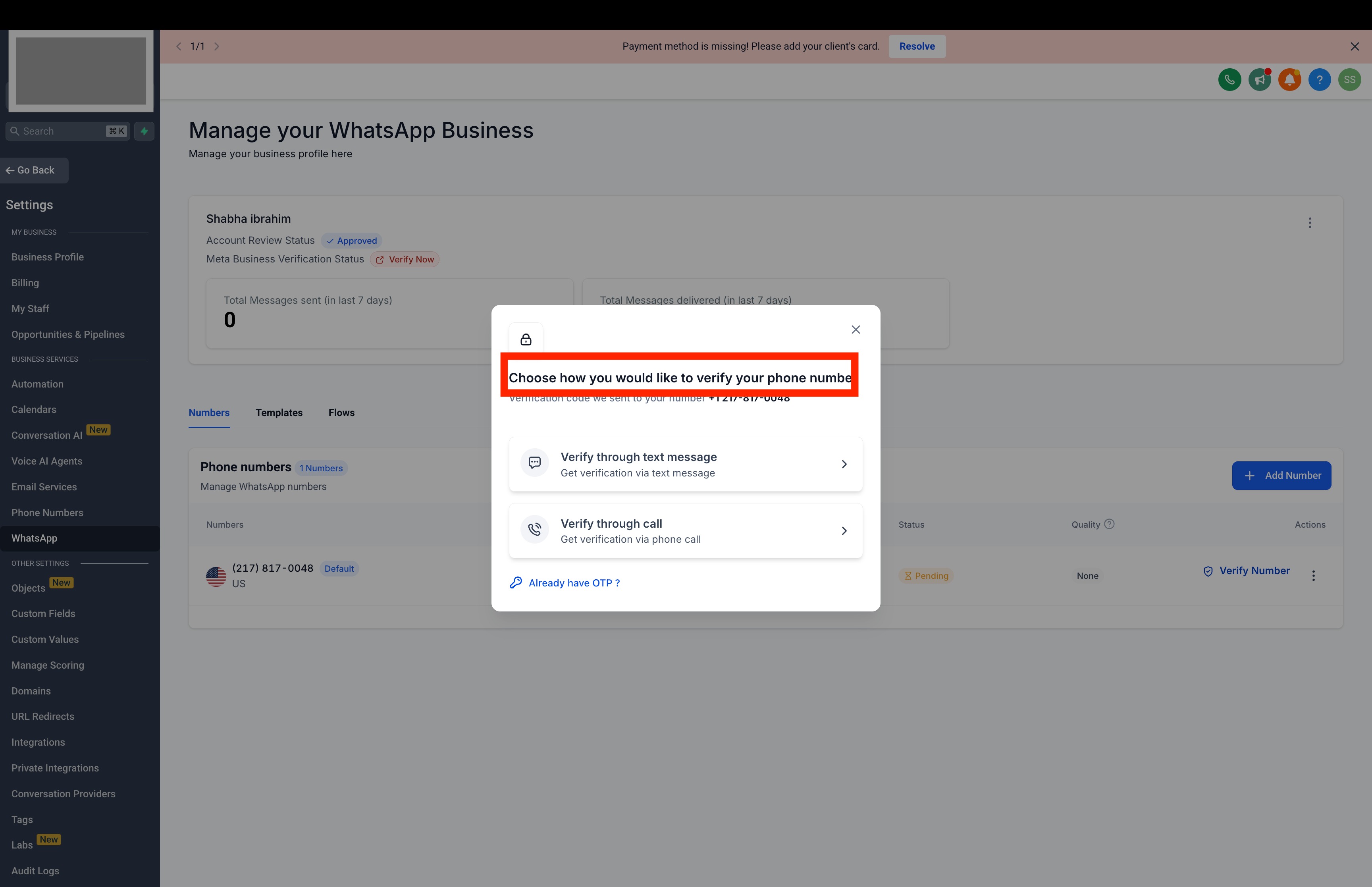
Step 12: Enter the 6-Digit Code
Enter the 6-digit code you received via text or call to verify your number.
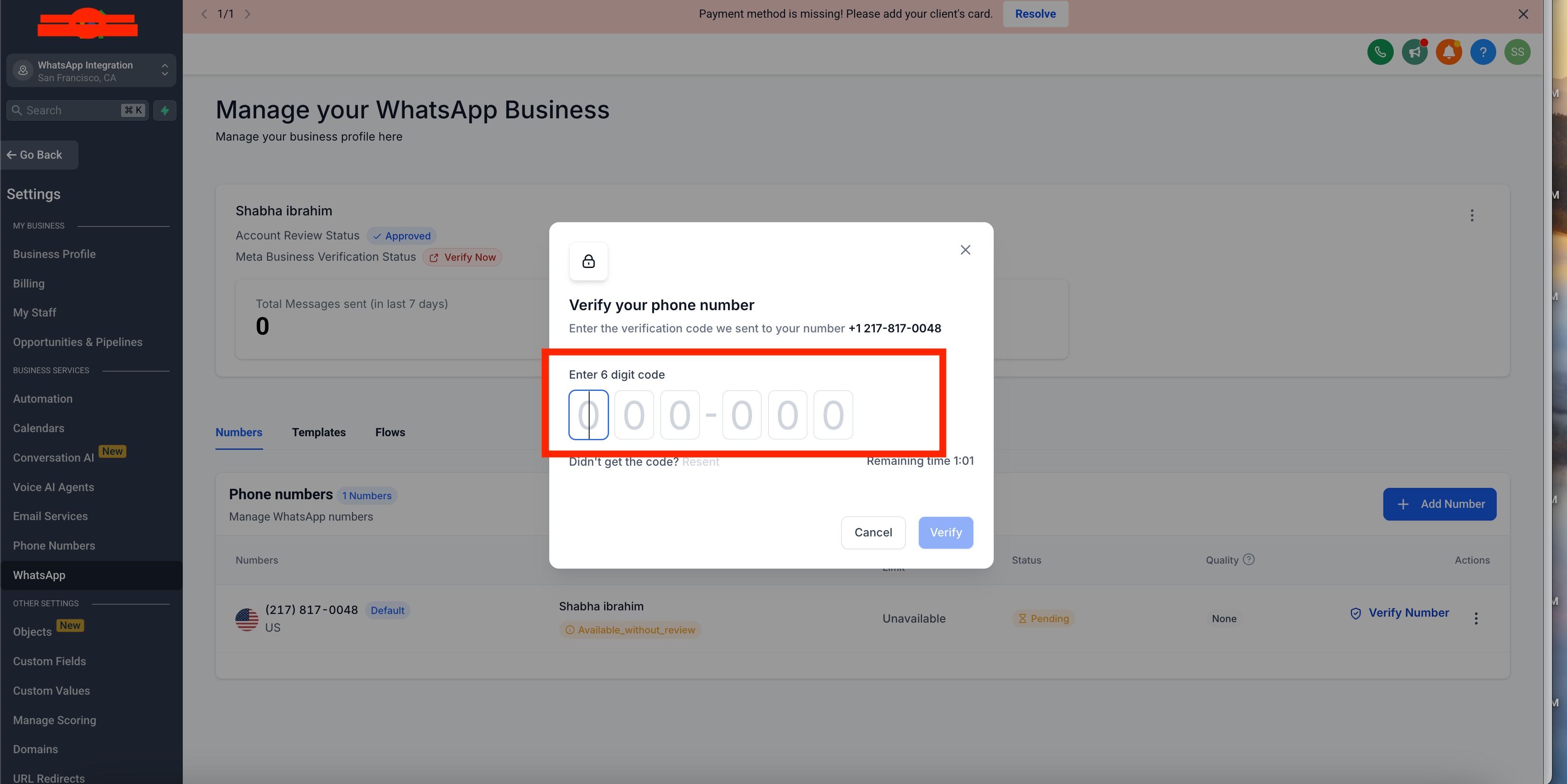
Step 13: Verification Complete!
Your WhatsApp Business number is now verified and ready to use. You can start messaging families directly from Enrollio.
Remember: Once you migrate a phone number to WhatsApp Business Platform, you cannot use that number on the WhatsApp Business App on your phone. Choose one platform or the other.
Sign-Up Requirements
When setting up WhatsApp Business through Enrollio, keep these requirements in mind:
1️⃣ New Phone Number Required
- You must use a new phone number for registration
- Existing numbers that are active on WhatsApp or WhatsApp Business App cannot be used
- This applies whether you're setting up manually or through Facebook
Pro Tip: Purchase a dedicated Enrollio phone number specifically for WhatsApp. This keeps your personal number separate and makes it easier to manage parent communication.
Frequently Asked Questions
Q: I received an error saying the number is registered to an existing WhatsApp account. What should I do?
This error happens in two situations:
If you have WhatsApp active on your phone:
- Open the WhatsApp app on your device
- Go to Settings Account Delete my account
- Note: Your conversation history and contacts won't transfer to Enrollio
If your number is connected to another provider:
You'll need to create a new WhatsApp Business Account (WABA) and migrate your number to it.
Q: I see "You have already linked the maximum number of phone numbers allowed." What does this mean?
Meta (Facebook) allows only two phone numbers per WhatsApp Business Account. If you need to add another number, you'll need to delete an existing one first.
Q: Can I use my existing WhatsApp Business App number with Enrollio?
No, once you migrate a phone number to WhatsApp Business Platform through Enrollio, you can't use it on the WhatsApp Business App at the same time. You must choose one platform.
Q: How do I verify my WhatsApp Business phone number?
Once you've added your phone number, verify it using:
- Text Verification: Receive a code via text and enter it in your Conversations tab
- Phone Call Verification: Receive a call on your forwarded number and enter the code provided
Q: Can I change my WhatsApp Business phone number after verification?
No, once a number is verified and linked to WhatsApp Business Platform, you can't switch to another number without completely reconfiguring your account.
Q: What if I don't receive the verification code?
Try these troubleshooting steps:
- Confirm your phone number is correct and formatted properly
- Check if your carrier is blocking verification messages
- Wait a few minutes and try again
- Switch to phone call verification as an alternative
Q: My WhatsApp Business account setup failed. What should I do?
Check these common issues:
- Make sure your center's information is entered correctly
- Confirm you're using a new phone number that isn't active on WhatsApp
- Try the verification process again with a different method (text or call)
Q: Can I manage my WhatsApp profile from Enrollio?
No, you can only manage your WhatsApp Business Profile (business hours, description, etc.) from the WhatsApp Business App, not from Enrollio. However, all messaging happens directly in Enrollio.
Q: What are the benefits of using WhatsApp Business Platform instead of the App?
WhatsApp Business Platform through Enrollio gives you:
- Automation: Send messages automatically based on parent actions (tour bookings, enrollment steps, etc.)
- Team Access: Multiple staff members can manage WhatsApp conversations
- Template Messaging: Send pre-approved templates for consistent communication
- Centralized Communication: Manage all parent messages in one place alongside calls, texts, and emails
Q: Can I transfer my WhatsApp Business number back to the WhatsApp Business App?
No, once a number is migrated to WhatsApp Business Platform through Enrollio, it cannot be moved back to the WhatsApp Business App.
Q: What's the difference between WhatsApp Business App and WhatsApp Business Platform?
| Feature | WhatsApp Business App | WhatsApp Business Platform (Enrollio) |
|---|---|---|
| Message Automation | ❌ Limited | ✅ Advanced automations |
| Multiple User Access | ❌ Single device only | ✅ Whole team can respond |
| Template Messages | ❌ Basic only | ✅ Pre-approved business templates |
| Integration with CRM | ❌ No integration | ✅ Fully integrated with parent records |
| Analytics & Reporting | ❌ Limited | ✅ Detailed message analytics |
Next Steps: Once WhatsApp is set up, you can start messaging families directly from their parent profiles, set up automated messages for tour confirmations, and create WhatsApp message templates for common responses.