
Overview
Snippets are saved message blocks you can use to respond quickly to parents during active WhatsApp conversations. Think of them as your go-to replies for common questions about enrollment, tour scheduling, or tuition—ready to send in seconds.
WhatsApp Templates are different: they're pre-approved messages you must use when reaching out to parents outside the 24-hour conversation window. Enrollio now lets you preview templates before sending and swap out images or documents with one click.
What's New
- Preview WhatsApp templates directly in the conversation window—see the exact message, category, and language before you send
- Replace template media (images, PDFs, videos) with one click from your computer
- Same preview and media-swap features work in bulk messaging
Step 1: Create Your Snippet
First, set up the snippets you'll use most often.
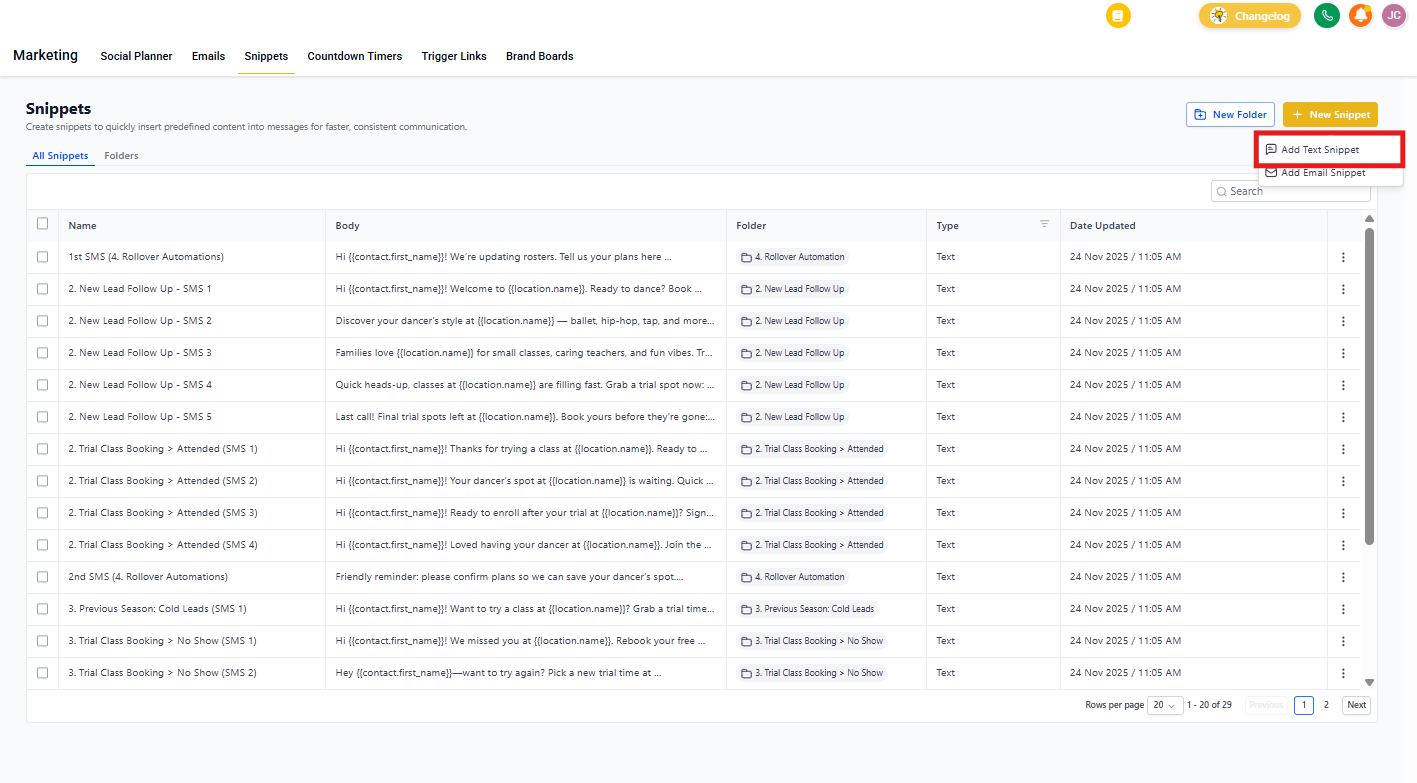
- Go to Marketing → Templates (Snippets)
- Click Add Template (Snippet) → Add Text Template (Snippet)
- Write your message—common ones include tour confirmation, tuition reminders, or enrollment next steps
- Give it a clear name like "Tour Confirmation" or "Tuition Due Reminder" so you can find it quickly
- Click Save
Step 2: Send a Snippet in a Conversation
Use snippets when you're actively messaging with a parent (they must have sent you a message in the last 24 hours).
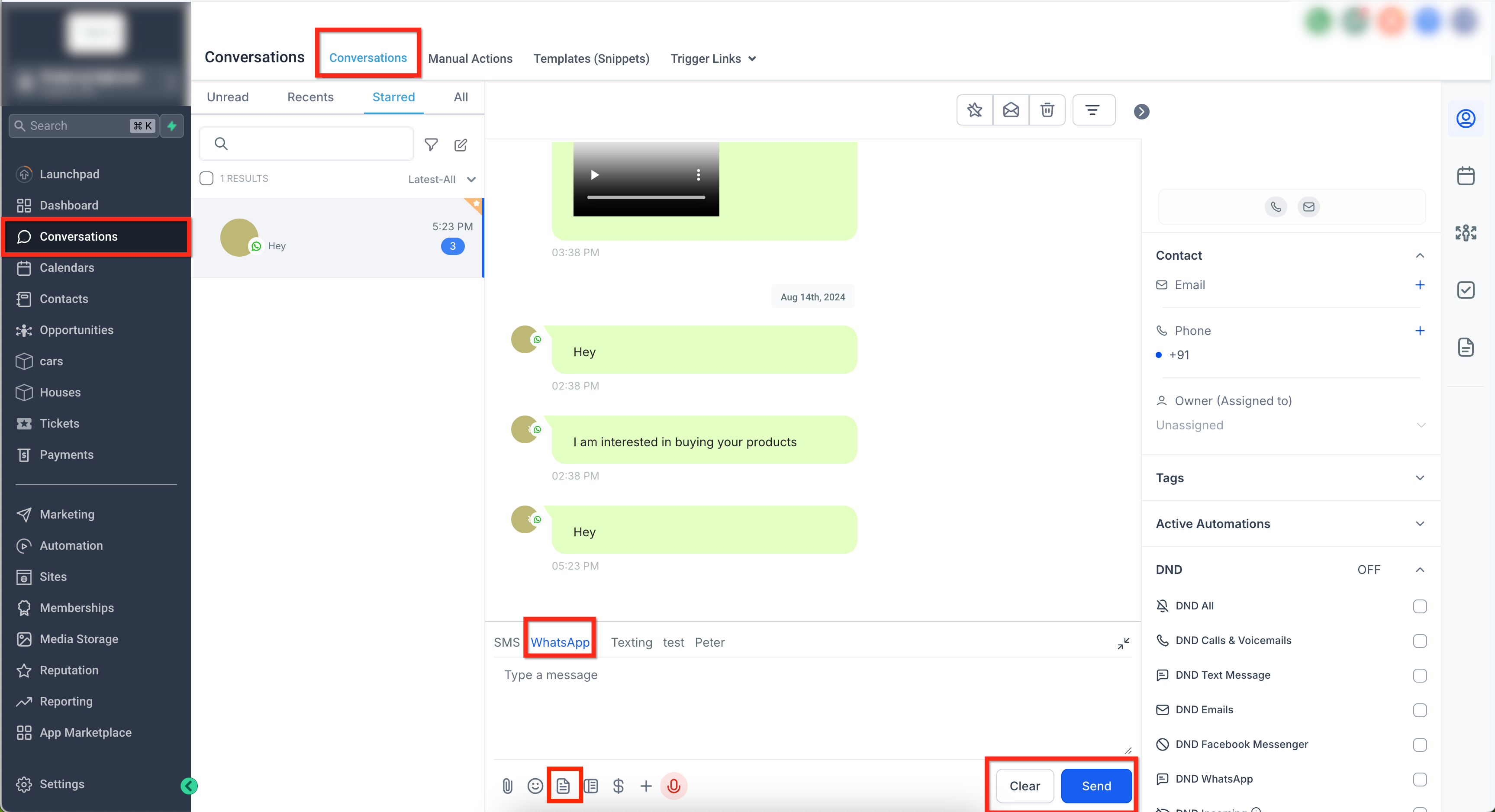
- Go to Conversations
- Open the WhatsApp thread with the parent
- Make sure WhatsApp is selected as your messaging channel
- Click the Insert Snippets icon in the message box
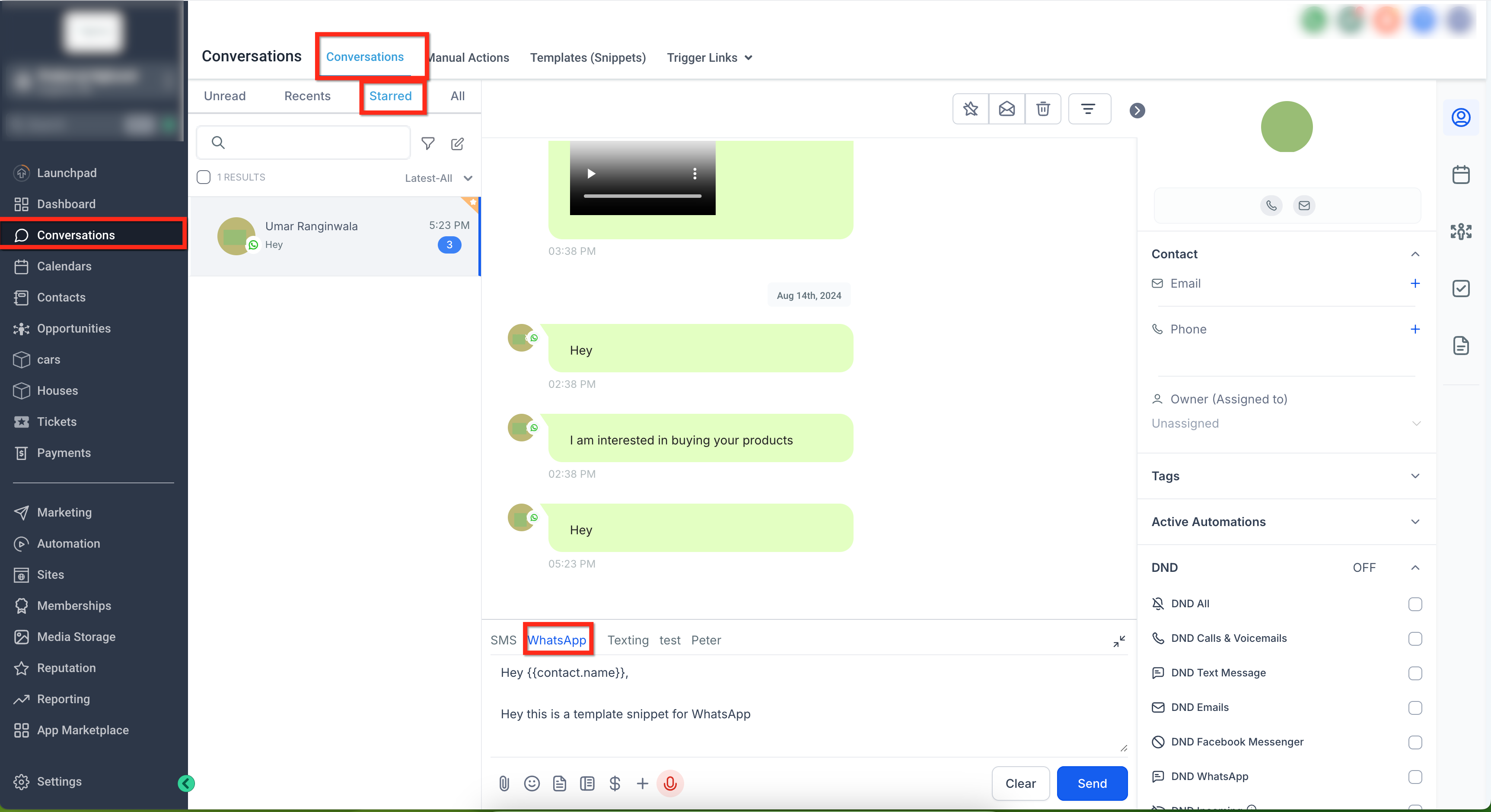
- Choose your snippet—it will drop into the composer
- Edit the message if needed (you can add custom fields or links)
- Click Send
Step 3: Preview WhatsApp Templates Before Sending
When you need to message a parent outside the 24-hour window, you'll use a pre-approved WhatsApp template. Now you can see exactly what you're sending before you hit send.
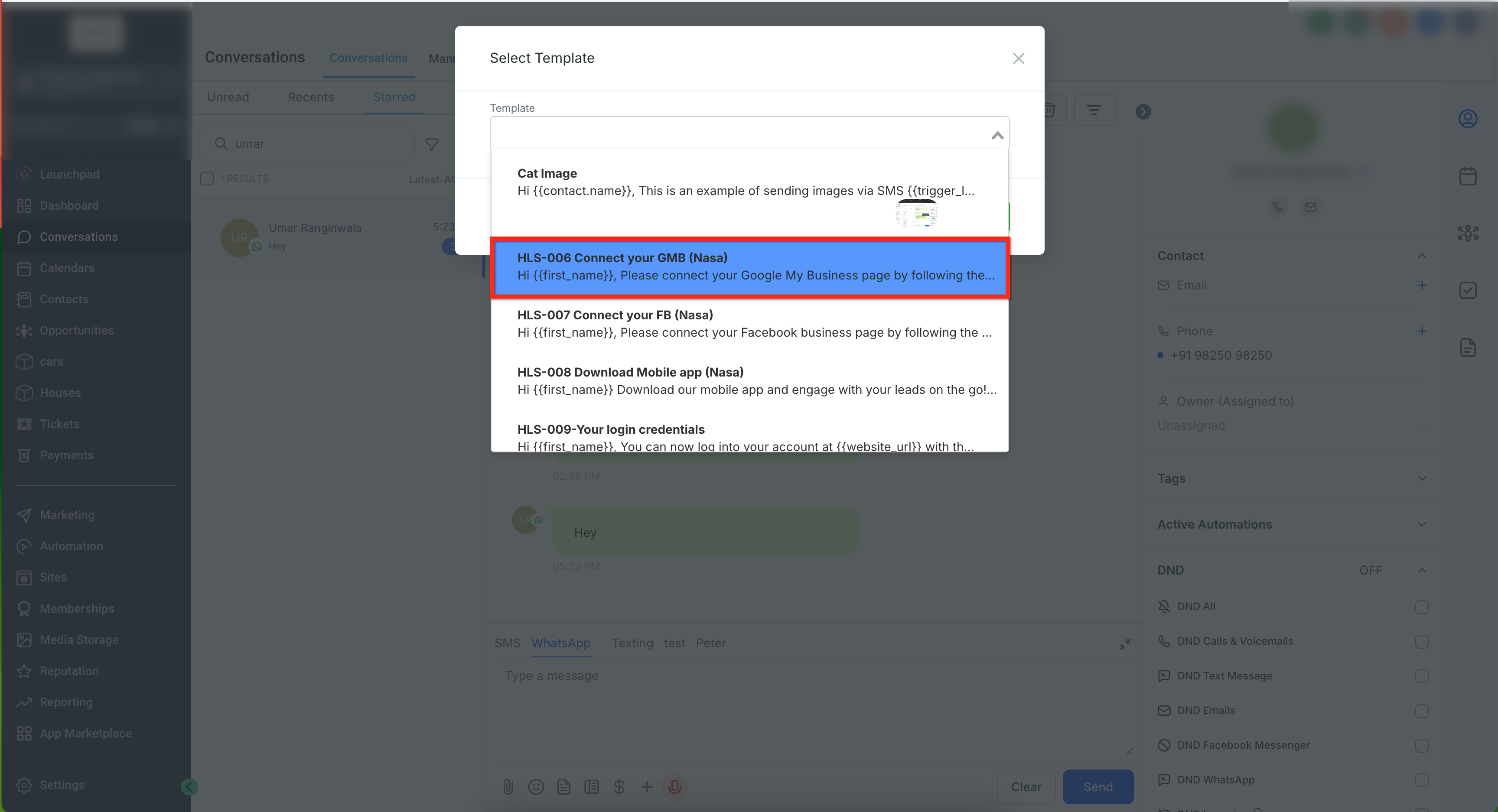
- In Conversations or Bulk Actions, choose WhatsApp Template as your message type
- Select a template from the list
- The preview appears instantly—showing the full message, template category (Marketing, Utility, etc.), and language
- Review the preview to make sure it's the right message
- Proceed to send or schedule
Step 4: Replace Media in a Template
If your WhatsApp template includes an image, PDF, or video, you can swap it out for a different file without changing the saved template.
- Select a WhatsApp template that contains media
- You'll see the current media in the preview with a Replace media button
- Click Replace media
- Choose a file from your computer (your file browser will open)
- The new media replaces the original in your preview
- Review and send
Important: This swap only applies to this message. Your saved template stays unchanged—you're just customizing this one send.
Step 5: Send Snippets or Templates via Automations
Automations let you send WhatsApp messages automatically based on triggers like new tour bookings or enrollment form submissions.
- Go to Automations → Create Automation (or edit an existing one)
- Add your trigger (e.g., "Tour scheduled" or "Waitlist form submitted")
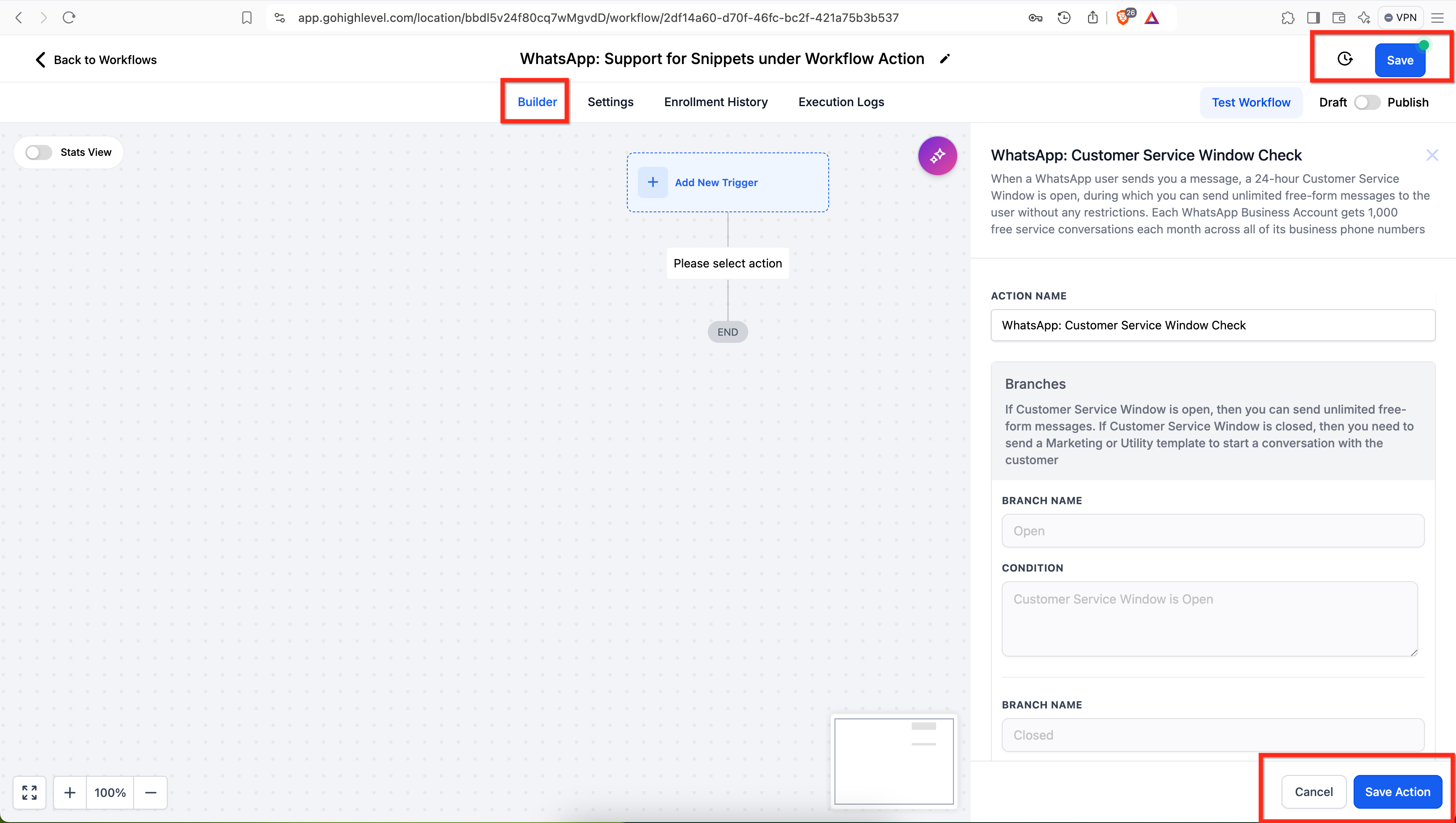
- Add action: WhatsApp: Customer Service Window Check to confirm the parent is within the 24-hour window
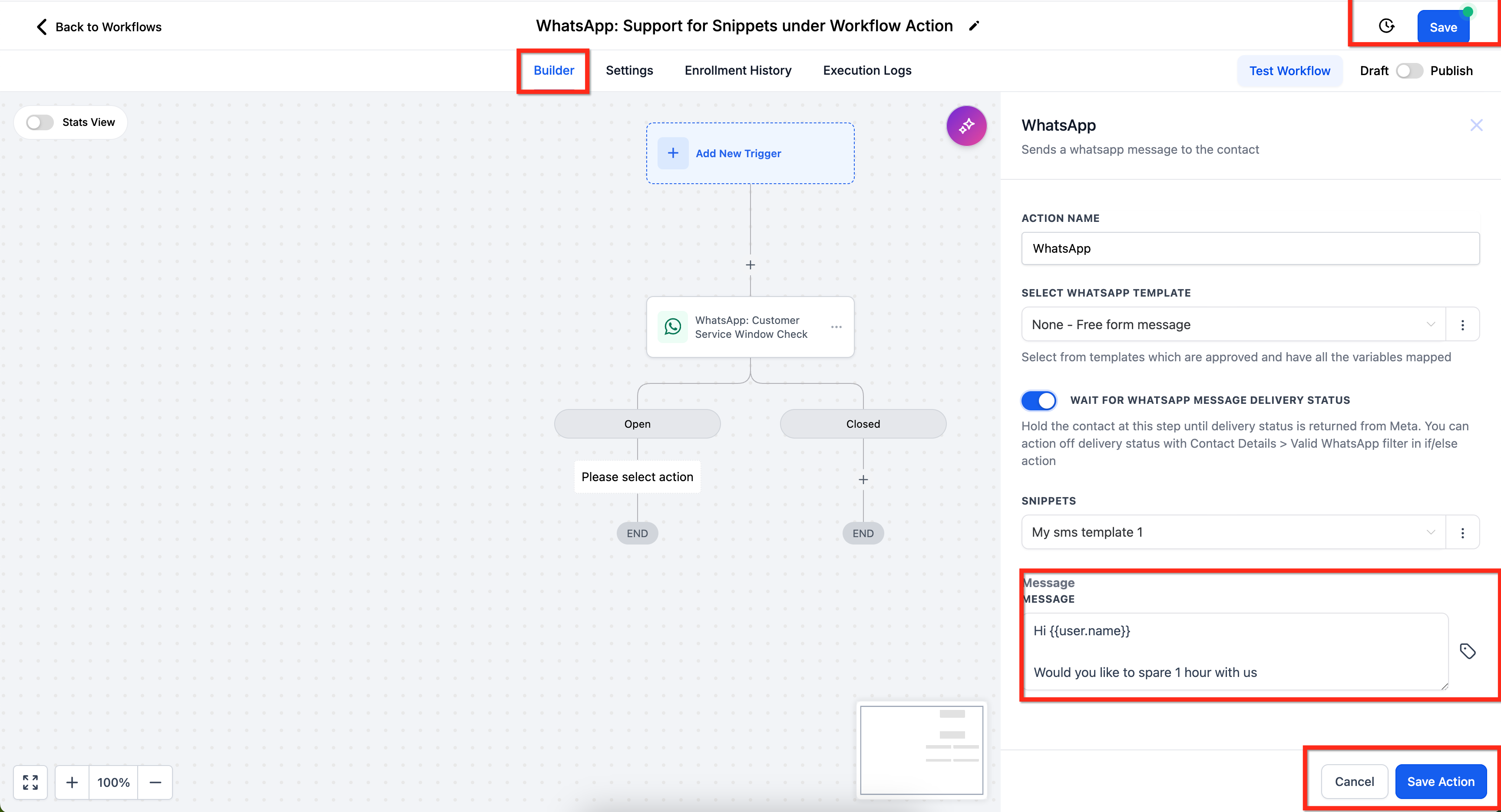
- Under the Open branch, add a WhatsApp action
- Choose WhatsApp Template if you're messaging outside the window, or Free form message to insert snippet content
- If using a template, you'll see the same preview and media-replacement options as in Conversations
- Save and publish your automation
Step 6: Send Templates in Bulk
When you need to message multiple families at once (like a tuition reminder or program update), use bulk messaging.
- Go to Contacts and select the families you want to message (or use filters to find them)
- Click Bulk Action → Send WhatsApp
- Select WhatsApp Template
- Use the preview to verify the message category and language
- If the template has media, click Replace media to upload a different file if needed
- Confirm and send
Remember: Make sure your recipients have opted in to receive WhatsApp messages and that your content follows WhatsApp's messaging policies.
Troubleshooting
I don't see the template preview or Replace media option
Try refreshing your conversation window. If it still doesn't appear, check Client Account → Labs to see if the updated UI is available as an optional feature. Contact support if you need help enabling it.
Media replacement isn't working
Check that your file meets WhatsApp's requirements (correct file type and size). Common limits: images under 5MB, documents under 100MB, videos under 16MB.
My template still looks wrong after replacing media
WhatsApp templates must follow Meta's approved structure. Replacing media doesn't change the template format—only the media file itself. If the template structure needs editing, you'll need to submit a new template for approval through WhatsApp Business.
Frequently Asked Questions
What's the difference between snippets and WhatsApp templates?
Snippets are your internal quick-reply messages. You can use them any time during an active conversation (within 24 hours of the parent's last message). You create and edit them freely in Enrollio—no approval needed.
WhatsApp Templates are pre-approved messages required when you need to message parents outside the 24-hour window. These must be submitted to and approved by WhatsApp/Meta before you can use them.
Can I use snippets to start a conversation with a parent?
No. Snippets only work within the 24-hour conversation window—meaning the parent must have sent you a message in the last 24 hours. To initiate contact outside that window, you need a pre-approved WhatsApp template.
Does replacing media in a template change the saved template?
No. When you replace media, you're only swapping the file for that specific message send. Your saved template remains exactly as it was—with the original media intact.
Can I preview templates in automations?
Yes. When you add a WhatsApp template action to an automation, you'll see the same preview and media-replacement options as you do in the conversation window.
What file types can I use when replacing template media?
WhatsApp supports images (JPEG, PNG), documents (PDF), and videos (MP4, 3GP). Your file must meet WhatsApp's size limits: images under 5MB, documents under 100MB, videos under 16MB.