
What's New
We're excited to introduce the Subscribe to Blog feature that helps you turn your readers into loyal subscribers directly from your blog. With a simple drag-and-drop form, you can start collecting email subscribers, grow your audience, and automate blog updates via email campaigns.
- Drag & Drop Form – Add a subscription form anywhere on your blog page
- Custom Styling – Change titles, descriptions, fonts, button text, and colors
- Layout Options – Choose between Plain or With Image layout
- Automatic Contact Creation – Each submission is automatically saved as a family in your CRM
- Smart Tagging – Subscribers get tagged (e.g., "Blog") so you can target them in email campaigns
How to Add a Blog Subscribe Form
Step 1: Open Your Blog Site Editor
- Go to Sites
- Select your Blog Site
- Click on Blog Builder → Site Editor
This opens the page editor where you can add and customize blog elements.
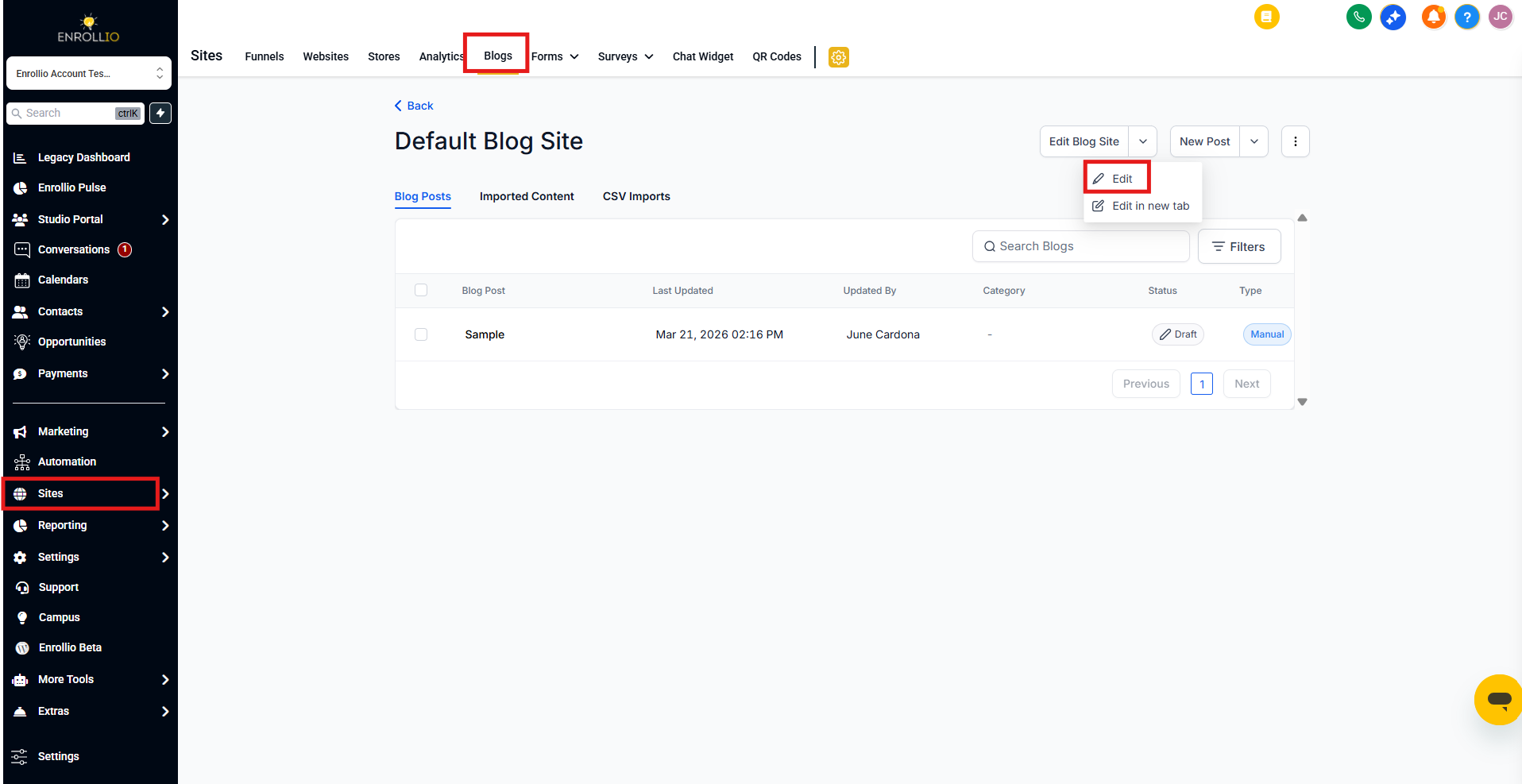
Step 2: Add Subscribe Form
In the editor, drag and drop the Subscribe form element onto your blog page.
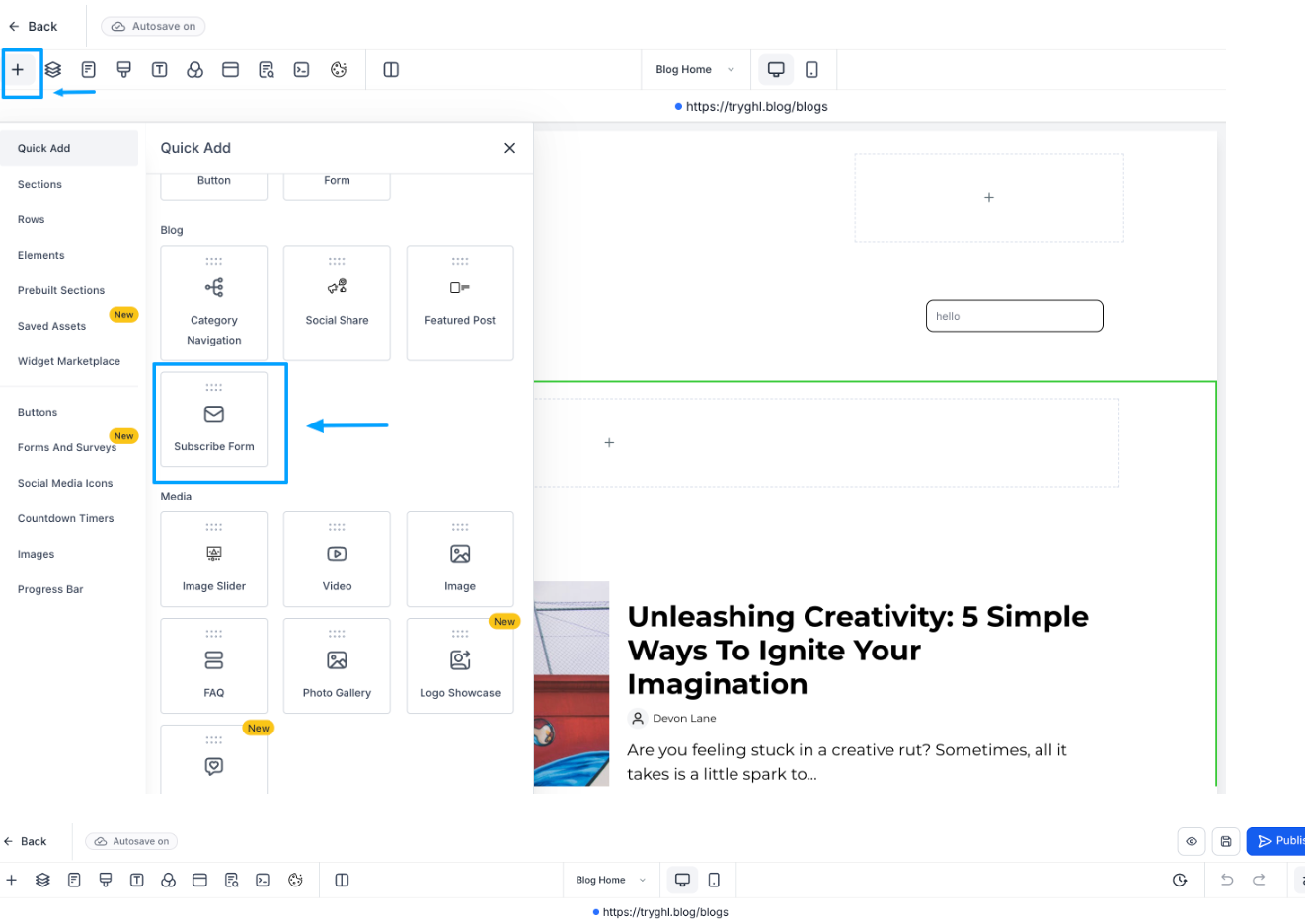
Step 3: Customize the Form
Click on the Subscribe form to open the customization panel. Here you can:
- Edit the Title (e.g., "Subscribe to Our Blog")
- Add a Description (e.g., "Get the latest posts delivered straight to your inbox")
- Customize Button Text (e.g., "Subscribe Now")
- Choose your preferred layout (Plain / With Image)
- Adjust fonts, colors, and spacing to match your site style
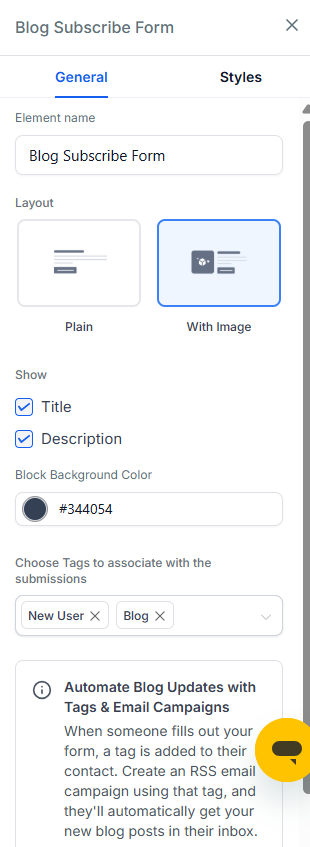
Step 4: Publish Your Blog Page
Once the form looks the way you want, click Publish to make it live.
Visitors can now enter their email and subscribe directly from your blog.
Step 5: View Your New Subscribers
Every new subscriber is automatically created as a family in your CRM. A Blog Tag is applied to them so you can easily identify and target blog subscribers later.
Automate Blog Updates with Tags & Email Campaigns
You can make sure that subscribers automatically receive your new blog posts by setting up an email campaign with RSS feeds.
Step 1: Create Email Campaign with Blog RSS
- Go to Marketing → Email Campaigns
- Create a new campaign
- Add RSS Header and RSS Items elements to the email body
RSS Header shows the blog's title and summary. RSS Items display the list of new blog posts.
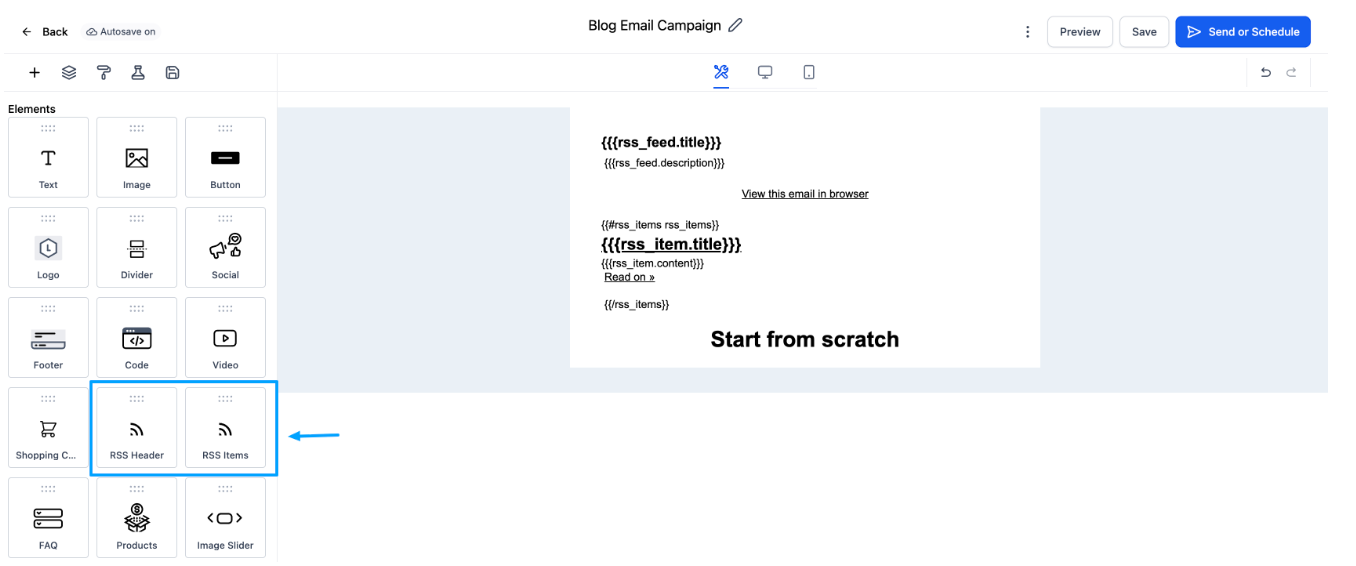
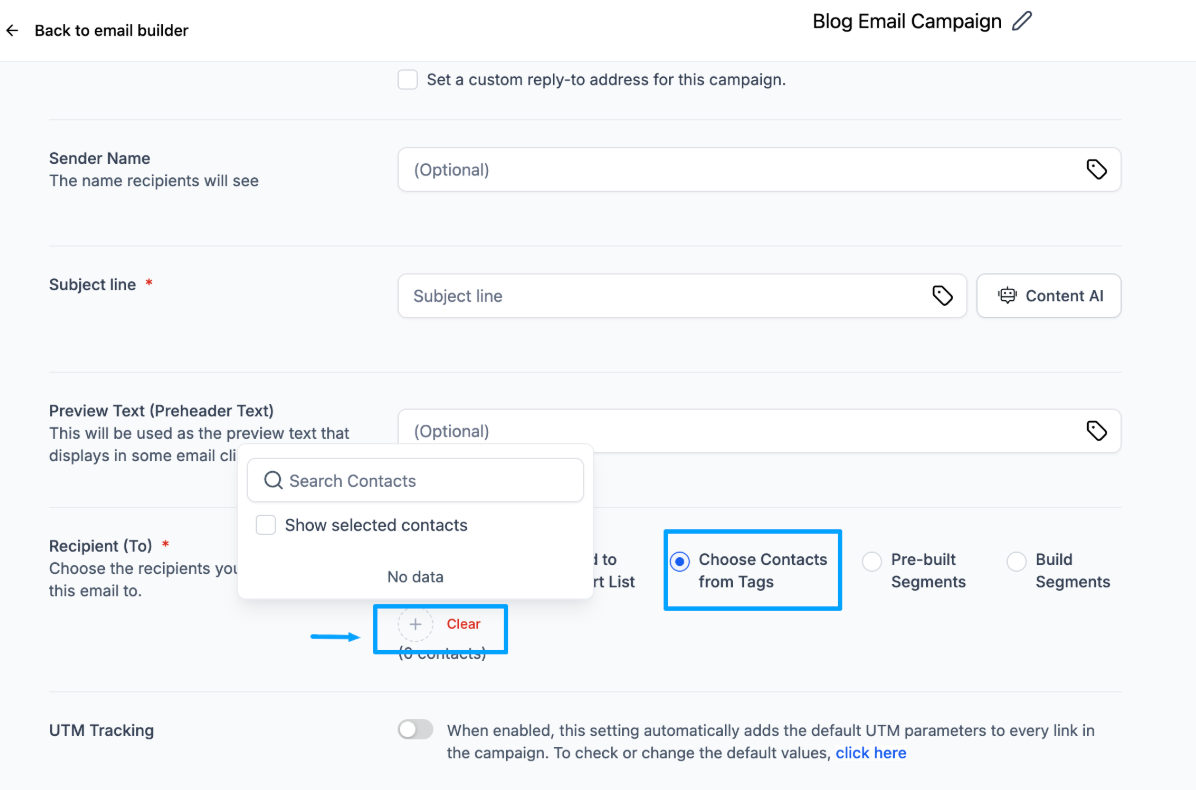
Step 2: Configure Campaign & Recipients
When scheduling the campaign:
- Select RSS Schedule so it automatically pulls in your latest blog posts
- Under Recipients, choose Contacts from Tag → Blog
- Save the campaign
Now, every time someone subscribes, they'll automatically receive your new blog posts in their inbox.
💡 Pro Tip
Consider creating different blog tags for different topics (like "Enrollment Tips" or "Parent Resources") so you can send more targeted content to different subscriber segments.
Why It Matters
- Effortless Lead Capture – Turn casual blog readers into prospective families
- Grow Your Email List – Build your audience without extra effort
- Automated Campaigns – Keep subscribers engaged with the latest posts
- Targeted Marketing – Use tags to create segmented campaigns for better results
Frequently Asked Questions
Can I add more than one Subscribe Form on my blog?
Yes. You can drag and drop multiple forms (e.g., one in the sidebar, one in the footer). All subscriptions will still create families in your CRM with the same tag.
Where do my subscribers go after they sign up?
All subscribers are automatically saved in your CRM with the tag you assign. You can find them by filtering your families by the "Blog" tag.
Can I customize the button text and design?
Absolutely. You can edit the button text, font, color, and layout directly in the Site Editor to match your brand.
What happens if I don't set up an email campaign?
Subscribers will still be collected in your CRM, but they won't receive automatic blog updates. You'll need to manually send emails or set up the RSS campaign to keep them engaged.
Can subscribers unsubscribe later?
Currently, we do not support automatic unsubscribe functionality for blog subscribers. You'll need to manually remove families from the blog tag if they request to unsubscribe.
Will this affect my SEO?
No. The Subscribe form is just a front-end element and does not affect your blog's SEO performance.