
Social Media Icons
Connect families with your childcare center's social media presence by adding clickable icons to your enrollment site. No code required—just drag, drop, and link.
What Are Social Media Icons?
Social media icons are clickable graphics that link directly to your center's Facebook, Instagram, YouTube, or other social profiles. They help families stay connected with your program and see your latest updates, photos, and announcements.
You can add these icons to any page on your enrollment site—homepage, tour request pages, parent resources, or contact pages.
Why Add Social Icons to Your Site
- Boost Engagement: Make it easy for prospective families to follow you and see what makes your center special
- Build Trust: Active social profiles show families you're engaged with your community
- No Coding: Drag and drop icons into place—no technical skills needed
- Flexible Design: Show icons only, text only, or both—your choice
How to Add Social Icons
Follow these steps to add social media icons to your enrollment site:
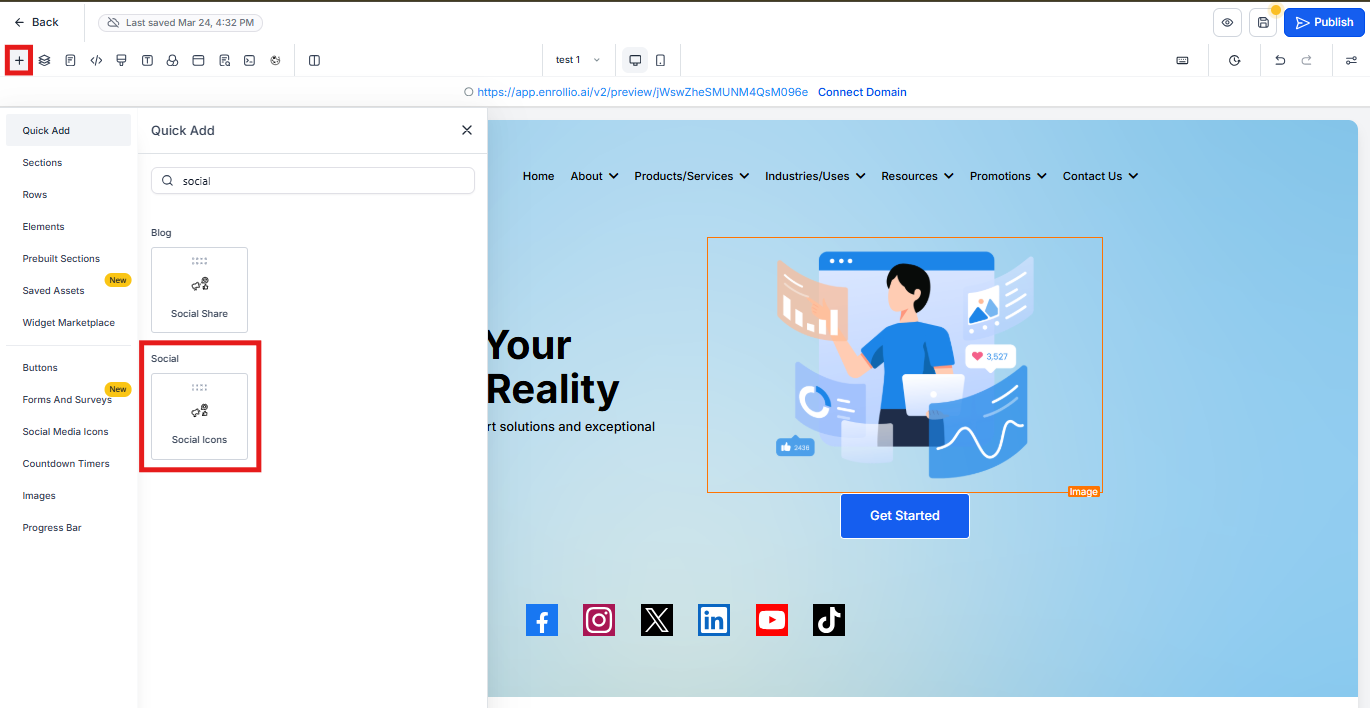
- Open your enrollment site in the Website Builder
- Click + Add Element
- Find Social Icons (under the "Social" category)
- Drag it into your desired section
Customizing Your Social Icons
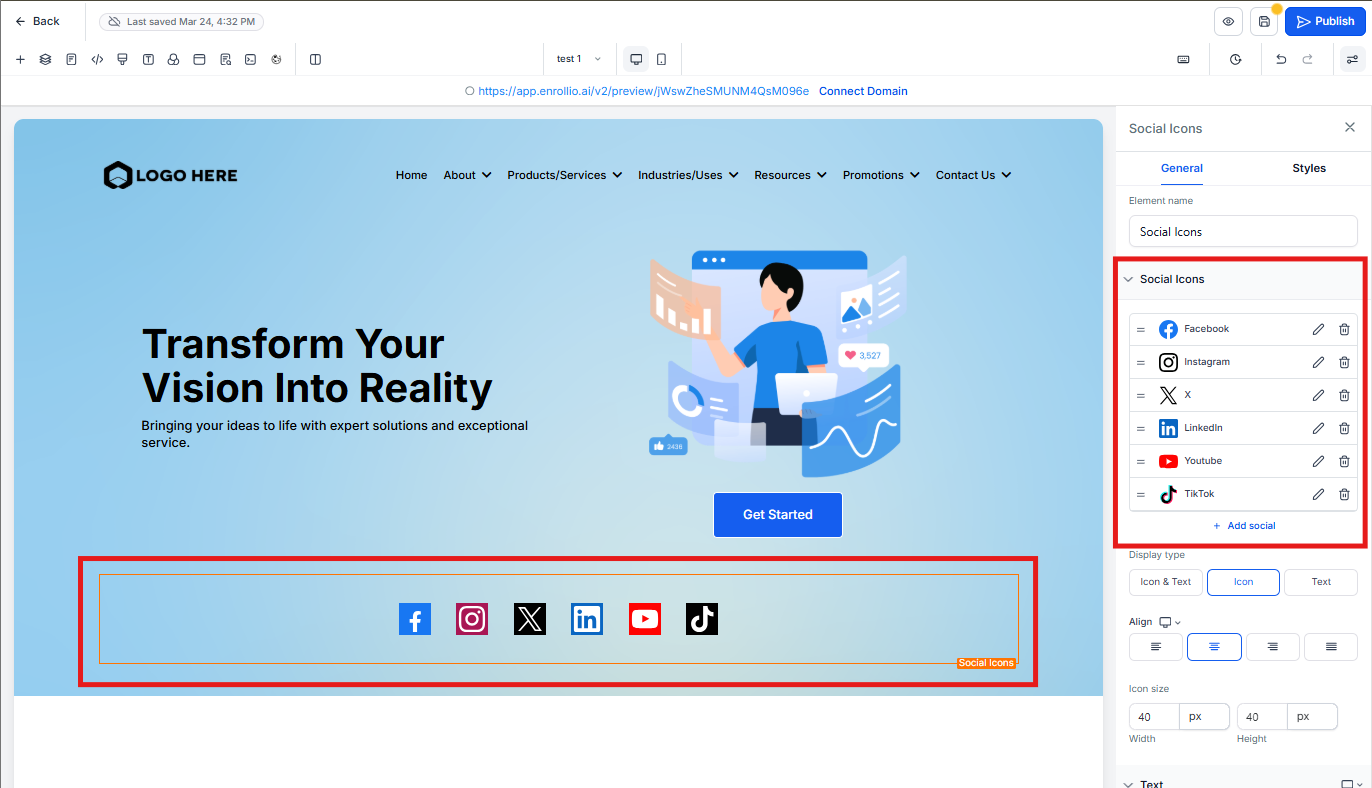
Once you've added the icons, customize them to match your brand and link to your profiles.
Reorder Icons
Drag and drop icons using the "3 Lines" handle to change their order. Put your most active platforms first.
Add Profile Links
Click the pencil icon next to any icon to enter your profile URL. For example, paste your center's Facebook page URL to link the Facebook icon.
Remove Unused Icons
Click the trash icon to delete any social platform you don't use. Keep it clean and focused on where you're actually active.
Add More Platforms
Click + Add Social to add icons for additional platforms or restore ones you've deleted.
Display Options
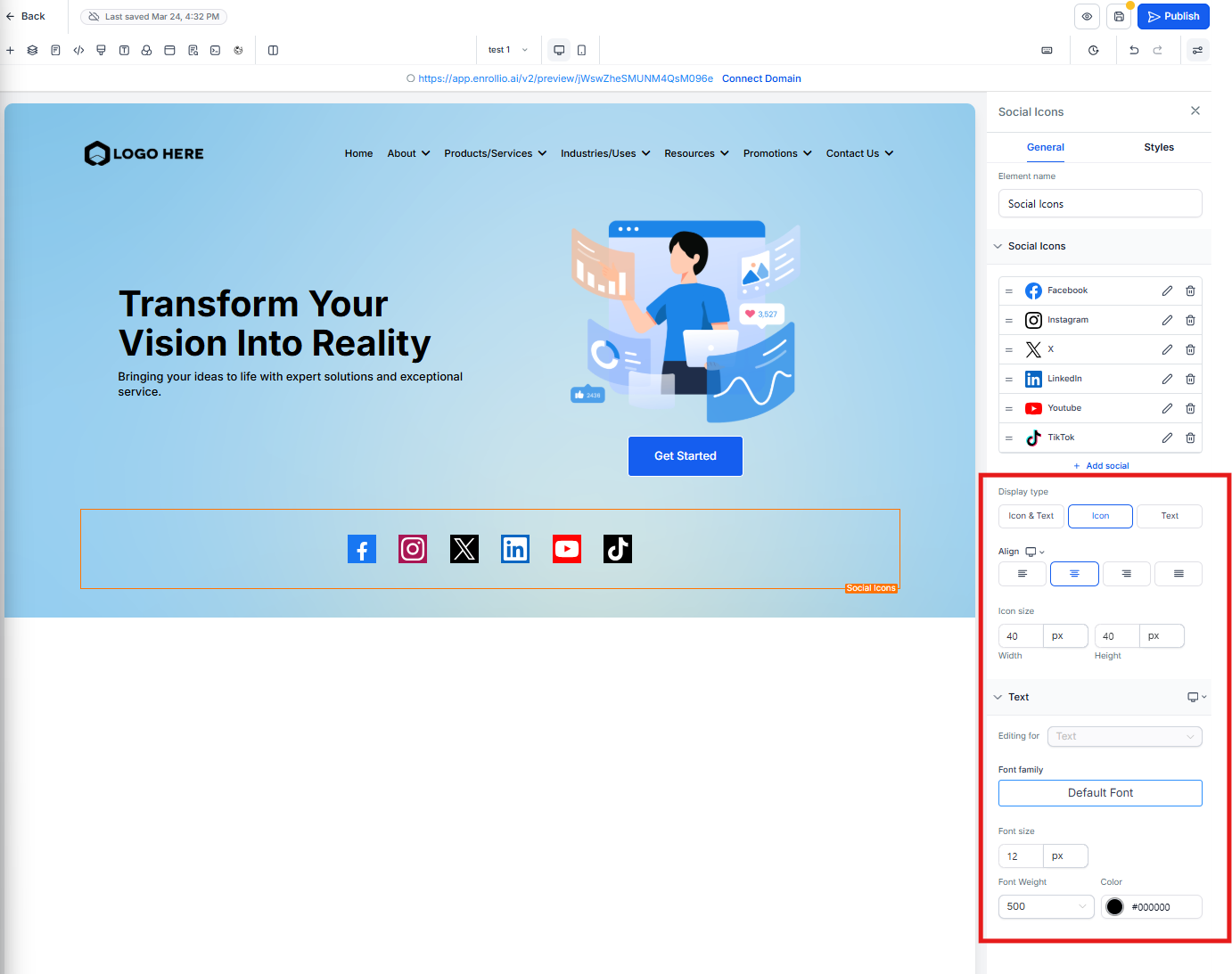
Choose how each icon appears:
- Icon Only: Just the graphic (compact and clean)
- Text Only: Platform name as a text link
- Icon & Text: Both graphic and text label
Alignment and Size
Align your icons left, center, or right to match your page layout. Adjust the width and height (in pixels) to fit your design.
Supported Social Platforms
You can add icons for these platforms:
- X (Twitter)
- YouTube
- TikTok
- Email (mailto link)
- Website (custom link)
Frequently Asked Questions
Do the icons work on mobile devices?
Yes. Social icons are fully responsive and adjust automatically for mobile screens. You can fine-tune the size and alignment for mobile if needed.
Are my social profiles automatically linked?
No. You need to add your profile URLs manually. Click the pencil icon next to each platform and paste in your profile link.
Can I use custom icons for my brand?
The element includes standard platform icons. For custom branding, you can use image elements or buttons with your own graphics instead.