
Social Planner - Category Queue
Looking to automate your evergreen social media content? Enrollio's Category Queue feature helps you group posts by category and schedule them to publish in a recurring loop. This means you can set up your content once and let it run automatically—perfect for busy childcare owners who want to stay active on social media without the daily hassle.
This guide walks you through how Category Queues work, how to set them up, and best practices for maximizing your reach across platforms.
Table of Contents
- What's a Category Queue in Social Planner?
- Key Benefits of Category Queue
- How to Use Category Queue
- How to Edit a Category Queue
- Frequently Asked Questions
What's a Category Queue in Social Planner?
A Category Queue lets you group your evergreen social media posts by topic (like "Parent Tips," "Program Highlights," or "Staff Spotlights") and schedule them to post automatically in rotation.
Instead of scheduling individual posts one by one, you schedule an entire category. Enrollio cycles through all the posts in that category, and when it reaches the end, it starts over from the beginning. This means your best content keeps working for you, month after month.
You can include posts you've already published, plus any future posts you tag with the same category—they'll automatically join the queue.
Key Benefits of Category Queue
Automated Evergreen Scheduling
Set your content to cycle through a category and post consistently without manually rescheduling each item. Perfect for sharing enrollment tips, program updates, or parent testimonials on repeat.
Reuse Published & Future Content
Easily repurpose posts you've already published and automatically include future content tagged to the same category.
Priority Control for New Content
Choose to prioritize newer content so it appears earlier in the queue, keeping your feed fresh and relevant.
Custom Scheduling by Category
Define specific days and times for each queue to ensure posts go live when parents are most active on social media.
Future-Proof Content Planning
Enable future posting to seamlessly integrate new content into your ongoing publishing strategy.
How to Use Category Queue in Social Planner
Note: You'll need a list of published posts tagged to a category before creating a new Category Queue. If you don't have any yet, you can create new posts as part of the queue setup.
Create a Category Queue
- Log in to your client account.
- Go to Marketing > Social Planner.
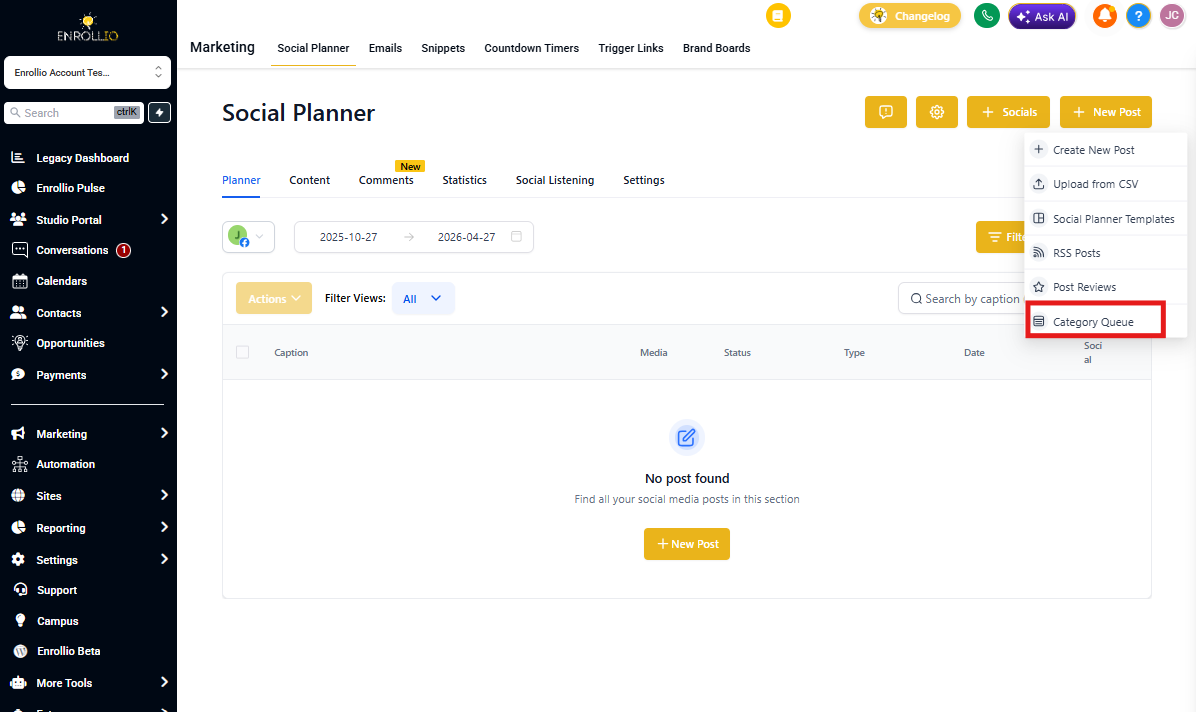
- Click the + New Post button, then select Category Queue.
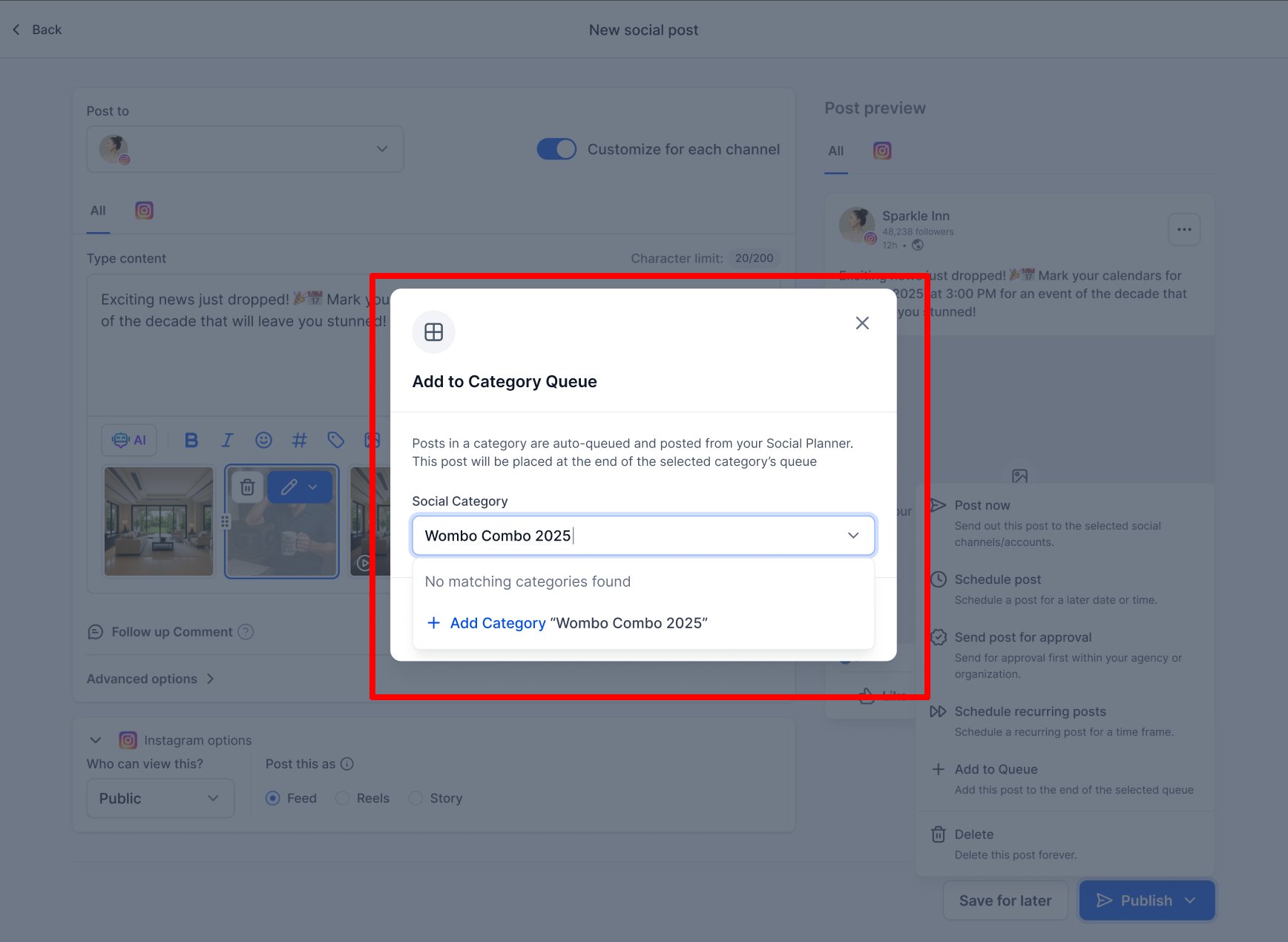
- Select a Category from the dropdown—or create a new one by typing its name (like "Enrollment Tips" or "Parent Resources").
- Choose your queue options:
- Future Posting: Check this to automatically add any upcoming content you publish with this category tag to the queue.
- Prioritise Content: Check this to add new content to the front of the queue so it publishes first.
- Click Continue.
Set Your Posting Schedule
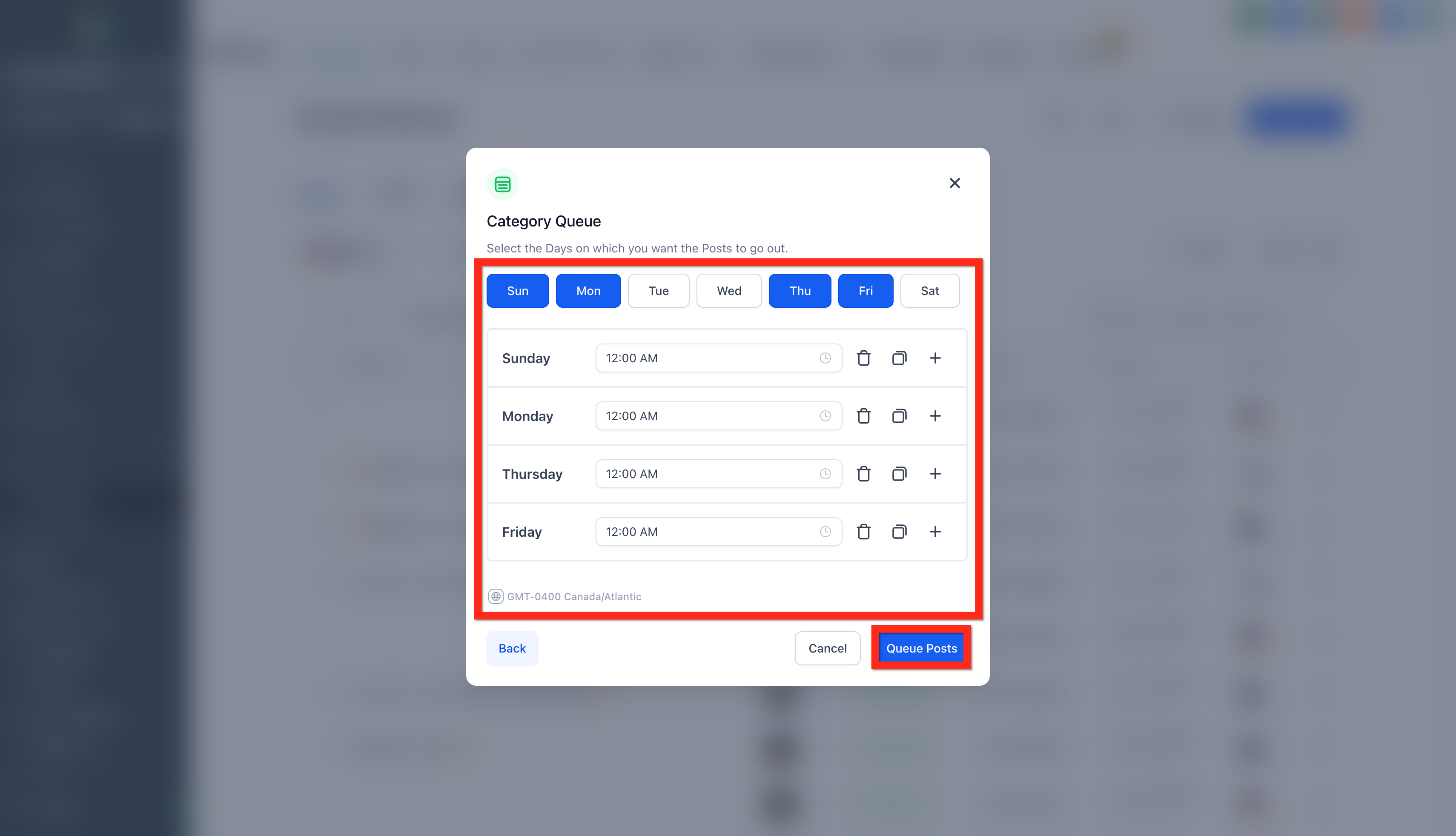
- Select the Days and Times you want posts to publish (e.g., Mondays and Thursdays at 10 AM).
- Click Queue Posts.
Review and Edit Your Queue
- Review the media and content for each post in the queue.
- Click New Post if you want to add a brand-new post anywhere in the sequence.
- Add multiple content variations if you want to shuffle different versions of the same post to keep your feed fresh.
- Fix any errors shown by caution, error, or warning messages.
- Click Queue Posts to schedule everything (if no errors are present).
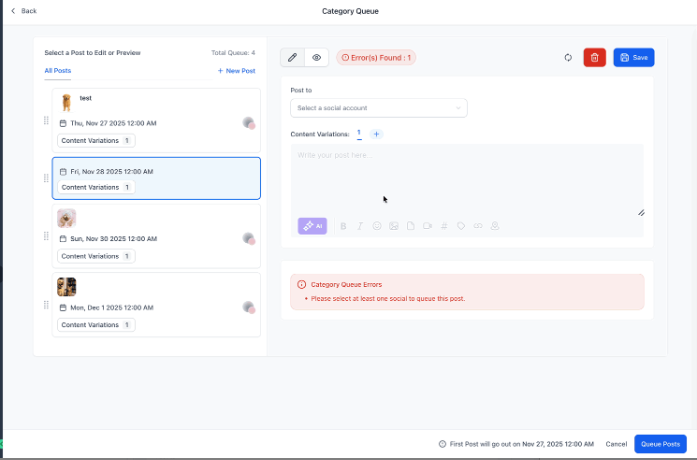
Pro Tip: You can also Save as Draft, Delete, or Reset the queue at any time.
Pause or Resume a Queue
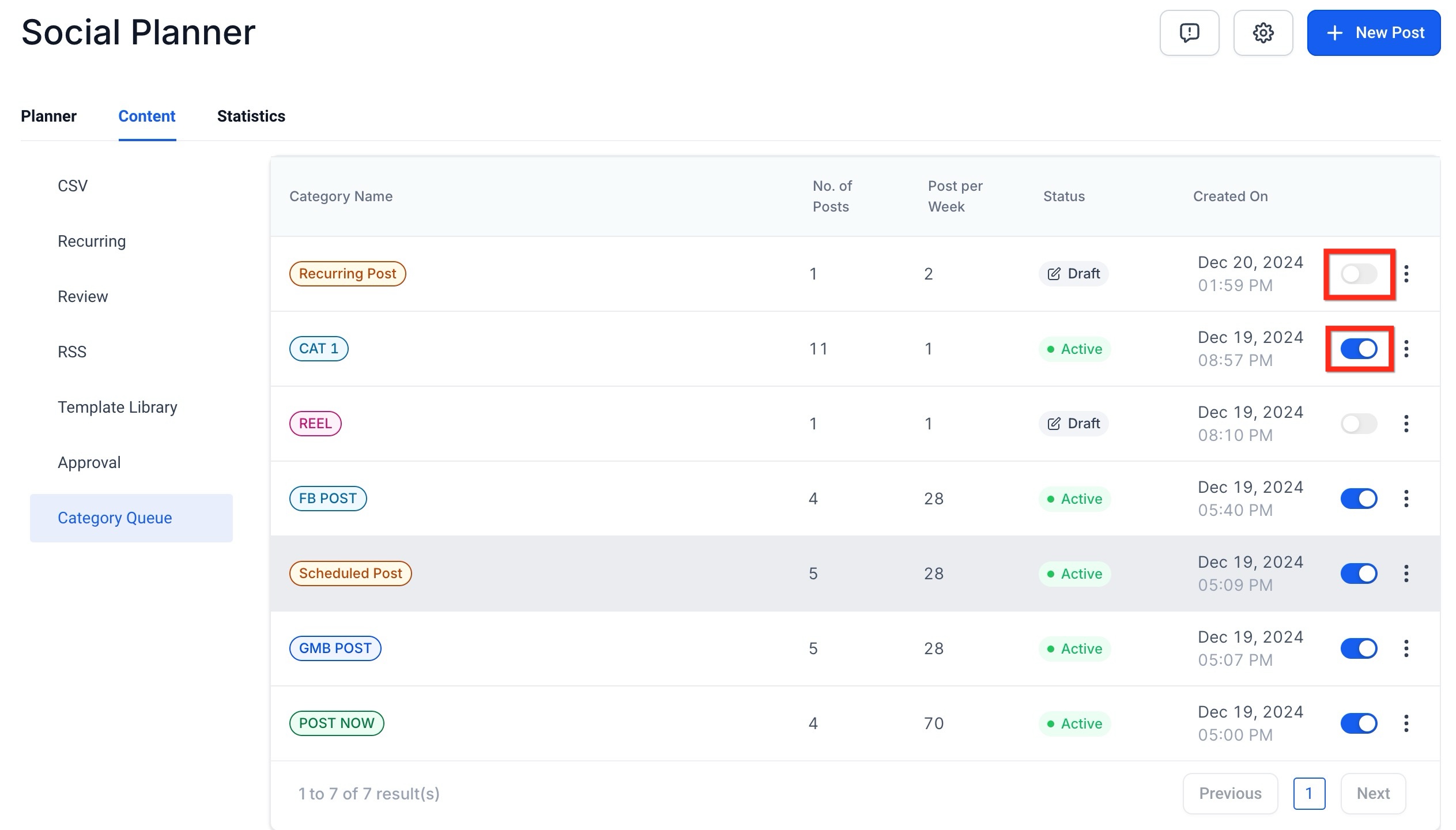
You can pause or resume any Category Queue from the Content tab by toggling the switch on or off. This is helpful if you want to temporarily stop a queue without deleting it.
How to Edit a Category Queue
You can edit, reorder, reschedule, and control how new posts are added to your queue—no need to rebuild it from scratch.
- Click on an existing Category Queue in your Social Planner.
- Click the three dots menu to view editing options.
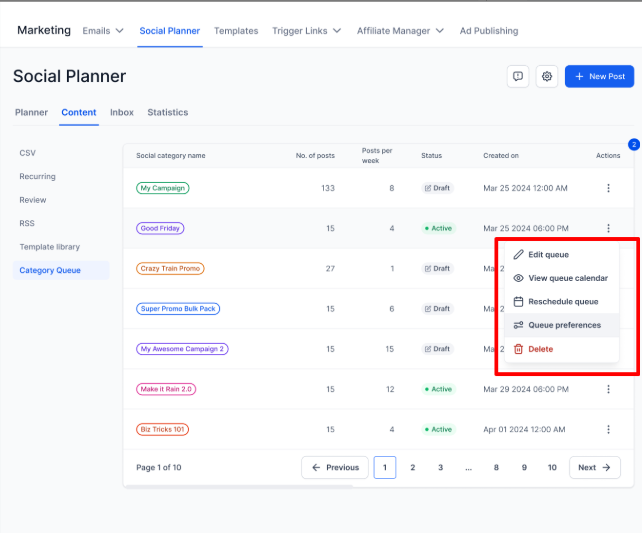
1. Edit Category Queue
Update your queue details without deleting or recreating it:
- Edit post details, captions, and media
- Change posting frequency (daily, weekly, etc.)
- Adjust timeslots
- Reorder posts by dragging and dropping
2. Queue Preference
Control where new posts appear when you add them to the queue:
- Prioritise New Content (Checked): The post is added to the top of the queue
- Prioritise New Content (Unchecked): The post is added to the end of the queue
- Enable Future Queue: Automatically adds all future posts with this category tag to the queue
3. View Queue Calendar
See your entire queue visually on a calendar in weekly or monthly view. Use the calendar to:
- See how posts are distributed over time
- Identify gaps or content-heavy days
- Plan around special events or enrollment seasons
4. Reschedule Entire Queue
Need to shift your campaign dates? You can move the entire queue to start from a new date using a simple date picker. All posts will auto-adjust based on your existing frequency rules.
Example: If your enrollment campaign is postponed by a week, simply pick a new start date and all posts in the queue will shift accordingly.
Note: You cannot reschedule individual posts within a queue. The entire queue moves together.
5. Add Posts to Queue from Post Composer
While creating a new post in Social Planner, you can add it directly to a Category Queue:
- Select an existing category → the post goes to that queue
- Create a new category → a fresh queue is created automatically
Important Things to Know
- Category Queues work with posts you've already published (tagged to a category) or new posts you create.
- You can pause or resume queues anytime to fit your content planning needs.
- You can delete a queue if you no longer want that content to publish.
- You can edit the content of previously published posts while creating or managing a queue.
- You can add new posts in the middle of a queue, not just at the beginning or end.
- Rescheduling or reshuffling from the Category Queue Calendar is not currently supported.
Frequently Asked Questions
How can I include future posts in my Category Queue?
All previous and future posts tagged with the category will automatically be added to the queue if you enable Future Posting. If you want new posts to appear at the front of the queue, also check Prioritise Content.
Can I edit the scheduled date and time for a Category Queue?
You set the posting schedule when you create the queue. You can reschedule the entire queue to start from a new date, but you cannot change individual post dates within the queue.
How do I add new posts to an existing queue?
Open your queue and click New Post. Write your content, add media, and optionally create variations to rotate different versions. You can move the post to your desired position in the queue.
Can I add multiple variations of a post?
Yes. Variations let you rotate or shuffle different versions of the same post to keep your content fresh and unique.
What media can I use in queue posts?
You can add images or videos along with text to create richer, more engaging posts for parents and families.
Can I change the order of posts later?
Yes. Open your queue and drag and drop posts to adjust the sequence.