
Post Approval Flow in Social Planner
Social Planner includes a post approval flow that lets you have social media content reviewed by another team member before it goes live. This is especially helpful for childcare centers where marketing content needs director or owner approval before posting to parents and families.
How Post Approval Works
When you schedule a post for approval, the reviewer receives an email notification. They can approve, reject, or even edit the post before it goes to your social calendar. Once approved, the post schedules automatically.
Scheduling a Post for Approval
- Navigate to Marketing > Social Planner
- Create your post with content, images, hashtags, and any other media
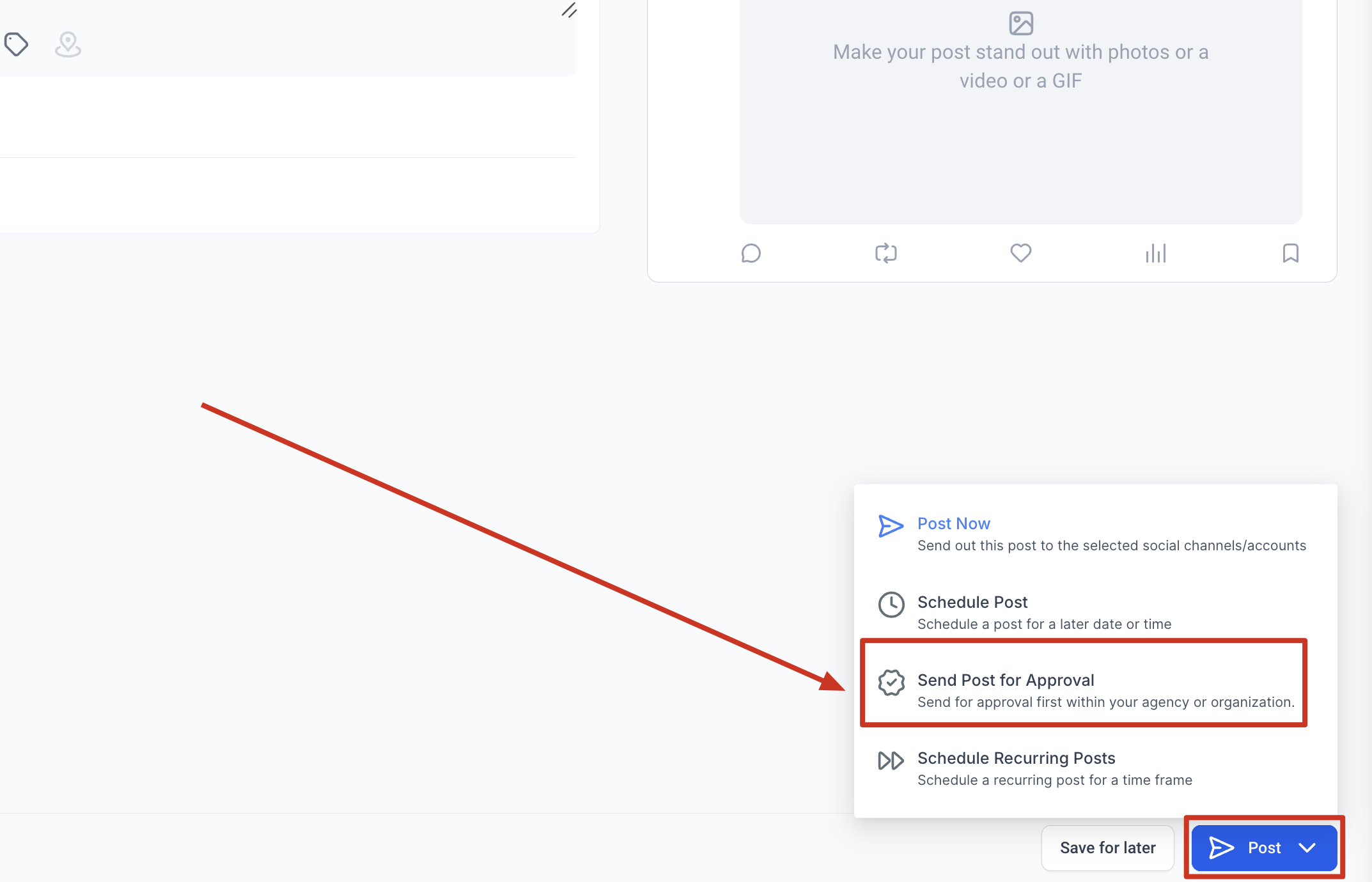
- Instead of scheduling directly, click Schedule for Approval
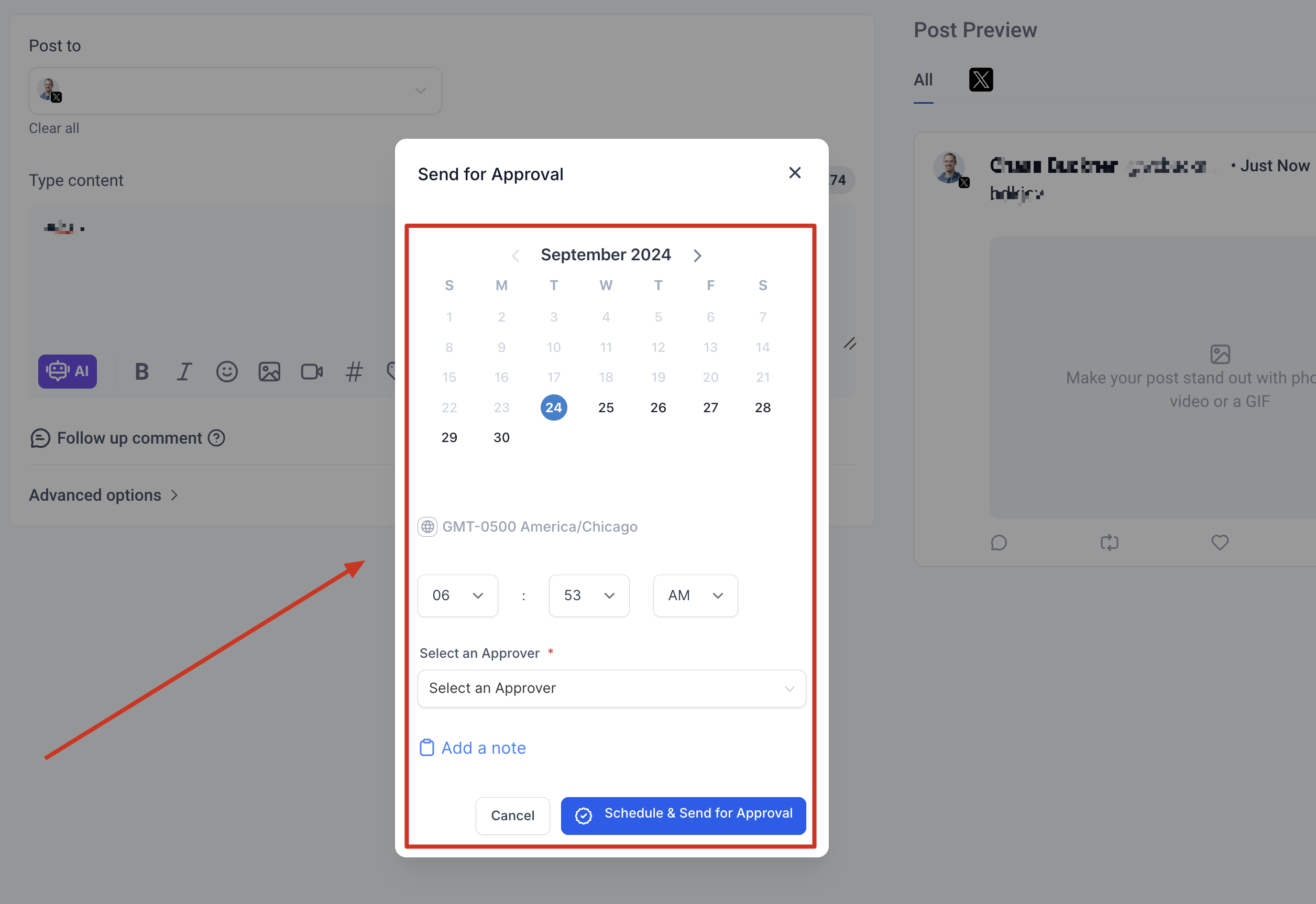
- Choose the date and time you want the post to publish (if approved)
- Select the team member who will approve the post
- Add an internal note with any context for the reviewer
- Submit for review
Reviewing and Approving Posts
When a post is submitted for approval, the reviewer gets an email notification. They can also find pending posts in Social Planner.
To review pending posts:
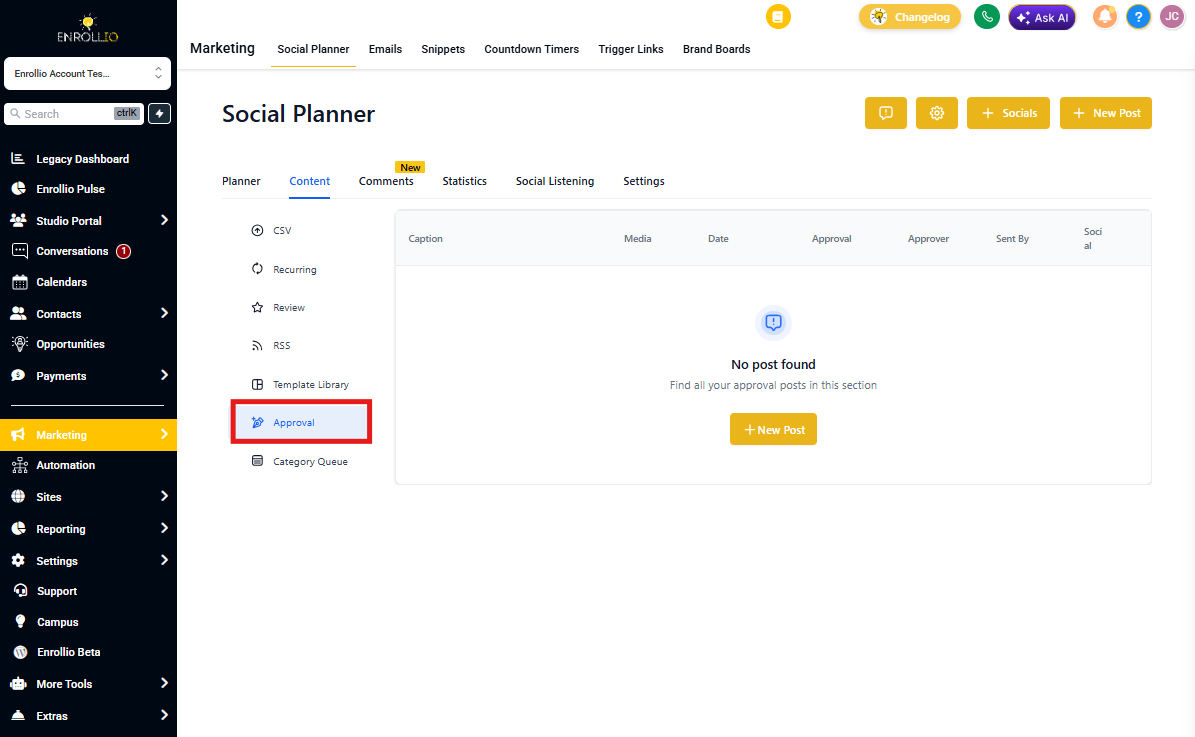
- Go to Marketing > Social Planner
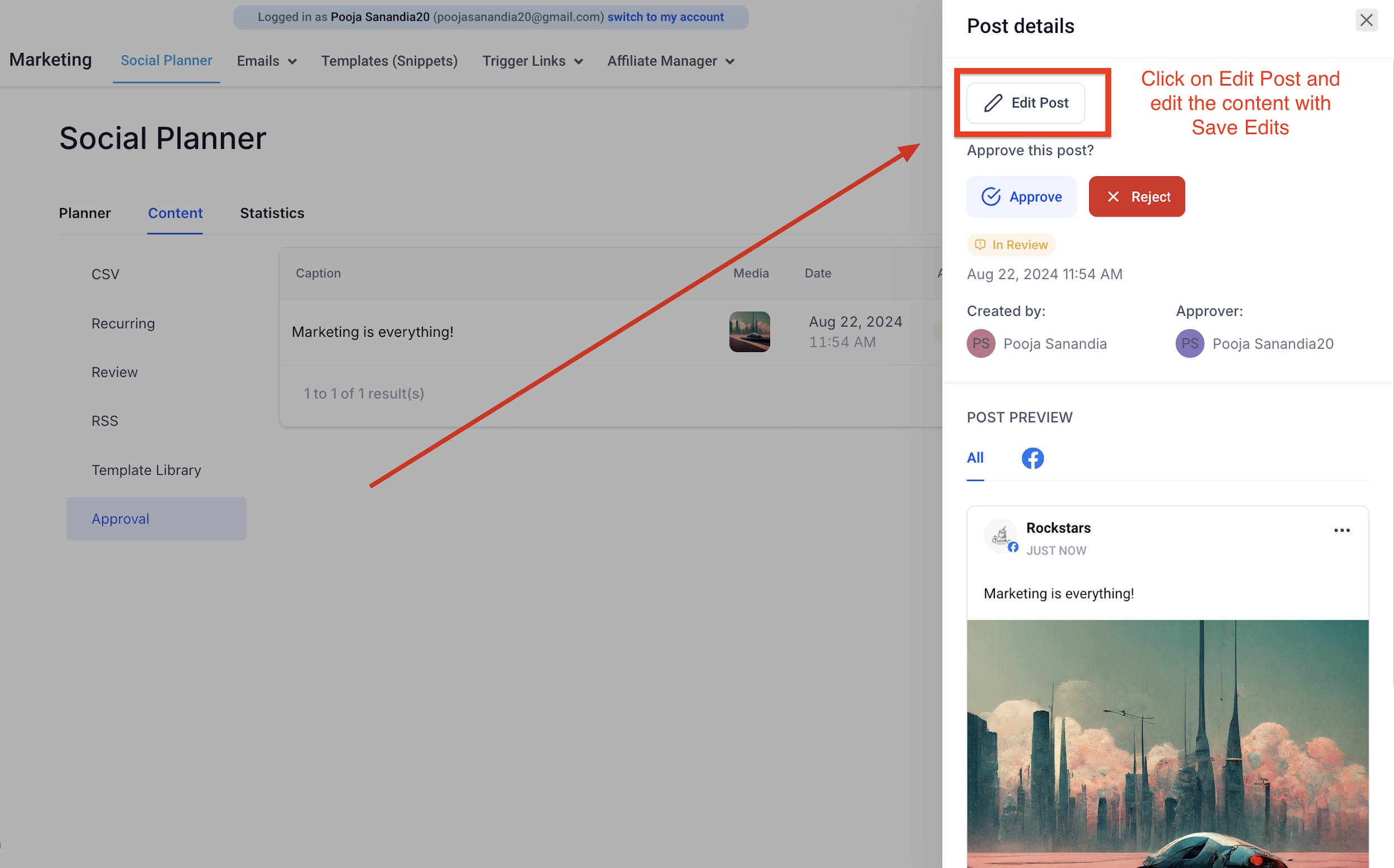
- Click the Approval tab
- You'll see all posts waiting for your review
Review options:
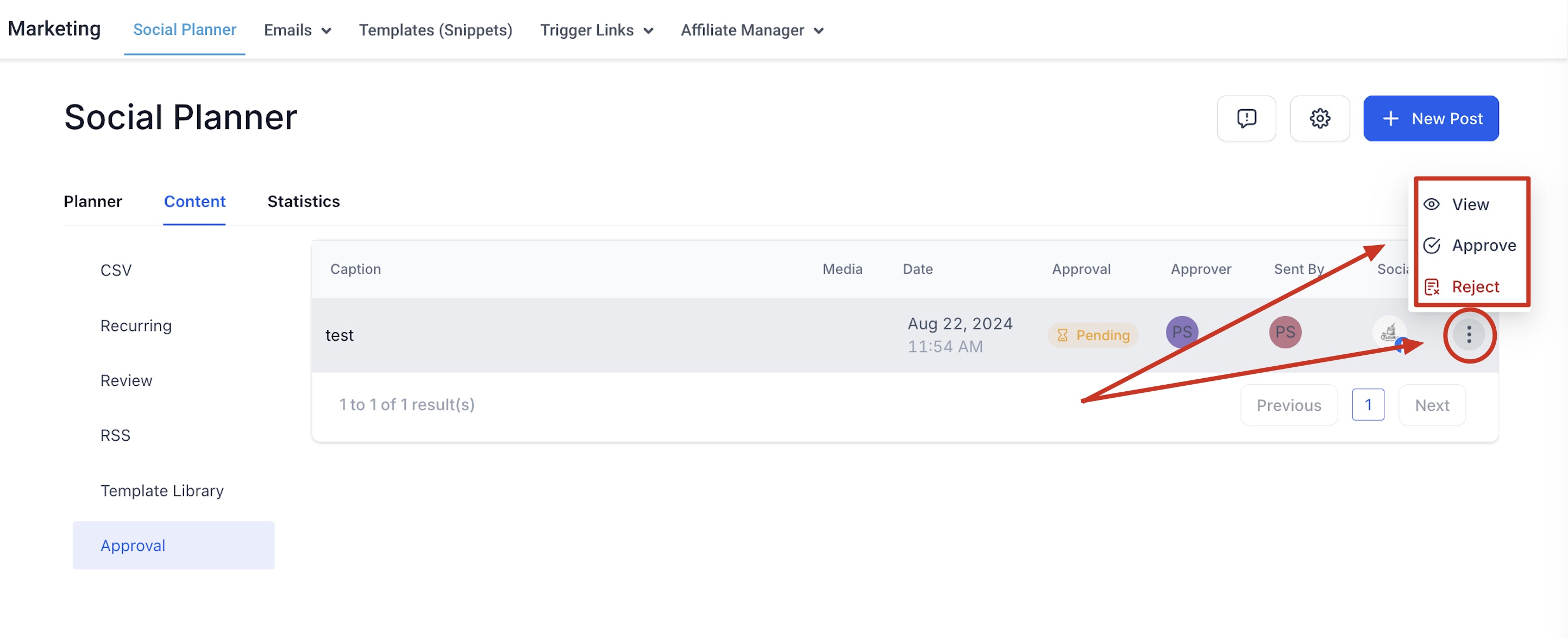
- View — See the full post details, including media and scheduled time
- Edit — Make changes to the content before approving
- Approve — Schedule the post to your social calendar
- Reject — Decline the post and add a comment explaining why
Rescheduling During Approval
Reviewers can change the publish date and time right from the approval screen. Click the scheduled date, choose a new time, then click Approve. The post will schedule at the updated time.
Customizing Approval Notification Emails
You can customize the email that approvers receive when a post needs review.
- Go to Marketing > Emails > Templates
- Click New > Email Marketing Templates
- In the Template Library, select System Templates > Social Planner: Post Approval
- Edit the template to match your center's branding
- Save your changes
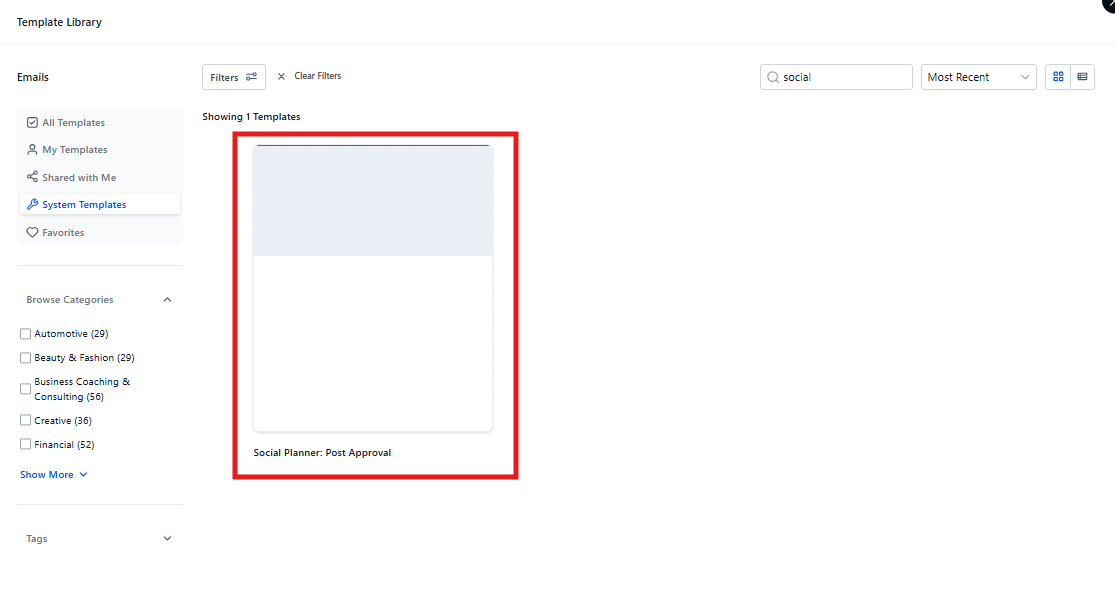
To apply your custom template:
- Navigate to Marketing > Social Planner > Settings > Notifications
- Under "Setup Email template for Social Post Approval", select your customized template
- Save your settings
Bulk Post Approval Using CSV
When you schedule multiple posts using a CSV file, you can send them all for approval at once.
- In Social Planner, click New Post
- Upload your CSV file with your scheduled posts
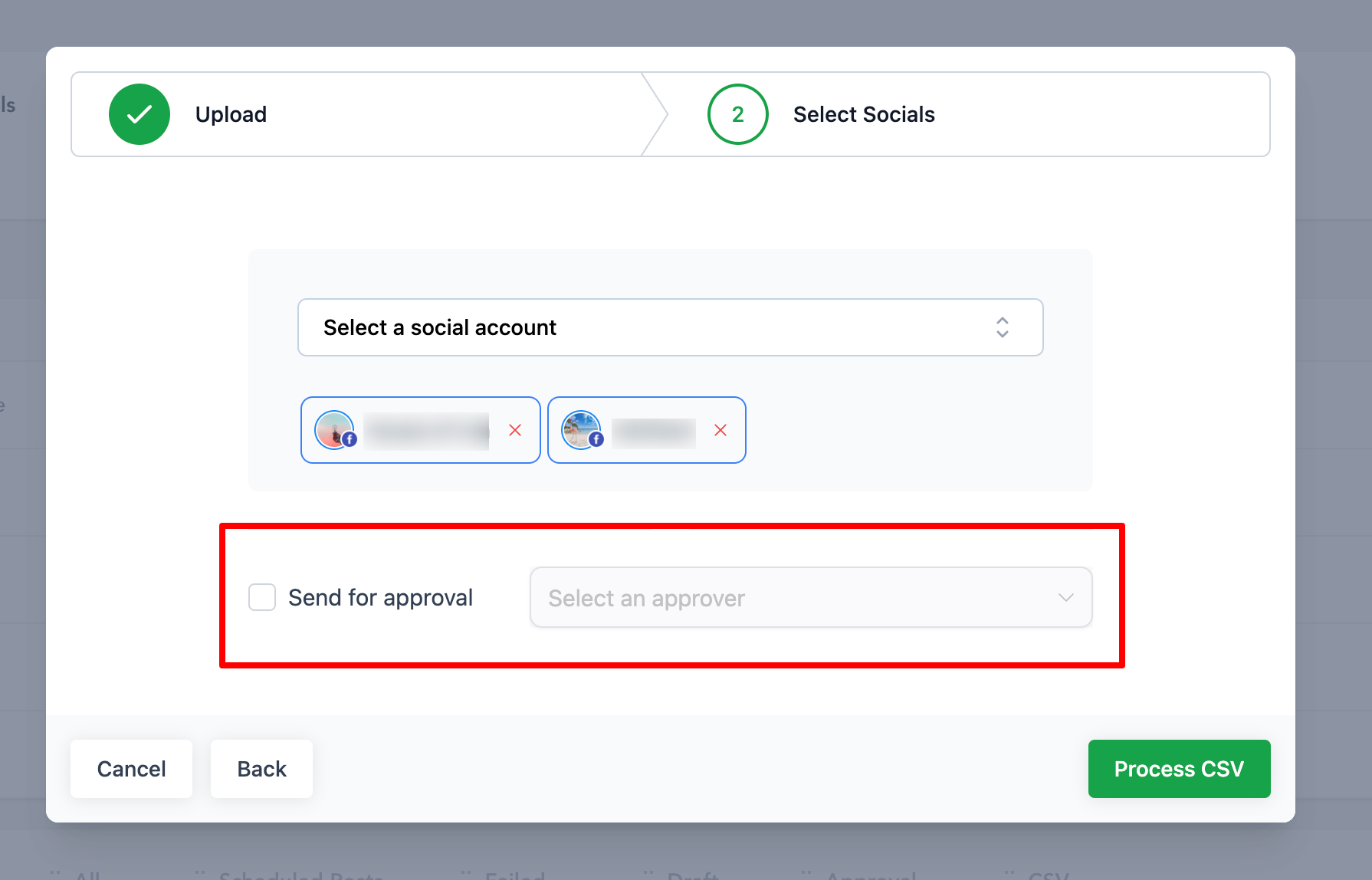
- Select which social profiles the posts should go to
- Choose an approver from the dropdown
- Import the posts
All imported posts will go to the selected approver for review. Once approved, they'll schedule automatically to your social calendar.
What Happens After Approval
If approved: The post schedules immediately to your social calendar at the specified date and time.
If rejected: The original creator can view the reviewer's comments and make changes before resubmitting.