
Overview
Instagram Stories are a powerful way to keep families engaged with your childcare center. With Enrollio's Social Planner, you can create and schedule Instagram Stories in advance, so you can maintain an active social presence even during your busiest weeks.
This feature works with Instagram Professional (Business) accounts and lets you upload up to 10 images or videos per story.
What You Can Do With Instagram Stories
Showcase Your Center
Share daily activities, special events, or highlights from your curriculum. Schedule stories in advance so families see consistent updates about what's happening at your center.
Promote Events and Open Houses
Create a countdown series for upcoming events like enrollment open houses, parent nights, or summer camp registration. Schedule these stories to build excitement as the event approaches.
Share Tour Availability
Post stories announcing tour availability or special enrollment periods. Schedule them to go live when prospective families are most active on Instagram.
Maintain Consistency During Busy Times
If you know you'll be tied up with enrollment season or special events, batch-create your stories and schedule them in advance. This keeps your social presence active even when you're focused on other priorities.
Save Draft Ideas
Have an idea but not ready to post it? Save it as a draft and come back to it later when you have more time to refine it.
Before You Start
Make sure you've completed these steps first:
- Connected your Instagram Professional (Business) account to Enrollio
- Uploaded any images or videos you want to use to your Media Library
Important: Instagram Stories can only be scheduled to Professional Business accounts. Personal and Creator accounts aren't supported through Instagram's API.
How to Create and Schedule an Instagram Story
Step 1: Open Social Planner
Click Marketing in your navigation menu, then select Social Planner.
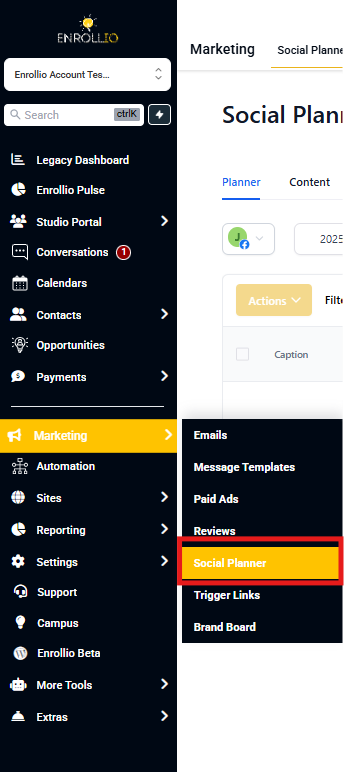
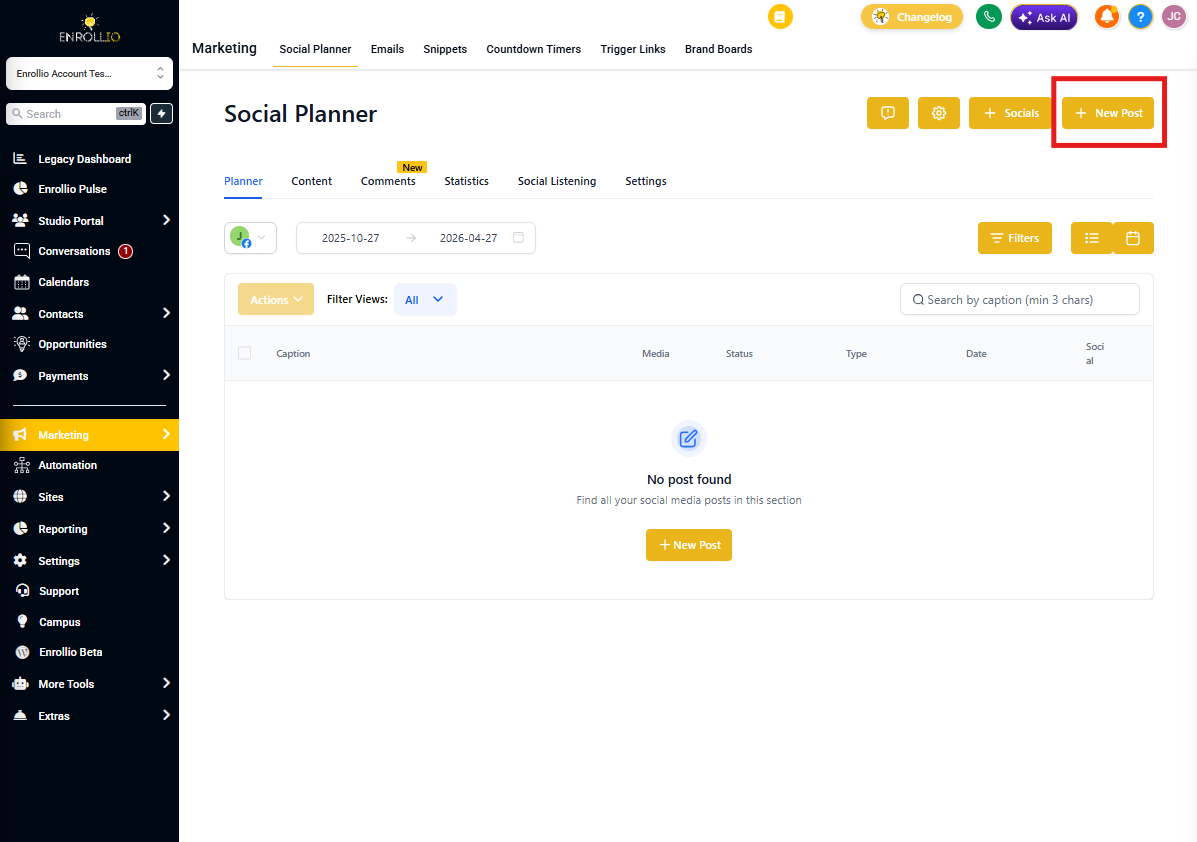
Step 2: Start a New Post
Click the New Post button, then select Create New Post.
Step 3: Select Your Instagram Account
Under "Post to," click Select a social account and choose your Instagram Professional account.
Note: If you select other social accounts alongside Instagram, the story option won't be available. Stories must be posted only to Instagram accounts.
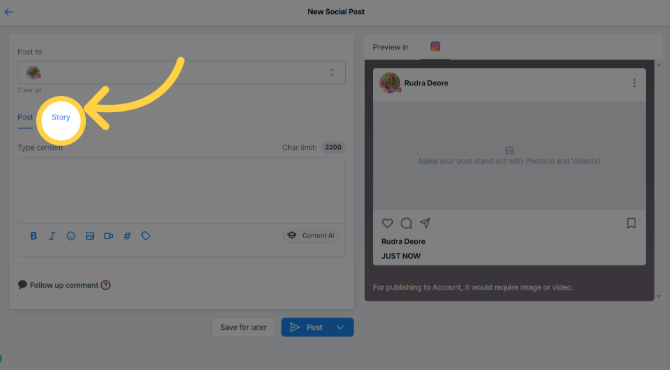
Step 4: Choose Story as Content Type
Under "Content Type," select Story.
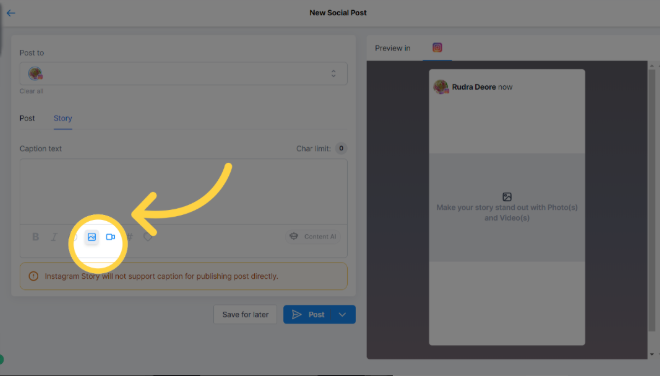
Step 5: Upload Your Media
Click Upload image or video to add your content. You can upload up to 10 images or videos per story.
Media Requirements:
- Images: Maximum 8 MB file size
- Videos: Maximum 60 seconds in length
Note: Due to Instagram API limitations, you can't add text overlays, stickers, or tags through Enrollio. You'll need to add these elements directly in the Instagram app before uploading your media.
Step 6: Schedule or Post
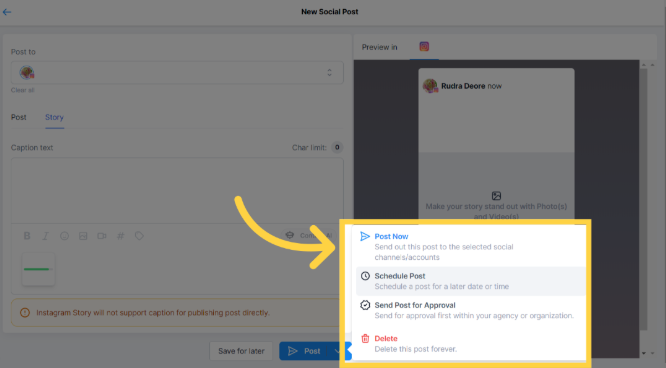
Click the arrow next to Post to choose your timing:
- Post Now: Publish immediately
- Schedule: Choose a specific date and time
- Save for Later: Save as a draft to finish later
Pro Tip: Time Your Posts for Maximum Engagement
Schedule your stories for when parents are most likely scrolling Instagram — typically early morning (before drop-off), lunch time, or evening (after pickup). Check your Instagram Insights to see when your followers are most active.
Frequently Asked Questions
Can I add text or stickers to my Instagram Stories in Enrollio?
No, Instagram's third-party API doesn't support adding text overlays, stickers, or interactive elements through platforms like Enrollio. You'll need to add these directly in the Instagram app before uploading your media to Social Planner.
Can I tag people or businesses in my stories?
Tagging isn't available through third-party platforms due to Instagram API restrictions. If you need to tag another account, you'll need to post the story directly through the Instagram app.
What types of Instagram accounts can I use?
Instagram Stories through Social Planner only work with Instagram Professional Business accounts. Personal accounts and Creator accounts aren't supported due to Meta's API limitations.
What if I want to post to both Instagram and Facebook?
Instagram Stories are Instagram-specific. If you select additional social accounts when creating your post, the story content type won't be available. You'll need to create separate posts for other platforms.
Pro Tip: Batch Create Your Content
Set aside time once a week to create and schedule all your stories at once. Take photos throughout the week, then schedule them on Friday for the following week. This keeps your Instagram active without daily scrambling for content.