
Understanding Snippets in Enrollio
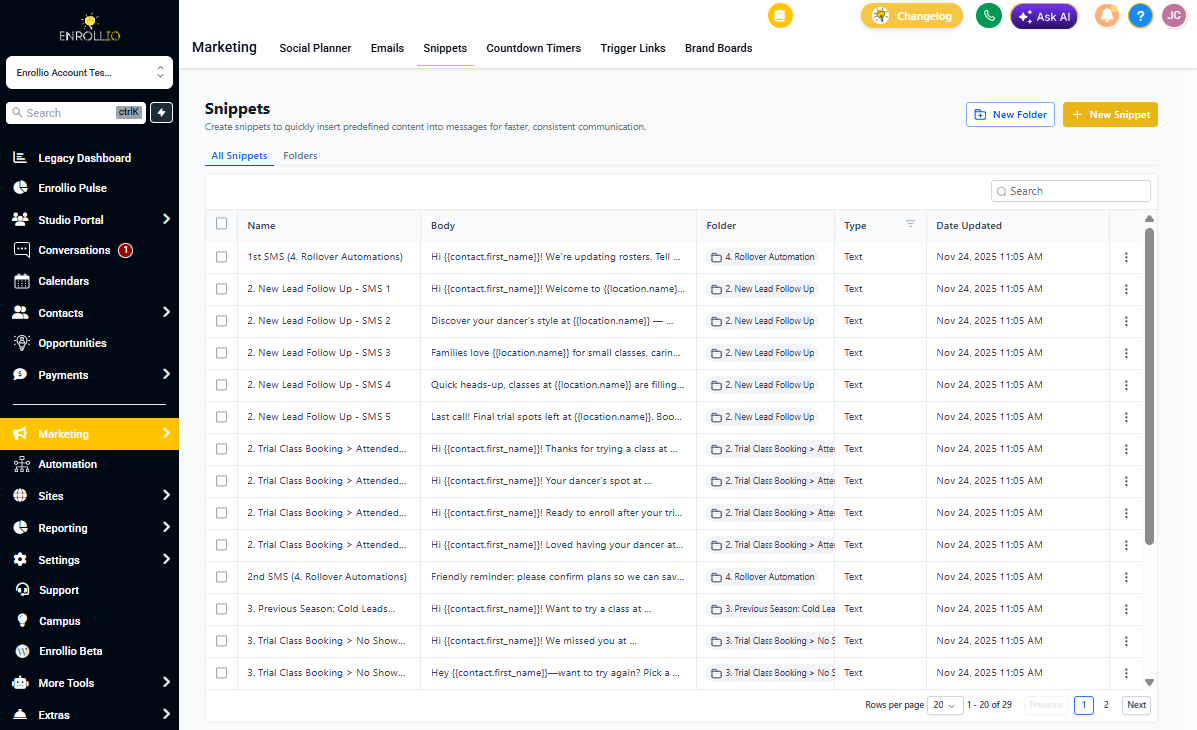
Save time responding to parents and tours with Snippets—prewritten messages you can insert with a few clicks. The upgraded Snippets page offers a cleaner interface, instant loading, and shareable URLs that remember your view, so your team always lands on the exact Snippet list you're working with.
What Are Snippets?
Snippets are your library of prewritten text and email templates inside the Conversations module. Use them to quickly respond to common parent questions, send tour confirmations, share enrollment next steps, or handle waitlist updates—without retyping the same message every time.
The redesigned Snippets page gives you faster loading, better organization, and a modern layout that works seamlessly across all devices.
Key Benefits
- Faster loading — Large Snippet libraries open almost instantly
- Shared URLs — Send a link to your team that preserves search terms, page number, and filters
- Cleaner interface — Less clutter, easier to scan and find what you need
- Responsive design — Works on tablets and phones when you're giving tours or away from your desk
- Consistent navigation — Matches other Enrollio modules for a unified experience
Navigation & Layout
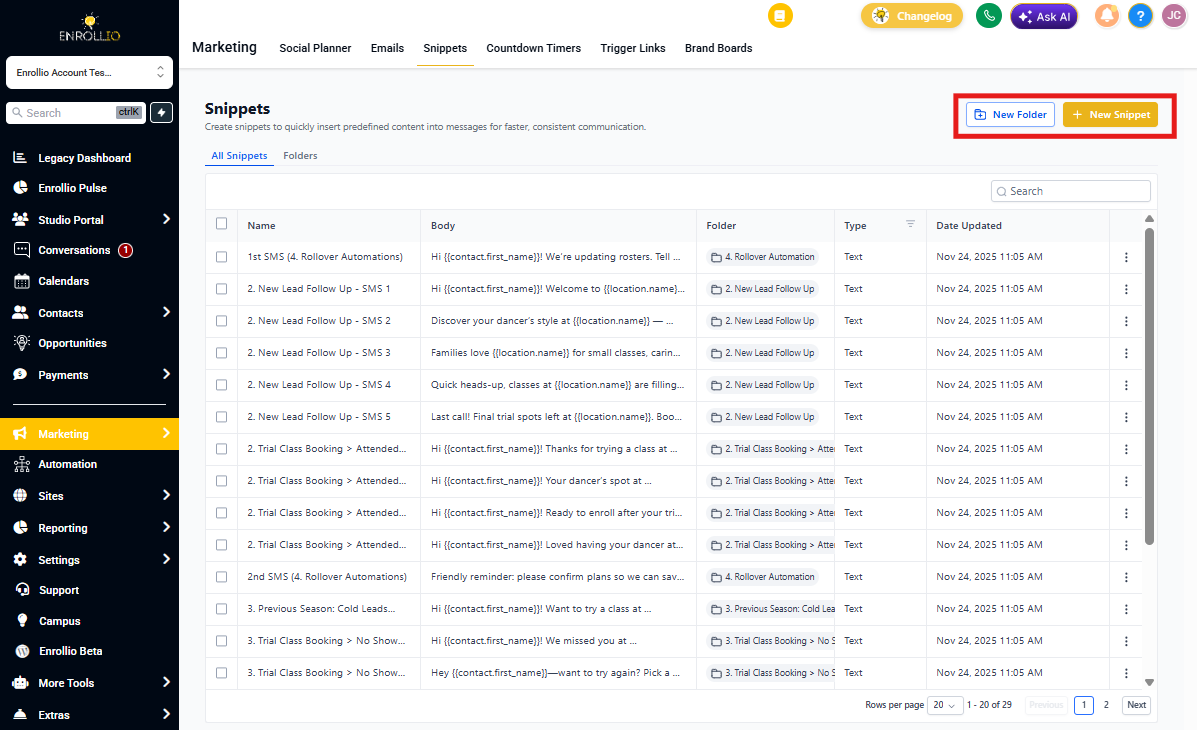
The Snippets page centers your list view with a single-table layout. Search, filters, and bulk actions are grouped in the header bar, while the New Folder and + New Snippet buttons sit in the top-right for quick access.
When you edit a Snippet, it opens in a side panel—so you never lose your place in the list.
How to Use Snippets
The upgraded Snippets page is automatically enabled for all Enrollio accounts—no setup required.
Open Snippets Page
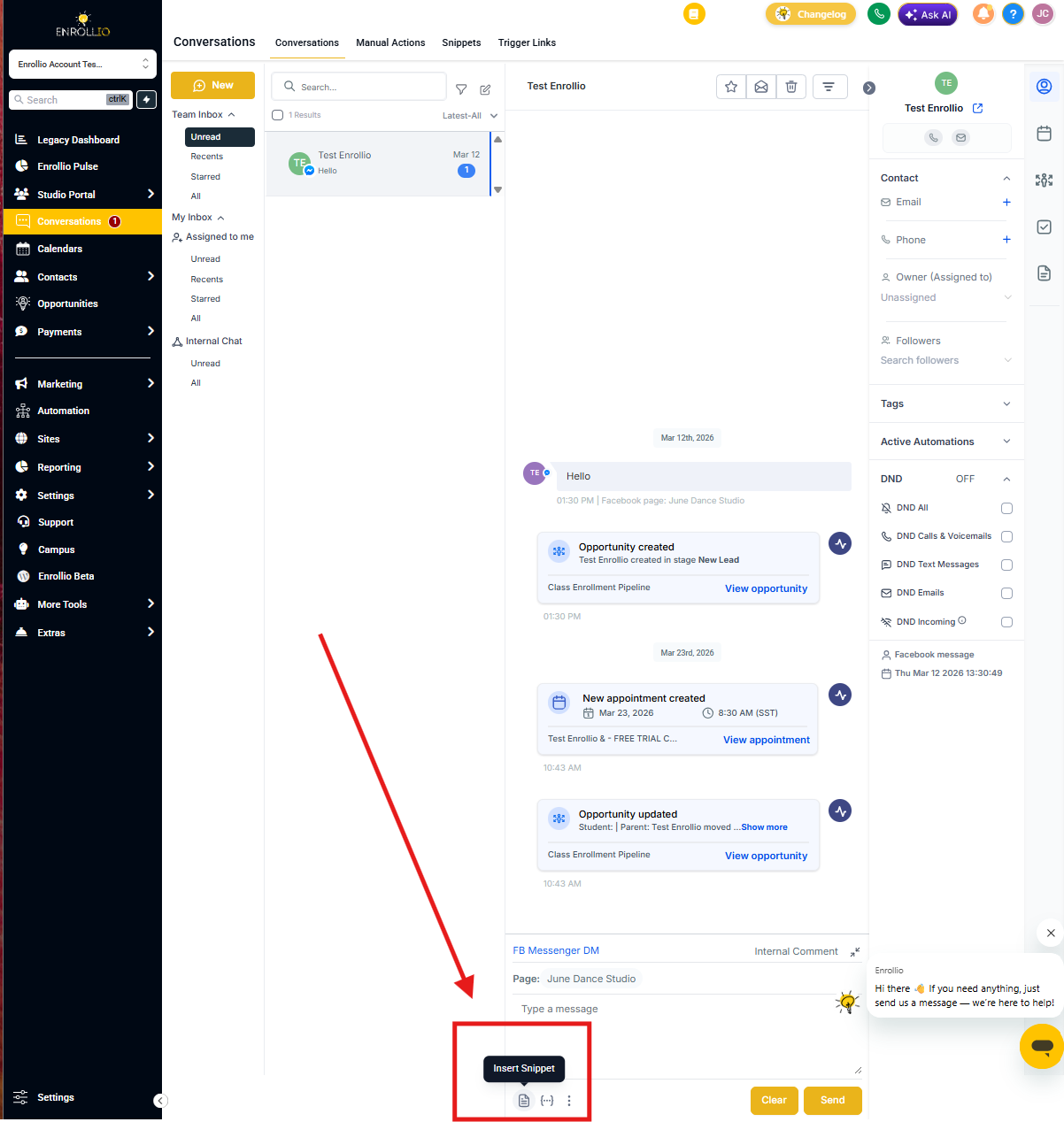
- Click Conversations in the left-hand navigation
- Select the Snippets tab at the top of the page
You'll see your Snippets dashboard, where you can view, create, and organize prewritten messages for quick use in conversations with parents and prospective families.
Search Snippets
Use the Search bar on the right side to quickly locate a specific snippet by name or keyword. As you type, the list filters automatically, showing only the snippets that match your search term.
Pro tip: Create descriptive snippet names like "Tour Confirmation - Virtual" or "Waitlist Update - Spot Available" to make searching faster.
Create New Snippet
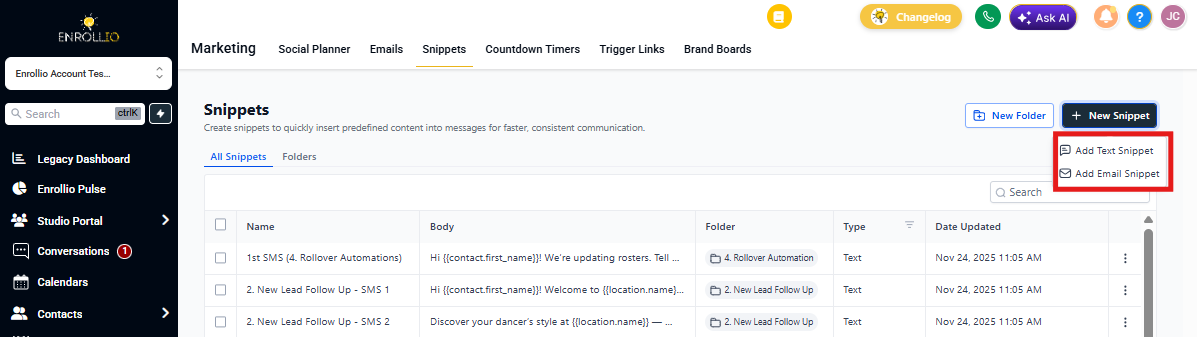
- Click + New Snippet in the top-right corner
- Choose between Add Text Snippet or Add Email Snippet
- Compose your message and save
Text snippets work for SMS and direct messages. Email snippets include subject lines and formatting options.
Create New Folder
Click New Folder in the top-right corner to organize your Snippets by category or purpose. Group related messages—like tour follow-ups, enrollment next steps, or waitlist updates—to make them easier to find and manage.
Pro tip: Organize folders by stage (Tours, Enrollments, Waitlist) or by staff role so everyone finds their messages quickly.
Manage Existing Snippets
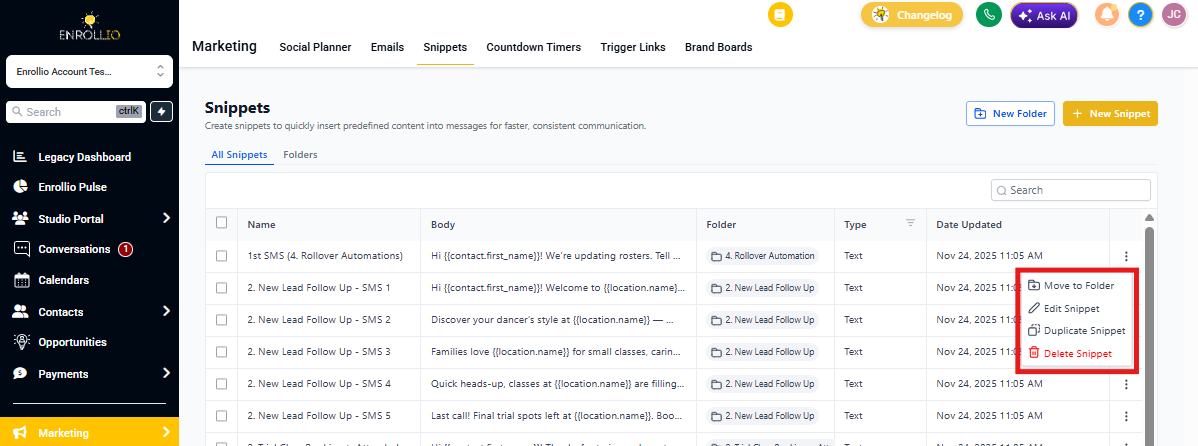
Click the three-dot menu (⋮) beside any Snippet to access management options:
- Move to Folder — Reorganize your library
- Edit Snippet — Update the message
- Duplicate Snippet — Create a variation quickly
- Delete Snippet — Remove outdated messages
These quick actions let you organize and update Snippets without leaving the main list view.
Frequently Asked Questions
Do I need to enable anything to use the new design?
No. The upgraded Snippets page is already live for all accounts.
Did any Snippet functionality change?
No. All create, edit, folder, and permission features remain the same. Only the design and performance have improved.
Can I revert to the old design?
The classic layout has been retired to maintain consistency across the platform.
Will shared URLs break if Snippets are added or deleted later?
No. The link saves your view preferences—search, filters, and pagination—so your team will still see your filtered view even if the library changes.
Are Snippet permissions affected?
Permissions are unchanged. Users still need View & Manage Conversations access to use Snippets.
Does the shared URL work across different client accounts?
No. Shared URLs only function within the same client account. Users without access will see an authorization error.