
What This Guide Covers
Staying compliant with text messaging regulations is essential when communicating with families. This guide shows you how to use Enrollio's automatic compliance features to keep your text conversations compliant with TCPA, CTIA, GDPR, and CCPA — without manual effort.
You'll learn what the feature does, why it matters for your childcare business, and how to configure it step-by-step.
What Is Automatic Opt-Out and Sender Info?
This built-in compliance automation adds required opt-out language and sender details to your text message conversations at regular intervals. It ensures ongoing conversations with families continue to meet regulatory standards, reducing the risk of penalties or message filtering.
Once configured, Enrollio automatically refreshes compliance details like "Reply STOP to unsubscribe" and your center name without you manually adding them to each conversation.
Why This Matters for Your Center
This automation simplifies compliance and keeps your messages reaching families reliably:
- Continuous Compliance: Required disclosures are periodically included in all active text threads with families
- Customizable Frequency: Choose how often compliance details refresh — from 1 to 60 days (default: 30 days)
- Effortless Automation: Works in the background, reducing manual oversight and saving you time
- Higher Deliverability: Keeps messages aligned with carrier and regulatory guidelines, minimizing spam filtering
- Improved Trust: Builds confidence with families by maintaining clear sender identification and opt-out visibility
How to Set Up Automatic Compliance Updates
Follow these steps to enable automatic compliance updates for your text message conversations with families.
Per-Client Account Control: The periodic opt-out setting is controlled at the client account level. Turn it on to automatically re-add sender info and opt-out language at regular intervals for ongoing conversations.
When to turn it on:
- You want compliance language refreshed automatically for long-running threads with families
- You send recurring updates, tour reminders, or enrollment follow-ups and want consistent opt-out visibility
When to turn it off:
- You only need first-message compliance and don't want periodic re-insertion
- You handle follow-up compliance language manually (not recommended)
Defaults: New client accounts have this enabled. Existing accounts have it disabled. The first outbound message behavior doesn't change: sender info and opt-out language still apply to the first message in a conversation.
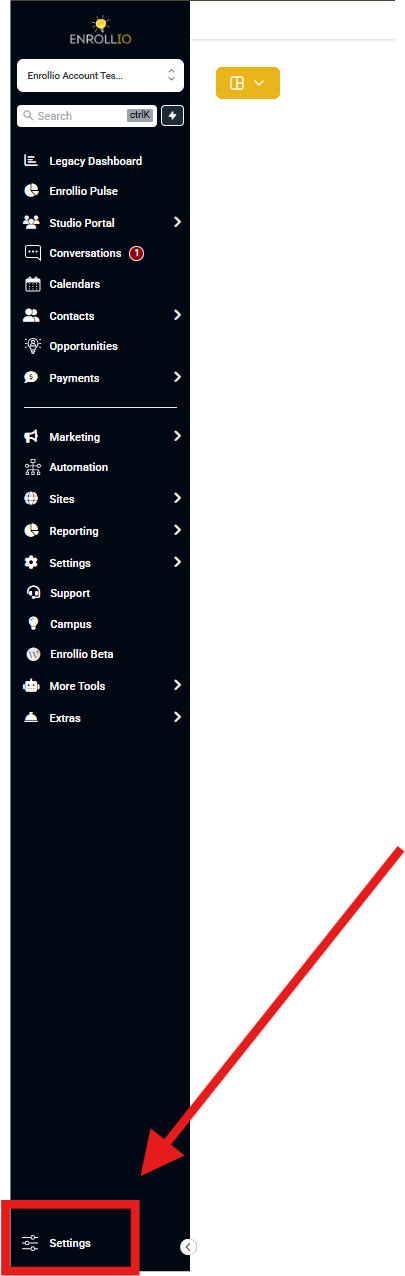
Step 1: Navigate to Settings
From your main dashboard, click Settings in the left navigation menu. This is where all system-level configurations are managed.
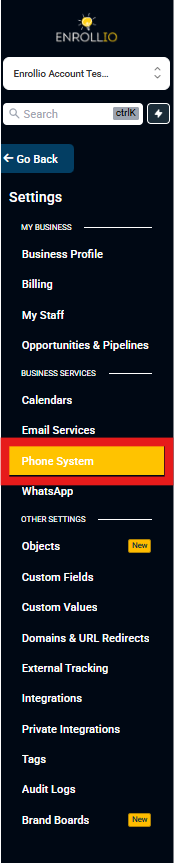
Step 2: Open Phone Numbers
In the Settings menu, select Phone Numbers. This area manages your messaging, voice, and compliance configurations for all connected phone numbers.
Step 3: Go to the Messaging Tab
At the top of the Phone System page, click the Messaging tab. This tab includes all settings related to message delivery, compliance, and analytics.
Step 4: Open the Messaging Compliance Section
Inside the Messaging tab, select the Messaging Compliance sub-tab. This section contains compliance-related controls, including opt-out messaging, sender details, and periodic compliance automation.
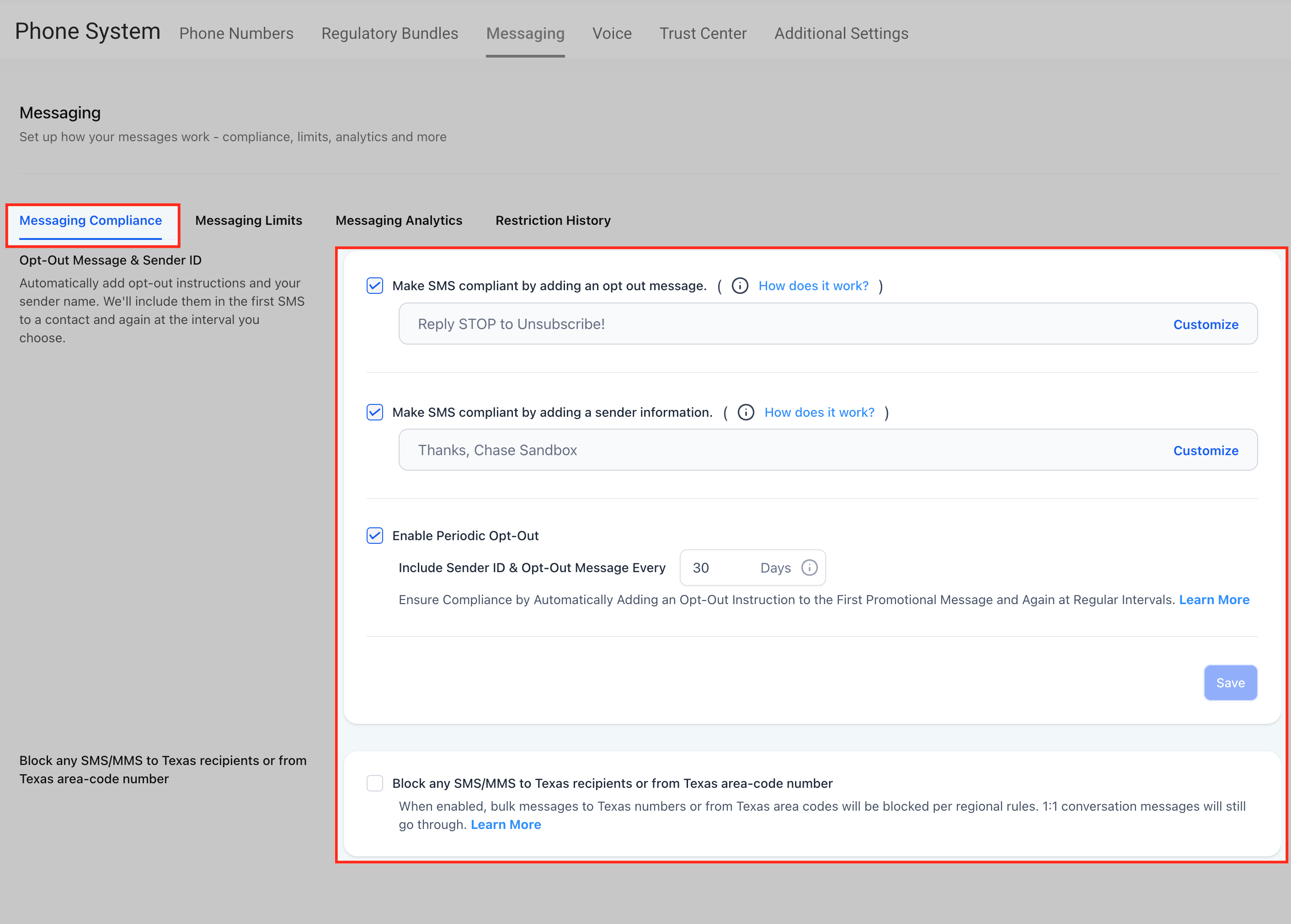
Step 5: Add an Opt-Out Message
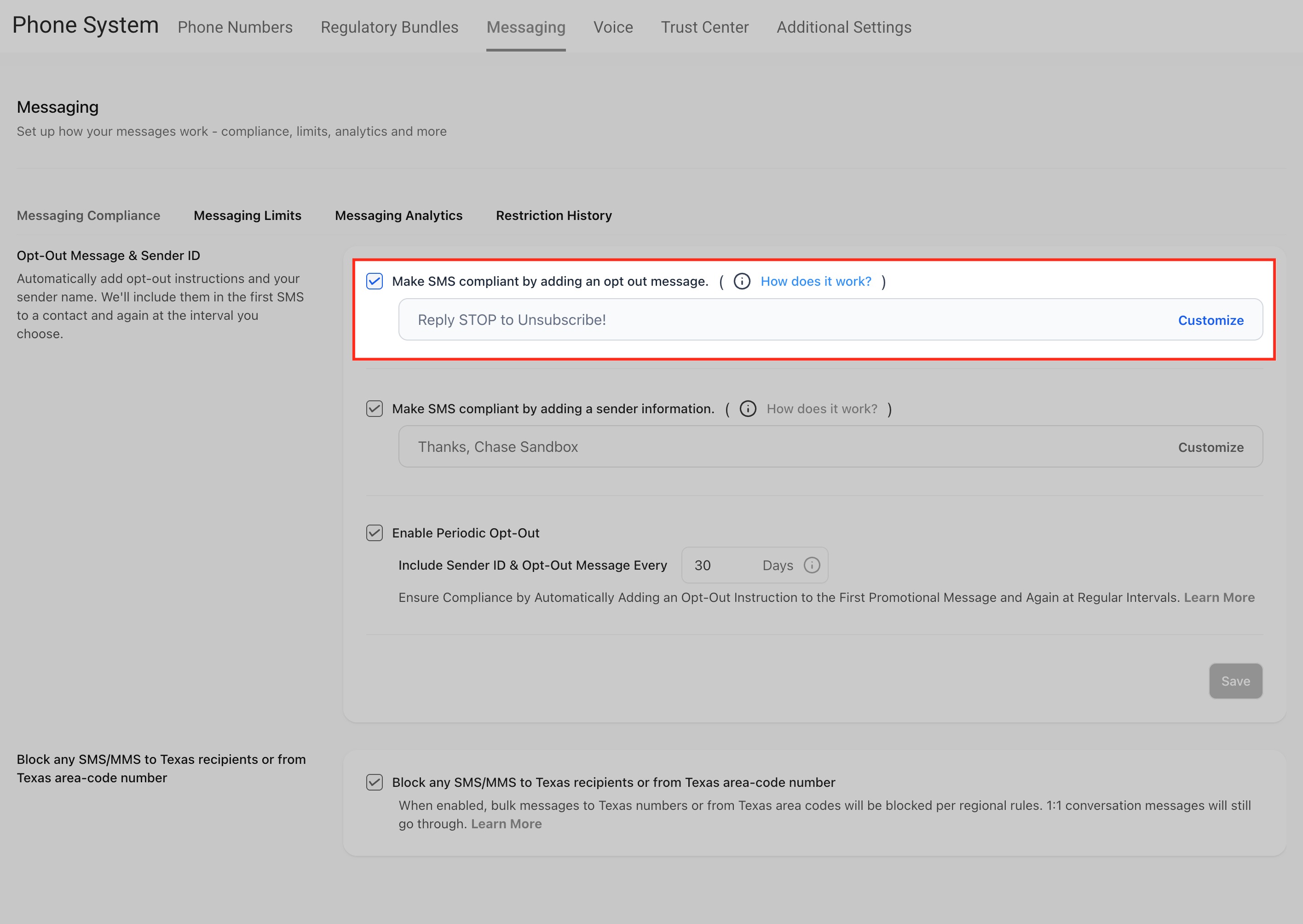
Adding an opt-out message ensures every outbound text contains a clear unsubscribe option — a key requirement under TCPA and CTIA.
- Enable Make SMS compliant by adding an opt-out message
- Enter your opt-out text (for example, "Reply STOP to Unsubscribe!")
- Click Customize to open the edit window and adjust placement or wording
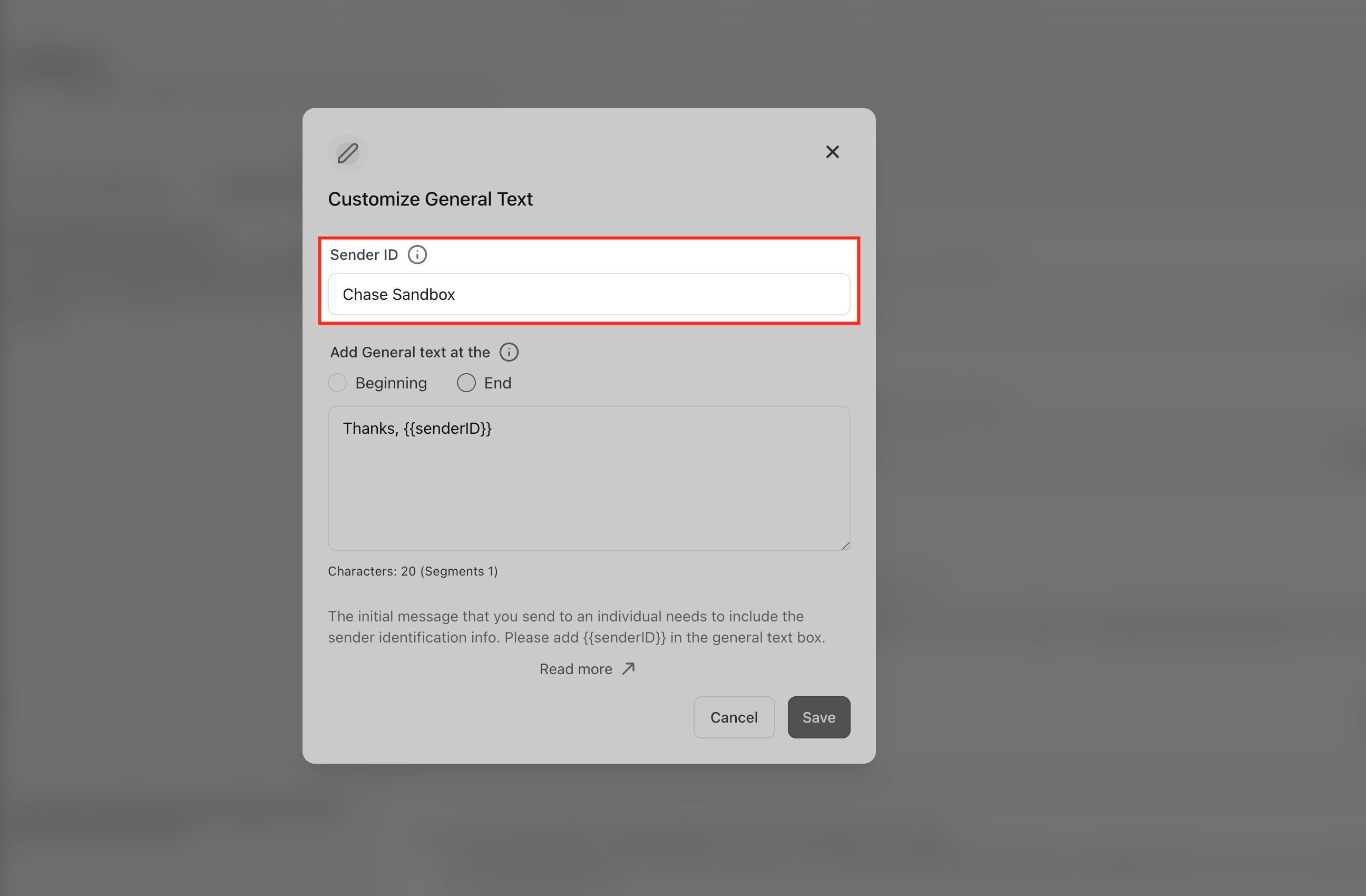
Step 6: Add Sender Information
Including sender details adds transparency, helping families identify who the message is from — improving trust and compliance.
- Enable Make SMS compliant by adding a sender information
- Enter your center name or sender signature (e.g., "Thanks, Sunshine Childcare Center")
- Click Customize to edit the sender text and placement
Step 7: Enable Periodic Opt-Out
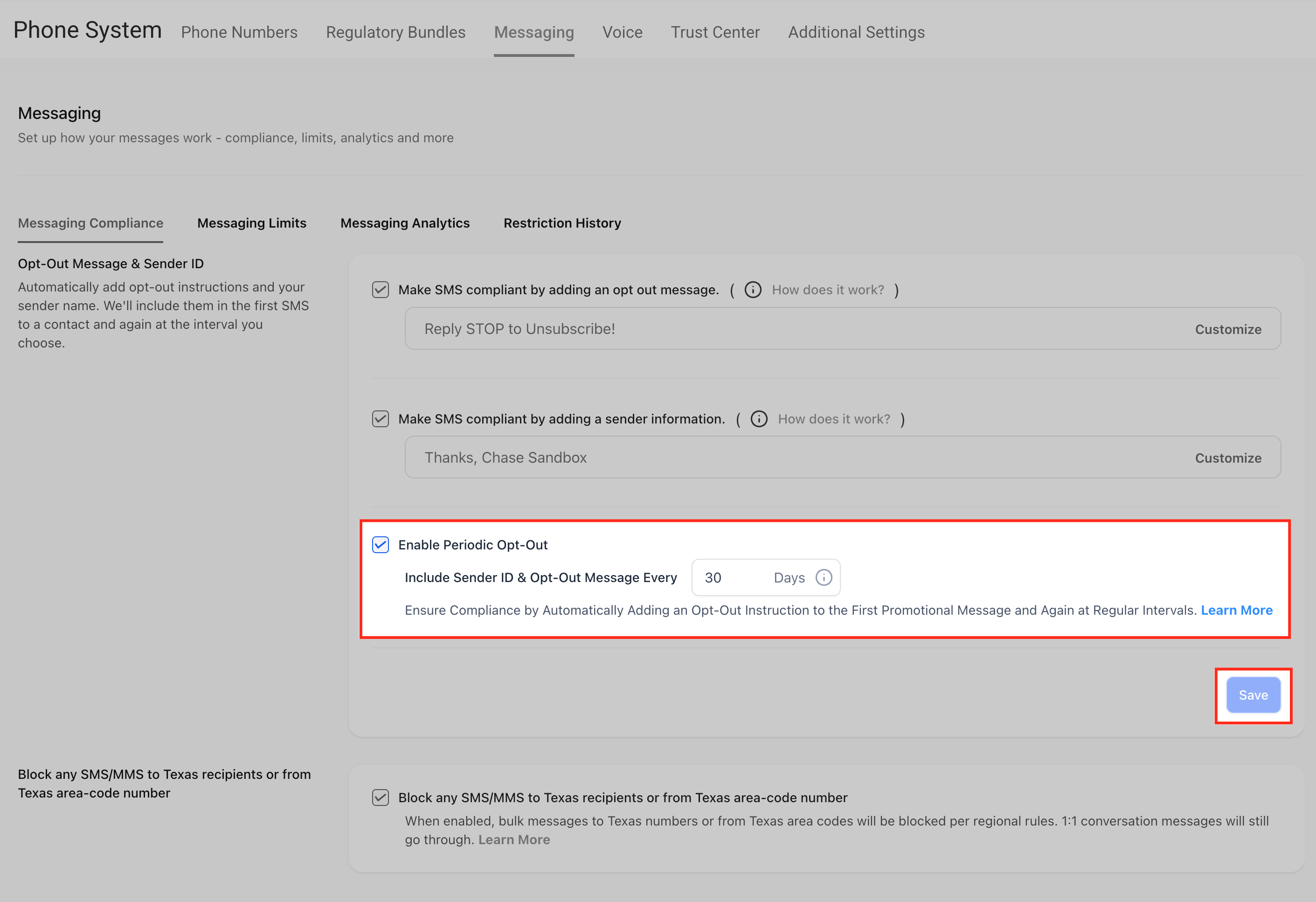
Periodic opt-out ensures ongoing conversations remain compliant by re-adding sender and opt-out details automatically after the selected interval. This helps maintain regulatory adherence and message deliverability without manual updates.
- Toggle Enable Periodic Opt-Out to On (or Off to disable periodic re-insertion for this client account)
- In Include Sender ID & Opt-Out Message Every [X] Days, choose your interval (1–60 days)
- Click Save to apply your changes
Step 8: Apply Regional Restrictions (Optional)
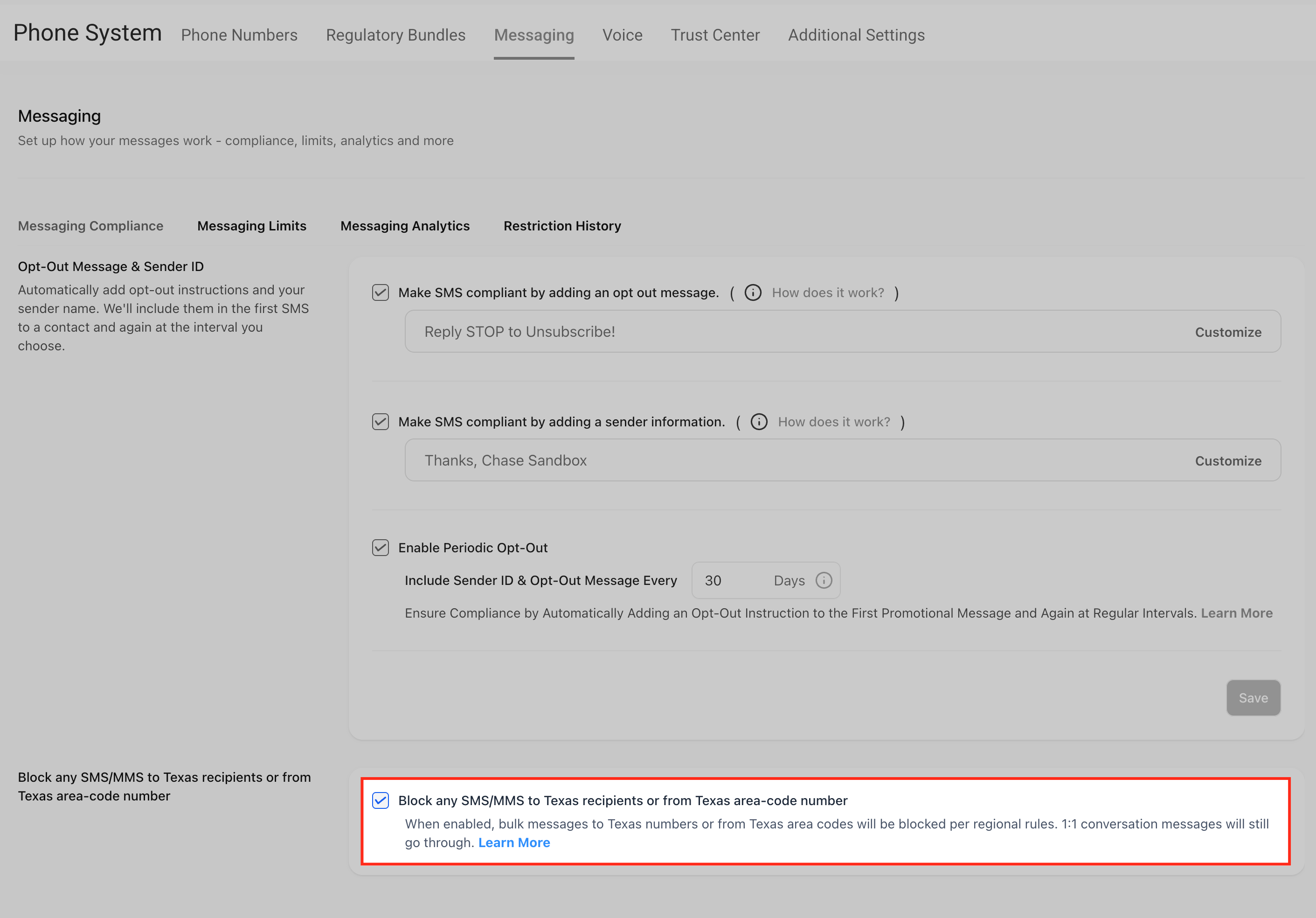
If applicable to your region, enable the setting Block any SMS/MMS to Texas recipients or from Texas area-code numbers. This ensures compliance with state-specific messaging regulations.
Frequently Asked Questions
Does this automation update previous conversations?
No. The automation applies only to new and ongoing conversations. Past messages remain unchanged.
How does Enrollio determine when to re-add opt-out information?
The automation uses the frequency interval you set (for example, every 30 days). It automatically tracks message threads and refreshes compliance information once the interval elapses.
Can I disable this feature if I handle compliance manually?
While the automation is integrated for consistent protection, you can adjust the frequency to a longer interval or disable it temporarily by unchecking the Enable Periodic Opt-Out box. However, we don't recommend manual compliance management due to the risk of missing required disclosures.
How does this feature affect message deliverability?
Carriers often filter or block messages missing proper sender or opt-out details. By keeping your messages compliant and updated, this feature helps maintain higher delivery rates and prevents carrier penalties or message suppression when communicating with families.
What happens if a family replies STOP?
Families who reply STOP are automatically opted out of future text messages from your center. Their preference is stored in Enrollio and respected across all your messaging.