
How to Use Live Chat Triggers and Actions
Live chat triggers let you automate responses and actions when parents interact with your chat widget. Whether you want to route conversations, send automated messages, or update parent records, chat triggers help you stay responsive 24/7.
What Are Live Chat Triggers?
Live chat triggers are automation rules that fire when specific things happen in your chat conversations. For example, you can automatically assign chats to specific staff members, send follow-up messages, or tag families based on their questions.
These triggers work seamlessly with Enrollio AI to ensure every parent gets timely responses, even outside business hours.
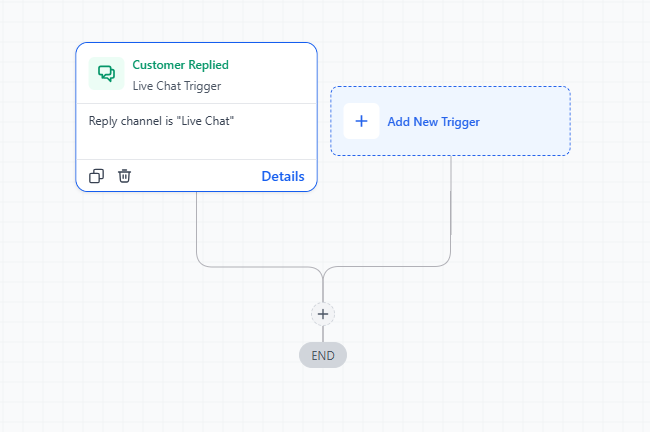
Common Live Chat Triggers
Here are the most useful chat triggers for childcare centers:
- Chat Started — Fires when a parent opens a new chat conversation
- Chat Assigned — Fires when a chat is assigned to a staff member
- Chat Message Received — Fires when a parent sends a message
- Chat Closed — Fires when a conversation ends
- Keyword Detected — Fires when specific words appear in the chat (like "tour" or "pricing")
Setting Up a Live Chat Trigger
Follow these steps to create your first chat trigger:
- Go to Settings → Automations
- Click Create Automation
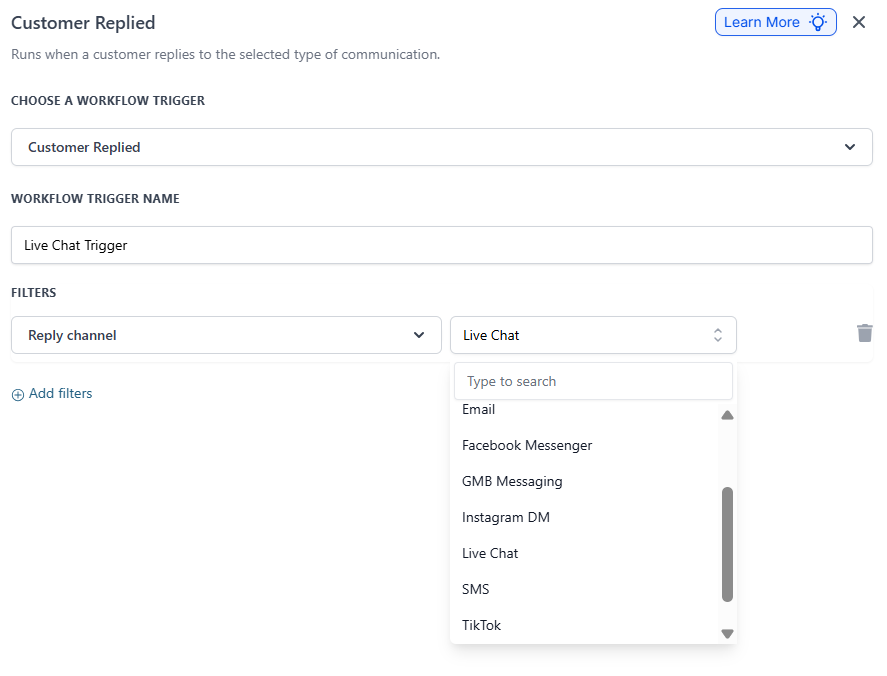
- Under the Trigger section, click Add Trigger
- Select Live Chat from the category list
- Choose your specific trigger (like "Chat Started")
- Configure any additional filters (optional)
- Click Save Trigger
Adding Actions to Your Chat Trigger
Once you've set up your trigger, add actions that happen automatically. Here are popular actions for chat triggers:
Assign to Staff Member
Route chats to the right person based on availability or specialty. Perfect for directing tour questions to your enrollment coordinator.
Send Auto-Reply
Acknowledge the parent immediately, even if staff aren't available. Let them know you'll respond within a specific timeframe.
Add Tag
Tag families based on their questions. For example, tag anyone who mentions "infant care" or "after school" so you can follow up appropriately.
Create Task
Generate a follow-up task for your team when high-priority keywords appear, like "urgent" or "starting Monday."
Update Parent Record
Add custom field values or update the enrollment pipeline stage based on chat interactions.
Example: Auto-Respond to Tour Requests
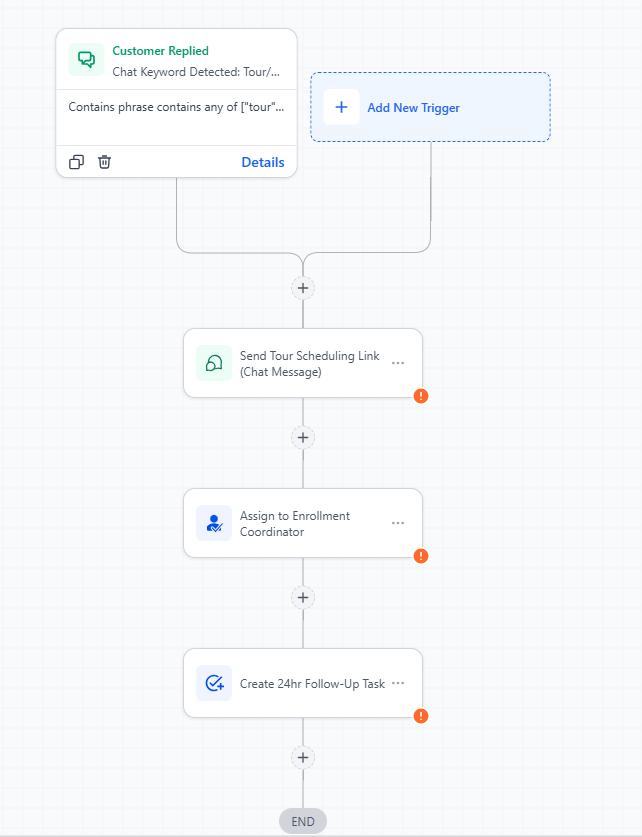
Here's a practical example of using chat triggers for tour inquiries:
- Create a new automation with the Keyword Detected trigger
- Set the keyword to "tour" or "visit"
- Add a Send Chat Message action with your tour scheduling link
- Add an Assign Chat action to route to your enrollment coordinator
- Add a Create Task action to follow up within 24 hours
Now when any parent mentions tours, they instantly get your scheduling link and the right staff member is notified.
Testing Your Chat Triggers
Always test your chat triggers before going live:
- Open your enrollment site or landing page in a private browser
- Start a chat conversation
- Type the keywords or take the actions that should trigger your automation
- Check that all actions fire correctly
- Review the parent record to confirm tags, tasks, and updates applied
Best Practices
Keep auto-replies friendly and personal. Avoid robotic language. Parents should feel like they're talking to a real person, not a bot.
Don't over-automate. Too many automated messages can frustrate parents. Use triggers for acknowledgment and routing, but let staff handle the actual conversation.
Monitor your chat triggers regularly. Check your automation reports monthly to see which triggers are most active and adjust as needed.
Use tags strategically. Create a consistent tagging system so your team knows exactly what each tag means when following up with families.
Troubleshooting
Trigger not firing? Check that your automation is set to Active. Also verify any filters you've added aren't too restrictive.
Actions happening multiple times? Make sure you don't have duplicate automations with the same trigger. Check for overlapping rules that might conflict.
Keywords not detected? Keywords are case-insensitive but must be exact matches. If you're looking for "tour," the word "tours" won't trigger it unless you add it separately.
Next Steps
Once you're comfortable with basic chat triggers, explore combining them with other automation features:
- Follow up via text message after a chat conversation ends
- Move families through your enrollment pipeline based on chat topics
- Schedule automated check-ins for families who chatted but didn't book a tour
Chat triggers are one of the most powerful ways to stay responsive and convert more inquiries into enrolled families.