
Facebook and Instagram Chat Widgets
Bring real-time Messenger and DM conversations directly to your enrollment site. The Facebook Chat and Instagram Chat widget types let you greet families on the Meta channel they already use, boosting response rates and making follow-ups seamless.
What are Facebook & Instagram Chat Widgets?
Facebook Chat and Instagram Chat are channel-specific options inside the Enrollio Chat Widget. Instead of opening an on-site messenger, these widget types redirect visitors to your selected Meta channel (Messenger or Instagram DM) so conversations continue natively on Facebook or Instagram.
Each type comes with a dedicated setup panel in the builder for selecting (or connecting) the correct Facebook Page or Instagram business account.
Key Benefits of Facebook & Instagram Chat
Frictionless Engagement
Families continue the conversation in Messenger or IG DM without creating a separate on-site chat thread.
Channel Preference
Meet parents on the social platform they already use for daily messaging.
Better Adoption
Leverages families' existing Facebook/Instagram logins and apps — no new account creation needed.
Unified Inbox
Keep every Meta conversation inside Enrollio's Conversations inbox alongside SMS, email, and WhatsApp.
Cross-Device Continuity
Conversations persist in the family's Messenger/IG app, so threads follow them across devices without losing history.
How To Setup Facebook & Instagram Chat Widgets
Follow these steps to quickly create a Facebook or Instagram chat widget and install it on your enrollment site.
Step 1: Create a New Widget
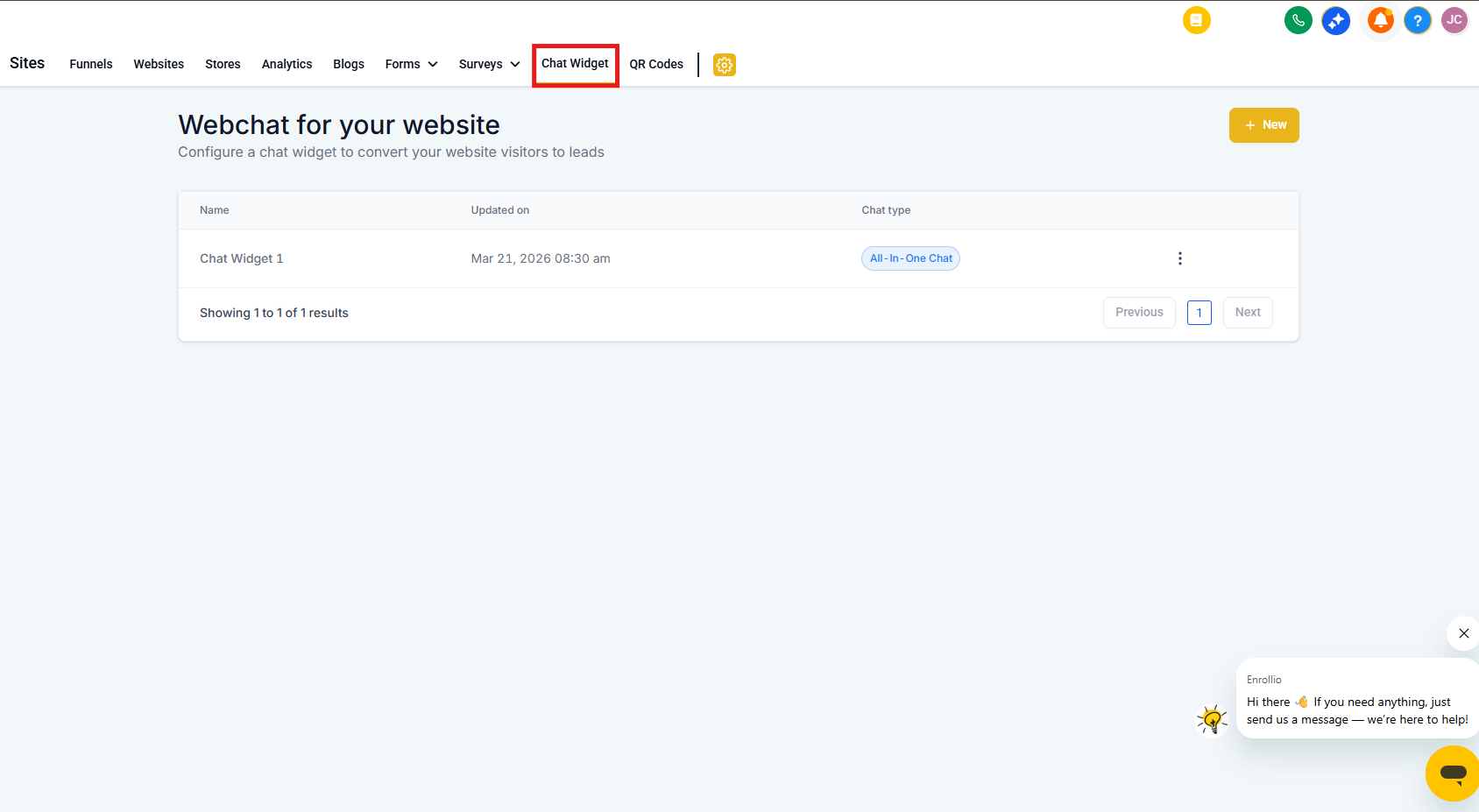
Navigate to Sites → Chat Widgets then click the blue + New button.
Step 2: Select Chat Type
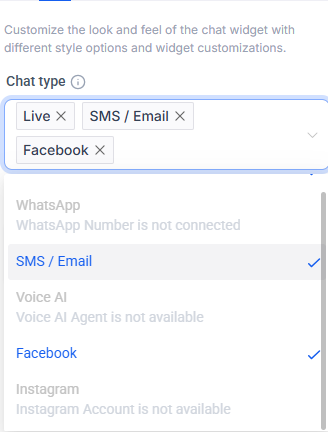
In the "Select the type of chat" pop-up, choose Facebook Chat or Instagram Chat.
If a Facebook/Instagram account is connected but no pages are selected, a page selection modal opens so you can choose which page to use in the widget.
Important: You cannot select Facebook Chat or Instagram Chat unless a corresponding account is already connected to your client account. If you don't have a connected account yet, the in-modal link will prompt you to connect an account under integrations. Connect your account, then return to this selector to choose the chat type.
Step 3: Customize the Widget
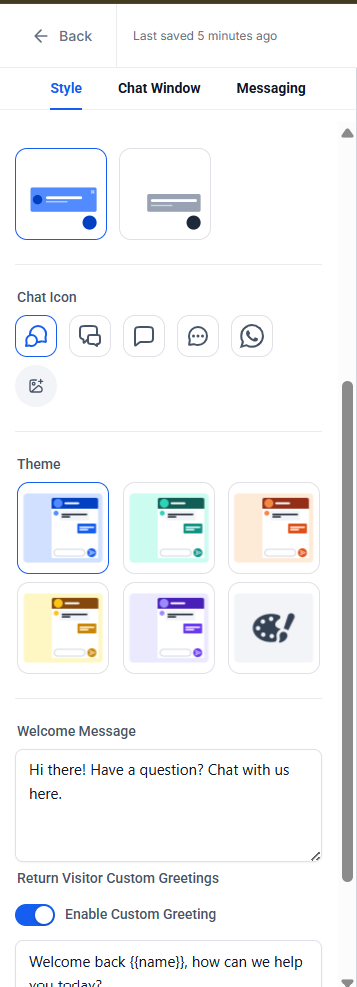
Customize the Style, Chat Window, and Messaging tabs as needed (colors, greeting text, launcher icon) to build a widget that matches your childcare center's brand.
Within the Chat Window tab, you can change which Facebook/Instagram account is linked to the widget. If needed, click Connect a linked Facebook/Instagram account to open the connection modal and add more pages/accounts.
After making all required edits, save your widget.
Step 4: Share Your Widget
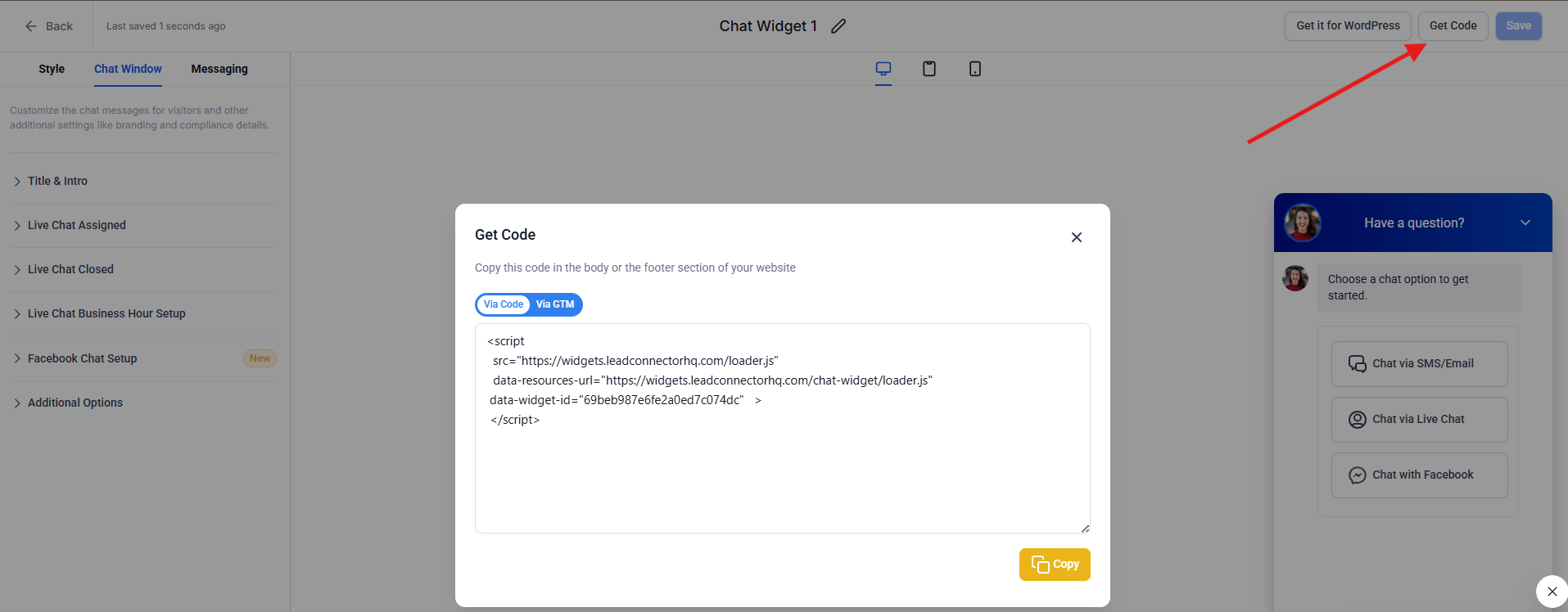
To install this widget on a 3rd party site, click Get Code then embed the code snippet on your website where you want the widget to appear.
This widget can also be installed directly within the Enrollio Landing Page and Enrollment Site builders.
Frequently Asked Questions
Q: Can I enable both Facebook and Instagram in one widget?
No. Each widget is tied to a single channel. For multi-channel bubbles, use the All-in-One Chat widget.
Q: Will conversations show up inside Enrollio's Conversations tab?
Yes, provided your Facebook/Instagram integrations and permissions are correctly connected and messaging access is enabled.
Q: Can I run automations on incoming messages?
Absolutely! Use the Facebook Message or Instagram Message automation triggers to tag, assign, or route the chat.
Q: Does the visitor have to be logged in to Facebook or Instagram?
Yes. If they are not logged in, the Meta login screen opens first.
Q: Do Style and Messaging settings work differently for FB/IG widgets?
No. Styling and placement behave the same as other chat types. The main difference is where the conversation occurs (Meta vs on-site).
Related Articles
- Getting Started with Chat Widget
- How to Install Enrollio's Chat Widget
- Step-by-Step Guide to Facebook Integration in Enrollio
- Connect Instagram: Facebook-Linked vs. Direct Instagram Integration
- How to Use the All-in-One Chat Widget