
What is Bluesky Integration?
Bluesky is a decentralized social network for sharing text, images, and videos. With Enrollio's Social Planner, you can connect your Bluesky account and publish without switching apps.
This guide shows you how to connect your Bluesky account and start composing, scheduling, and publishing posts in one place.
Key Benefits of Bluesky Integration
Zero context-switching: Plan, draft, and publish Bluesky posts alongside your other channels in Social Planner.
Faster approvals: Route Bluesky posts through the same review and approval flow your team already uses, so nothing goes live without sign-off.
Fail-safe publishing: Compose within Bluesky's limits (300 characters, up to 4 images or one video) to avoid last-minute errors and failed posts.
Keep a steady cadence: Batch and schedule posts for the week in minutes so Bluesky stays active even when you're busy with tours and enrollments.
Fewer tools, lower cost: Skip separate Bluesky schedulers—manage everything in Enrollio to save money and reduce admin overhead.
Bluesky Publishing Specifications
| Category | Images | Video |
|---|---|---|
| File Types | JPEG, PNG | MP4, MOV |
| Max File Size | 1 MB | 50 MB |
| Max Uploads per Post | Up to 4 images | 1 video (cannot mix with images) |
| Dimensions / Resolution | Standard web resolution | Recommended 480p–720p |
| Aspect Ratio | – | 16:9 or 1:1 |
| Duration | – | Up to 3 minutes |
| Frame Rate | – | 30–60 FPS |
| Codecs | – | H.264 (video), AAC (audio) |
| Other Notes | – | No custom thumbnails |
Bluesky Posting Guidelines
Tagging/Mentions: Tag users with their full handle (e.g., @name.bsky.social). No autocomplete available, so type carefully or copy/paste.
Hashtags: Use #hashtag to make posts discoverable. Can include letters, numbers, and underscores, but not numbers alone.
Character Limit: 300 characters per post.
Emojis: Supported.
Links: Must start with http:// or https://. Count as 23 characters, regardless of length. Link shorteners are discouraged.
Daily Posting Limit: 100 posts per 24 hours.
How to Create App Password in Bluesky
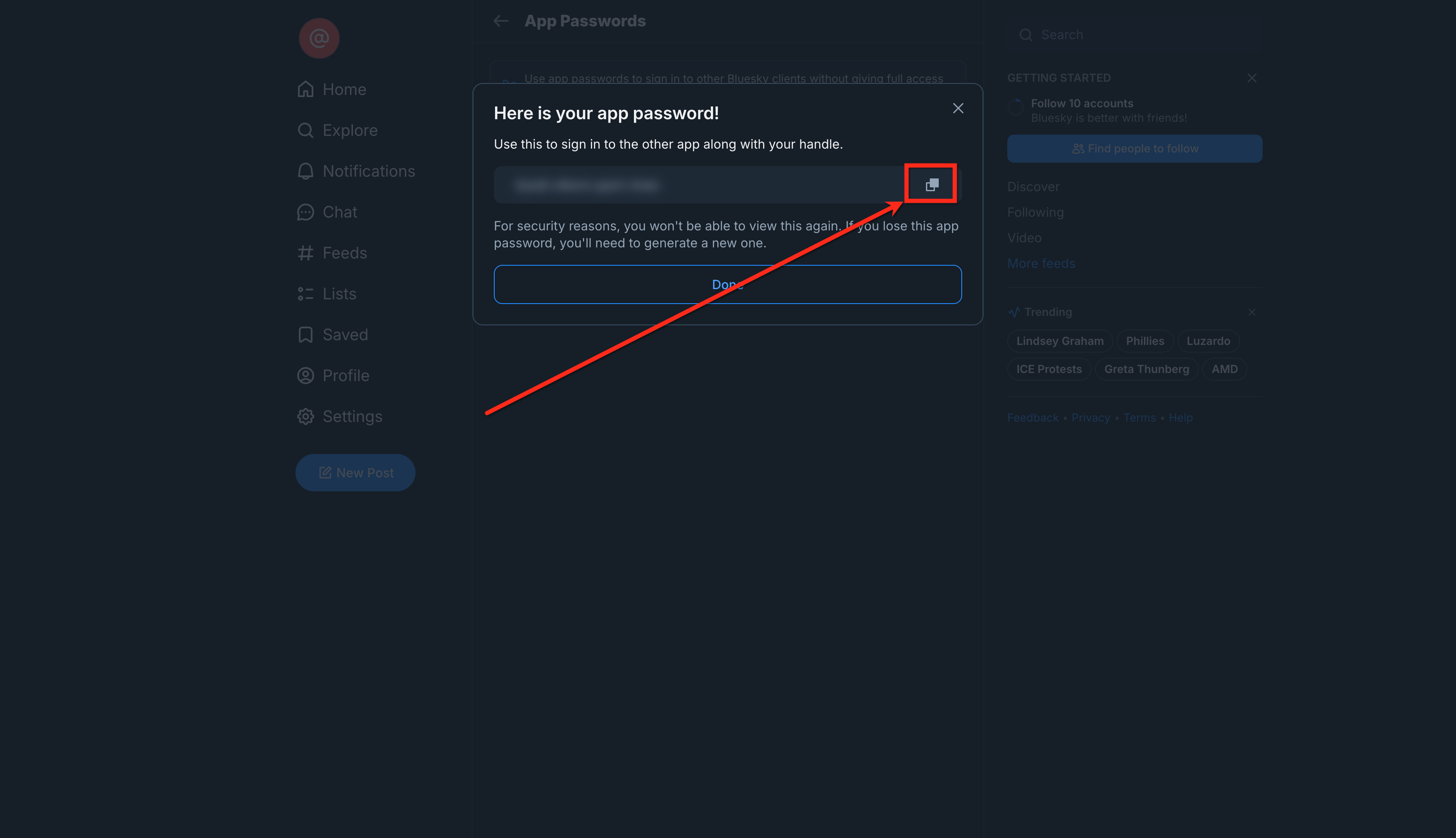
Important: The app password is displayed only once. If you miss it, you'll need to delete it and create a new one.
- Login to your Bluesky account in a new tab.
- Go to Settings > Privacy & security > App Passwords.
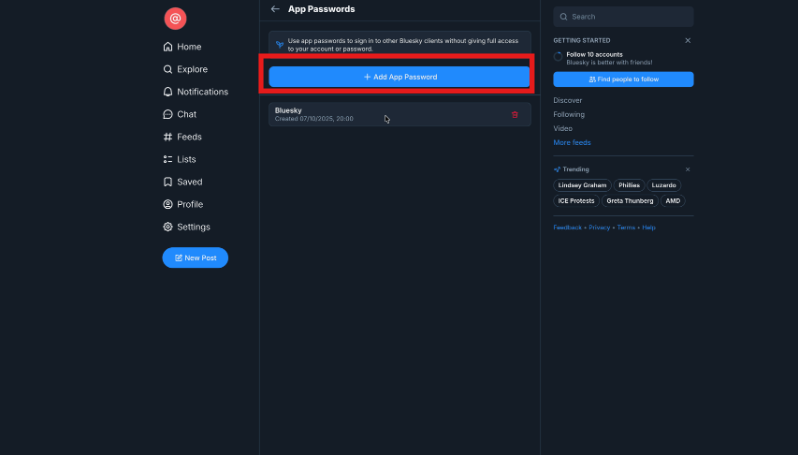
- Click + Add App Password.
- In the pop-up modal, name your app password, then click Next.
- Copy the App Password—you'll need it when connecting Bluesky with Social Planner.
How To Connect Bluesky with Social Planner
- Click on the Marketing tab from your Client Account.
- Click on Social Planner.
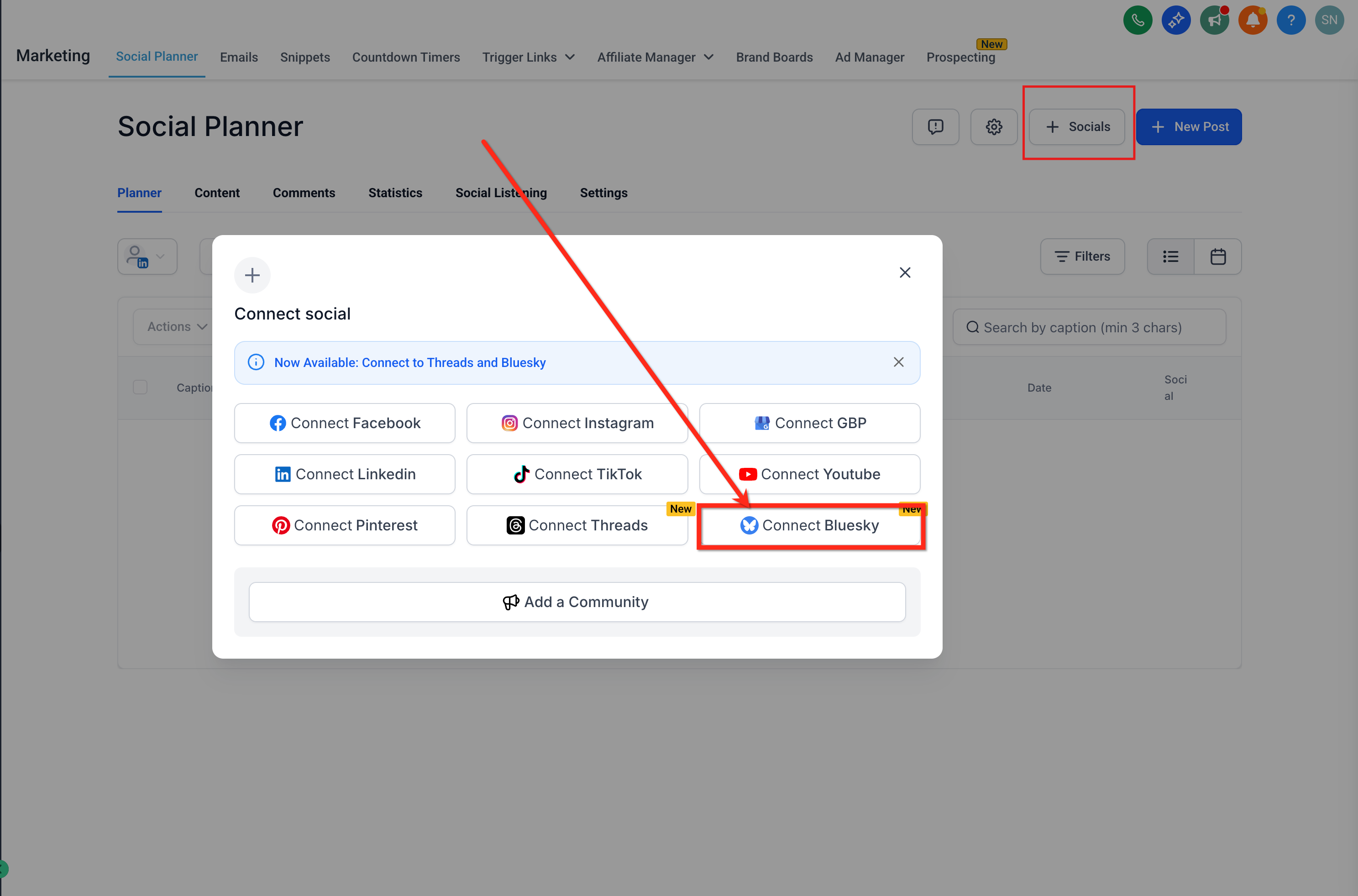
- Click on the + Socials button.
- Click on the Connect Bluesky option.
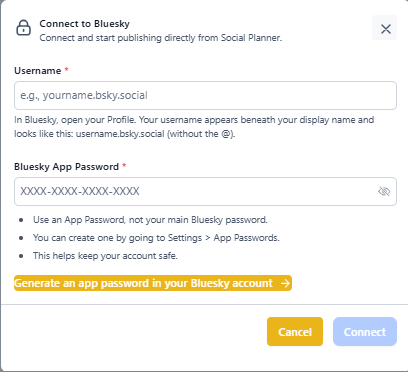
- Enter your Bluesky Username, without the @ (e.g., username.bsky.social).
- Enter or paste the app password you copied. (Not your main account password.)
- Click on the Connect button.
- Click on the Add button next to your profile to add it to Social Planner.
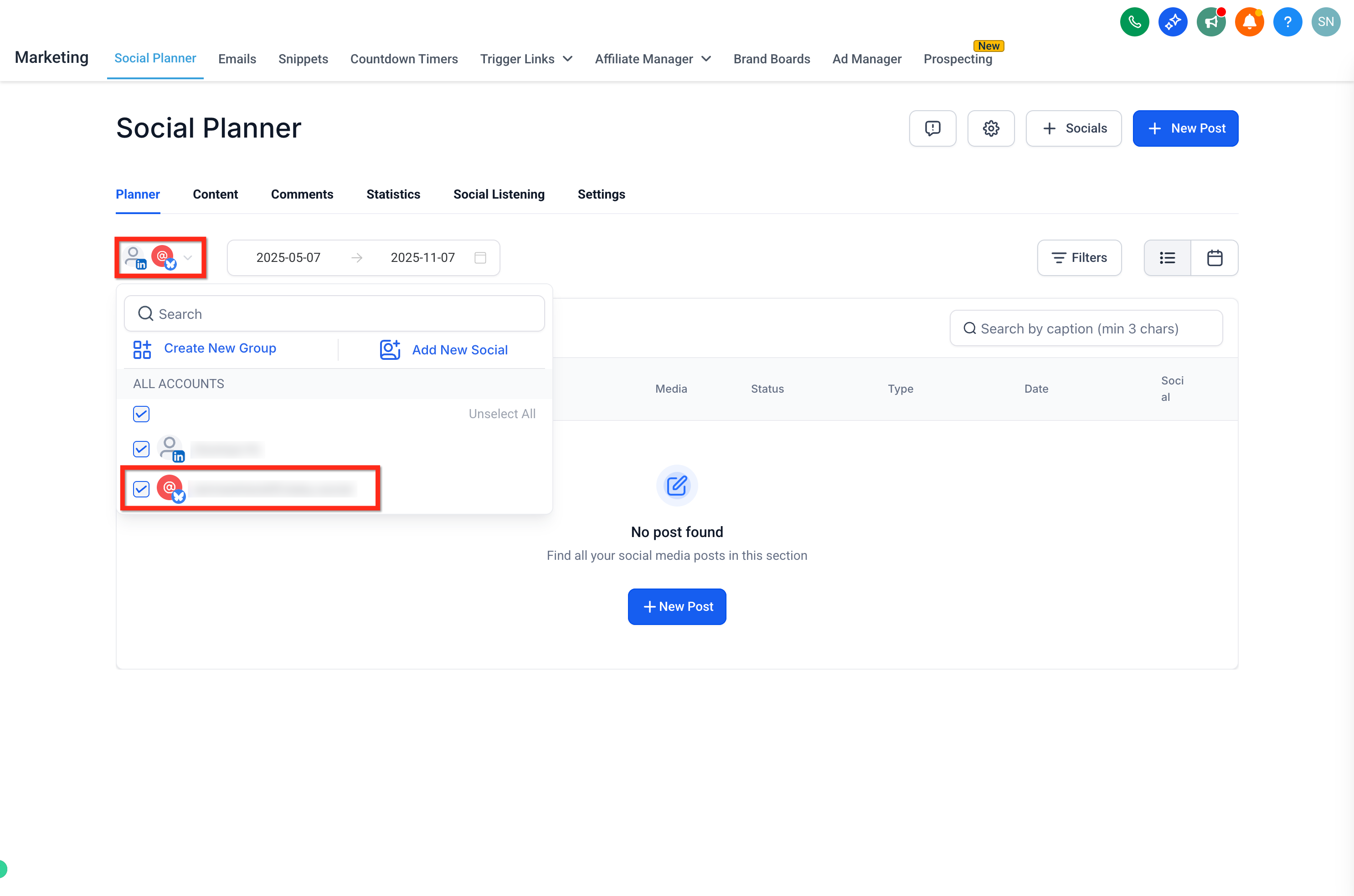
Once connected, your Bluesky account will appear under the All Accounts drop-down in Social Planner.
Frequently Asked Questions
Q: Why do I need an app password instead of my Bluesky login?
For security. Bluesky requires third-party platforms to use app passwords so your main credentials stay protected.
Q: What if I lose the app password?
Go to Bluesky, delete the old app password and create a new one, then reconnect in Social Planner.
Q: What happens if my app password expires?
Generate a new app password in Bluesky and reconnect the account in Social Planner.
Q: Can I connect multiple Bluesky accounts/handles?
Yes. Connect each account separately—each needs its own app password.
Q: Do I need to reconnect after logging out of Bluesky?
No. Once connected with an app password, your Bluesky account will stay connected until you remove it or reset the password.
Q: Which analytics can I track for Bluesky in Social Planner?
You can track Posts, Likes, Comments, Impressions, and Engagement Rate.
Pro Tip: Schedule a week's worth of Bluesky posts at once to maintain your childcare center's social presence even during your busiest enrollment seasons.