
What is Threads Integration in Social Planner?
Threads Integration lets you schedule, publish, and automate content on Meta's text-centric social network directly from Enrollio. Connect your Instagram credentials once, then manage Threads posts alongside Facebook, Instagram, LinkedIn, and other channels—all from your Social Planner calendar.
Keep your childcare center visible and engaging across every platform without juggling multiple apps or logins.
Key Benefits of Threads Integration
- One calendar for everything: Publish to Threads, Facebook, Instagram, LinkedIn, and more from a single Social Planner view—no app switching.
- Save hours with automation: Use Review Flow, RSS Auto-Posting, and Category Queues to auto-fill your Threads calendar with enrollment tips, parent testimonials, and program highlights.
- Bulk scheduling made easy: Upload hundreds of posts at once via Advanced CSV Upload. Map hashtags, categories, and first comments to keep your content organized.
- Publish with confidence: Compose within Threads' limits (500 characters, up to 20 images or one 5-minute video) so posts go live without errors or rework.
- Stay consistent: Schedule ahead and recycle evergreen content—enrollment reminders, safety tips, program features—so your Threads presence stays strong even during busy enrollment seasons.
Threads Publishing Specifications
| Category | Images | Video |
|---|---|---|
| File Types | JPEG, PNG | MP4, MOV |
| Max File Size | 8 MB | 1 GB |
| Max Uploads per Post | Up to 20 images | 20 videos (can mix with images) |
| Dimensions / Resolution | Min 320px, Max 1440px Valid width up to 1920px |
Valid width up to 1920px |
| Aspect Ratio | 0.01:1 to 10:1 | 0.01:1 to 10:1 |
| Duration | – | Up to 5 minutes |
| Frame Rate | – | 23–60 FPS |
| Codecs | – | H.264 or HEVC (video), AAC (audio) |
| Other Notes | – | No custom thumbnails supported |
How to Connect Threads with Social Planner
Follow these steps to link your Threads account to Enrollio:
- Click Marketing in your client account navigation.
- Click the Social Planner tab.
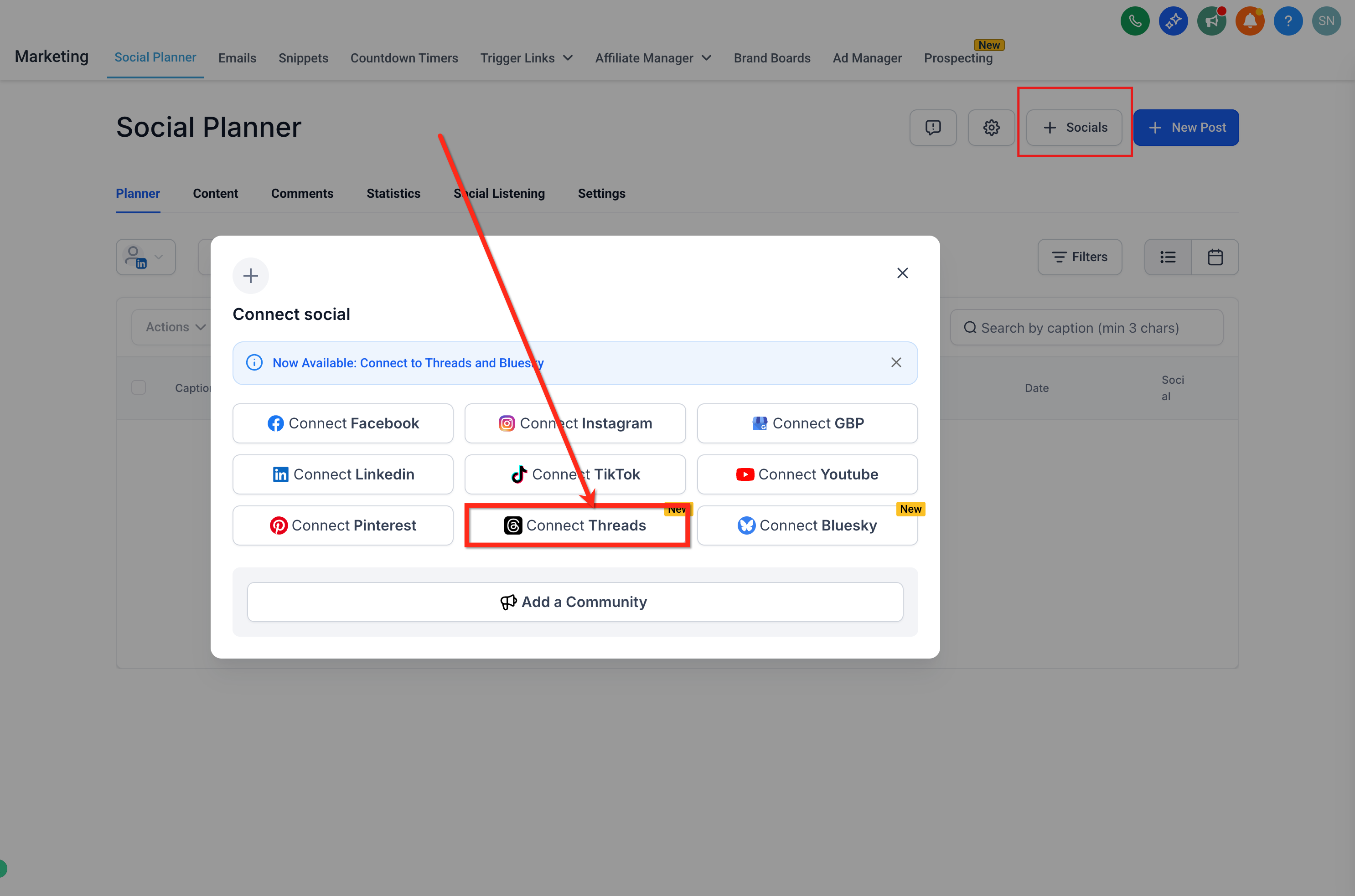
- Click the + Socials button.
- Select Connect Threads.
- Log in with your Instagram credentials and authorize access.
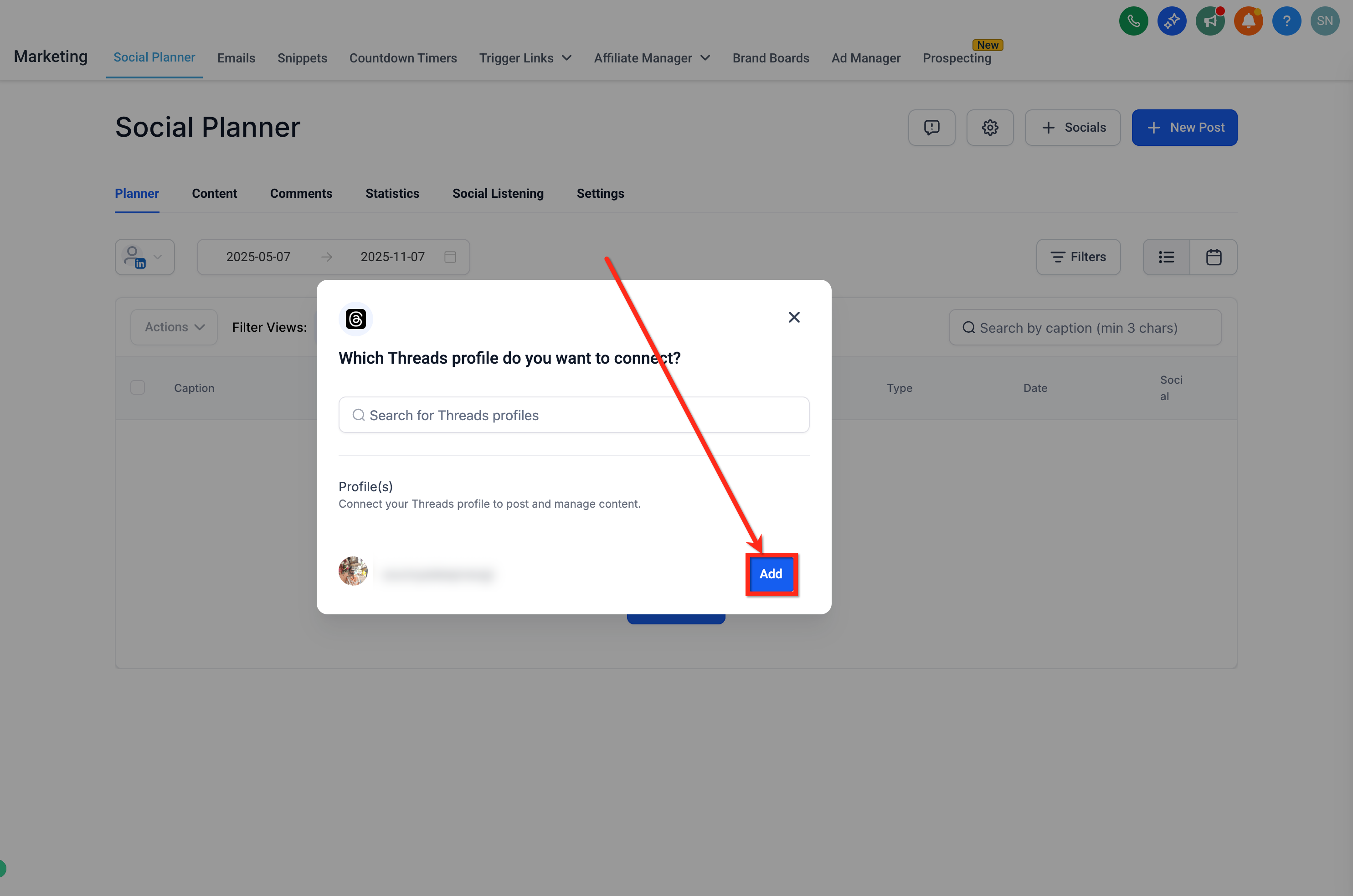
- Click Add beside the profile you want to connect.
Once connected, your Threads account will appear in the All Accounts dropdown in Social Planner.
Note: Your Threads account must be linked to your Instagram account, as Threads access is managed through your Instagram credentials.
Frequently Asked Questions
Does my Threads account need to be public?
Yes. Your Threads account must be public for publishing via Social Planner.
Why can't I add a location to my Threads post?
Location tagging isn't available—this option is currently limited by the Threads API.
Does Threads support analytics in Social Planner?
Yes. You can view Posts, Likes, Comments, and Engagement rate for your Threads content.
Do I need a separate Threads login?
No. Authentication runs through Instagram (OAuth 2.0) for the Threads API. You connect the Instagram account linked to your Threads profile.
Can I mix images and video in one post?
Yes. Carousels can include a mix of images and/or videos, up to 20 total items.
What is the text limit for Threads posts, and what happens if I exceed it?
Threads supports 1–500 characters per post. If you write more than 500 characters, the extra text is automatically posted as a threaded reply (a continuation of your post).
What happens if my Instagram/Threads token expires?
Your scheduler will prompt you to reconnect the Threads account. Re-authenticate and your scheduled posts will resume.
Can I edit or delete a Threads post from Social Planner after publishing?
Editing is not supported by Threads. You can delete posts natively from the Threads app.
Can I schedule Threads posts for multiple accounts at once?
Yes. As long as each Threads account is connected and public, you can cross-schedule to multiple Threads accounts.