
Balance Review Requests Across Google and Facebook
Getting positive reviews helps families find and trust your childcare center. Review Request Balancing lets you split review requests between Google and Facebook, so you build a strong presence on both platforms instead of relying on just one.
What is Review Request Balancing?
Review Request Balancing distributes your review requests between Google and Facebook based on percentages you choose. Instead of sending all requests to one platform, you can create an even split — or customize it to match your goals.
Default setting: When you first enable balancing, Enrollio splits requests 50/50 between Google and Facebook (if both are connected).
Fully customizable: Adjust the split anytime — 70% Google and 30% Facebook, 80/20, or whatever works for your center.
Why Balance Review Requests?
Build trust across platforms: Families search for childcare on Google and Facebook. Strong reviews on both platforms help you stand out.
Reduce platform dependency: Don't rely on one site for your reputation. A balanced approach strengthens your overall online presence.
Match your strategy: If families in your area use Google more, send 70% there. If Facebook is where parents engage with you, shift the balance.
How to Set Up Review Request Balancing
Step 1: Enable Review Balancing
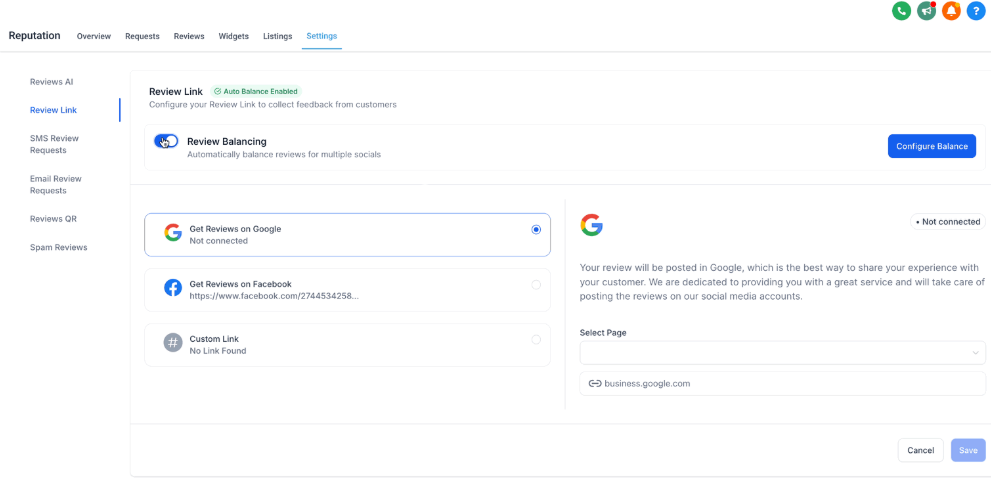
- Go to Reputation > Settings > Review Link
- Toggle on Enable Review Balancing
Step 2: Connect Your Google Business Profile
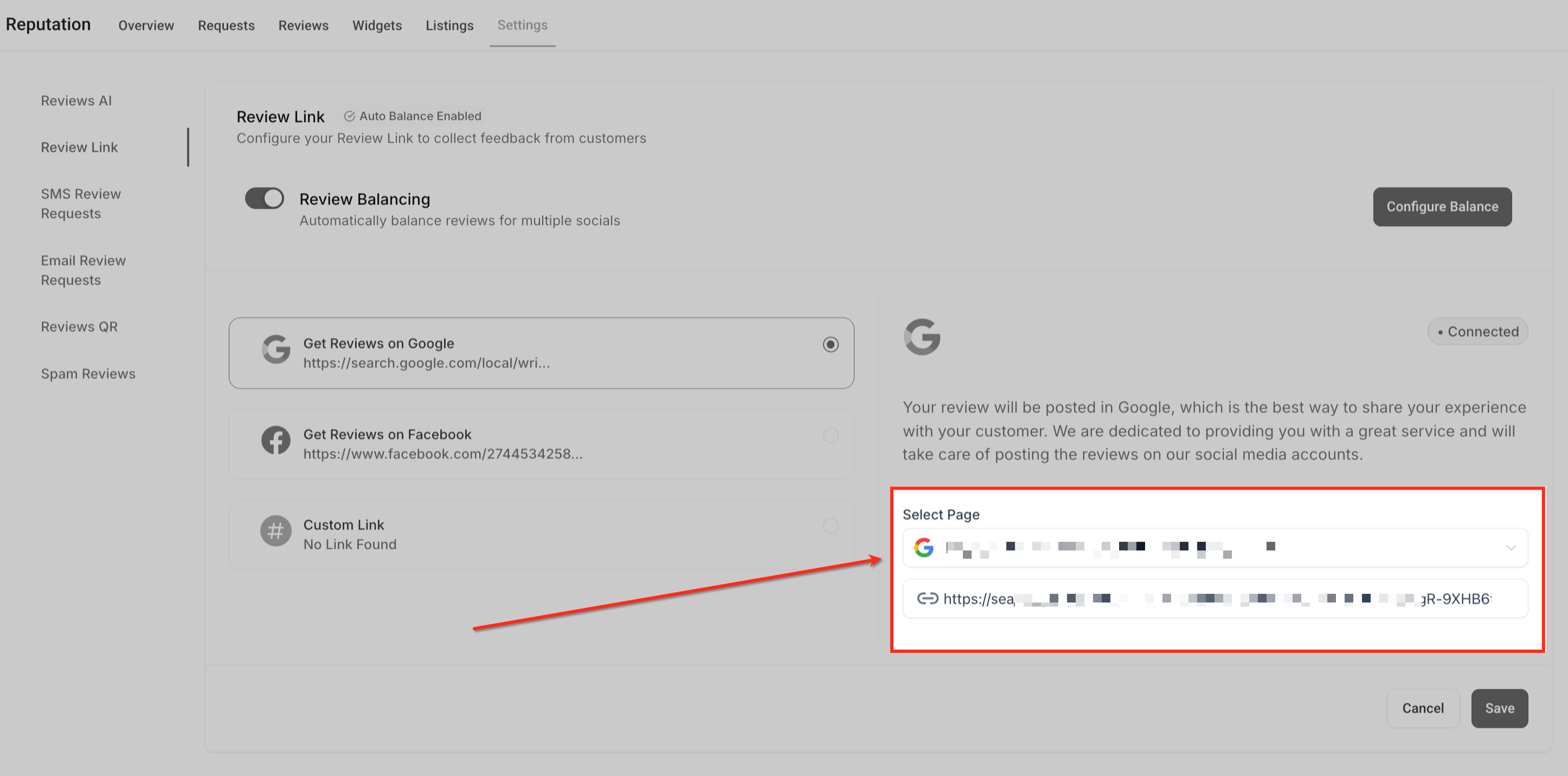
- In Reputation > Settings > Review Link, find the Get Reviews on Google section in the left panel
- Use the Select Page dropdown on the right to choose your Google Business Profile
Step 3: Configure Your Balance
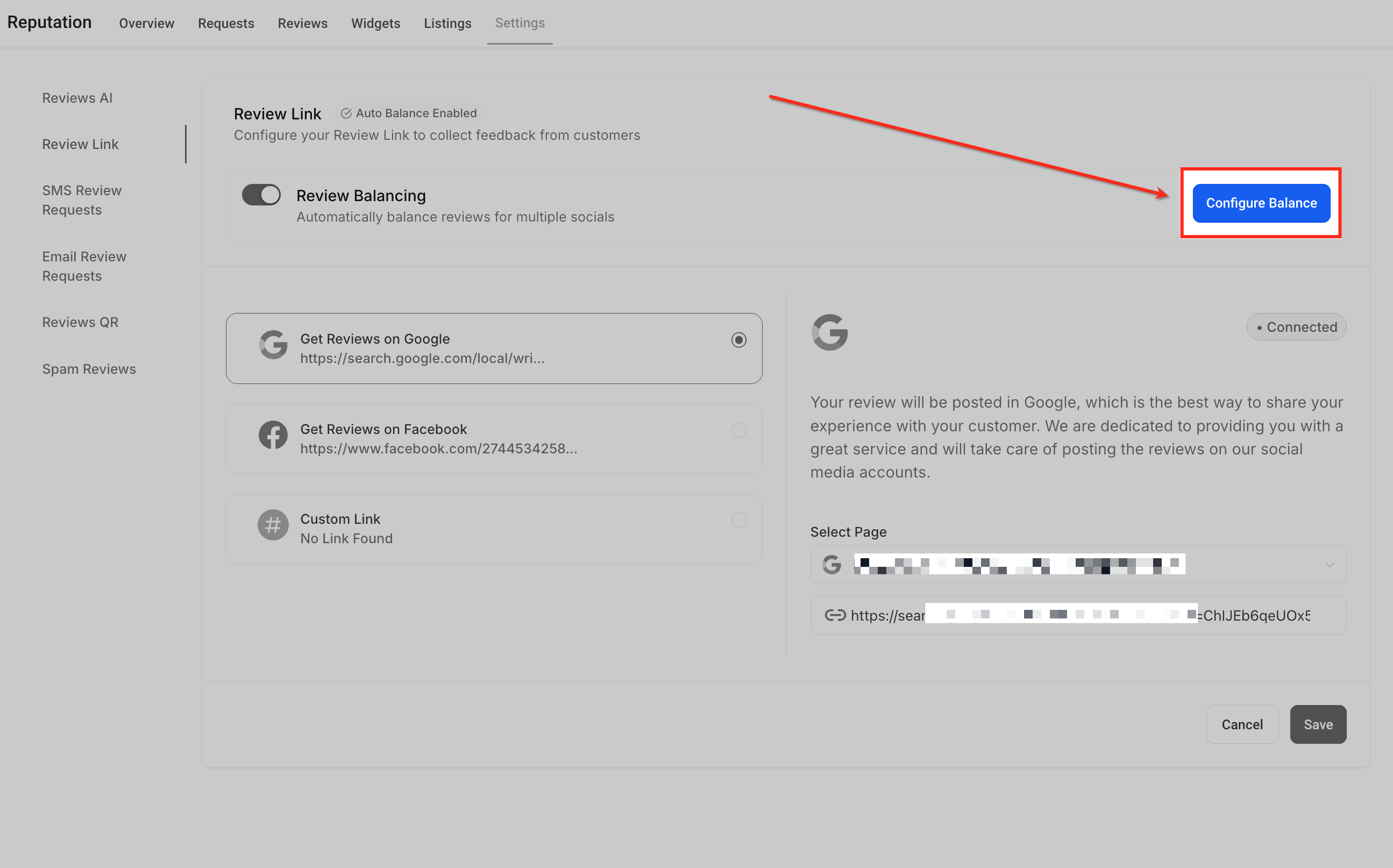
- After enabling Review Balancing, click Configure Balance
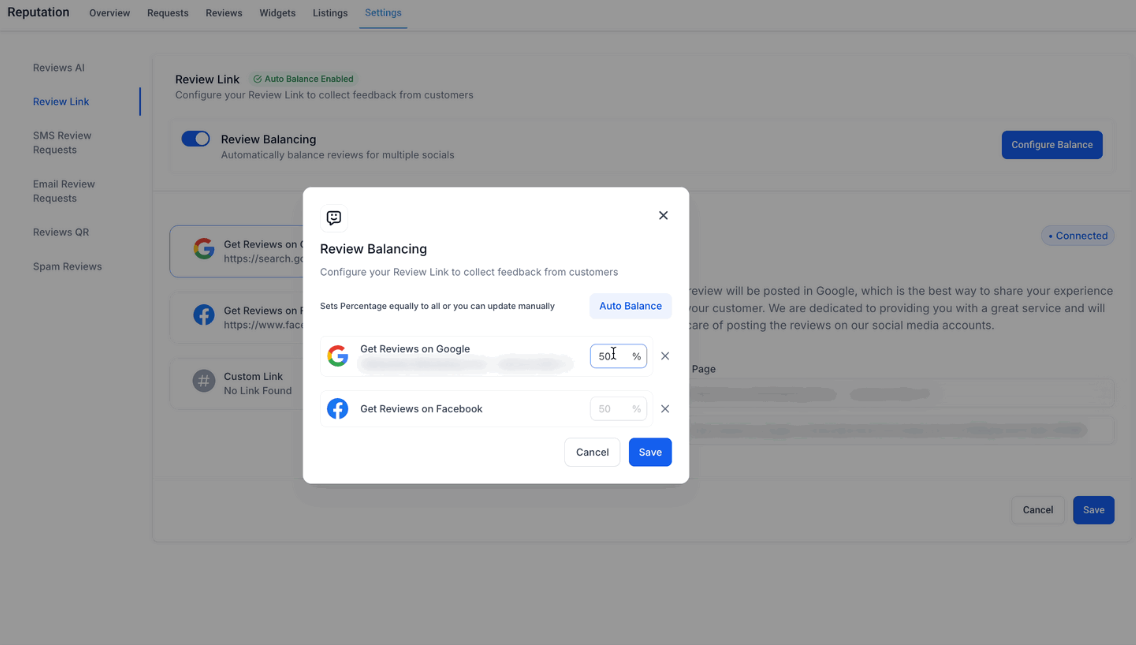
- Adjust the slider or enter percentages to set your split between Google and Facebook
- Examples:
- 70% Google, 30% Facebook
- 60% Google, 40% Facebook
- 50% Google, 50% Facebook (default)
Step 4: Save Your Settings
Click Save to apply your balance. Your review requests will now split according to the percentages you set.
Frequently Asked Questions
What happens if I only have Google connected?
All review requests go to Google until you connect Facebook. Once both platforms are connected, you can enable balancing.
Can I turn off Review Balancing?
Yes. Go to Reputation > Settings > Review Link and toggle off Enable Review Balancing. All requests will then go to your default platform (typically Google).
Can I change the split after setting it up?
Absolutely. Go to Reputation > Settings > Review Link, click Configure Balance, and adjust the percentages anytime.
What if I don't configure a balance after enabling the feature?
Enrollio defaults to a 50/50 split between Google and Facebook (if both are connected). You can change this anytime.
How do I see my current distribution?
The Configure Balance modal shows your current percentages. You can check and adjust them whenever needed.
Can I track review performance by platform?
Yes. While Review Balancing handles distribution, you can view reviews and performance for each platform in the Reputation module.