
Turn your five-star parent reviews into social media posts that attract more families. The Social Planner automates this process, letting you showcase real feedback from happy families across your social channels.
Why Share Parent Reviews on Social Media?
Build Trust Fast: When prospective families see real reviews from other parents, they trust your childcare center immediately. Authentic testimonials are your most powerful marketing tool.
Boost Visibility: Social media algorithms love engagement. Review posts naturally get more likes, comments, and shares, which means more families discover your center.
Social Proof That Works: Every positive review signals to parents that your center isn't just good — it's the right choice for their family.
Before You Start
You'll need:
- Your Facebook Page or Google Business Profile connected in Settings → Integrations
- At least one review already received (check Reputation → Reviews)
How to Automate Review Posts
Step 1: Start a New Review Automation
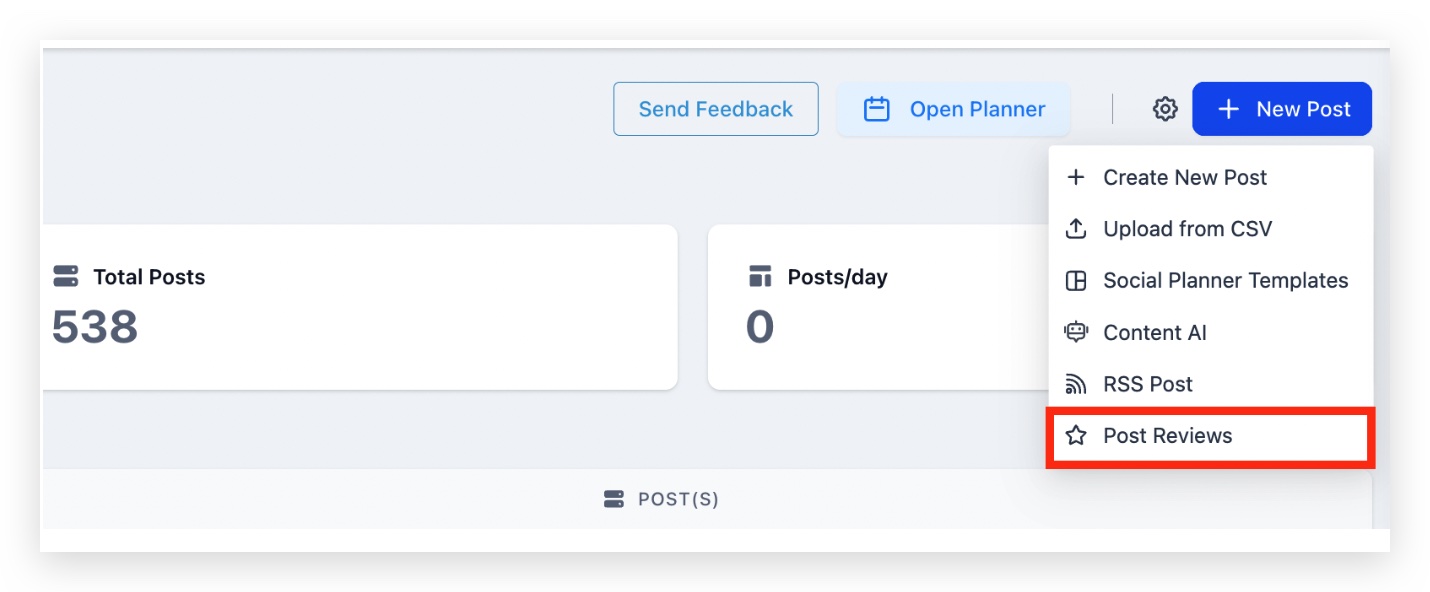
- Go to Marketing → Social Planner
- Click New Post
- Select Post Reviews
Step 2: Choose Your Review Source
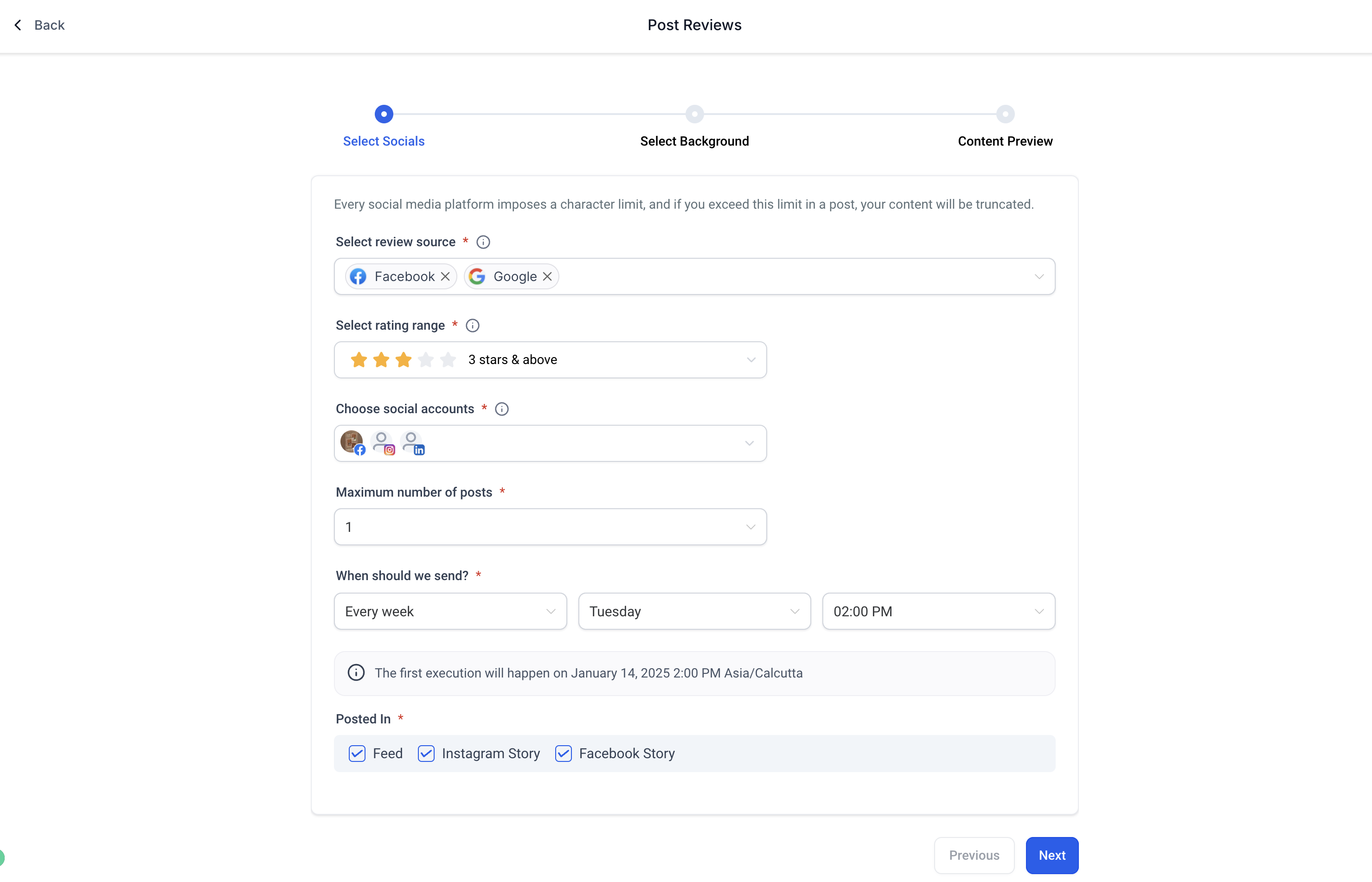
Select where to pull reviews from:
- Facebook Page reviews
- Google Business Profile reviews
Set the minimum star rating (we recommend 4 or 5 stars to showcase your best feedback).
Step 3: Choose Where to Post
Select which social accounts should receive these review posts. You can post to multiple platforms at once.
Step 4: Set Your Schedule
Decide how often to share reviews:
- Maximum posts per cycle: Choose how many reviews to share (e.g., 3 reviews)
- Frequency: Daily, weekly, or monthly
- Time: Pick when posts go live (uses your local timezone)
Step 5: Design Your Posts
Make your review posts match your brand:
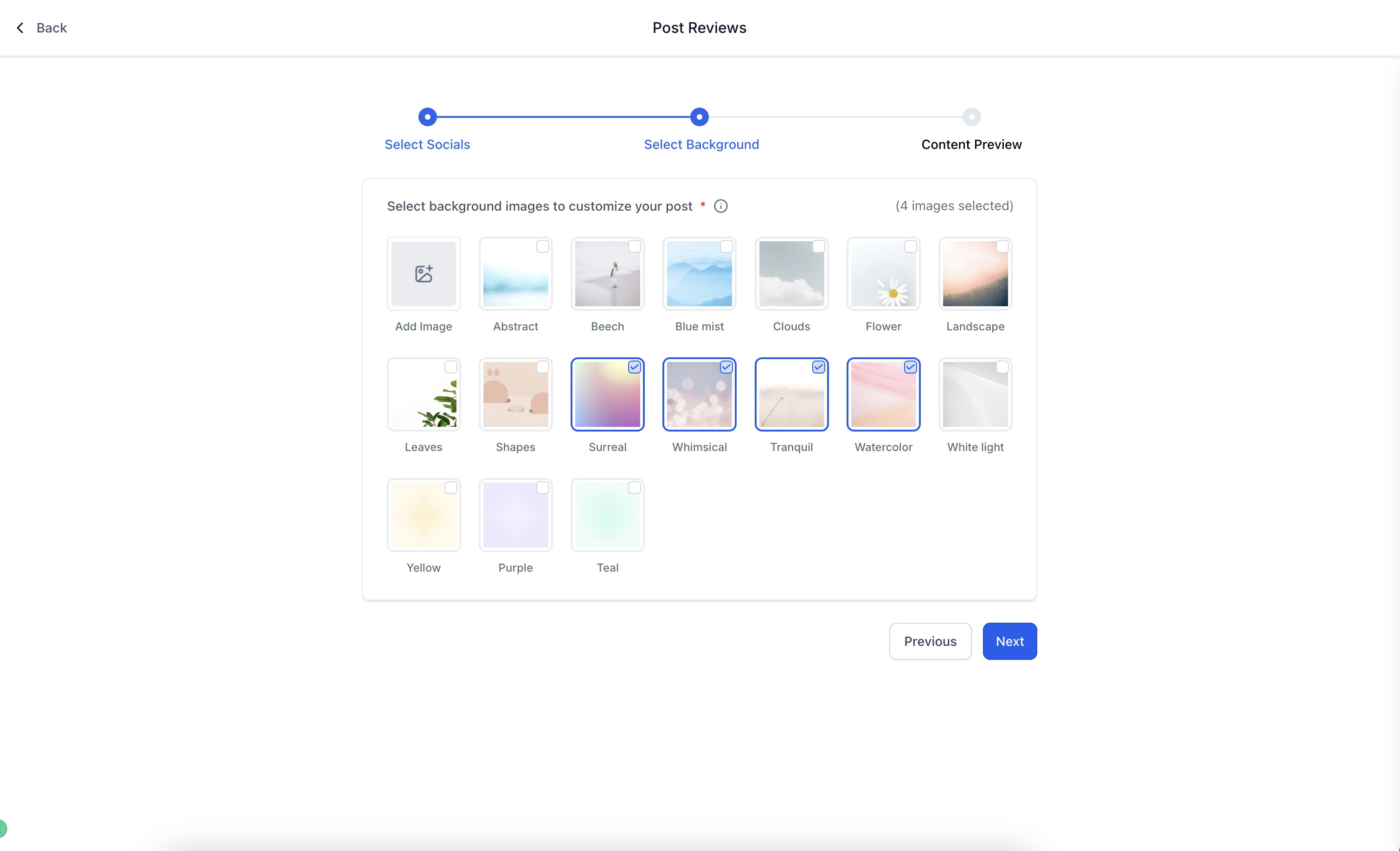
- Upload background images (JPEG/PNG, 1:1 ratio, 5MB max) — consider using photos of your center
- Choose font family, size, and color
- Customize star color and opacity
- Set background color
Step 6: Add Your Caption
You have two options:
- Use the review text as your caption
- Write a custom caption (e.g., "We love hearing from our families! ⭐")
Choose how to display the parent's name:
- Full name
- First name only
- Initials
Step 7: Activate and Monitor
Click Create to activate your review automation.
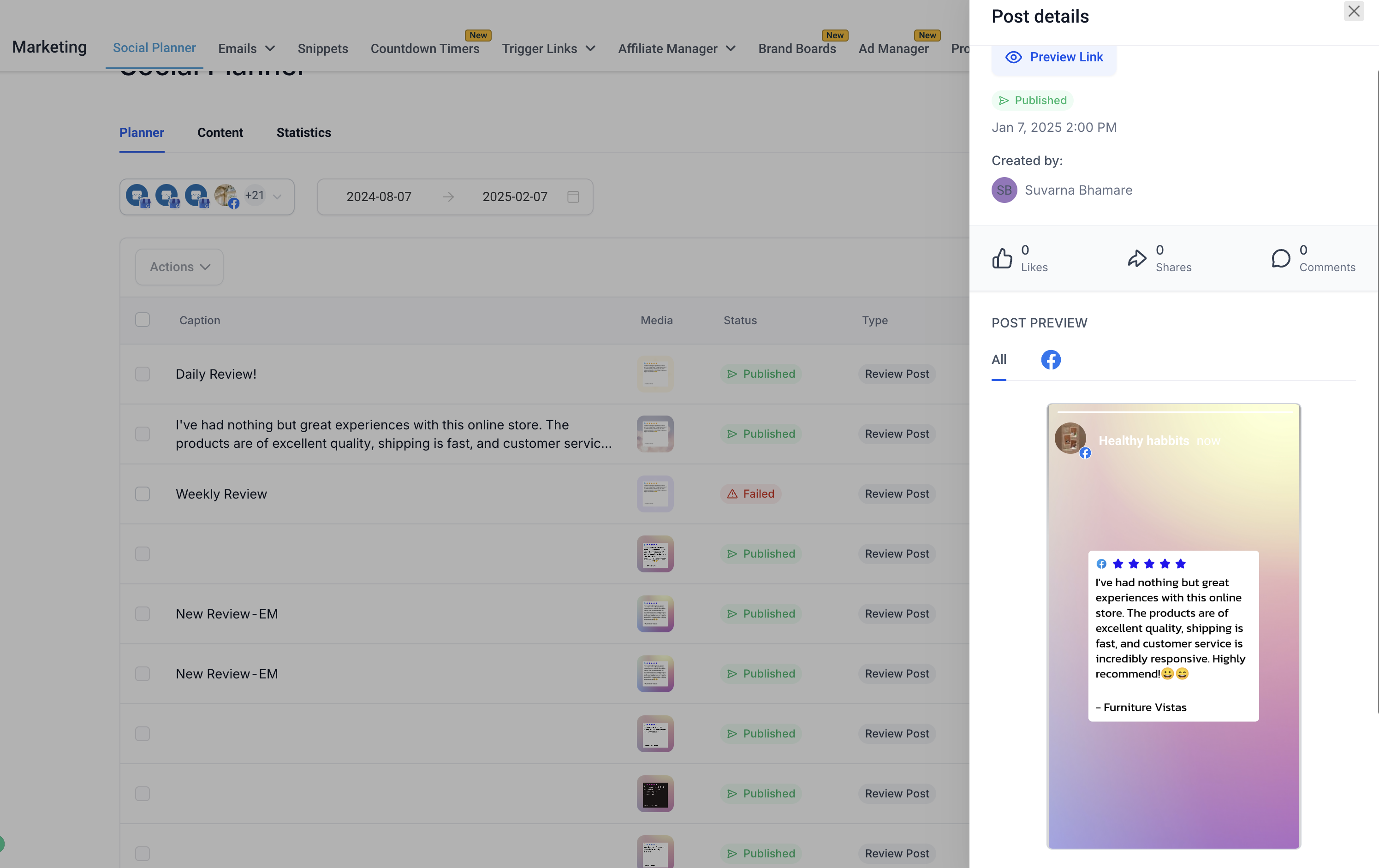
View all scheduled review posts under Content → Review tab. You can pause, edit, or delete the automation anytime.
How the Automation Works: Examples
Example 1: Daily Posting
Your settings: Post 5 reviews daily at 8:37 AM
A parent leaves a new review on January 1st at 6 PM. The review will automatically post on January 2nd at 8:37 AM.
If you received more than 5 reviews, the automation selects the highest-rated ones and posts exactly 5.
Example 2: Weekly Posting
Your settings: Post 3 reviews weekly, starting October 22, 2024 at 11 AM
Every 7 days (October 29, November 5, etc.), the automation posts 3 reviews at 11 AM — all on the same day, not spread throughout the week.
This is why you see one scheduled card on your calendar, not multiple cards throughout the week.
Important Things to Know
Only New Reviews: The automation only shares reviews received after you created it. Reviews from before the setup date won't be posted.
Text Required: Reviews must include written feedback. Star ratings without text are automatically skipped.
No Reviews Available? If no eligible reviews exist when the automation runs, that post is skipped. If you're on a repeating schedule, the system tries again on the next scheduled date.
Timezone: Posts publish according to your local timezone. Don't worry if you see different times in system logs — your posts will go out at the time you selected.
Keep Connections Active: Your Facebook and Google integrations must stay connected. If a session expires, reconnect in Settings → Integrations to resume posting.
Troubleshooting
Reviews Aren't Posting
Check these three things:
- Your Facebook Page and Google Business Profile are connected in Settings → Integrations
- You've received new reviews after creating the automation
- Your reviews include written text (not just star ratings)
If connections show as expired, simply reconnect your accounts and the automation will resume.
Want to Change Your Schedule?
Go to Marketing → Social Planner → Content → Review tab. Click on your automation to edit the frequency, post count, or design at any time.
Frequently Asked Questions
Which social platforms can I post to?
You can share review posts on Facebook, Instagram, Twitter, and LinkedIn — whichever platforms you've connected to Enrollio.
Can I preview posts before they go live?
Yes! The Social Planner shows you a preview of how your review post will appear before it publishes.
Can I use the same automation for multiple social accounts?
Absolutely. Select all the social accounts you want when setting up the automation, and posts will go to all of them simultaneously.
What does "3 posts per week" actually mean?
It means 3 reviews will post on one day each week, not spread across different days. If you set weekly posting for Tuesdays at 10 AM, all 3 reviews post on Tuesday at 10 AM.
Can I customize each post individually?
The automation applies your design settings (background, fonts, colors) to all review posts. For one-off custom posts, create a regular social media post instead.
What image size works best?
Use 1:1 ratio images (square format, like 1080x1080 pixels). This ensures your posts look great on all platforms.