
Google Lead Ads Integration
Capture every Google lead the instant a prospective family submits their information. Enrollio's Google Ads Integration brings form data directly into your platform, where automations can respond immediately—no manual data entry or third-party tools required.
What is Google Ads Integration
Google Ads Integration connects your Google Ads account with Enrollio so families who submit Google Lead Forms automatically become contacts in your system. The secure, OAuth-based connection happens in real time, letting you trigger follow-up automations the moment a parent expresses interest in your childcare program.
This integration lets you collect inquiries directly from Google Ads and have them automatically synced with your enrollment platform. You can capture contact information from families searching for childcare and follow up immediately—speeding up your response time and improving your conversion rate.
Key Features of Google Ads Integration
1. Seamless Setup
- Easily connect your Google Ads account to Enrollio
- Support for multiple Google Ads accounts under a single Google (Gmail) login
- View all active campaigns and lead forms in one place
2. Automatic Lead Sync
- A new contact is created in Enrollio whenever a family submits a lead form from your enabled Google Ads campaign
- Once activated, prospective families flow automatically—no additional setup required
3. Automation Triggers
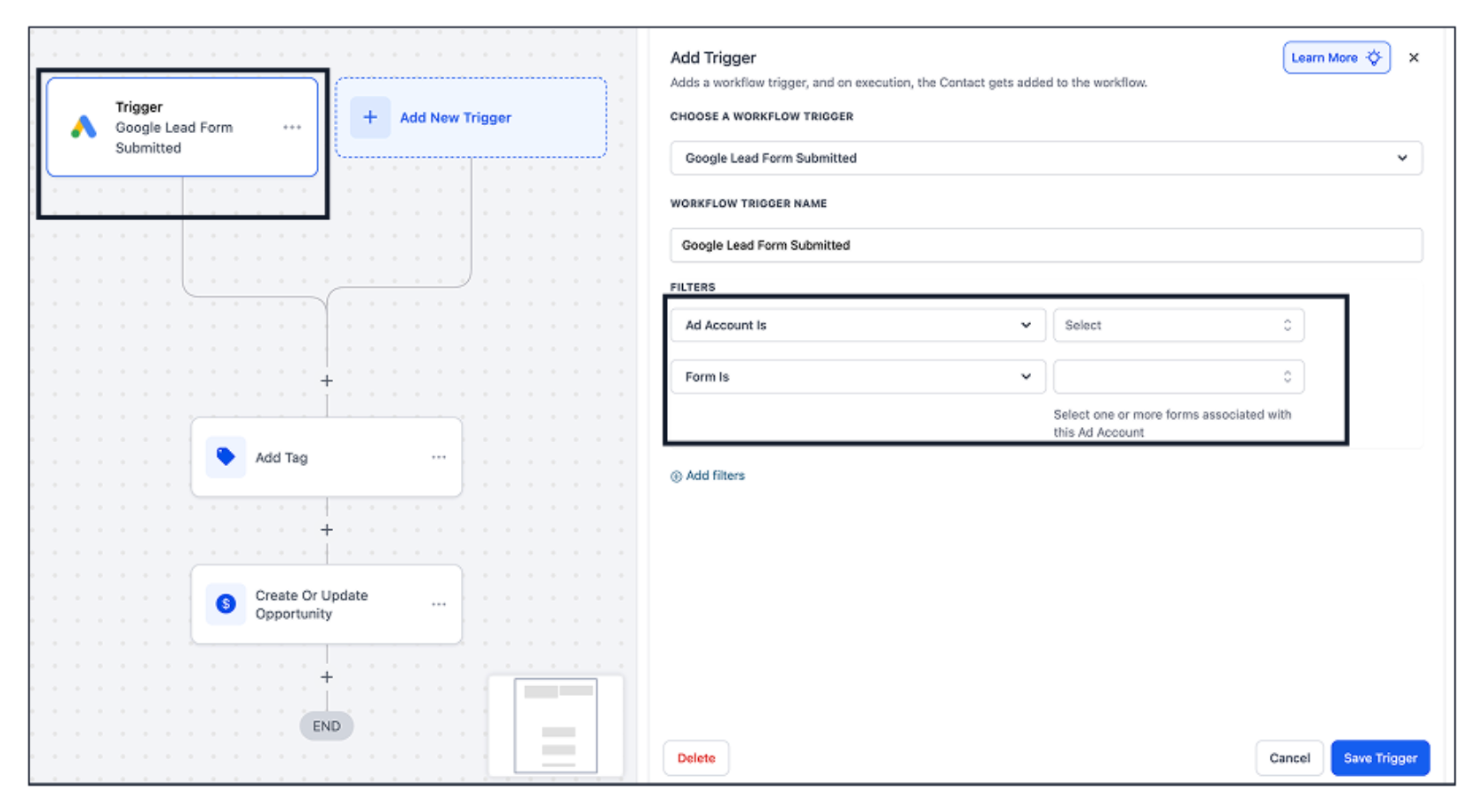
- Trigger automations instantly using the Google Lead Form Submitted trigger
- Apply filters such as Ad Account and Lead Form to create targeted automations
- Automatically send text messages, email follow-ups, internal notifications, and more
How to Connect to Google Ads
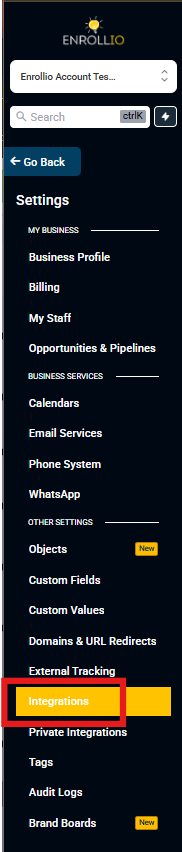
Step 1: Navigate to Settings → Integrations.
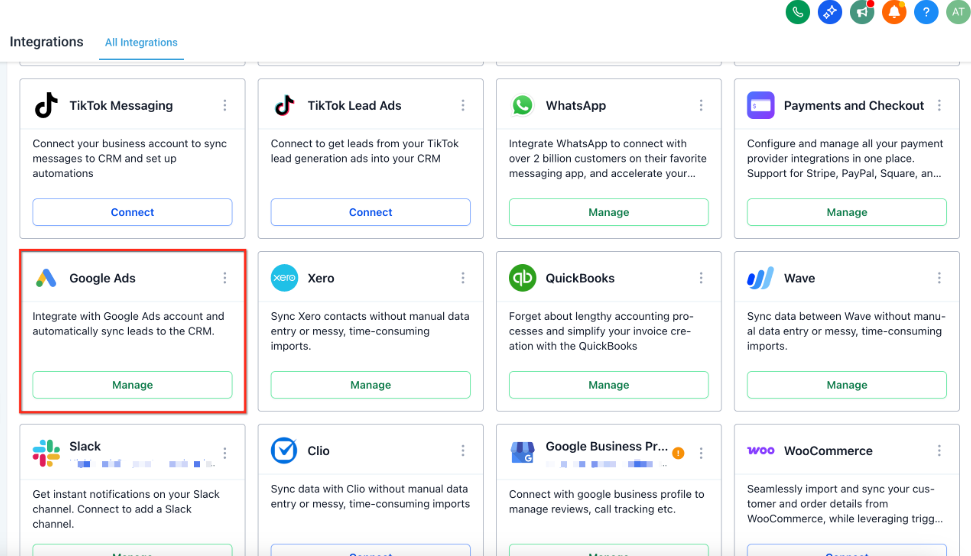
Step 2: Click Manage under the Google Ads integration. You'll be redirected to the App Description page. Click Install to proceed.
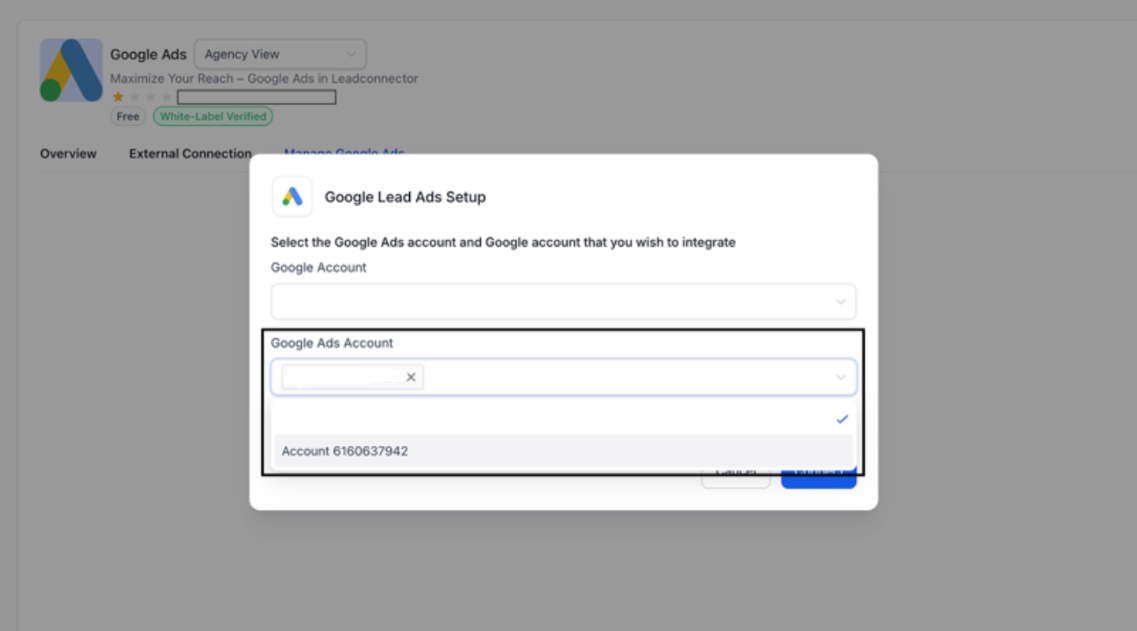
Step 3: You'll be prompted to sign in with your Google account through OAuth authorization. After authentication, select the Google Ads accounts you want to connect for lead syncing.
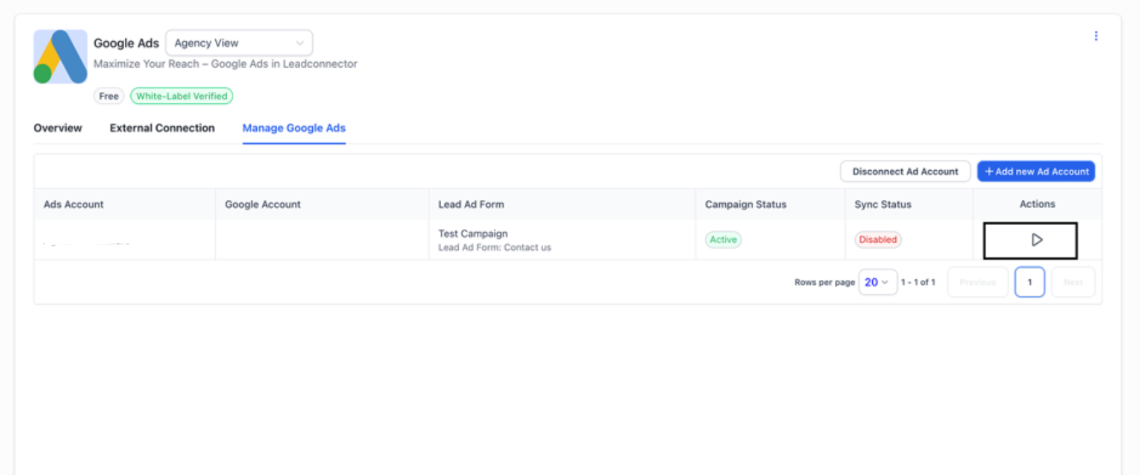
Step 4: Once connected, all lead forms linked to your selected ad accounts will appear—along with their associated campaign names and status. Click the Play icon next to a form to map it and activate lead syncing.
Step 5: Set up automations using the trigger "Google Lead Form Submitted" to automate your follow-up actions when a new prospective family comes in.
Form Field Mapping
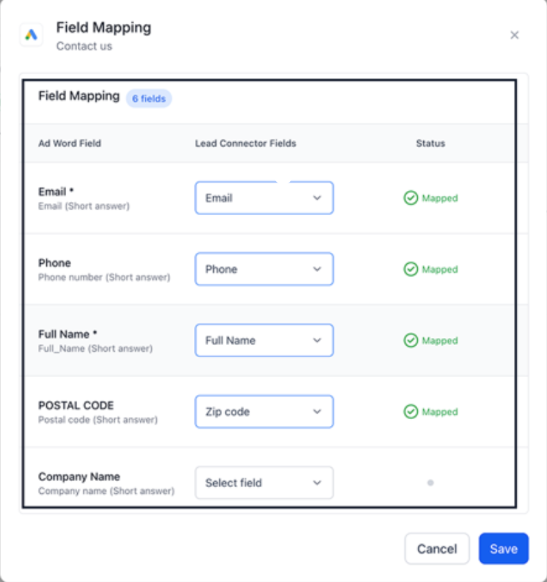
Click on the Play/Edit icon for the form you wish to map and sync leads from.
Use the Map Fields button to align your Google Ad Form fields with Enrollio fields. This ensures parent names, phone numbers, email addresses, and any custom questions flow into the right places in your system.
If you want to disable inbound leads from any of the forms, click the Pause icon.
How to Test if the Connection is Successful
Step 1: Open your campaign in Google Ads Manager and navigate to the campaign you want to sync with Enrollio.
Step 2: From the Campaign List View, click on the campaign name to open its details.
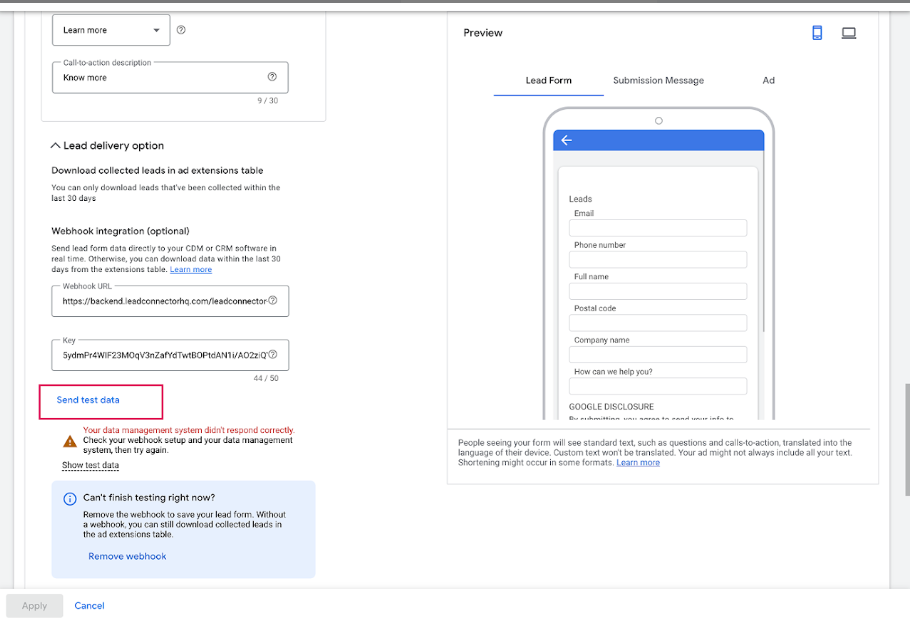
Step 3: Go to the Lead Form section within the campaign and click Edit.
Step 4: You'll be redirected to the form linked with your campaign. Click on the form name to open it.
Step 5: Click Send Data to test the integration.
Note: You may see a warning message—you can safely ignore it for this test.
After sending test data, check your Enrollio contacts to confirm a new test contact was created with the information you submitted.
Frequently Asked Questions
Do I need admin access to connect to Google Ads?
Yes. You must use a Google (Gmail) account that has access to the Google Ads account you want to connect. Without the required permissions, the ad account and lead forms will not appear.
Can I connect more than one Google Ads account?
Yes. You can connect multiple Google Ads accounts using a single Google login and manage all associated campaigns and lead forms from one place.
When is a contact created in Enrollio?
A contact is created each time a family submits information through a Google Ads lead form that is enabled and properly mapped in the integration.
Why aren't my leads syncing?
Check the following:
- The correct Google Ads account is connected
- Lead sync is enabled for the campaign or form
- All required lead form fields are mapped to Enrollio fields
- The sync status shows Active