
Customizing Review Widgets
This article will guide you through how to set up, customize, and embed Review Widgets. These widgets let you showcase real reviews from parents directly on your site—boosting trust, improving enrollments, and strengthening your childcare center's reputation.
What are Review Widgets?
The Review Widget displays real parent feedback directly on your enrollment site, helping you build instant trust and social proof with prospective families. It supports reviews from platforms like Google and Facebook, allowing you to combine them into one seamless, branded display.
You can easily customize the widget's layout, style, and content to match your enrollment site's design. Once added, it updates automatically with new reviews, giving visitors fresh, credible testimonials without any manual work.
Key Benefits of Review Widgets
Adding a review widget to your enrollment site is more than just a design choice—it's a strategic move. Displaying reviews builds social credibility and helps prospective families make enrollment decisions with confidence.
- Social Proof: Showcase real parent reviews to build trust and increase enrollment conversions
- Review Aggregation & Filtering: Combine reviews from platforms like Google and Facebook. Apply filters by platform or rating to showcase only your best reviews
- Brand Consistency: Tailor the widget's layout, fonts, and color scheme to align perfectly with your childcare center's branding
- Automated Updates: New reviews are automatically pulled into the widget, keeping your content fresh without ongoing maintenance
- Templates: Use ready-made, no-code templates for fast setup and professional, consistent design
- Simple Integration: Easily embed widgets into any enrollment page—no coding knowledge needed
- AI Summary: Instantly highlight overall review sentiment with auto-generated summaries that build trust at a glance
How to Access and Use the Review Widget Builder
Follow these steps to create and customize a review widget:
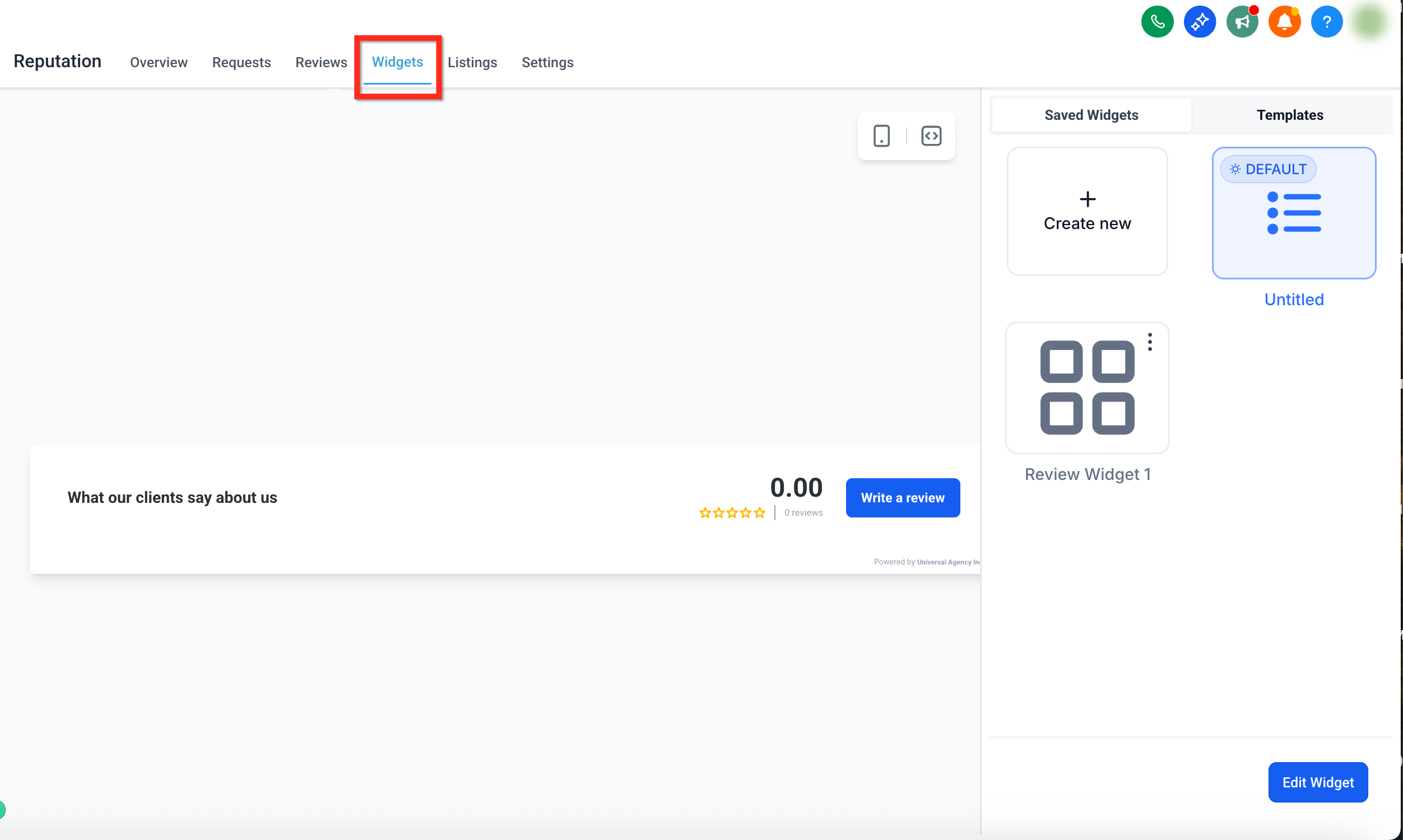
Step 1: Navigate to the Widgets tab
From your account dashboard, click Reputation in the left-hand menu. Then click the Widgets tab in the top navigation.
Step 2: Select or Create a New Widget
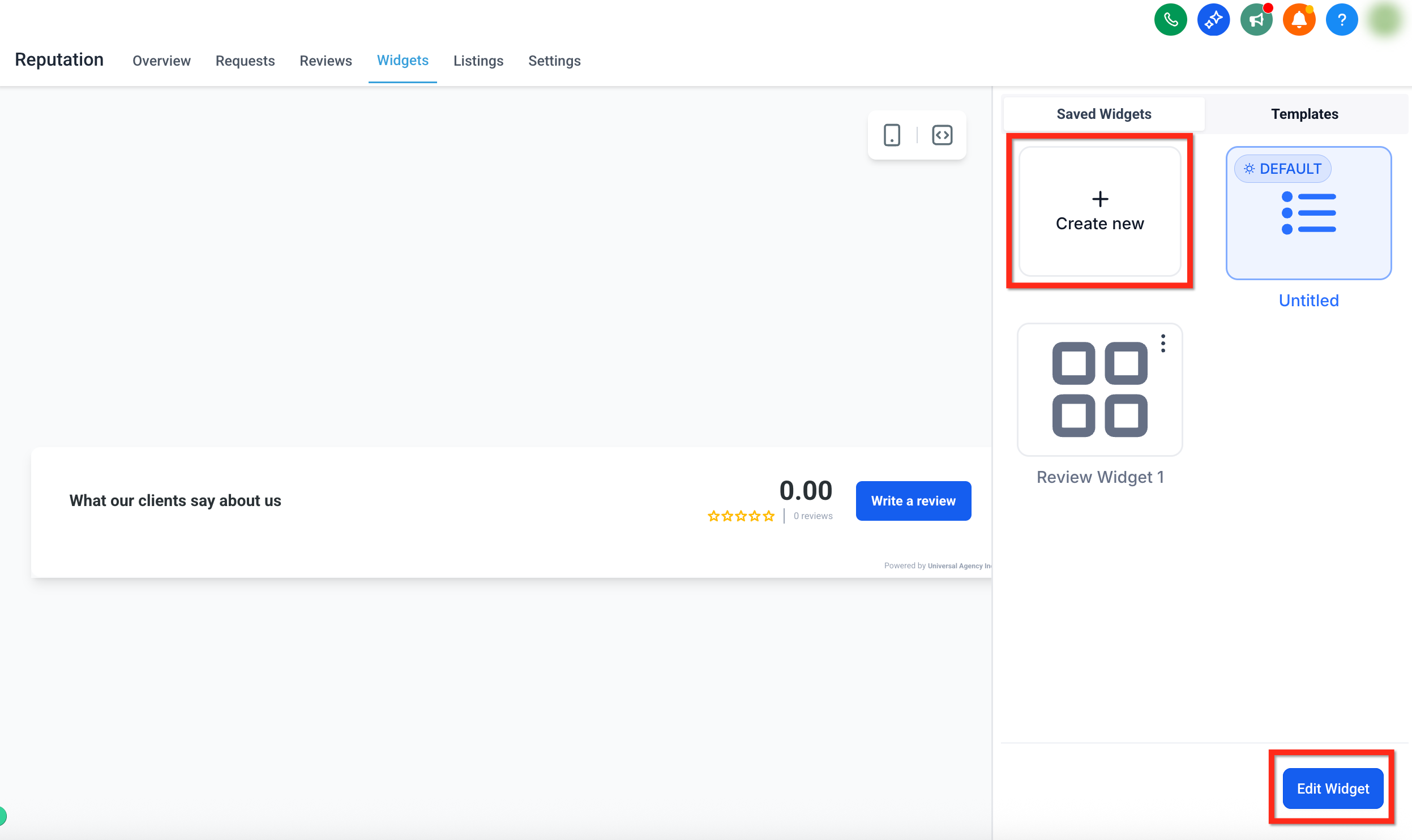
To create a new widget, click the + Create Widget button. To edit an existing widget, click the desired widget then click the blue Edit Widget button in the bottom right corner.
If you're starting from scratch, you can also select a pre-built template to instantly apply a professional layout and style.
Step 3: Configure Your Widget Settings
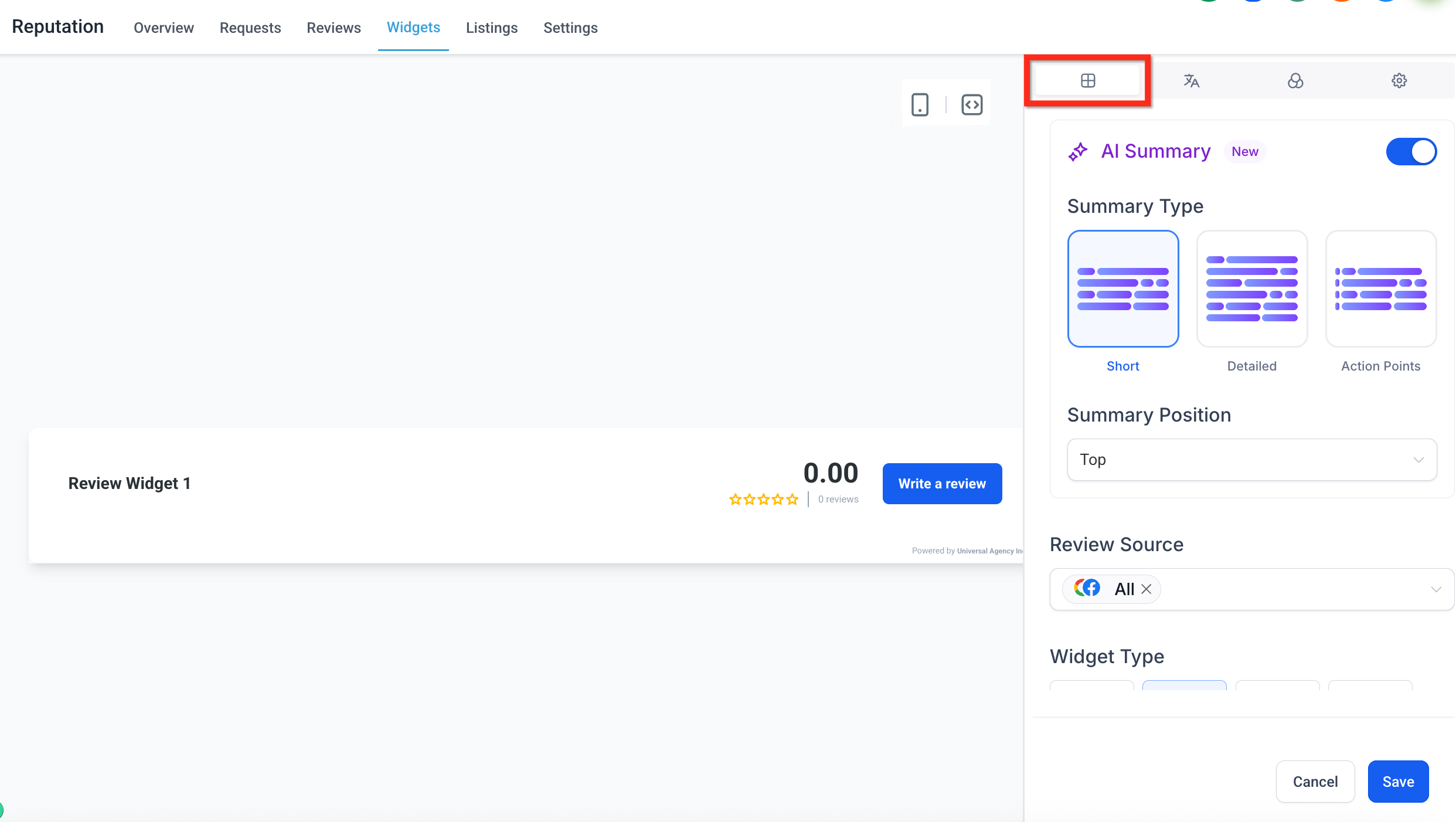
The widget builder includes several tabs that let you fully customize the structure, content, and appearance of your review widget. You'll be able to control everything from the layout to the sources and theme.
Each tab focuses on a different part of the widget experience:
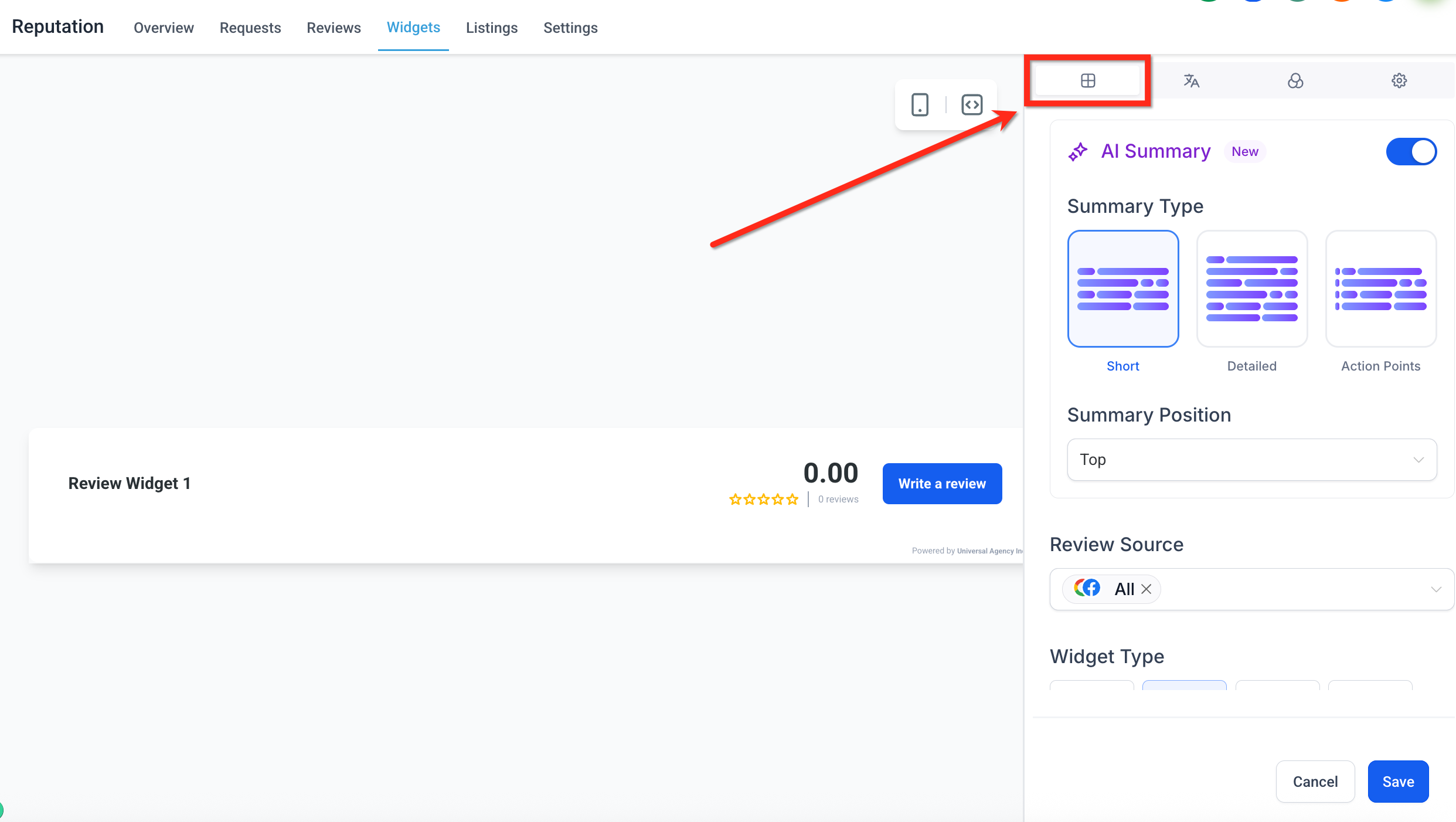
- Layout Tab: Set the widget type, review sources, summary options, rating filters, and "Powered by" visibility
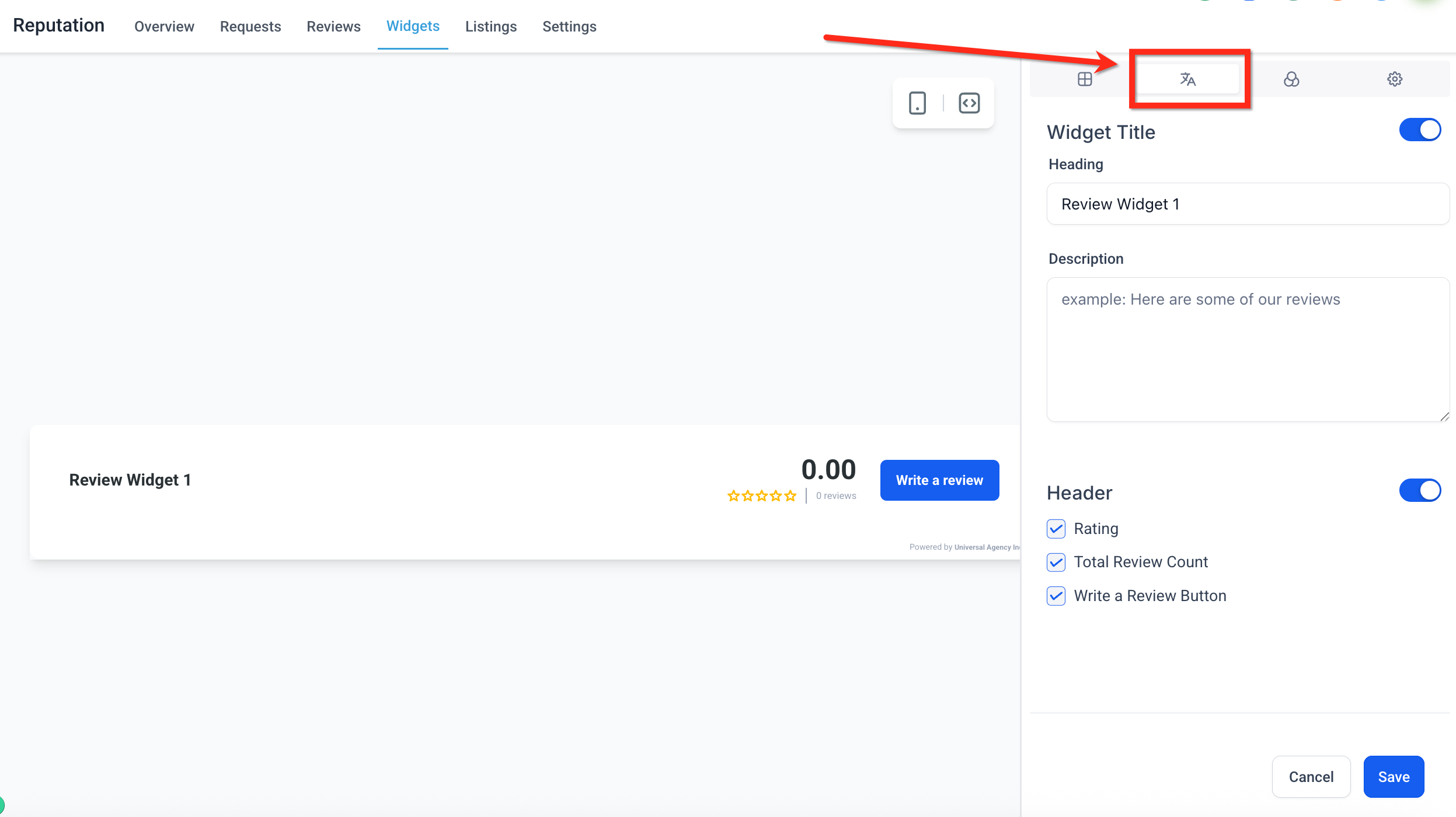
- Content Tab: Manage the widget heading, description, position, and header elements
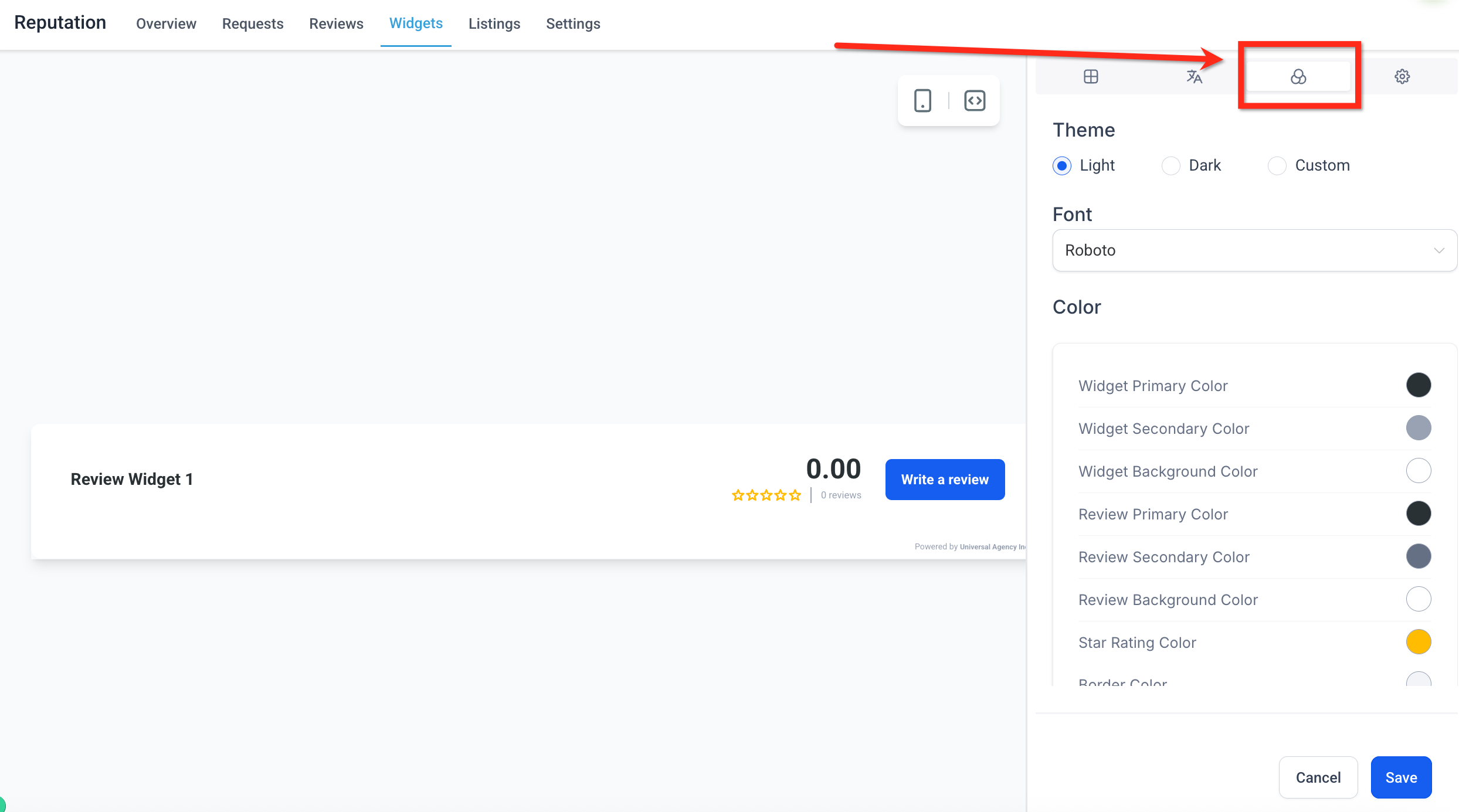
- Appearance Tab: Choose a theme, apply brand fonts, and configure individual colors if using the Custom option
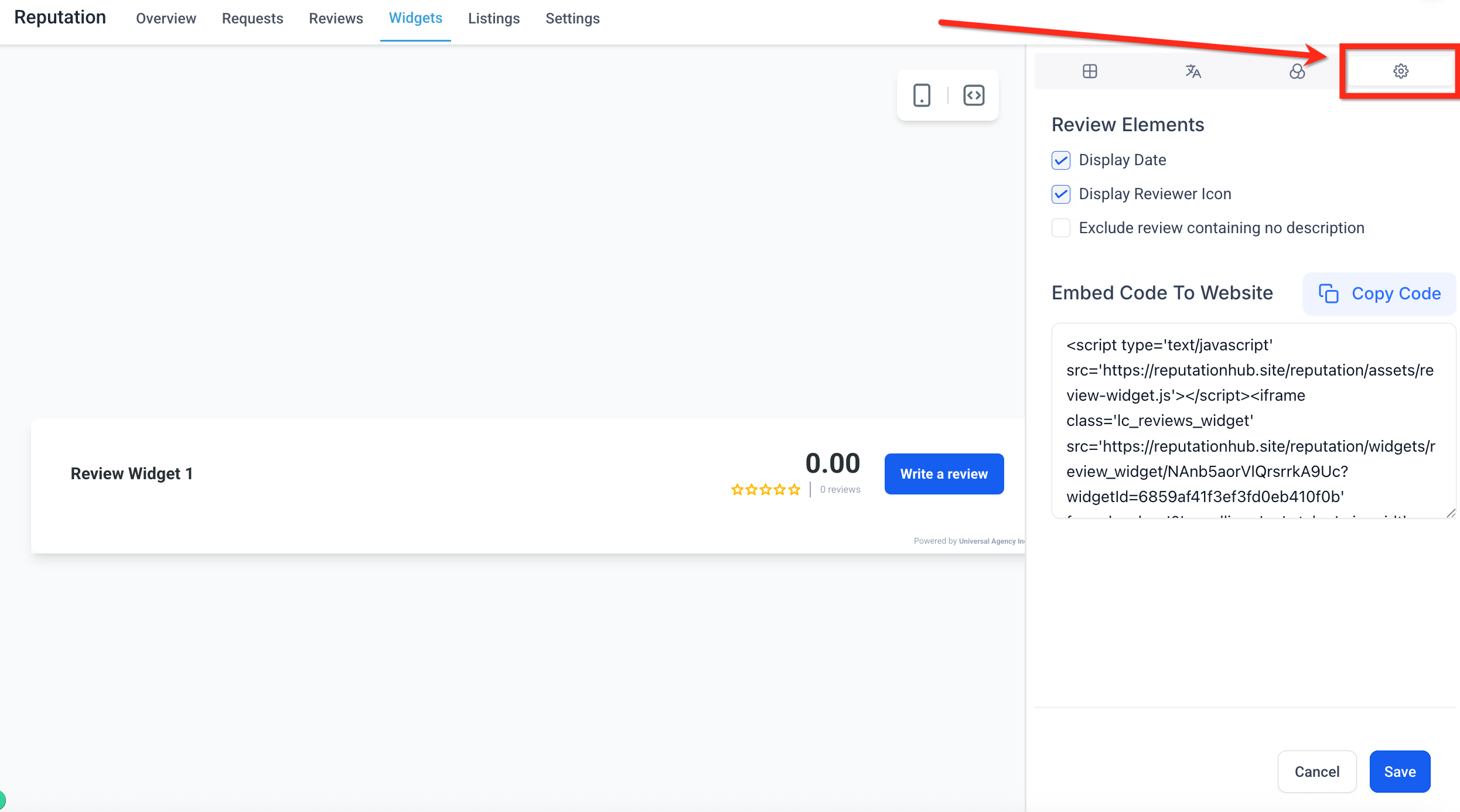
- Settings Tab: Enable or disable review display elements and generate the embed code for your site
Note: Available customizations vary based on your selected Widget Type.
Step 4: Save and Embed the Widget
Once you've made all your changes, click the blue Save button in the lower right corner.
To add your widget to an Enrollio enrollment site or landing page, drag and drop the Reviews element onto the page.
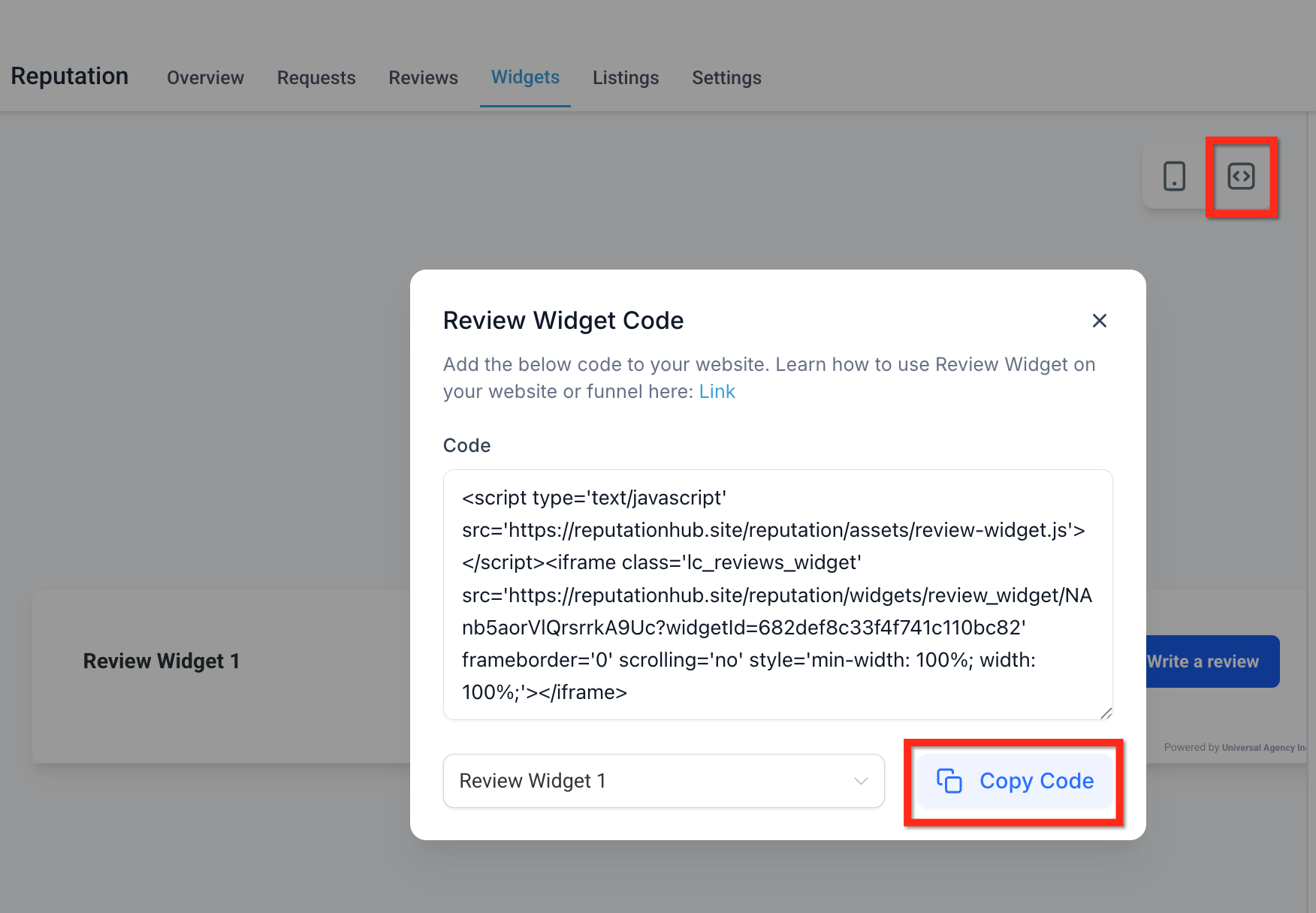
To embed the review widget using code, click the Code icon then click Copy Code. Paste this code into a custom HTML block on your enrollment site.
Customizing Review Widgets
Each tab in the widget builder gives you control over a different aspect of your review widget—from structure and layout to content, design, and behavior.
Layout Tab: Configuring Widget Structure
Define the foundational structure and sources of your review display:
- Summary Type: AI-generated sentiment overview based on your reviews. Choose the summary type (Short, Detailed, or Action-Oriented) and toggle it on or off as needed
- Summary Position: Choose where the AI summary appears—either at the top of the widget or inline with the reviews
- Review Source: Select which platforms to pull reviews from (Google, Facebook, etc.)
- Widget Type: Pick the display format for your reviews. Options include List, Grid, Masonry, Carousel, Slider, Flash, and Legacy
- Max Number of Reviews: Set the total number of reviews to display within the widget
- Minimum Ratings: Choose to show only reviews that meet a specific star rating threshold
- Powered by: Show or hide the "Powered by" message at the bottom of the widget
Content Tab: Editing Widget Header and Description
Customize how your widget introduces and frames your reviews:
- Title (Toggle): Toggle on or off to display a custom title at the top of the widget
- Heading: Define the text that appears as the widget heading. This can reflect your brand tone or content focus (e.g., "What Parents Are Saying")
- Description: Add brief supporting text below the heading to provide context or encouragement
- Header (Toggle): Controls the visibility of the header summary section, which includes rating data, review count, and a write a review button
- Rating: Shows the average star rating of all reviews
- Total Review Count: Displays how many total reviews have been left
- Write a Review Button: Adds a clickable button that directs parents to submit a review
- Widget Position: Choose where on the screen the widget is displayed
- Slider Interval: Set how many seconds each review stays visible before rotating (available when using a carousel or slider layout)
Appearance Tab: Choosing Themes and Colors
Control the overall visual style of your widget to align with your enrollment site's branding:
- Theme: Choose between Light, Dark, or a fully customizable option. Each theme provides a different default visual experience
- Font: Adjust the font family used in the widget to match your childcare center's typography
- Color: If using the Custom theme, you can individually edit a wide range of color elements, such as background, borders, star rating, review text, buttons, and more
Settings Tab: Fine-Tuning Widget Behavior
Further refine your widget's behavior and what information is displayed for each review:
- Display Date: Toggle on to show the date each review was posted
- Display Reviewer Icon: Enable to display a reviewer avatar or initials next to each review
- Exclude Reviews Containing No Description: Filter out reviews that only include a rating but no written feedback
- Embed Code to Website: Click Copy Code to grab the auto-generated embed script. Paste this code into any HTML block on your enrollment site to display the widget
Saving, Naming, and Managing Your Widgets
Give your widget a meaningful name that helps you identify it later (e.g., "Homepage Parent Reviews" or "Tour Page Testimonials"). Click Save to store your configuration.
You can create multiple widgets with different configurations for different pages on your enrollment site. All your saved widgets appear in the Widgets tab, where you can edit, duplicate, or delete them as needed.
Using Templates
Templates give you a head start with professionally designed review widget layouts. When creating a new widget, select from the available templates to instantly apply a proven design. You can then customize it further to match your specific needs.
Templates are especially helpful if you want a polished look without spending time on detailed customization.
Frequently Asked Questions
Can I display only 5-star reviews?
Yes. Use the Minimum Ratings filter in the Layout tab to show only reviews that meet your chosen star rating threshold.
How often does the widget update with new reviews?
The widget automatically pulls in new reviews as they're posted to your connected platforms. There's no manual refresh needed.
Can I use the same widget on multiple pages?
Absolutely. Once you've created and saved a widget, you can embed it on as many enrollment pages or landing pages as you like using the same embed code.
What happens if I don't have many reviews yet?
Start by connecting your Google and Facebook review sources. You can also use the Write a Review button feature to encourage current families to leave reviews, which will automatically appear in your widget.