
Quick Troubleshooting Steps
If your review request emails aren't reaching parents, follow these steps to identify and fix the issue.
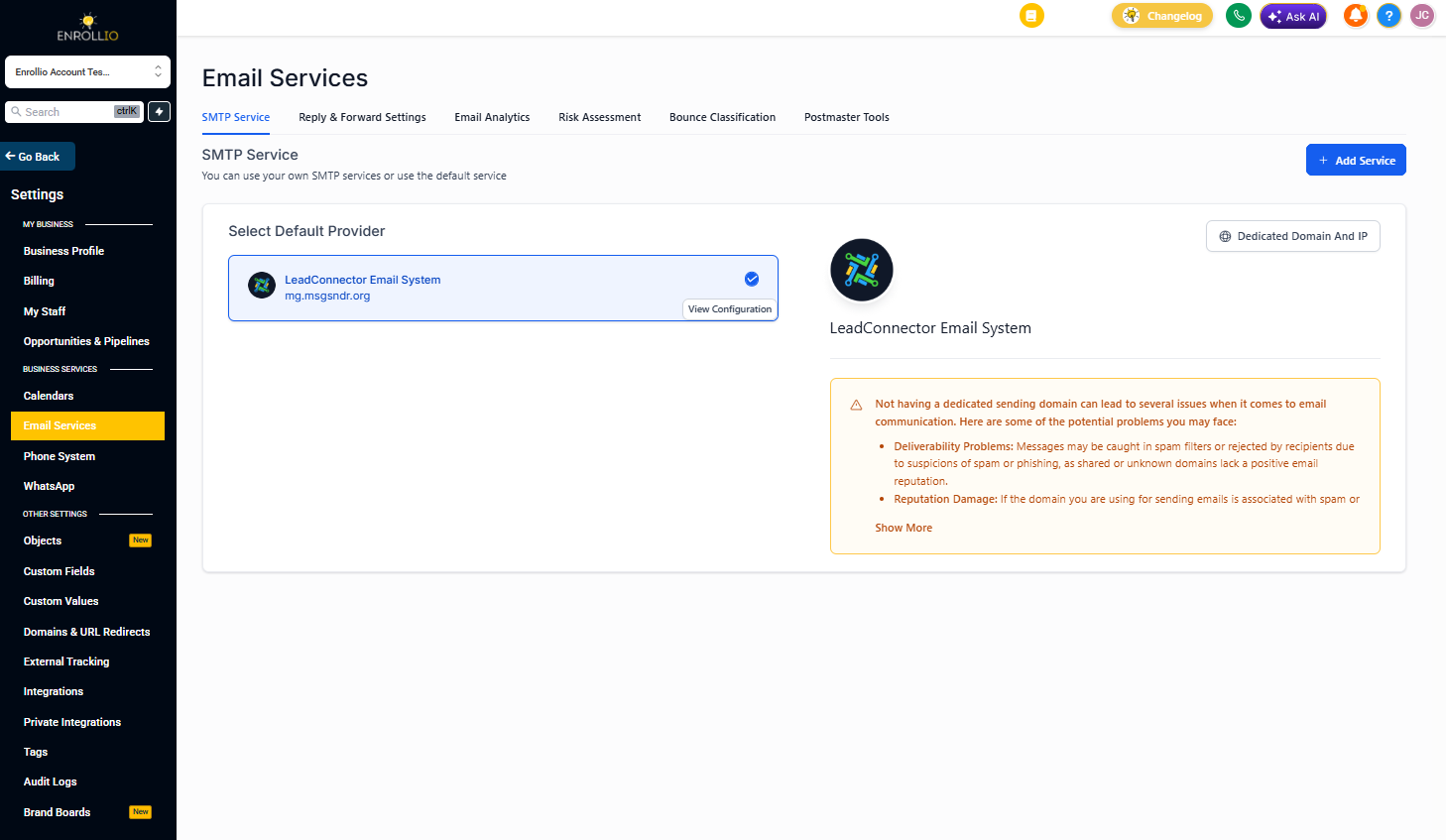
Step 1: Check Your Email Connection
First, verify which email service you're using to send review requests:
- Click Settings in your left navigation
- Go to Email Services
- Check if you're using Mailgun or a custom SMTP connection
Pro tip: If you're using a custom SMTP, make sure you're logged into Enrollio with the same email address that's connected to your SMTP. Review requests will send from that address.
Step 2: Review Your Email Template
Make sure your review request template doesn't have any broken custom fields:
- Go to Settings Reputation
- Click Review Requests
- Open your email template and check for custom fields like {{parent_name}} or {{child_name}}
- Verify these fields have the correct formatting (wrapped in double curly braces)
If a custom field is broken or references a field that doesn't exist, the email may fail to send.
Step 3: Check for Mailgun Delays
If you're using Mailgun (our recommended email service), there may be a short delay in delivery:
- Review requests typically send within 5-10 minutes
- Check your Marketing Emails section to see the send status
- If emails show as "Queued" for more than 30 minutes, contact support
Still Having Issues?
If review requests still aren't sending after checking these items:
- Verify the parent's email address is correct in their contact record
- Check if the parent has unsubscribed from emails
- Make sure your email service hasn't been suspended due to bounces or spam reports
Need help? Contact our support team with the parent's name and the date you attempted to send the review request.
Related Articles
- How to Send Review Requests
- Customizing Review Request Messages
- Setting Up Your Review Widget