
WhatsApp Settings
This guide shows you how to manage your WhatsApp Business integration in Enrollio. You'll learn how to add phone numbers, create message templates, and build interactive WhatsApp Flows to streamline communication with parents and families.
Table of Contents
- What are WhatsApp Settings?
- Key Benefits
- How to Navigate WhatsApp Settings
- The Numbers Tab: Managing Your Phone Lines
- The Templates Tab: Crafting Your Messages
- The Flows Tab: Automating Interactions
- Frequently Asked Questions
What are WhatsApp Settings?
WhatsApp Settings is your control center for managing WhatsApp Business API integration in Enrollio. From here, you can monitor performance, add phone numbers, create message templates, and manage your subscription—all in one place.
Think of it as mission control for all your WhatsApp communication with families.
Key Benefits of Managing Your WhatsApp Settings
Properly configuring these settings unlocks WhatsApp's full potential as a communication channel for your childcare center.
- Centralized Management: Control all aspects of your WhatsApp Business account from one dashboard in Enrollio.
- Performance Monitoring: Track your account status and message delivery rates at a glance.
- Scalable Communication: Create pre-approved message templates for consistent, high-quality outreach to families.
- Interactive Engagement: Build automated WhatsApp Flows to handle common tasks like tour booking, giving parents a better experience.
- Seamless Integration: Connect your WhatsApp activities with other Enrollio features like Ad Manager and appointment booking.
How to Navigate and Use WhatsApp Settings
Understanding the layout helps you manage your integration effectively. Let's break down each component.
The Header Card
The header card gives you a real-time snapshot of your WhatsApp account's health and activity. Use it to monitor key metrics and manage your account.
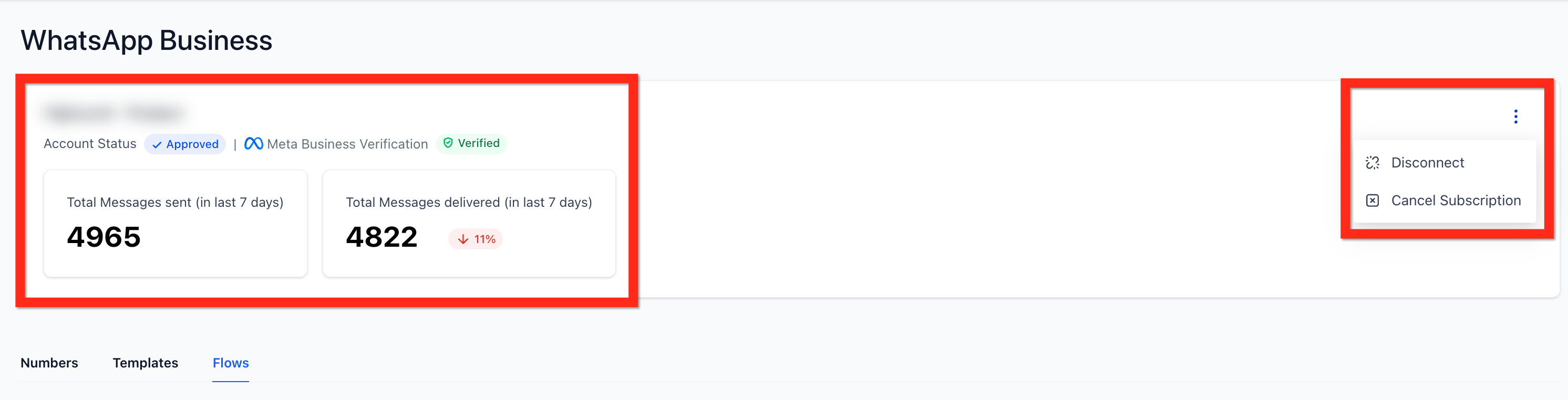
The card displays:
- Account Status: Your current connection status
- Meta Business Verification: Your verification status
- Total Messages Sent (last 7 days): Count of all messages you've initiated this week
- Total Messages Delivered (last 7 days): Count and percentage of messages successfully delivered
In the top-right corner, click the three-dot menu to access account management options:
- Disconnect: Sever the connection between Enrollio and your WhatsApp account
- Cancel Subscription: End your WhatsApp subscription through Enrollio
The Numbers Tab: Managing Your Phone Lines
This tab is where you manage all phone numbers linked to your WhatsApp Business account. Add new numbers for messaging and launch targeted ad campaigns to reach prospective families.
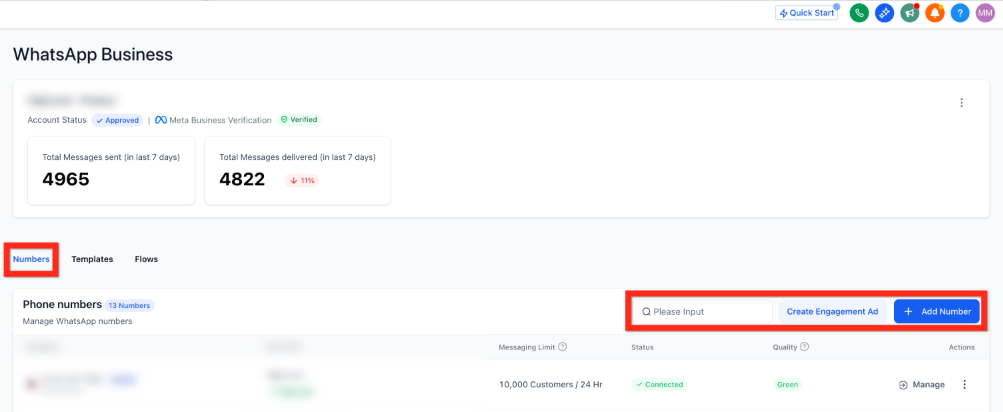
Adding a New Number
Follow these steps to add and configure a new phone number for WhatsApp messaging:
- Click the + Add Number button
- In the Configure Phone Number modal, enter a Display Name (this is what families will see)
- Either select an existing number from the dropdown or type a new one in the "Add/type new phone number" field
- Click Proceed and follow the on-screen instructions from Meta to complete verification
Creating an Engagement Ad
This feature takes you to Meta's Ad Manager to create a WhatsApp Engagement ad campaign.
- Click the Create Engagement Ad button
- A modal appears confirming you're leaving the current page
- Click Continue to open Ad Manager and build your campaign
The Templates Tab: Crafting Your Messages
WhatsApp requires businesses to use pre-approved message templates when starting conversations. This is where you build, organize, and manage those templates to ensure your outbound messages are compliant and effective.
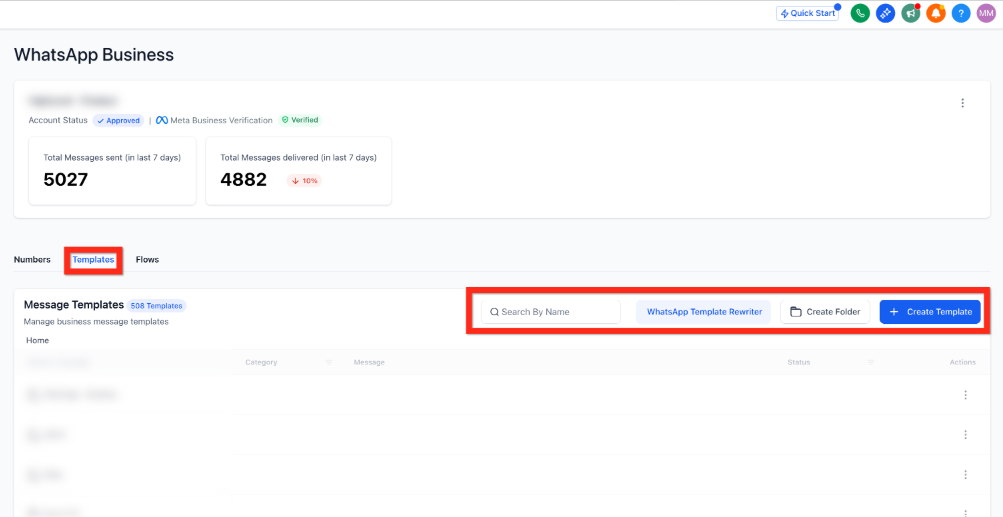
Managing Templates
Before creating a new template, you have two organization options:
- WhatsApp Template Rewriter: Use this AI-powered tool to convert existing marketing templates into utility templates for different communication strategies
- Create Folder: Organize your growing template library into folders
Creating a New Template
- Click the + Create Template button
- Select Blank Template from the dropdown to build from scratch
On the Create Template page, you'll build your message step by step:
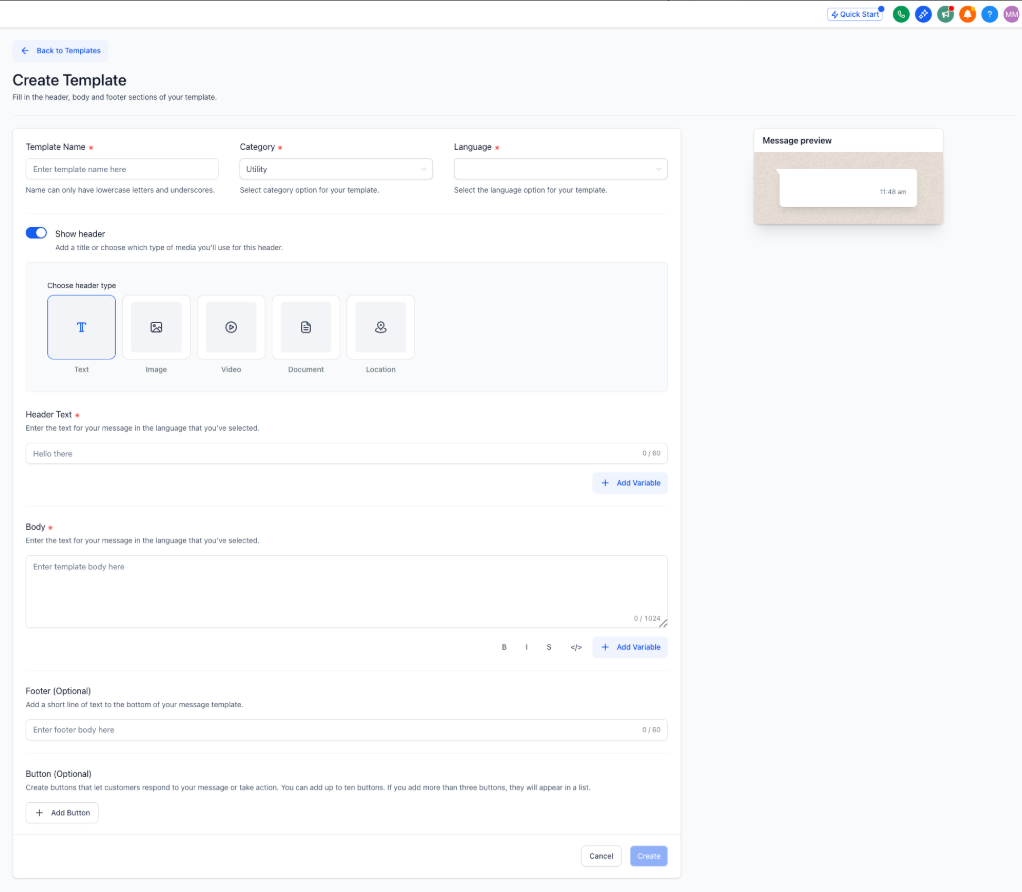
1. Core Details
- Enter a Template Name
- Select a Category (Marketing or Utility)
- Choose a Language
2. Header (Optional)
- Toggle Show Header to add a header
- Choose from Text, Image, Video, Document, or Location
- Click + Add Variable to insert personalized placeholders like a parent's name
3. Body
- Write your primary message in the Body text area
- Add variables for personalization (like child's name, tour time, etc.)
4. Footer (Optional)
- Add a short line of supplementary text
5. Buttons (Optional)
Click + Add Button to include interactive elements:
- Quick Reply Buttons: Let families send a quick response, like a custom reply or marketing opt-out
- Call-to-Action Buttons: Prompt families to visit your website, call your center, copy an offer code, or trigger a WhatsApp Flow
6. Finalize
Click Create to submit your template to Meta for approval.
The Flows Tab: Automating Interactions
WhatsApp Flows are interactive experiences that happen right in the chat. Use them to automate tasks like tour booking or enrollment forms, giving families a seamless experience without leaving WhatsApp.
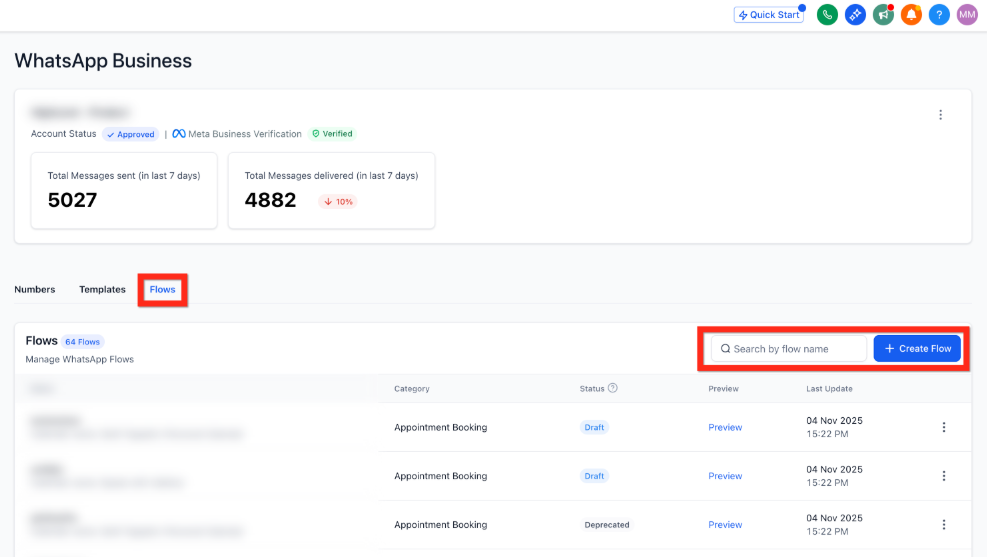
Creating a New Flow (Step-by-Step)
Building a flow is a guided, three-step process. Click the + Create Flow button to begin.
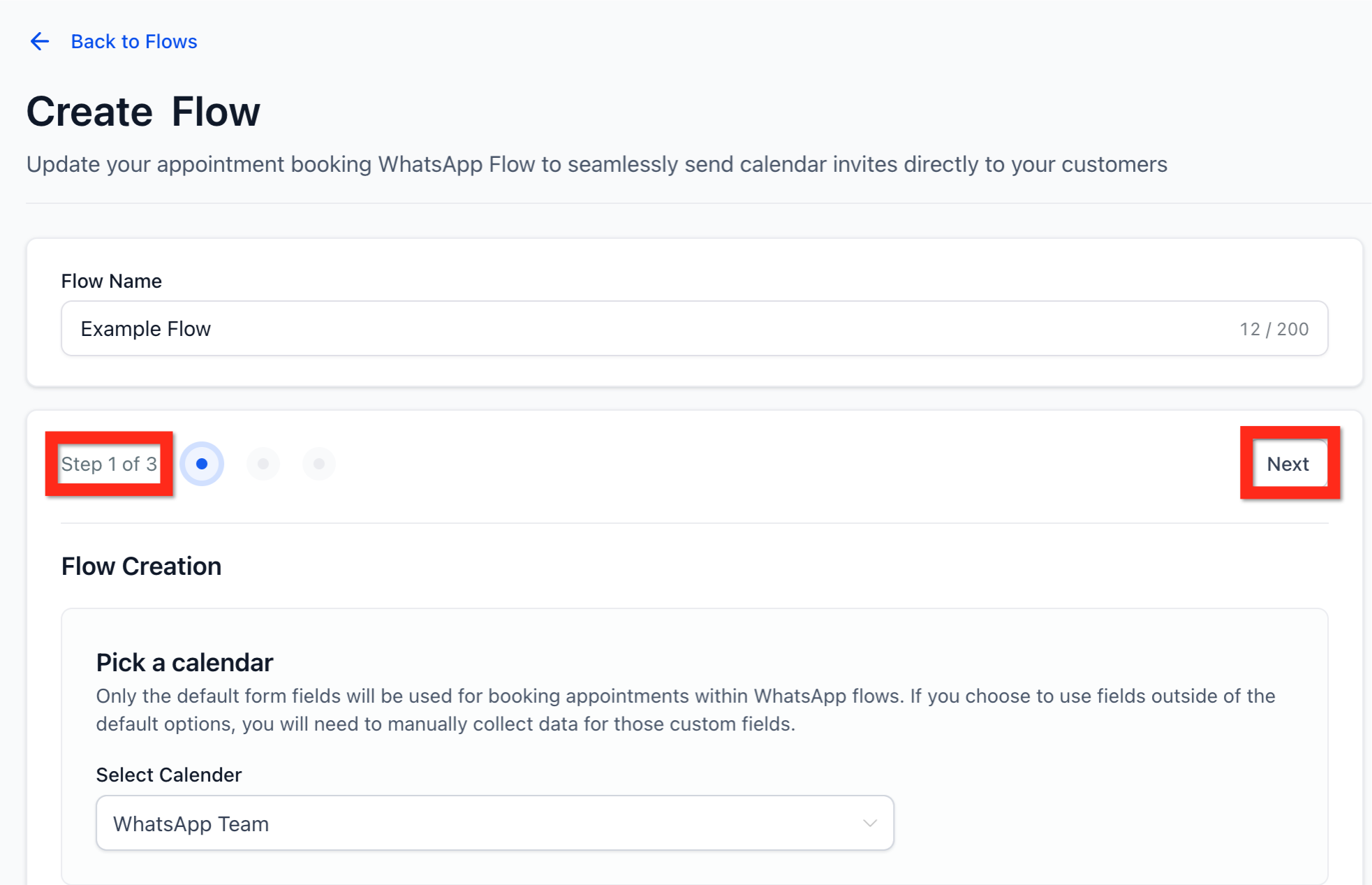
Step 1: Create Flow
- Enter a unique Flow Name to identify it (e.g., "Tour Booking Flow")
- Use the Select Calendar dropdown to link the flow to your tour calendar
- Click Next
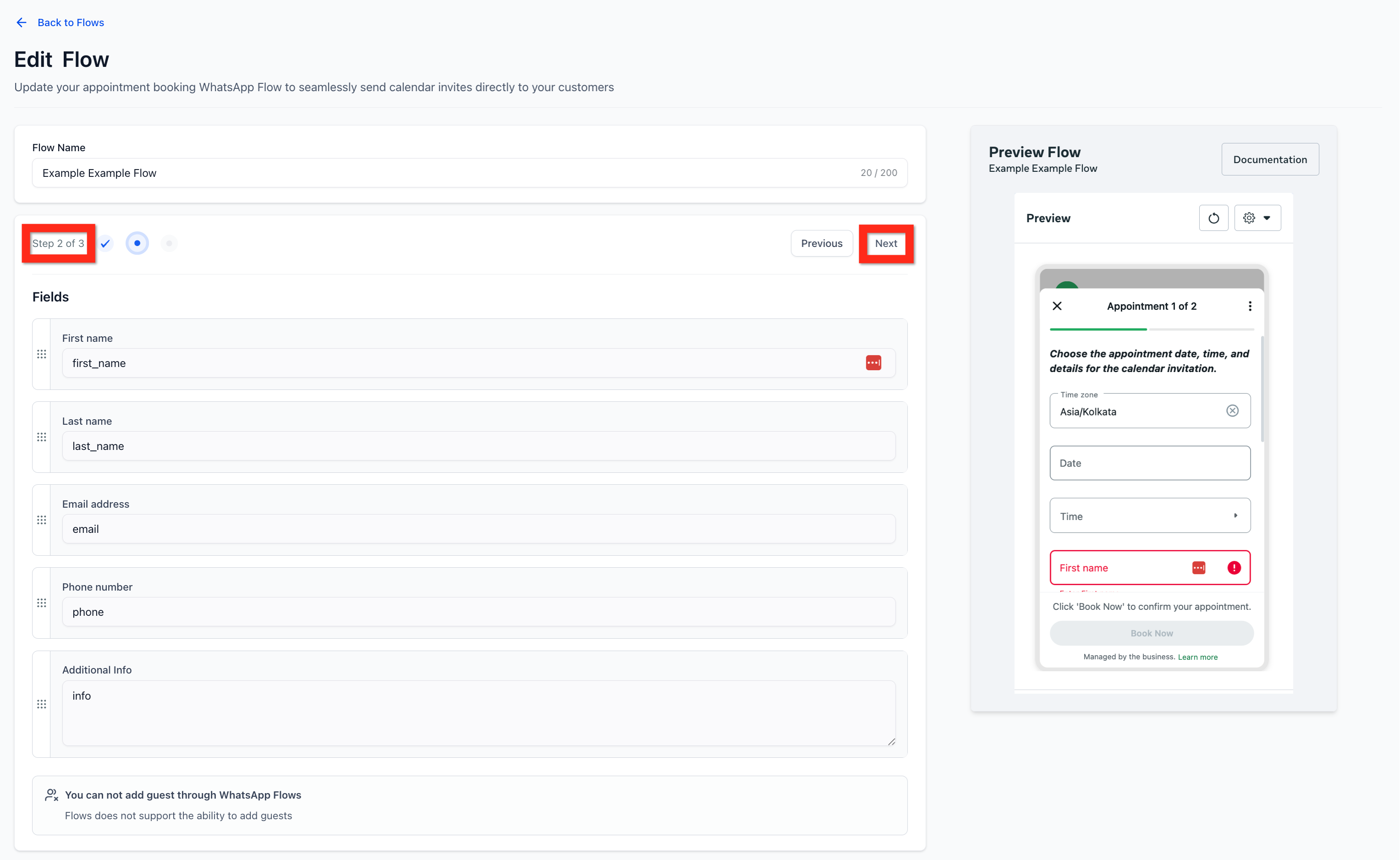
Step 2: Edit Flow
Review the fields families will fill out (like First name, Last name, Email address, Child's age). A preview panel on the right shows how the flow will look on their phone.
Click Next when you're satisfied with the fields.
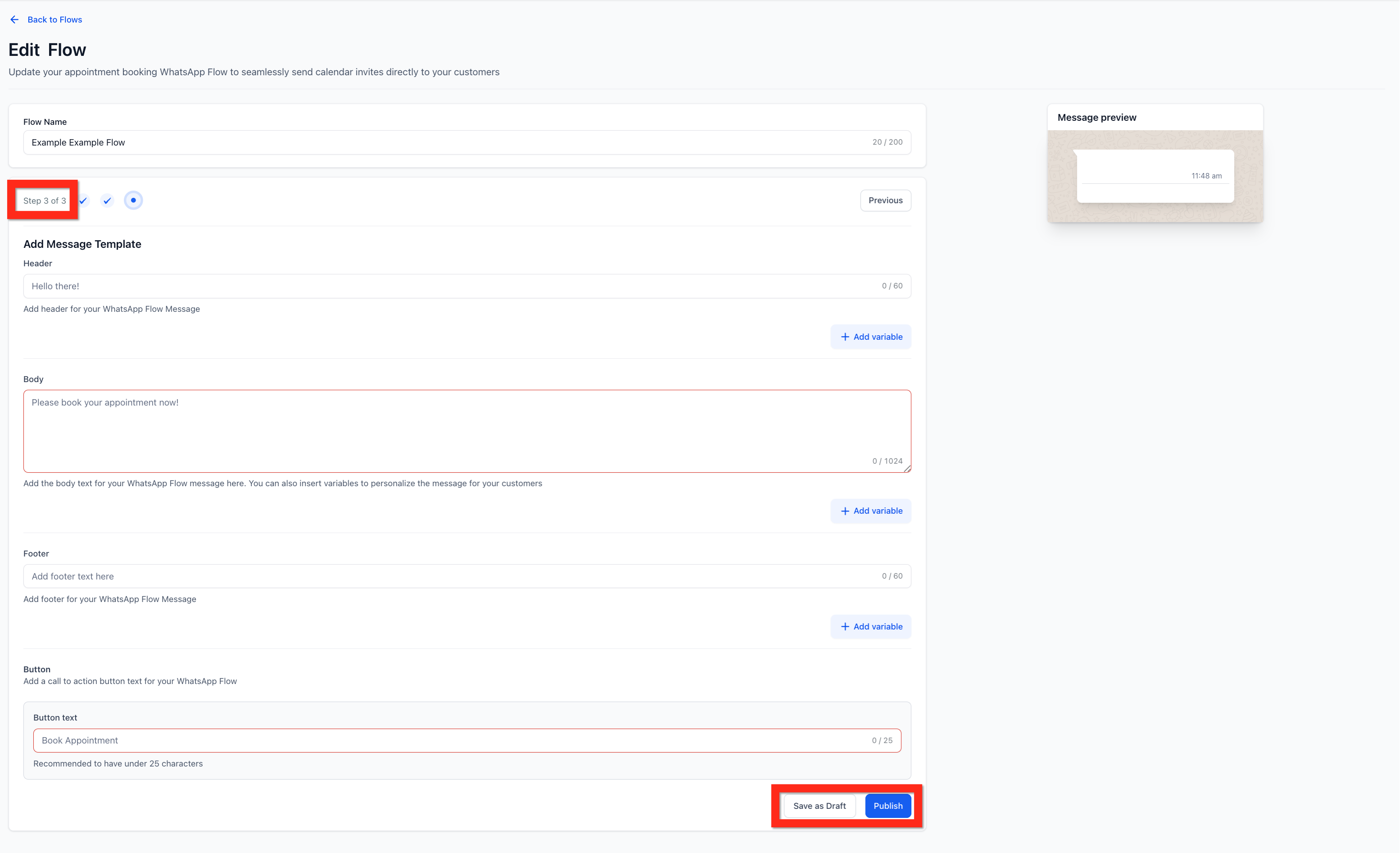
Step 3: Add Message Template
Create the message template that contains the button to launch this flow.
- Fill in the Header, Body, and Footer text
- Enter the Button text families will click to start the flow (e.g., "Schedule a Tour")
- Click Save as Draft to save your progress, or Publish to submit for approval
Frequently Asked Questions
What's the difference between "Disconnect" and "Cancel Subscription"?
Disconnect temporarily breaks the connection between Enrollio and your WhatsApp Business Account, but your subscription remains active. Cancel Subscription ends your WhatsApp subscription through Enrollio completely.
How long does template approval take?
Meta typically reviews templates within 24 hours. You'll receive a notification in Enrollio once your template is approved or if changes are needed.
Can I edit a template after it's approved?
No, you can't edit an approved template. You'll need to create a new template with your changes and submit it for approval.
What's the best way to use WhatsApp with families?
WhatsApp works great for tour confirmations, enrollment updates, event reminders, and answering quick questions. Families appreciate the convenience of communicating on a platform they already use daily.
Do I need a separate phone number for WhatsApp?
Yes, WhatsApp Business API requires a dedicated phone number that isn't already associated with a personal or regular WhatsApp Business account.