
QR codes make it easy for parents to leave reviews right from your center. Whether you're putting them on flyers, at your front desk, or in enrollment packets, a quick scan takes families directly to your review page.
You can customize the look and feel of both the QR code itself and the review page it links to — all without any tech skills required.
Creating a Review QR Code
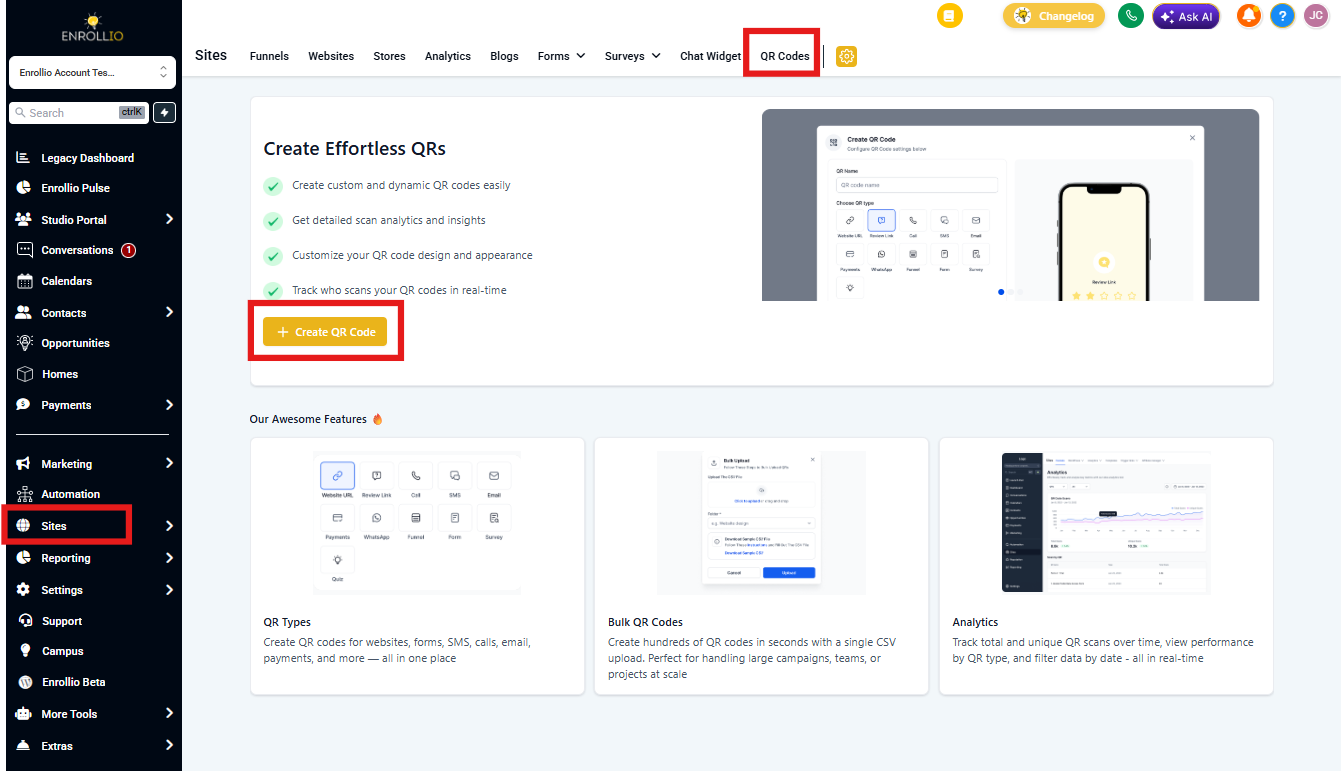
- Go to Sites > QR Codes > Create QR Code.
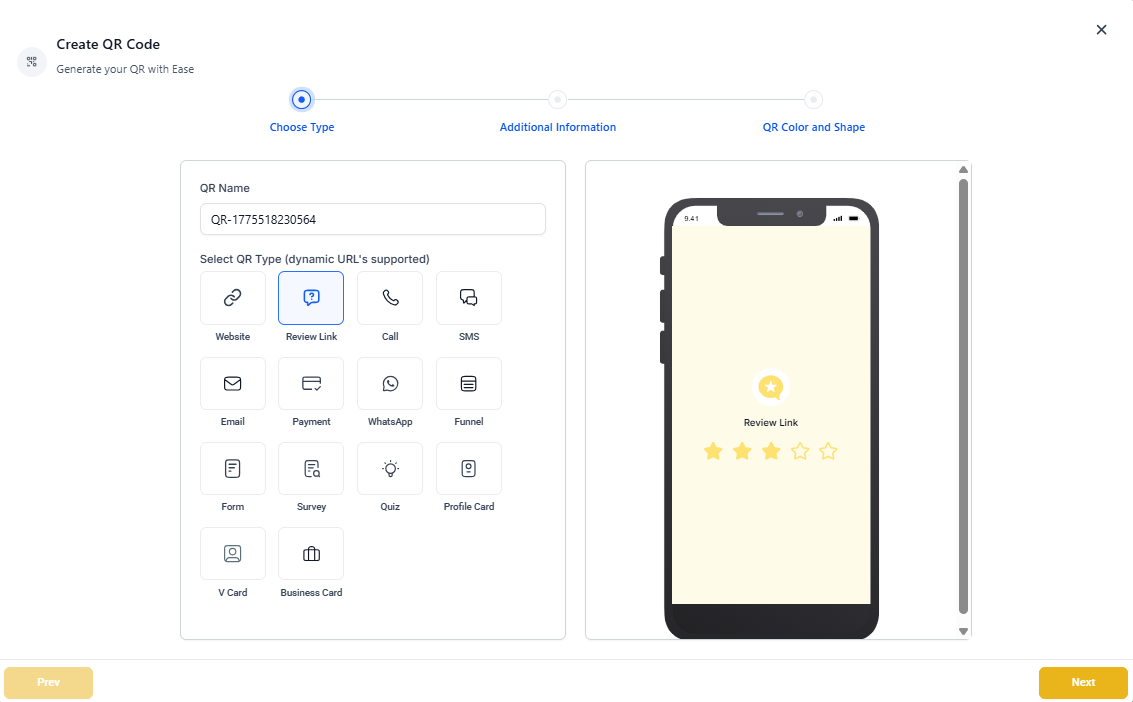
- Give your QR code a name (like "Front Desk Review QR") and select Review Link as the QR Type. Click Next.
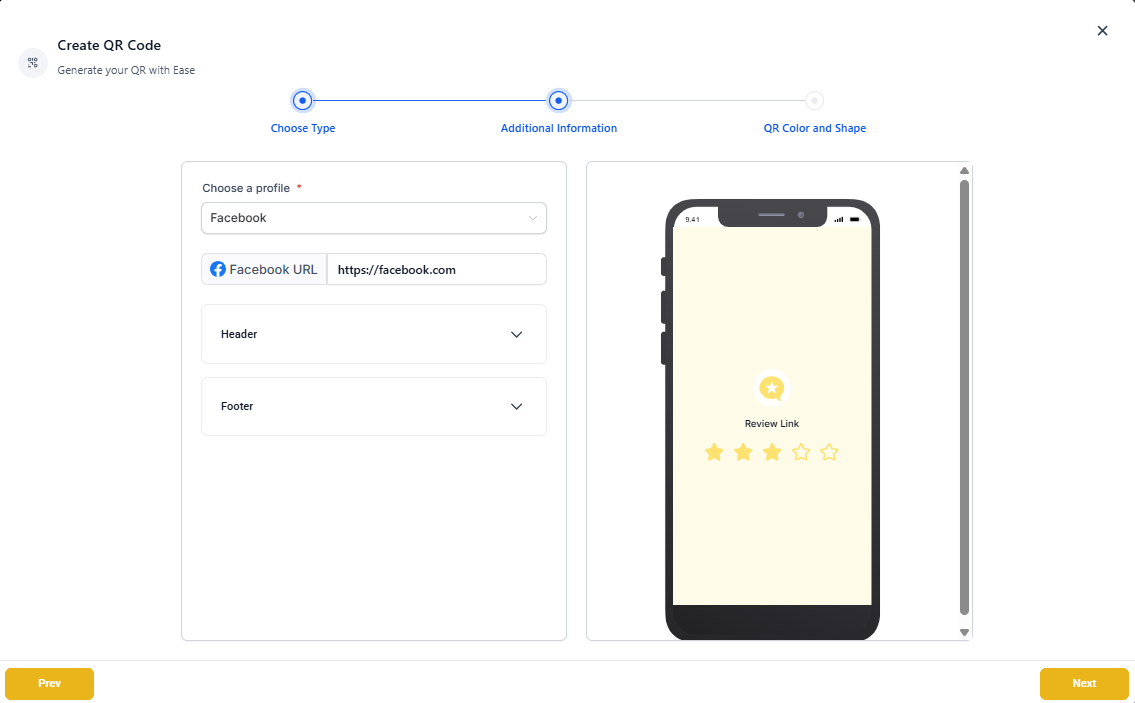
- Customize the review page that parents will see:
- Edit the header text to make it welcoming ("We'd love to hear about your experience!")
- Change the footer image to match your center's branding
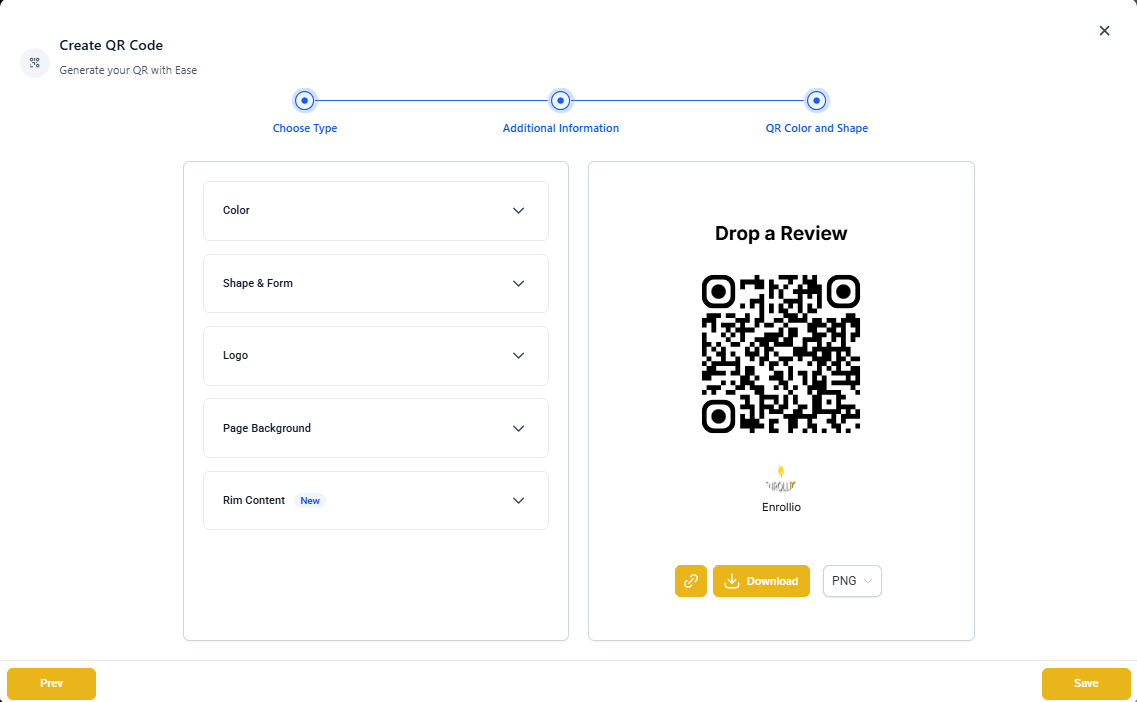
- Style your QR code:
- Choose colors that match your brand
- Adjust the shape and form of the QR pattern
- Add your center logo in the middle
- Set a background image if desired
- Click Test QR to see how it works on your phone before finalizing.
- Download the QR code as a PNG image, then click Save to publish it.
Tracking QR Code Performance
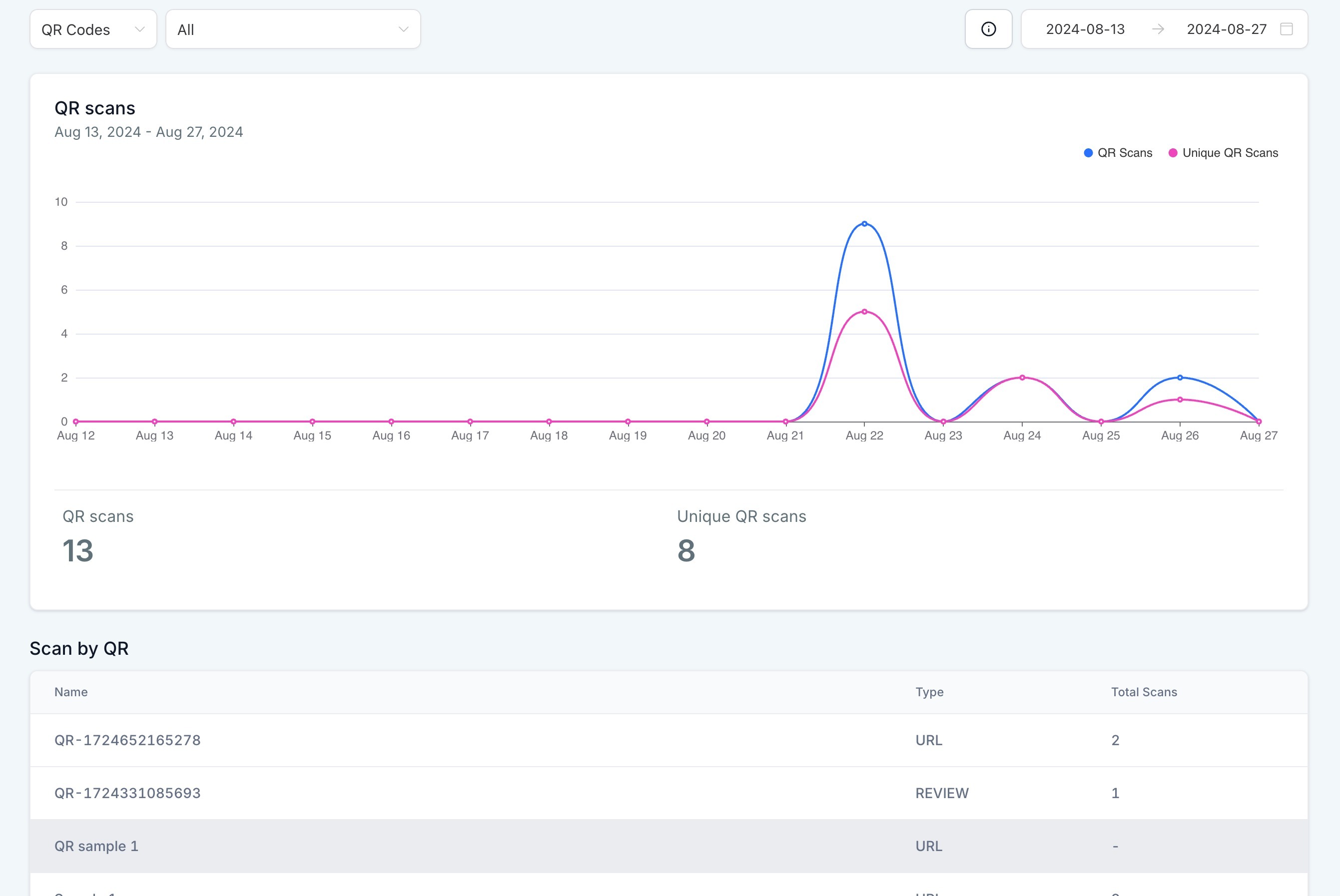
Want to see how many parents are scanning your review QR codes? Go to QR Codes > Analytics.
You'll see scan data for all your QR codes, including:
- Total scans
- Unique scans (to avoid counting the same parent multiple times)
Pro Tip: Print your review QR code on parent welcome packets, post it at your sign-in desk, and include it in follow-up emails after tours. The easier you make it for happy families to leave reviews, the more you'll get!
Where to Use Review QR Codes
Here are some popular places childcare centers place review QR codes:
- Front desk or reception area
- Parent pickup/drop-off zones
- Welcome packets for new families
- End-of-year thank you cards
- Event flyers and newsletters