
Getting Started with Blogs and Blog Posts
Build your childcare center's content strategy with Enrollio's built-in blog system. This guide walks you through creating your blog, writing posts, adding authors and categories, placing the Blog Post List on a page, and setting essential SEO so your articles can be discovered by families in your community.
What is Blogs in Enrollio?
Enrollio Blogs is a built-in publishing system for writing and organizing articles on your enrollment site or landing pages. You can manage authors, categories, SEO, and design so you can publish consistently and route traffic to the right pages — whether you're sharing parenting tips, center updates, or enrollment resources.
Key Benefits of Blogs in Enrollio
- Centralized publishing: Manage all posts, authors, categories, and SEO in one place.
- Flexible placement: Show posts on any enrollment site page or landing page using the Blog Post List element.
- Built-in SEO fields: Set slugs, meta data, and canonical URLs to improve discoverability in local search.
- Design options: Choose Standard or Compact layouts for your list and post views.
- Scalable content: Draft, schedule, publish, or import in bulk as your library grows.
How to Create a Blog in Enrollio
If you're new to blogging or want to start sharing content with families, follow these steps to get started:
Step 1: Create Your Blog Container
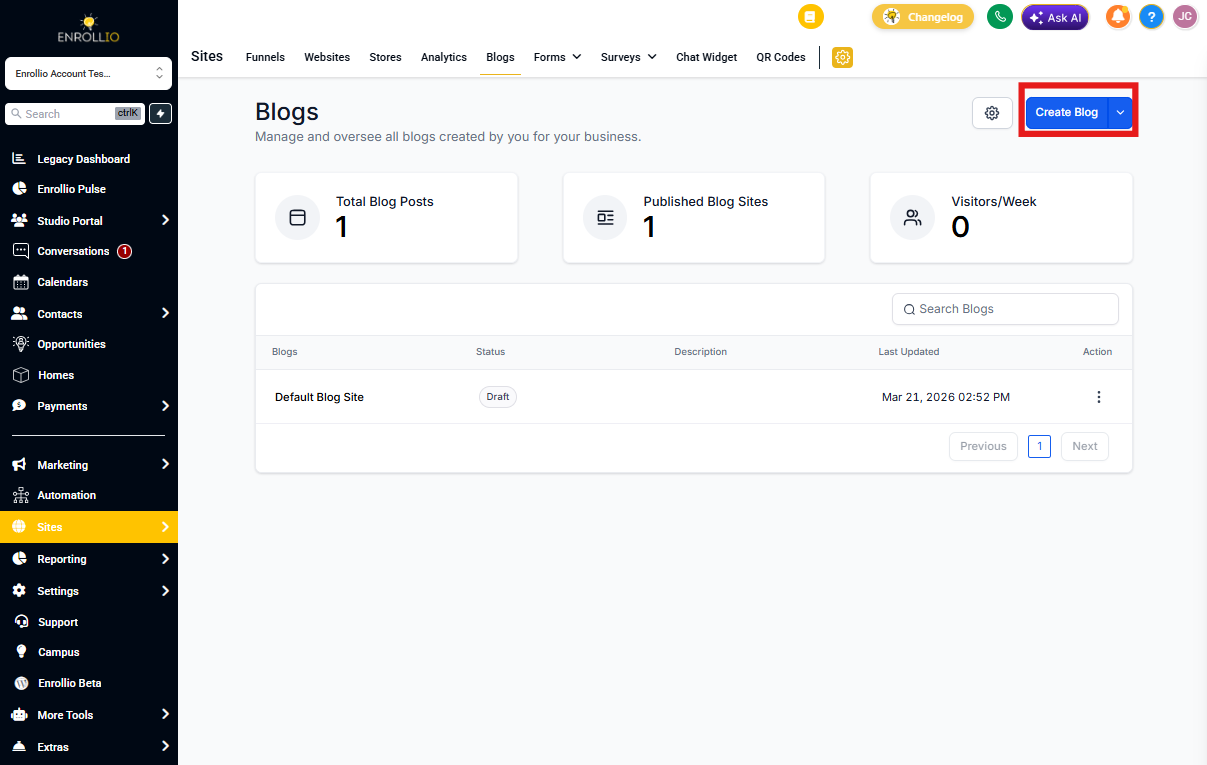
- Go to Sites.
- Click Blogs.
- Click Create Blog.
- Create from scratch or choose from a template.
Step 2: Add Blog Site Details
- Add a Blog Site Title. This is what appears in browser tabs and search results.
- Select or add/edit your Domain.
- Add a Slug (the URL path for your blog, like
/blogor/resources). - Add a Blog Meta Description (optional but recommended for SEO).
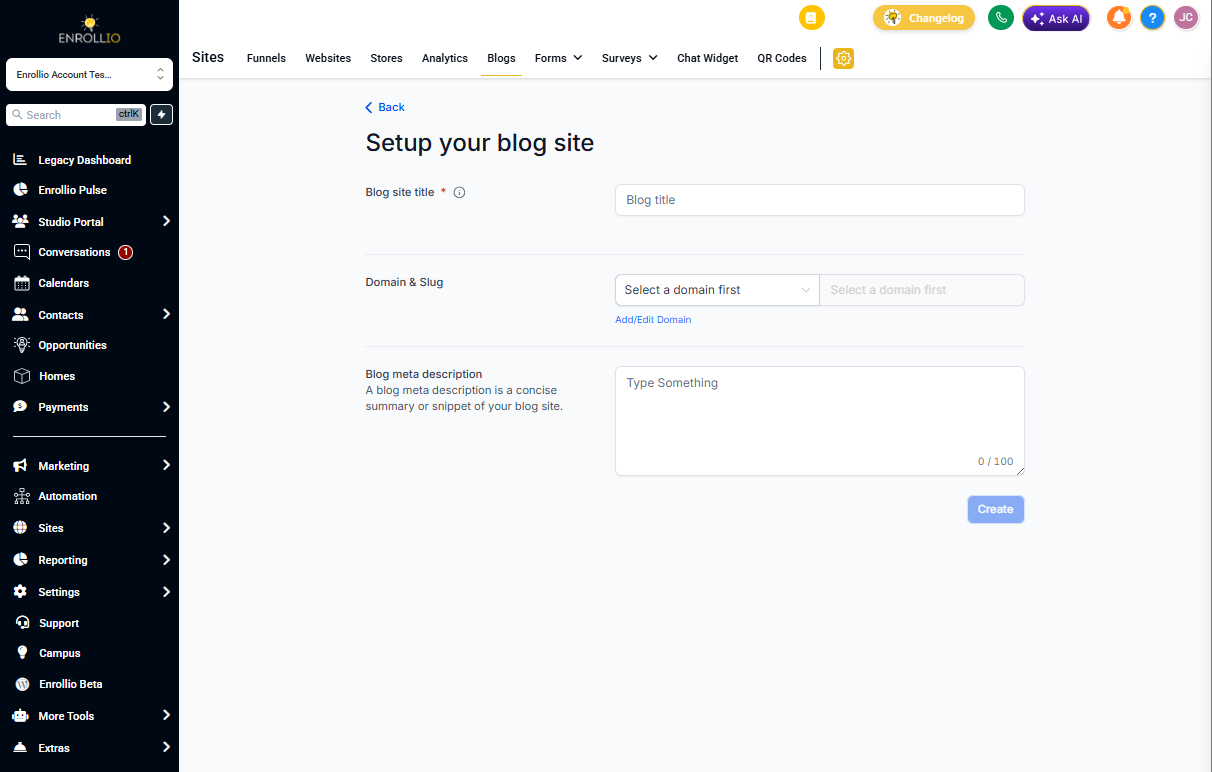
/blog or /resources that makes sense for families searching for childcare information.Step 3: Create Your First Blog Post
- Go to Sites → Blogs.
- Click on the blog site you just created from the list.
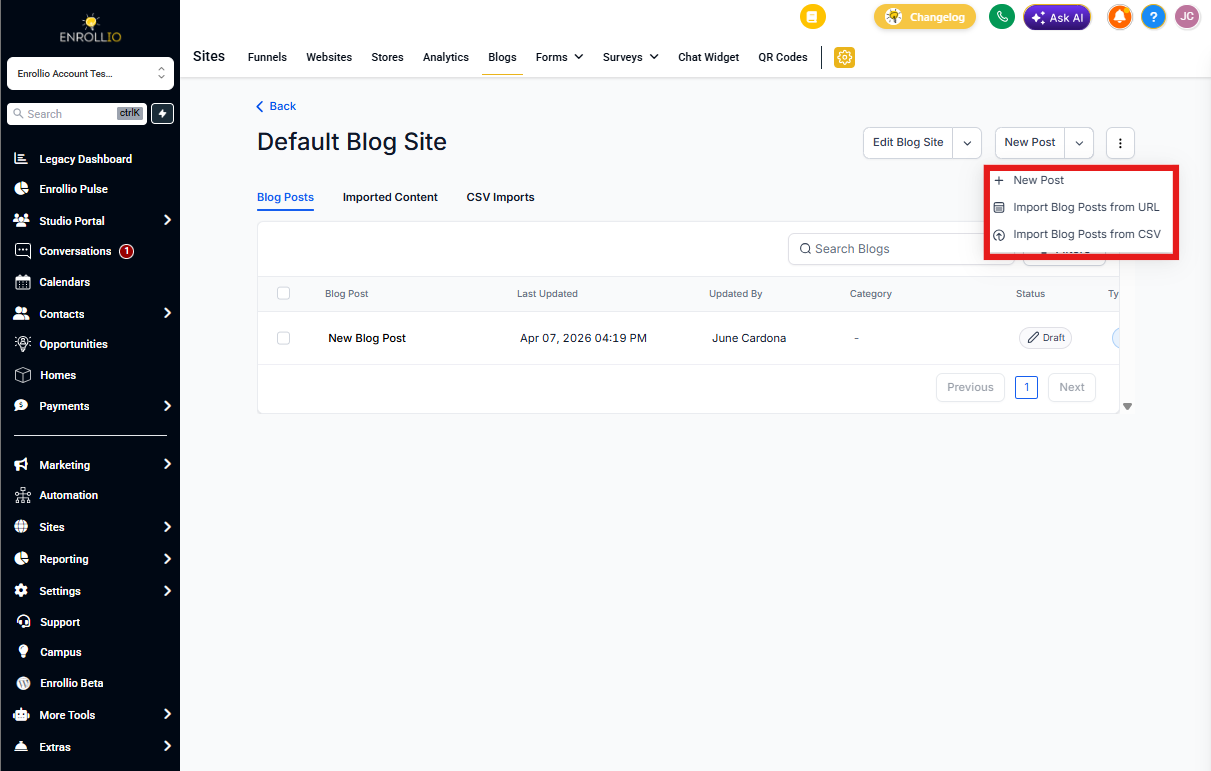
- Click New Post.
- Click + New Post to create a blog post from scratch.
You can also Import Blog Posts from URL or Import Blog Posts from CSV if you're moving content from another platform.
For detailed instructions on writing and formatting your post, check out our article on Creating Blog Posts.
Step 4: Add Blog Post Details
Once you've finished adding and formatting content in the editor, click Continue.
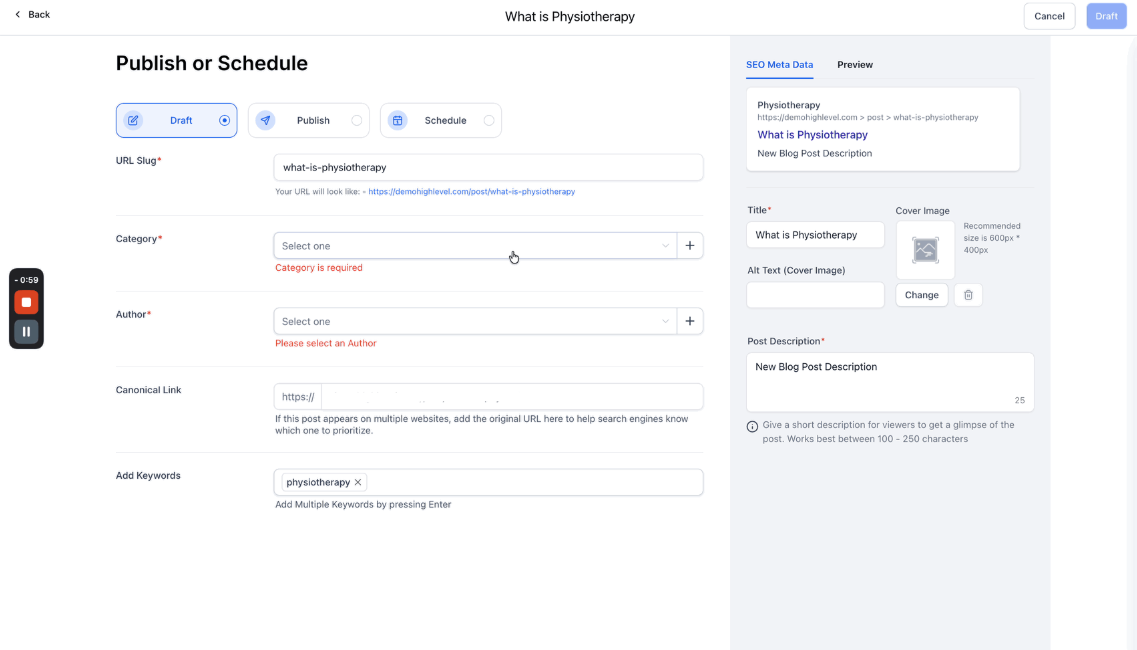
- Add a URL Slug (the unique path for this post, like
choosing-the-right-preschool). - Select or create a Category and Author.
- Edit the Canonical Link or keep the default.
- Add Keywords related to childcare topics families might search for.
Step 5: Add SEO Details
- Add an SEO Title (how the post appears in search results).
- Add a Post Description (the preview text in search results).
- Add a Cover Image and its Alt Text for accessibility and SEO.
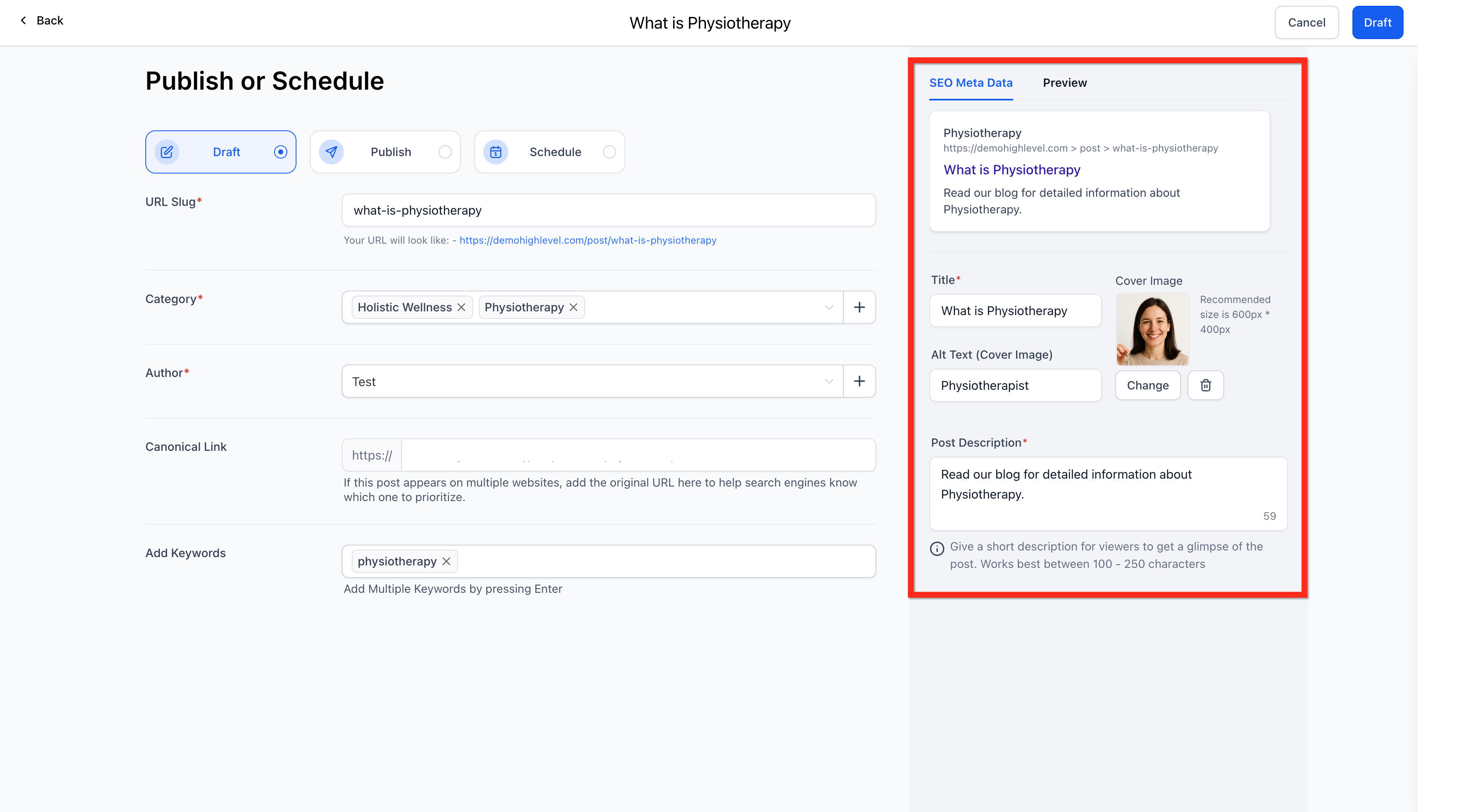
Step 6: Publish Your Blog Post
You have three options:
- Keep the post in Draft to make further edits later
- Publish the post immediately
- Schedule it for a future date and time

Note: To add your blog to a landing page or enrollment site, check out our detailed guide on Adding the Blog Post Element.
How to Update a Published or Draft Blog Post
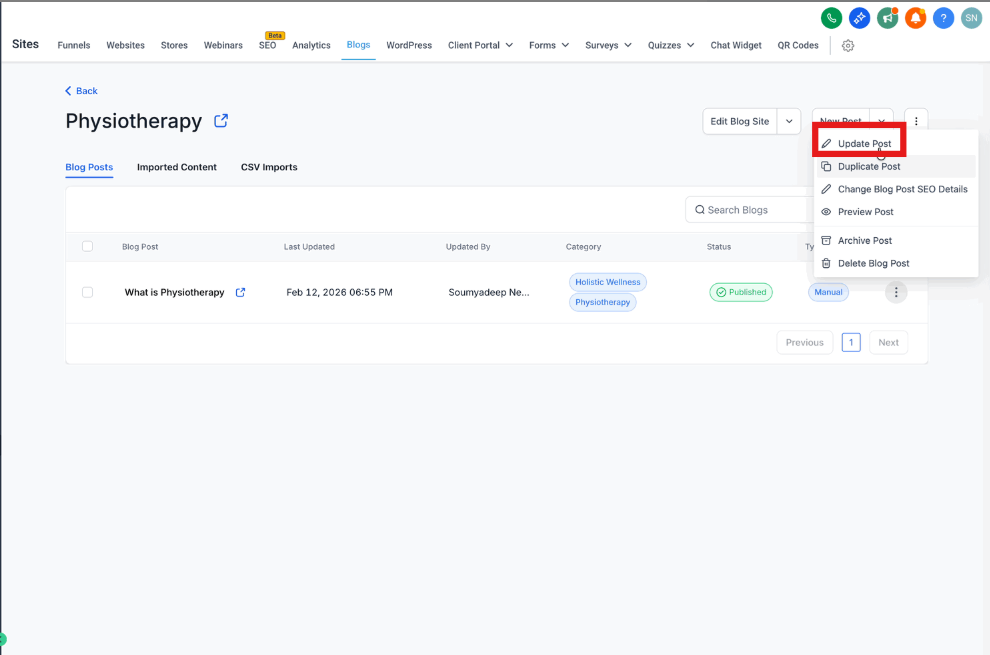
- Go to the blog post and click the three dots beside the post.
- Click Update Post.
- Make edits to the blog post content in the editor.
- To change blog post details like author, category, slug, or SEO, click the Update Settings button.
- Make your updates and click Publish.
Frequently Asked Questions
How does the domain work with the blog?
The domain is added to the landing page or enrollment site where you place the blog list element. Here's how blog URLs are constructed:
| Domain | Blog Post Slug | Final URL |
|---|---|---|
| abc.com | b/sample-post | abc.com/b/sample-post |
| abc.com/blog | b/sample-post | abc.com/blog/b/sample-post |
| blog.abc.com | b/sample-post | blog.abc.com/b/sample-post |
Can I have separate blog pages for each category?
That's not currently supported. In upcoming updates, you'll be able to create an enrollment site page based on a category filter with custom slug and SEO details.
Is it optional to add an Author, Category, or Keywords?
No. URL Slug, Category, Author, Title, and Post Description are all required fields.
Can I use custom values in a blog post?
No, custom values are not supported in blog posts at the moment. You cannot use dynamic fields like parent names or family-specific information.
How do I add forms or custom code to my blog post?
Forms and surveys cannot be added to blog posts at the moment. The option to add custom code will be available soon.
What is the recommended image size for a blog post?
We don't have a specific recommended size. However, the page width inside the blog post editor is 736px, so images at or above that width will display best.