
What is an RSS Feed for Your Blog?
RSS stands for Really Simple Syndication. It's a simple way to automatically share your latest blog posts without manually copying and pasting content everywhere. Instead of browsing your blog every time you want to send a newsletter or post to social media, RSS delivers your content automatically.
With Enrollio, you can use your blog's RSS feed to power email campaigns or schedule social posts—perfect for keeping parents informed about new articles without extra work.
Why Use RSS Feeds?
Automates content delivery: Your newest blog posts flow directly into emails and social channels.
Saves time: No manual posting needed—set it once and let it run.
Keeps content fresh: Even during your busiest enrollment seasons, your marketing stays active.
Works across channels: Use the same feed for email campaigns and social posts.
How to Set Up Your Blog's RSS Feed
Creating an RSS feed in Enrollio takes just a few clicks. Once you have the RSS URL, you can plug it into email campaigns or social post automations.
Important: Make sure your domain is connected to your Enrollio account before starting.
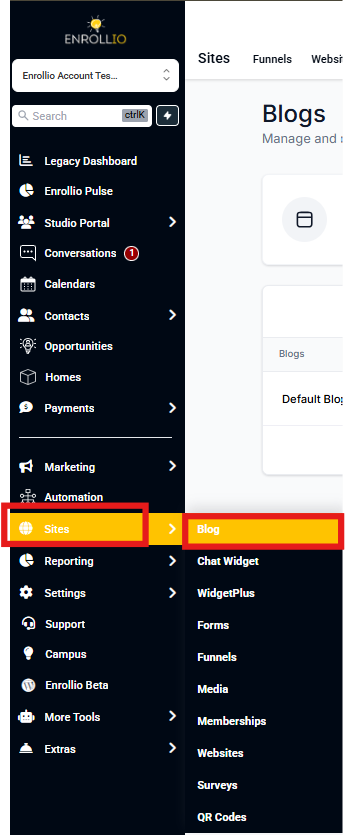
Step 1: Go to Sites → Blogs
From your Enrollio dashboard, click Sites in the left menu, then select Blogs.
Step 2: Open Blog Settings
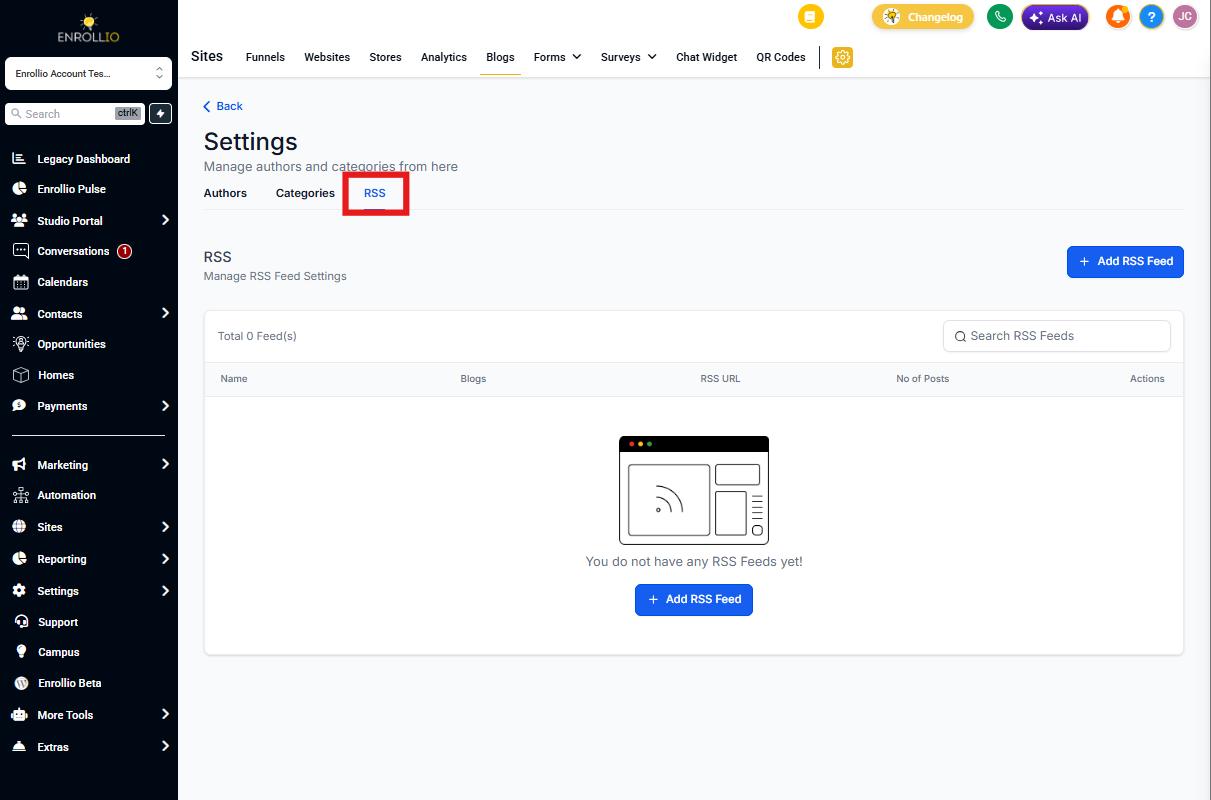
Click the gear-shaped Settings icon in your blog view, then navigate to the RSS section.
Step 3: Create Your RSS Feed
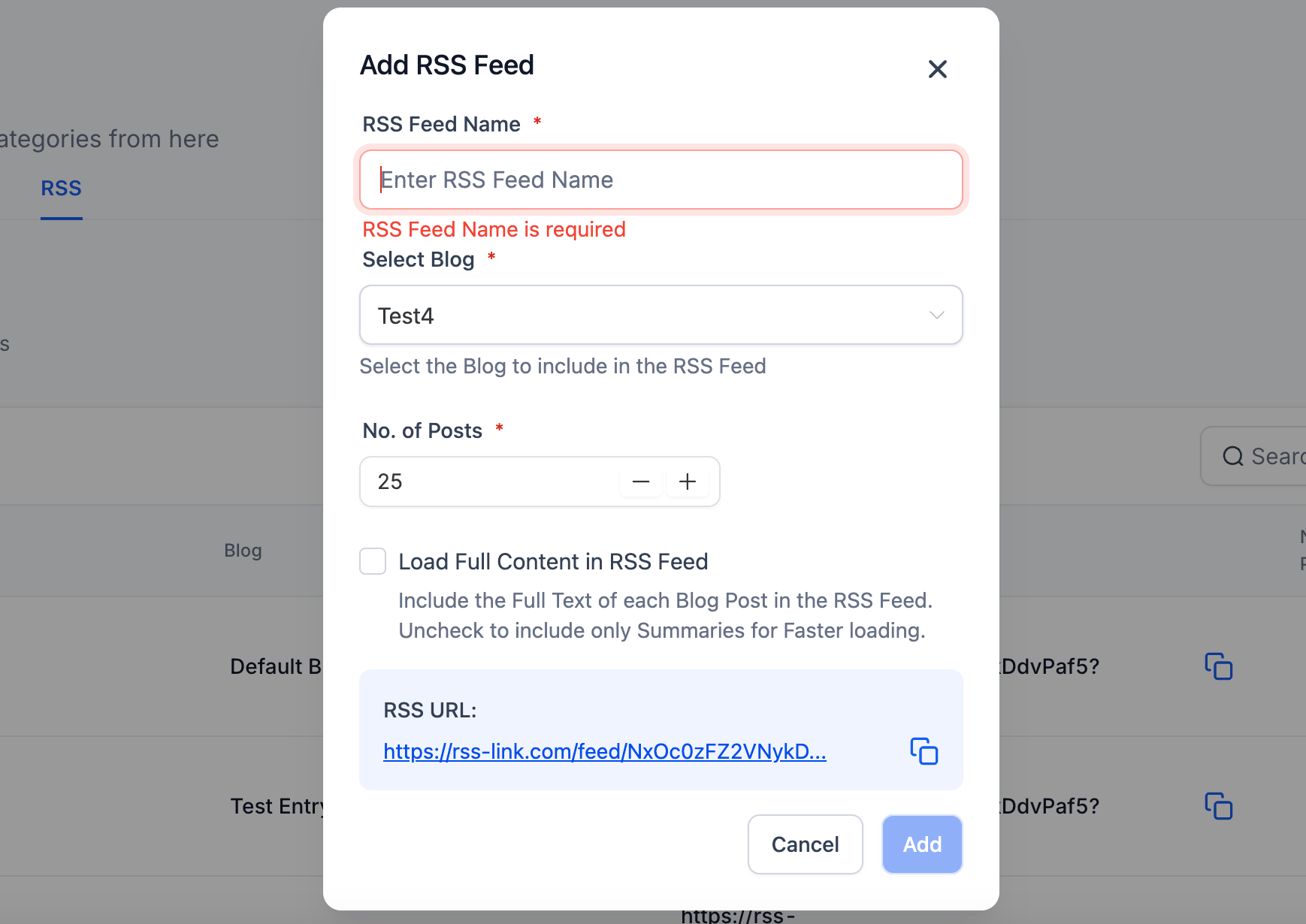
Click Add RSS Feed. You'll see options to:
- Name your feed (for your reference)
- Select which blog to pull from
- Set how many recent posts to include
- Choose whether to include full post content or excerpts
Once configured, copy the RSS URL that appears. This is what you'll use in your email campaigns or social automations.
Pro tip: If you later change settings in the RSS dropdown, any URLs you've already copied will continue working with their original settings. Each RSS feed URL is independent.
Frequently Asked Questions
What happens if I change the blog selection after creating the RSS feed?
The original RSS URL keeps working exactly as it was configured. Changing dropdown settings doesn't affect feeds you've already created and deployed.
Is there a limit to how many posts I can include?
Yes, the interface sets a maximum number of posts per feed. Check the dropdown options when creating your feed to see the current limit.
Will draft posts appear in my RSS feed?
No. Only published blog posts appear in your RSS feed. Drafts stay private until you publish them.
Can I edit an RSS feed after creating it?
Yes. Return to Sites → Blogs → Settings → RSS to manage your feeds and update settings as needed.
What's Next?
Now that you have your RSS feed URL, you can:
- Set up automated email campaigns that send your latest blog posts to parents
- Schedule social posts that automatically share new content
- Keep your enrollment marketing running even when you're focused on tours and parent meetings