
How to Set Up and Track Response Time SLAs in Conversations
Response time SLAs (Service Level Agreements) help your team maintain consistent reply times and ensure no parent inquiry goes unanswered. This guide shows you how to set up and track SLAs in Enrollio's Conversations inbox.
What is a Conversation SLA?
A Conversation SLA is a response-time goal that counts down on each incoming message in your Conversations inbox. The timer starts when a parent or prospective family sends you a message, then changes color as the deadline approaches:
- Grey: On track — plenty of time to respond
- Orange: Due soon — reply deadline approaching
- Red: Overdue — response time goal exceeded
This gives your team a real-time visual cue to reply before missing your response time target.
Why Use SLAs?
Faster replies: Your team always knows how much time is left to respond to each inquiry.
Better prioritization: Color-coded timers surface the most urgent conversations first, so families waiting longest get attention.
Channel flexibility: Set one universal response time goal or create different targets for text messages, emails, Facebook messages, WhatsApp, TikTok, and more.
Accountability: Filter and sort conversations by "Longest Overdue" or "Next SLA Target" to identify which inquiries need immediate attention.
How to Set Up Conversation SLAs
Step 1: Navigate to SLA Settings
- Click Conversations in your client account navigation
- At the top of the inbox, click the Settings tab
- Toggle SLA Settings to ON
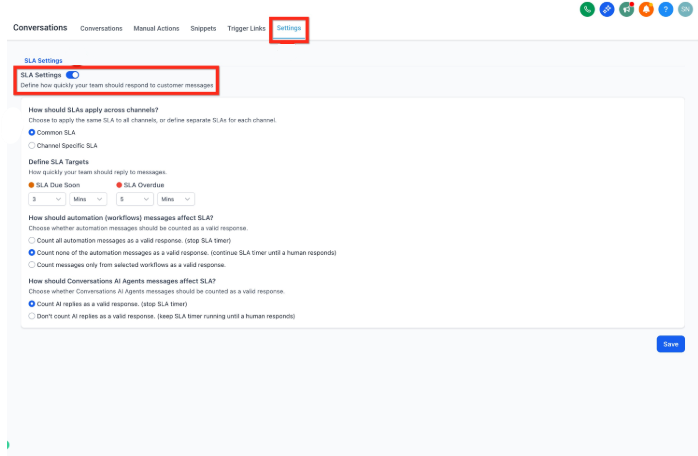
This enables response time tracking across your inbox and lets you define how timers should work.
Step 2: Choose How SLAs Apply Across Channels
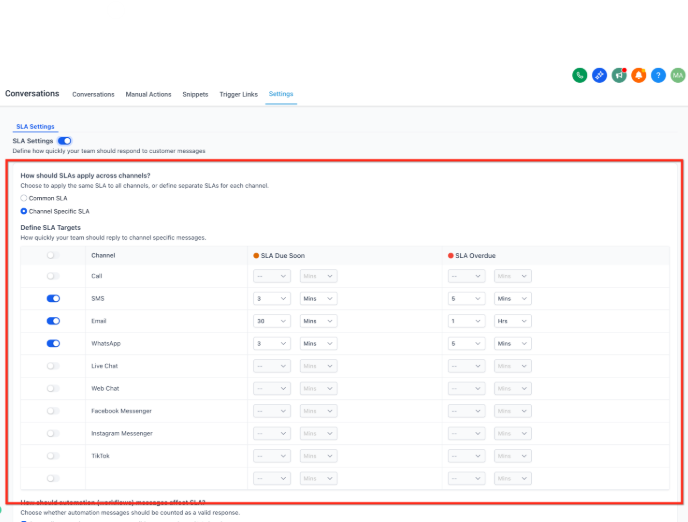
Under "How should SLAs apply across channels?" select one option:
Common SLA: Apply the same response time goal to all channels.
Example: All conversations—whether from text, email, Facebook, or TikTok—must be answered within 1 hour.
Channel-Specific SLA: Set different response time targets for each channel.
Example: Text messages must be answered within 15 minutes, while emails can take up to 2 hours.
Step 3: Define SLA Timings
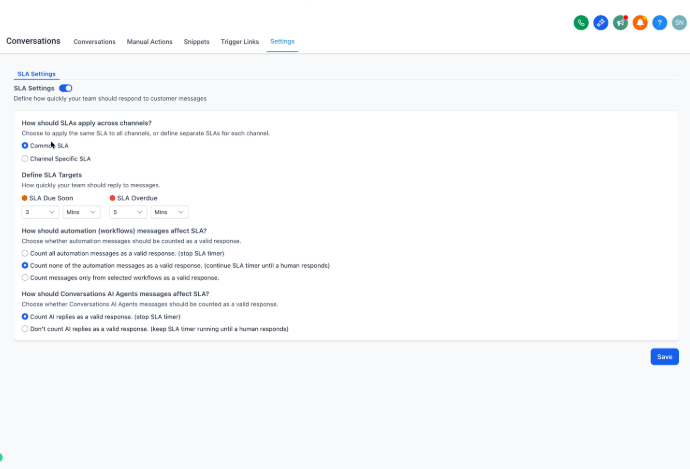
Set your preferred time limits to manage parent expectations:
Due Soon: The warning time before missing your goal. When a conversation enters this window, the timer turns orange.
Overdue: The maximum time allowed before the SLA is considered missed. Once breached, the timer turns red.
Step 4: Choose How Automation Messages Affect SLAs
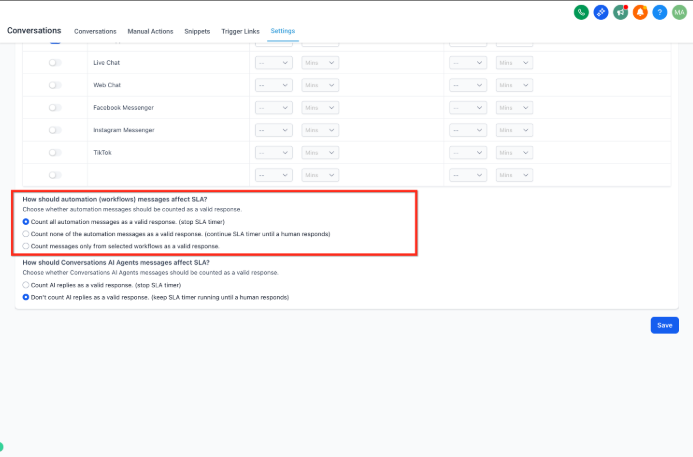
Decide whether automated messages from your automations should count as valid responses and stop the SLA timer.
Select one option:
- Count all automation messages as valid responses: The timer stops whenever an automation sends a message
- Don't count automation messages as valid responses: The timer keeps running until a team member replies
- Count messages only from specific automations: Choose which automations can stop the timer (others won't)
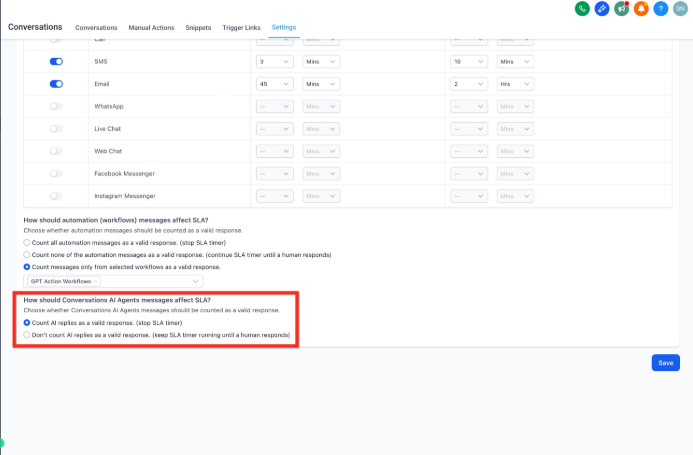
Step 5: Choose How AI Agent Messages Affect SLAs
Decide how replies from Enrollio AI should impact your SLA timers:
- Count AI replies as valid responses (Default): The timer stops when Enrollio AI responds
- Don't count AI replies as valid responses: The timer continues until a human team member replies
Step 6: Save and Apply Settings
Click Save to apply your SLA configuration.
From this point forward, all new incoming messages from parents and prospective families will have SLA timers based on your settings. Existing conversations will continue following the SLA rules that were active before the change.
Understanding SLA Timers in Your Inbox
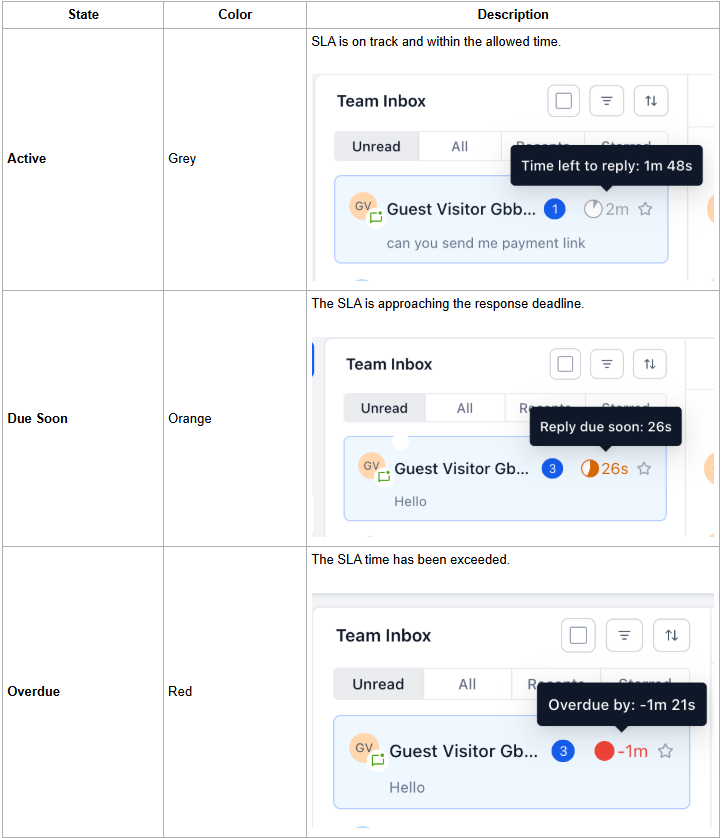
When a parent or prospective family sends you a message, an SLA timer appears in the conversation list on the left side of your inbox. These timers change color based on how much time remains to respond.
| State | Color | What It Means |
|---|---|---|
| Active | Grey | Response time is on track and within your goal |
| Due Soon | Orange | Approaching the response deadline — reply soon |
| Overdue | Red | Response time goal has been exceeded |
The timer disappears once your team replies or manually marks the conversation as read.
Filter and Sort by SLA
Enrollio includes SLA-based filters and sorting to help your team manage their workload efficiently.
Filter by SLA Status: View only Active, Due Soon, or Overdue conversations to focus on what needs attention now.
Sort by SLA: Organize your inbox by "Longest Overdue" (families waiting longest) or "Next SLA Target" (which deadline is approaching fastest).
Frequently Asked Questions
Will SLAs apply to existing conversations after I enable them?
No. SLAs only apply to new incoming messages received after you enable the feature. Existing conversations continue without SLA tracking.
What happens if I disable SLAs?
If you disable SLAs, existing conversations will continue following their current timers, but new messages won't have SLAs applied. You can re-enable SLAs anytime from the SLA Settings tab.
Do automated or AI replies stop the SLA timer?
Only if you configure them to. By default, automation messages do not stop the timer, but AI messages do. You can adjust these settings under "How Automation and AI Messages Affect SLAs."
Does SLA tracking consider business hours?
Currently, SLAs are based on calendar hours (24/7). Business hours configuration will be introduced in a future update.
Can I have different SLAs for each channel?
Yes. You can set a Common SLA for all channels or define Channel-Specific SLAs with different response targets for text messages, email, Facebook, and other channels.
How will my team know if a conversation is overdue?
SLA timers change color to show status: Grey (Active), Orange (Due Soon), and Red (Overdue). Red timers make it immediately obvious which families need a response.
Do SLAs apply to internal chats or comments?
No. SLAs apply only to conversations with parents and prospective families, not to internal team messages.
Can I create reports or automation triggers using SLAs?
Not yet. SLA-based automation triggers and performance reporting will be available in future updates.
If I modify my SLA settings, will they apply to all conversations?
No. Modified SLAs apply only to new incoming messages. Ongoing conversations continue using the SLA rules that were active when they began.
If a parent sends multiple messages, how is the SLA timer calculated?
The SLA timer runs based on the oldest parent message in the conversation. This ensures the response time reflects how long the family has been waiting, even if they send follow-up messages.