
Facebook Lead Ads Integration for Your Childcare Center
The Facebook Lead Ads integration lets you capture tour requests and enrollment inquiries directly from Facebook and automatically sync them with Enrollio. When parents express interest in your childcare program through Facebook ads, their information flows directly into your platform—no manual entry required.
This automation saves you time and ensures you never miss a prospective family, so you can focus on what matters: connecting with parents and filling your enrollment spots.
What is the Facebook Lead Ads Integration?
Integrating Facebook Lead Ads with Enrollio allows you to automatically capture prospective families and manage them in one central platform. This streamlines your enrollment process, eliminates manual data entry errors, improves lead quality, and helps you convert more inquiries into enrollments.
Who Should Use This Integration?
This integration is ideal for childcare centers running Facebook ads to attract new families. It's especially valuable if you have a small administrative team or are managing multiple locations, as it automates lead capture and saves significant time.
If you're already using Enrollio to manage tours and enrollments, this integration ensures Facebook inquiries flow seamlessly into your existing follow-up process.
Benefits of This Integration
Automated lead capture: Prospective families who submit forms on Facebook are automatically added to Enrollio—no copying and pasting contact information.
Improved lead quality: Track and manage all inquiries in one place, helping you understand which ads attract the best families and personalize your follow-up accordingly.
Enhanced enrollment management: See a complete view of every family's journey from Facebook ad to enrollment, streamlining your process and improving retention.
Faster follow-up: With prospect data automatically in Enrollio, you can immediately send personalized messages, schedule tours, and prioritize families based on their interest level.
Increased enrollments: Automating capture and improving follow-up helps you convert more Facebook inquiries into enrolled families.
Before You Begin: Facebook Requirements
Before connecting Facebook Lead Ads to Enrollio, make sure you have:
- Page access: You must have admin access to the Facebook page where you're running lead ads. Need to grant access? See Facebook's guide on page roles.
- Ownership alignment: The same user should own both the Facebook page and the ad account. For business-level integrations, this is required by Facebook.
- Proper permissions: Verify you have admin or manager permissions for both the page and ad account. You'll also need Lead Access Permission to view lead data—this is a Facebook requirement.
- Ad account connection: Confirm your page is connected to the correct ad account by checking your ad account settings in Facebook.
- Business Manager access: Enrollio will need access to your Facebook Business Manager and the Business Page where you run lead ads.
Creating Custom Fields in Facebook Lead Forms
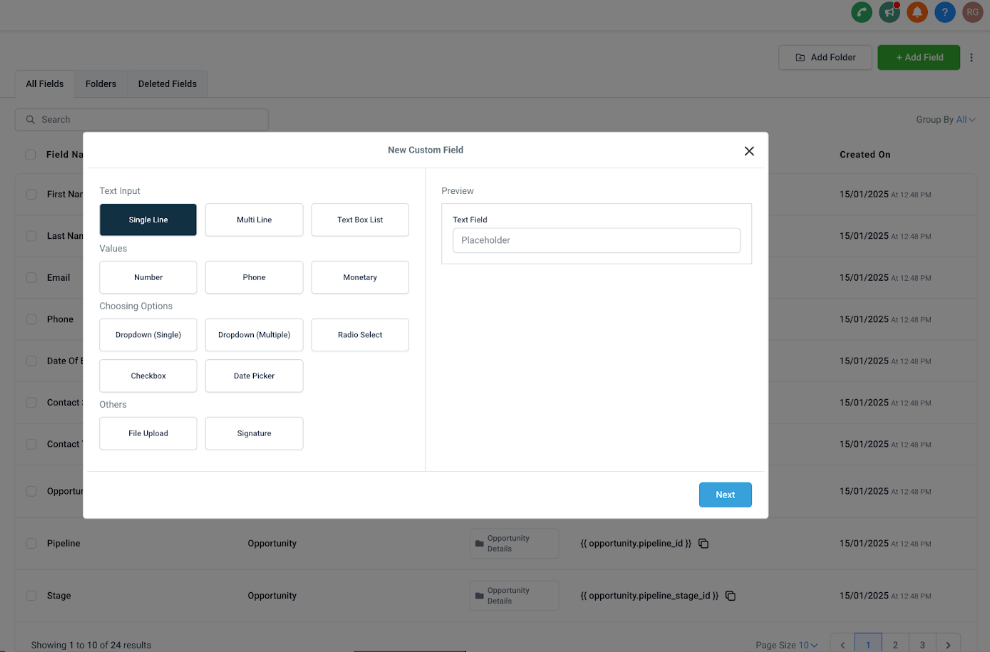
When building your Facebook lead form, use only these supported field types to ensure proper syncing with Enrollio:
- TEXT
- LARGE_TEXT
- NUMERICAL
- PHONE
- MONETARY
- SINGLE_OPTIONS
- DATE
- DROPDOWN (single selection only)
Important: Don't change the field names in your Facebook form settings after creation—this can break the field mapping in Enrollio.
How to Connect Facebook Lead Ads to Enrollio
Note: Only the user who connects Facebook will be able to select which pages to link. This person must have full admin access to the Facebook page.
Setup Steps
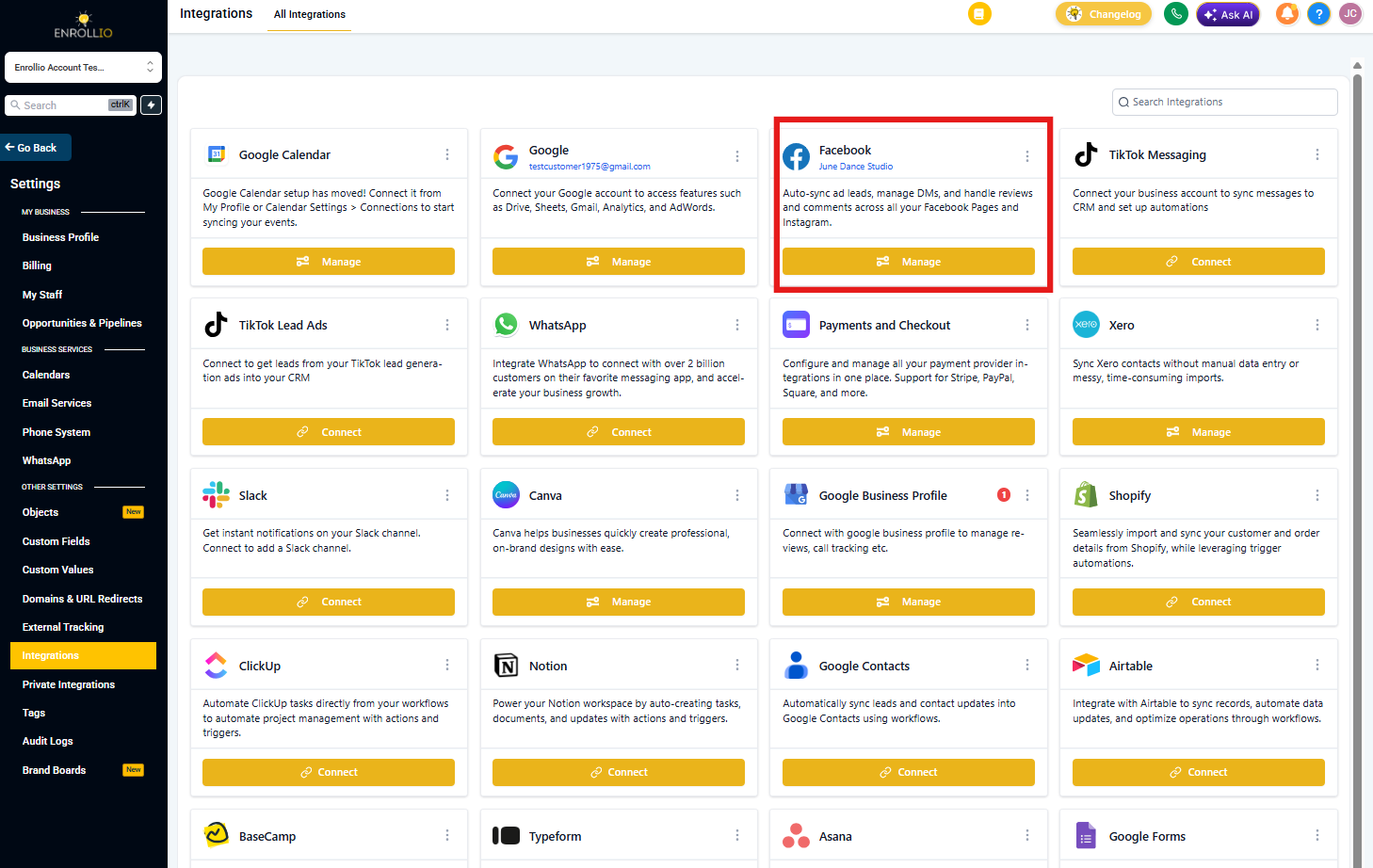
- In Enrollio, go to Settings Integrations
- Find the Facebook card and click Connect
- Allow the requested permissions when Facebook prompts you
- Select the Facebook pages you want to connect to Enrollio
- Once connected, set up form field mapping (see below)
Setting Up Form Field Mapping
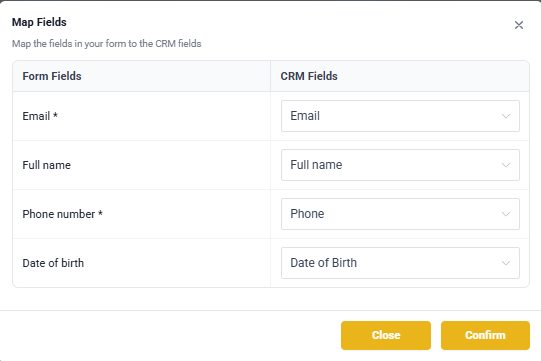
After connecting your pages, you'll need to map Facebook form fields to Enrollio fields:
- Go to Settings Integrations
- At the top of the screen, click Facebook Form Field Mapping
- Find your form and map each Facebook field to the corresponding Enrollio field (e.g., map "Child's Name" to the appropriate field in Enrollio)
- Save your mapping
Now when parents submit your Facebook lead form, their information will automatically appear in Enrollio as a new prospective family.
Managing Your Facebook Integration
To Disconnect Facebook
- Go to Settings Integrations
- Find the Facebook card and click the three dots menu
- Click Disconnect
To Add or Remove Connected Pages
- Go to Settings Integrations
- Click Manage Pages on the Facebook card
- Select or deselect pages you want to link
- Click Update
To Enable Facebook/Instagram Messaging
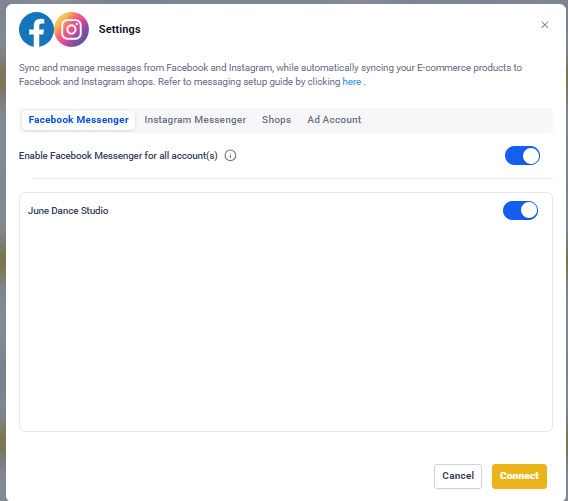
You can also respond to Facebook and Instagram messages directly in Enrollio:
- Go to Settings Integrations
- Click the menu icon on the Facebook card and select Settings
- Enable Facebook Messenger and Instagram Messenger for your connected pages
Messages from parents will now appear in your Enrollio inbox alongside texts and emails.
To Edit Form Mappings
- Go to Settings Integrations
- Click Facebook Form Field Mapping at the top
- Find the form you want to edit
- Update field mappings or deactivate the form if needed
Troubleshooting
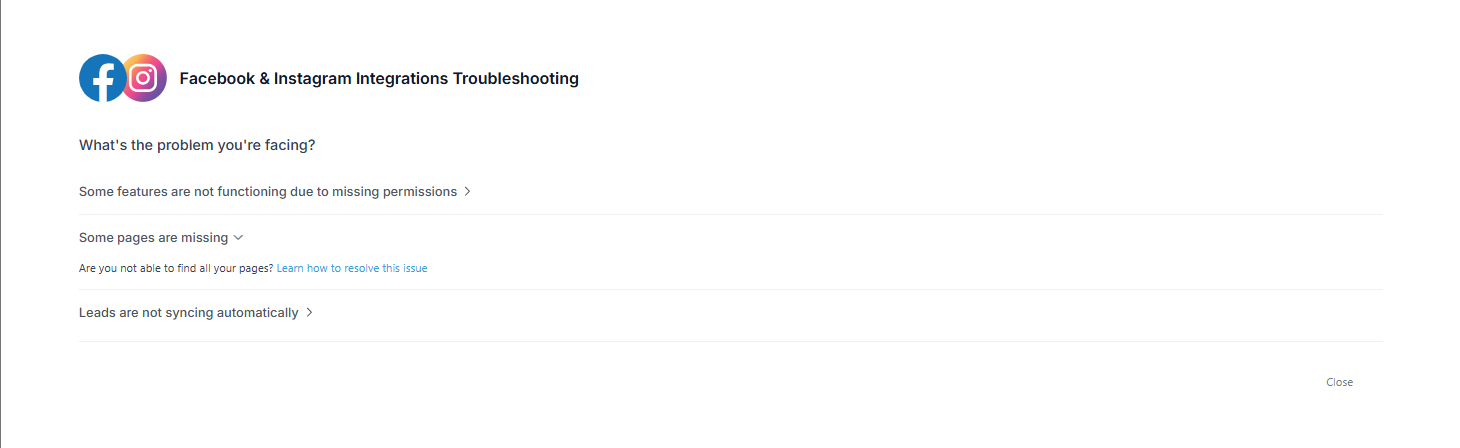
Manually Sync Leads
If you notice leads aren't syncing automatically:
- Go to Settings Integrations
- Click Troubleshoot on the Facebook card
- Review any missing permissions listed
- Use the manual sync option to pull in recent leads
Common Issues
Leads not appearing in Enrollio: Check that the user who connected Facebook has Lead Access Permission in Facebook Business Manager. Also verify your form field mapping is complete.
Can't see certain Facebook pages: Make sure you have admin permissions on those pages and that they're connected to the correct ad account.
Form fields not mapping correctly: Ensure you're using only the supported field types listed above, and that you haven't renamed fields in Facebook after creating the form.
Next Steps
Once your Facebook Lead Ads are connected, consider setting up an automation to:
- Send an immediate welcome text to new inquiries
- Automatically schedule a tour reminder sequence
- Assign leads to specific staff members based on location or age group
- Tag families by which ad campaign they came from
This ensures every Facebook inquiry gets a fast, personalized response—helping you stand out from other childcare centers and fill your enrollment spots faster.