
How to Set Up QR Codes to Get More Parent Reviews
QR codes make it incredibly easy for parents to leave reviews right from their phones. Instead of asking families to remember to leave a review later, a quick scan takes them directly to your Google or Facebook review page.
This guide shows you how to create, customize, and display QR codes that parents can scan during pickup, after a tour, or anywhere else in your center.
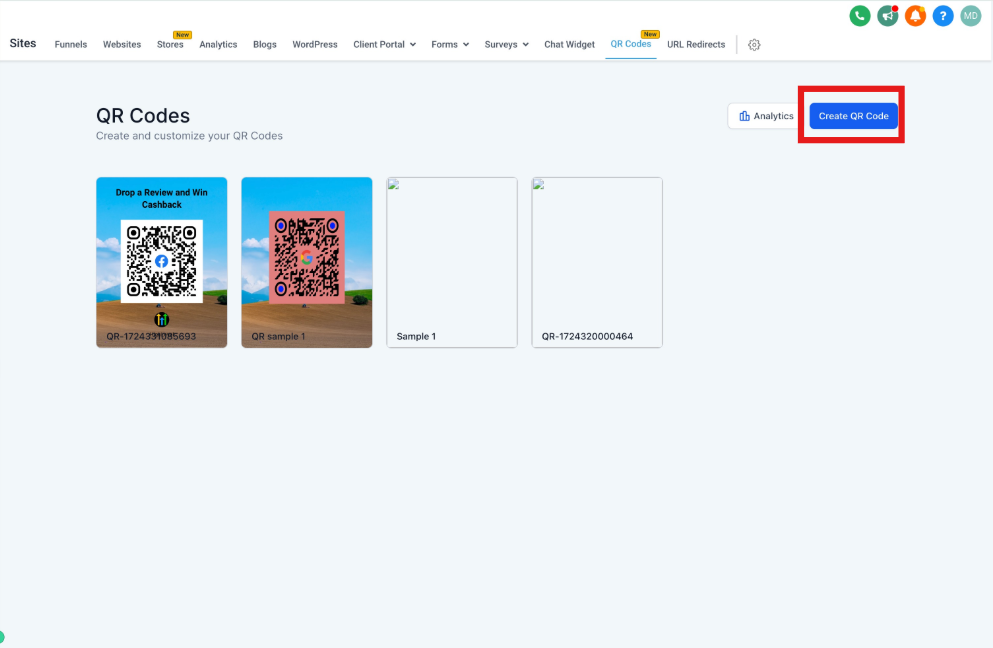
Step 1: Create Your Review QR Code
Start by generating a QR code that links directly to your review page:
- Navigate to Reputation → Settings in your Enrollio dashboard
- Click on Reviews QR in the left menu
- Select which review page you want parents to see (Google Reviews, Facebook, or a custom feedback form)
- Click Create QR Code
Step 2: Customize Your QR Code
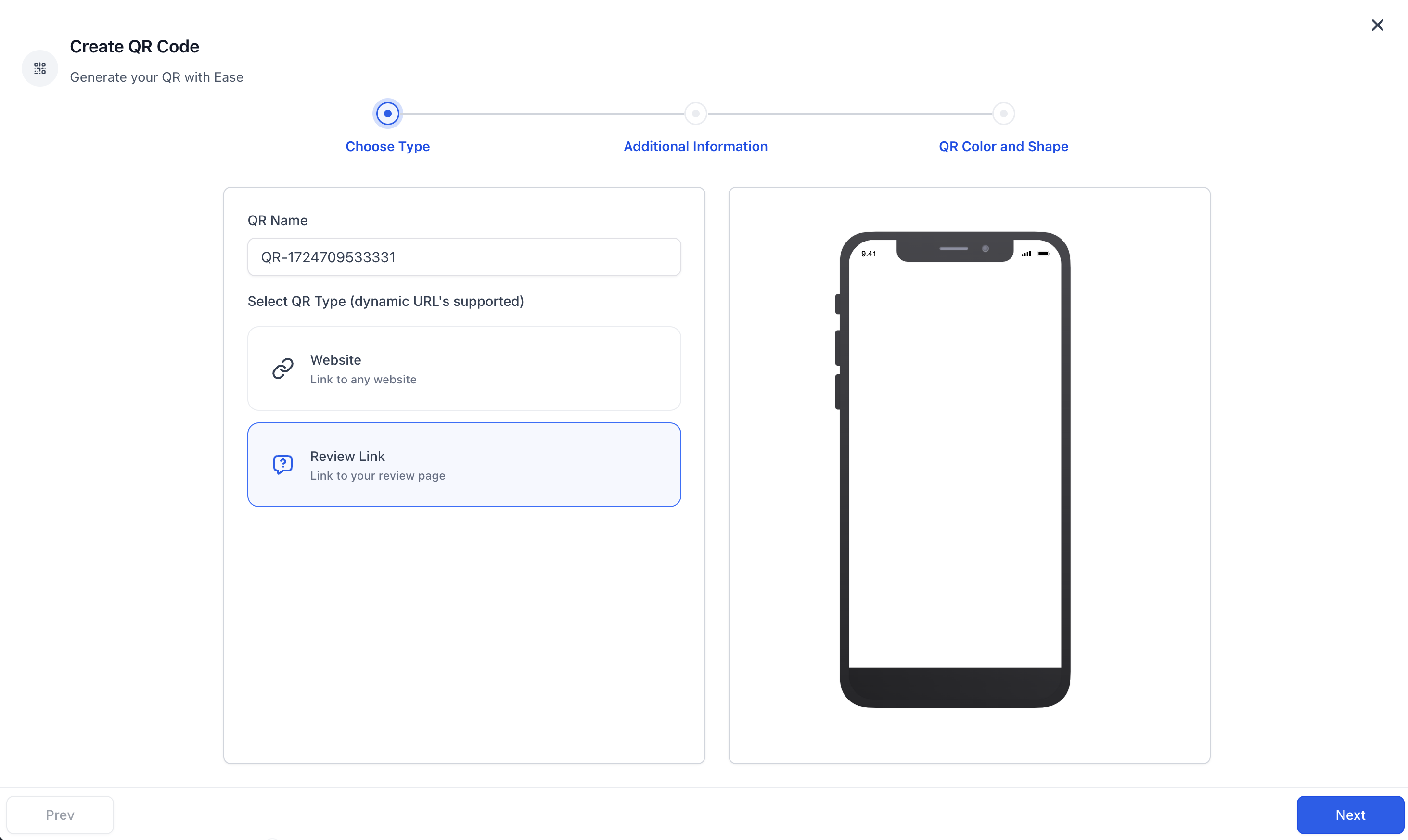
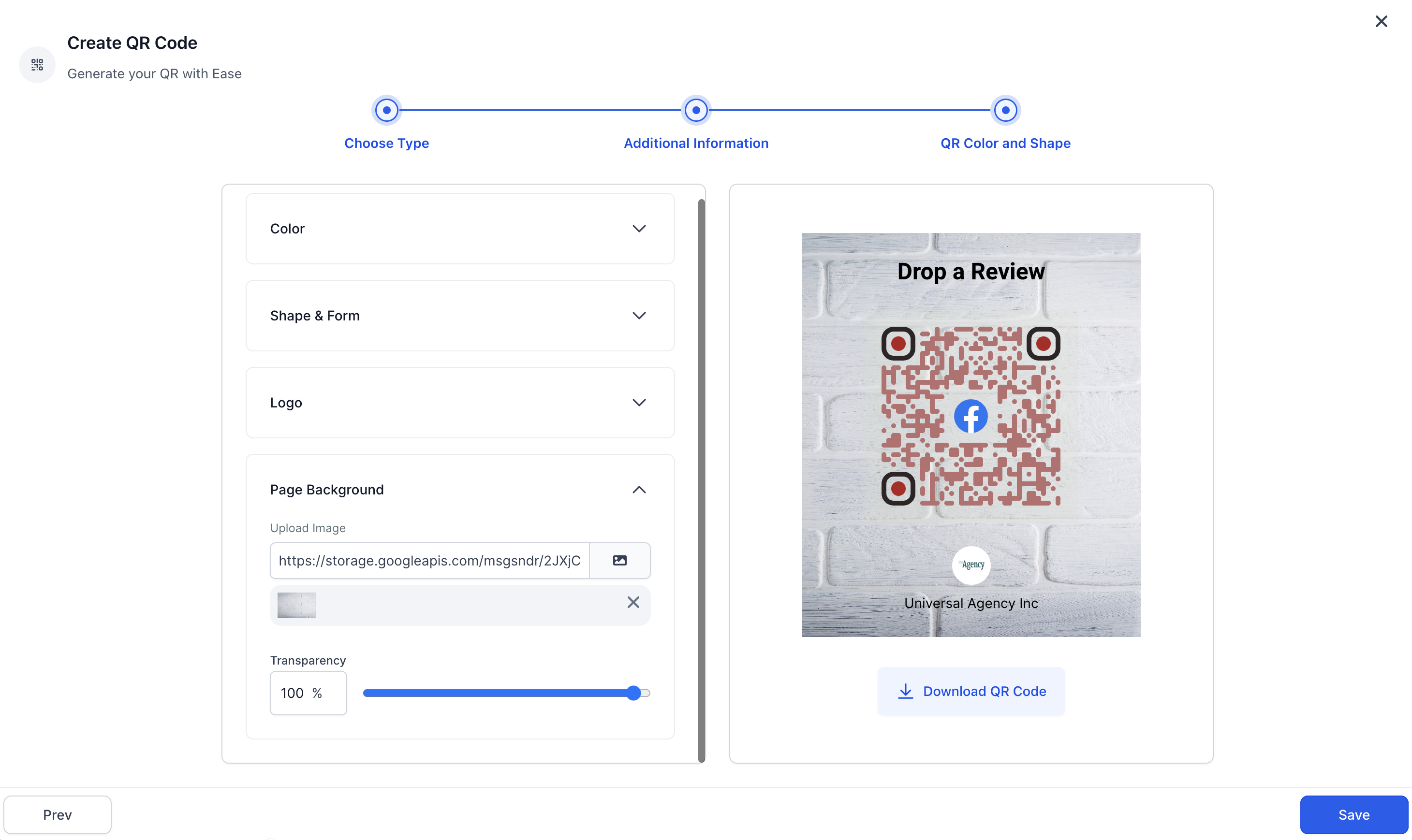
Make your QR code match your center's branding:
- Add your logo: Upload your center's logo to make the QR code instantly recognizable
- Change the text: Customize the message that appears with the code (like "Scan to share your experience!" or "Love our center? Tell others!")
Step 3: Display Your QR Code
Once your QR code is ready, put it where parents will actually see and use it:
- Download the QR code as a PDF from Enrollio
- Print and display it in high-traffic areas like:
- The sign-in/sign-out area
- Your reception desk
- Parent communication boards
- Tour route endpoints
- Share it digitally by adding it to:
- Your email signature
- Parent newsletters
- Social media posts
- Your website
Step 4: Track Your Results
Monitor how often parents are scanning your QR codes:
- Go to the Tracking section in your Reputation settings
- View real-time data on scan counts and when scans occurred
- Review which QR codes are performing best
- Adjust placement or messaging based on what's working
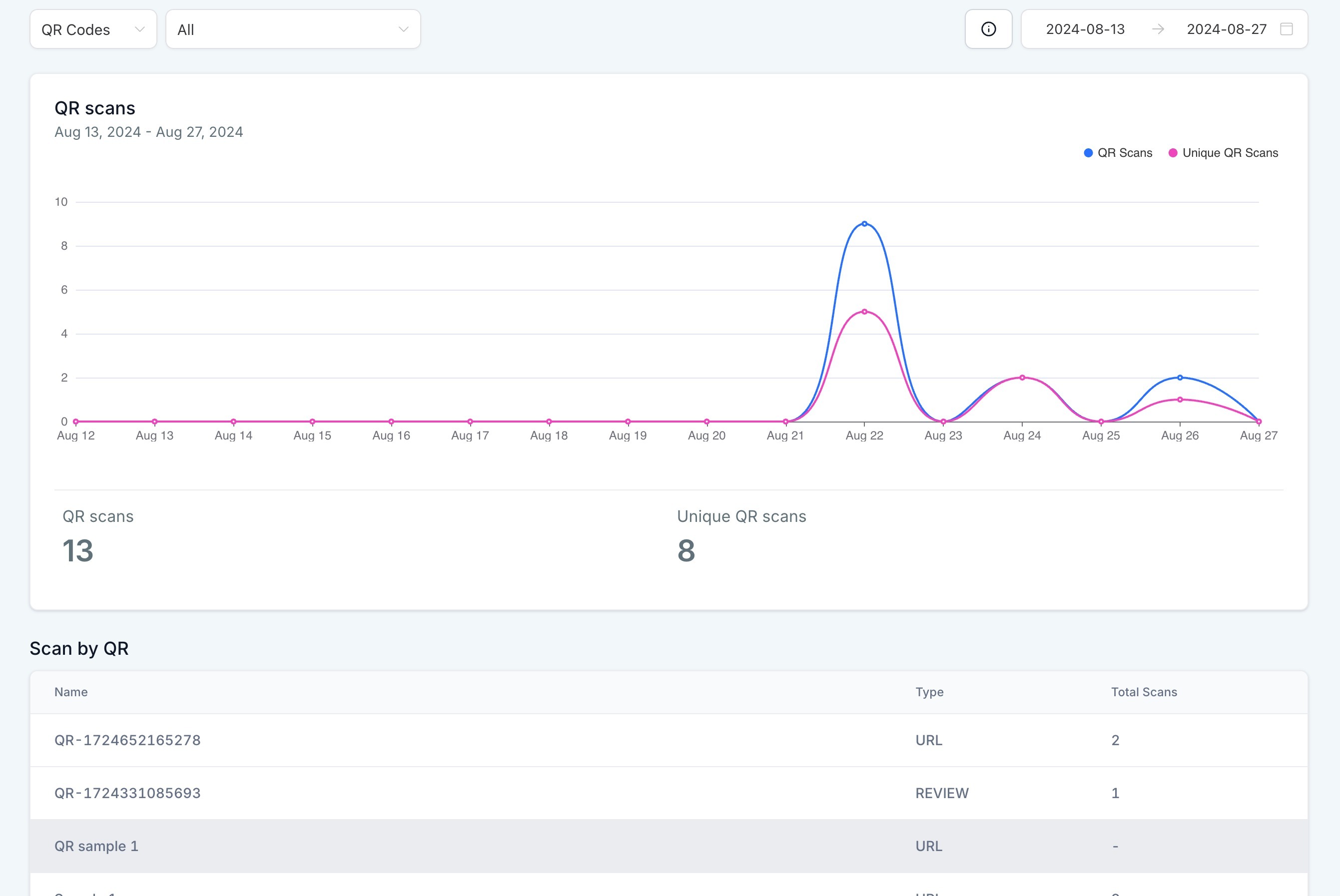
If certain QR codes aren't getting scanned, try moving them to a different location or changing the call-to-action text. The data will show you what resonates with your families.
Next Steps
QR codes are just one part of your review strategy. You can also set up automated review requests that go out via text or email after enrollments, tours, or other key moments. Check out our guide on How to Send Automated Review Requests to learn more.