
Overview
Your review widget is a powerful way to showcase glowing feedback from current families. When prospective parents see real reviews from other families, it builds trust and confidence in your childcare program.
This guide shows you how to customize your review widget and display it on your enrollment pages or external website.
What You Need to Know
- You can display reviews from both Facebook and Google on your enrollment pages
- The widget can also be embedded on third-party websites using a simple code snippet
- All reviews appear in your Reputation tab where you can manage and respond to them
- The widget automatically updates when you receive new reviews
Adding the Review Widget to Your Enrollment Pages
The easiest way to display reviews is directly on your Enrollio enrollment pages or landing pages.
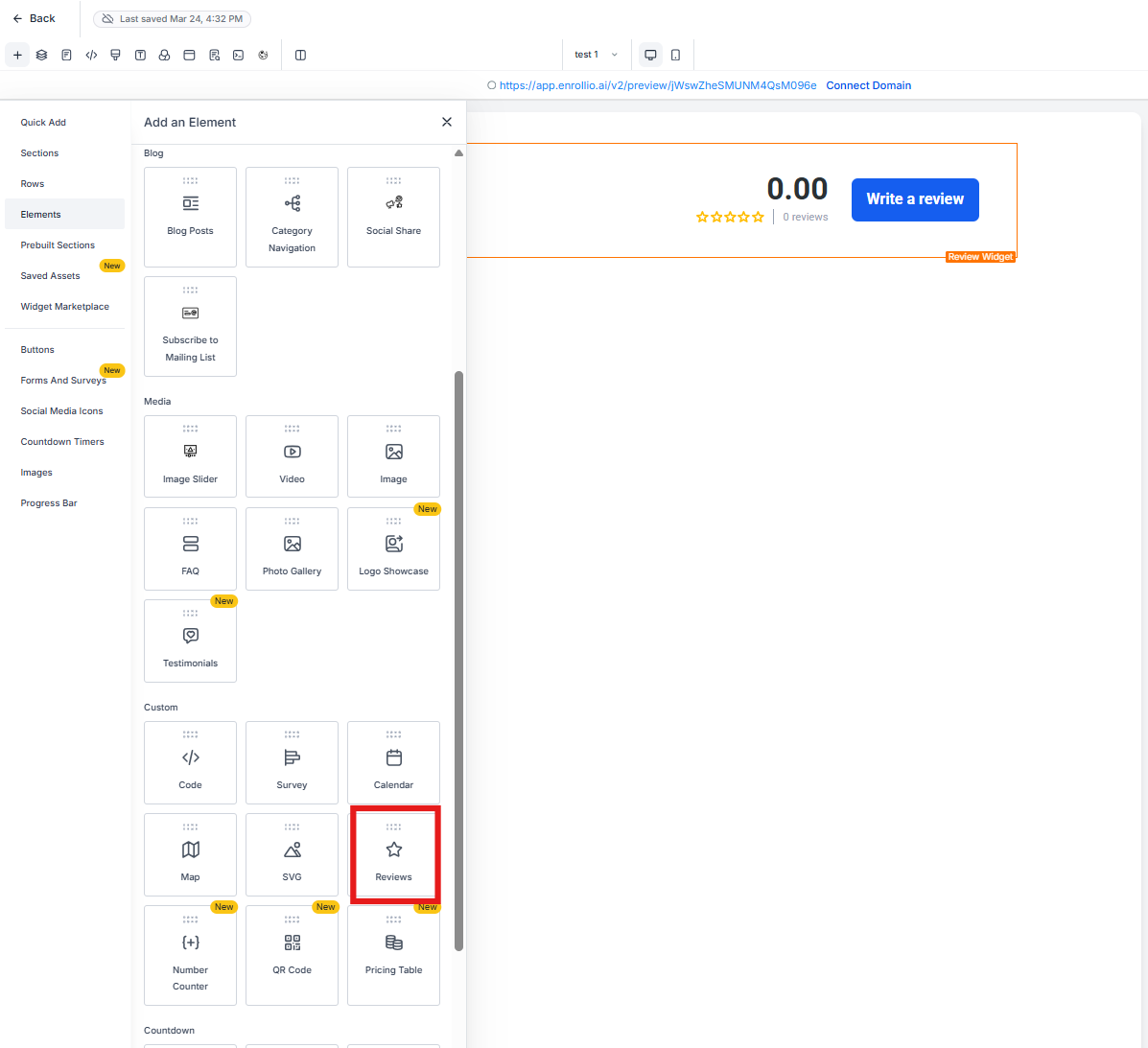
- Open the enrollment page or landing page editor where you want to display reviews
- Click to add a new element
- Select the Review Widget element from the available options
- Drag it into position on your page
- Click the widget to customize its appearance (layout, colors, number of reviews shown)
- Save your page
Embedding Reviews on Your External Website
If you have a separate website outside of Enrollio, you can still display your reviews there.
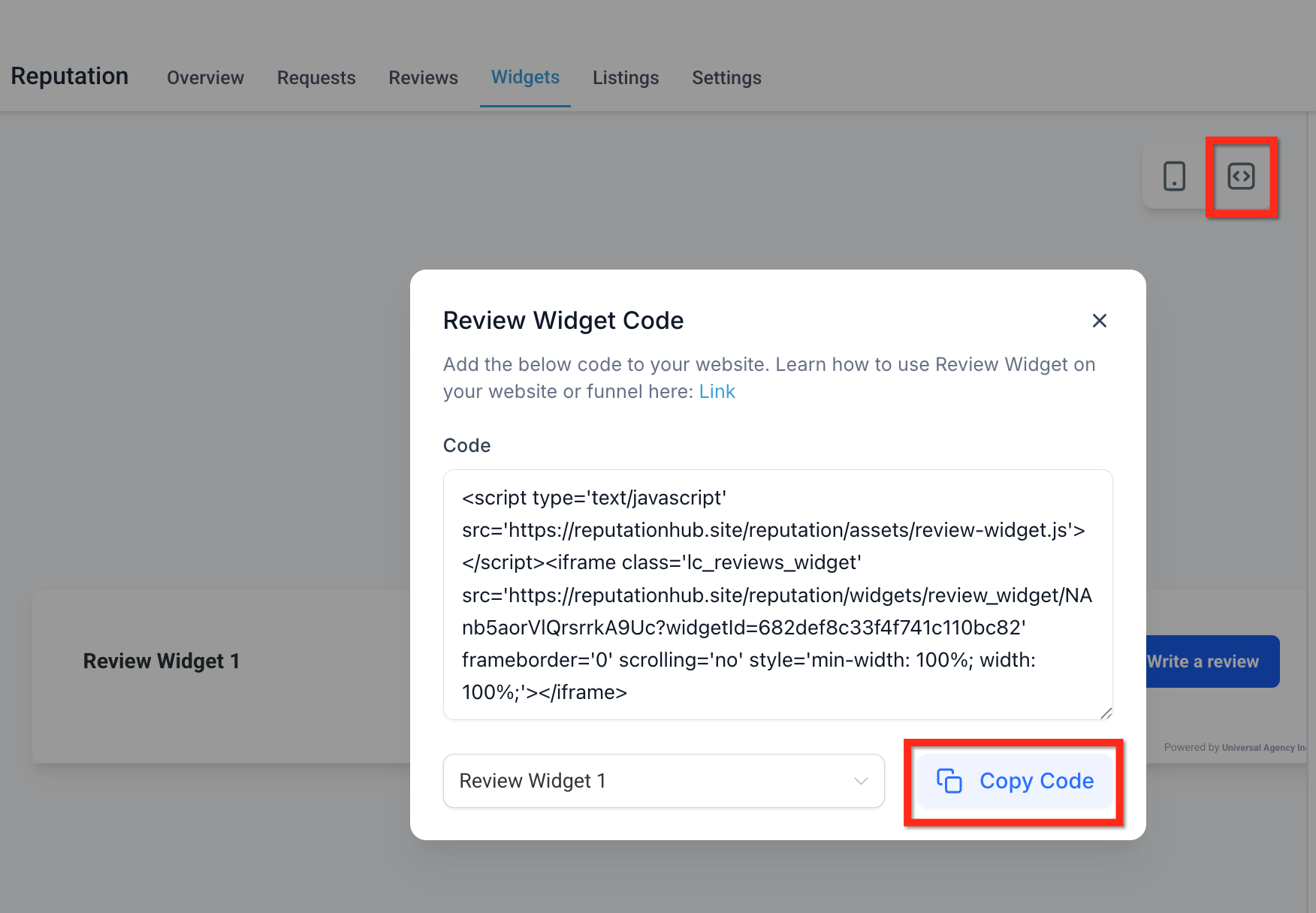
- Go to Settings in your Enrollio account
- Click Reputation in the left sidebar
- Scroll down to the Review Widget section
- Click Copy Code
- Paste this code into your external website where you want reviews to appear
The widget will automatically pull in your latest reviews and update in real-time.
Customizing Your Review Widget
You can control how your reviews appear to match your brand and enrollment pages.
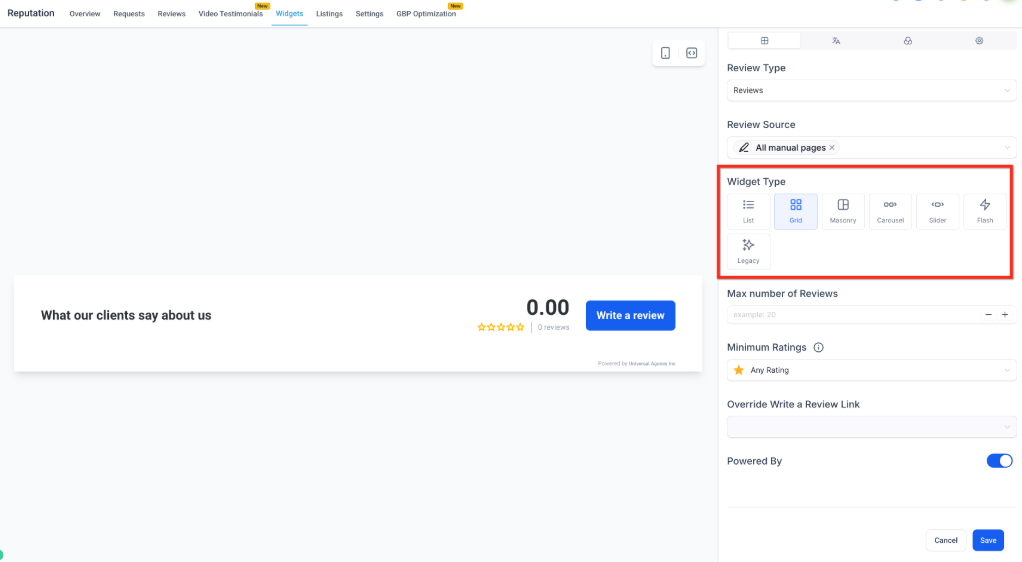
Customization options include:
- Layout style (grid, carousel, list)
- Number of reviews to display
- Color scheme and fonts
- Whether to show star ratings
- Filter by review source (Google, Facebook, or both)
Troubleshooting
Reviews Aren't Showing Up
Make sure you've connected your Google and Facebook business pages in Settings Reputation. The widget can only display reviews from connected sources.
Widget Shows "Powered By" Error
If clicking the "Powered By" link shows a "Bad Request" error, this is a known display issue that doesn't affect the widget's functionality. Your reviews will still appear correctly to parents viewing your page.
Related Topics
- How to request reviews from families
- Managing and responding to reviews
- Understanding your Reputation dashboard