
WhatsApp Media Templates for Childcare Centers
WhatsApp media templates let you send rich content — images, videos, documents, and location details — directly to parents and families. This feature helps childcare centers create more engaging, visual communications that stand out.
What Are WhatsApp Media Templates?
WhatsApp media templates are pre-approved message formats that include images, videos, documents, or location information. They help you communicate more effectively with families, whether you're marketing your program, sharing updates, or providing support.
How Childcare Centers Use Media Templates
Media templates open up powerful new ways to connect with families:
- Program Showcases: Share photos and videos of your classrooms, outdoor play areas, or daily activities
- Open House Promotions: Send eye-catching visuals with tour dates and special enrollment offers
- Event Announcements: Promote family events with location sharing and engaging imagery
- Parent Resources: Provide helpful handbooks, policies, or guides in document format
- Virtual Tours: Share video walkthroughs of your facility with prospective families
How to Create a WhatsApp Media Template
Follow these steps to create your first media template:
- Go to Settings → WhatsApp → Templates → Create Template
- Add your template name, category, and language
- Click Show header and select Media
- Upload your media file (image, video, or document)
- Click Create — your template will be sent to Meta for approval
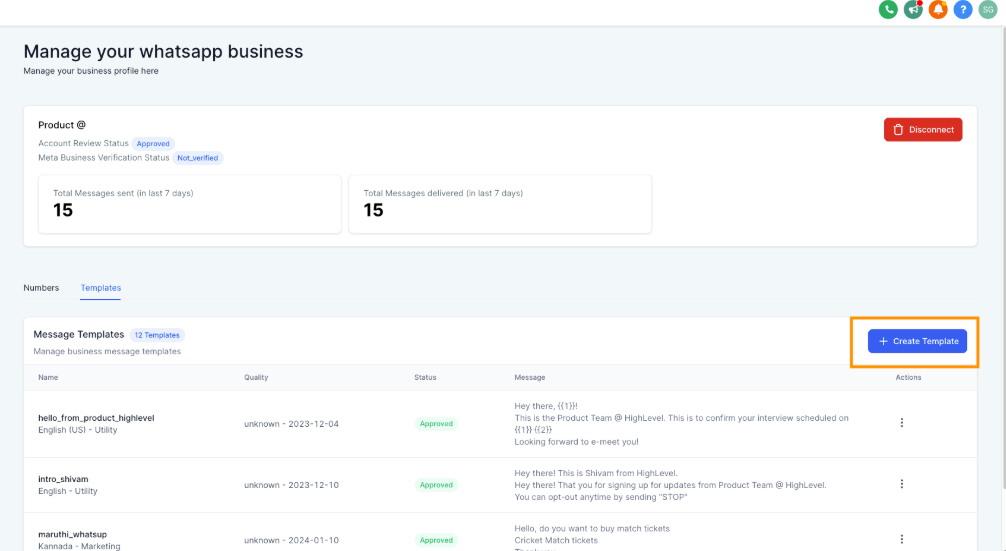
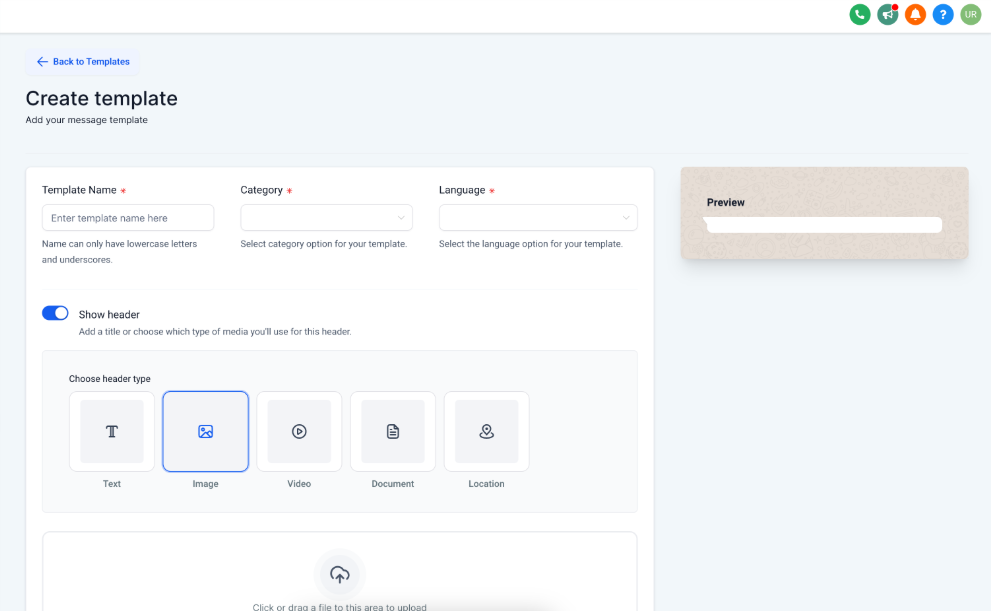
All templates must be approved by Meta before you can use them. Check out our guide on WhatsApp template statuses and best practices to improve your approval rate.
How to Create a Location Template
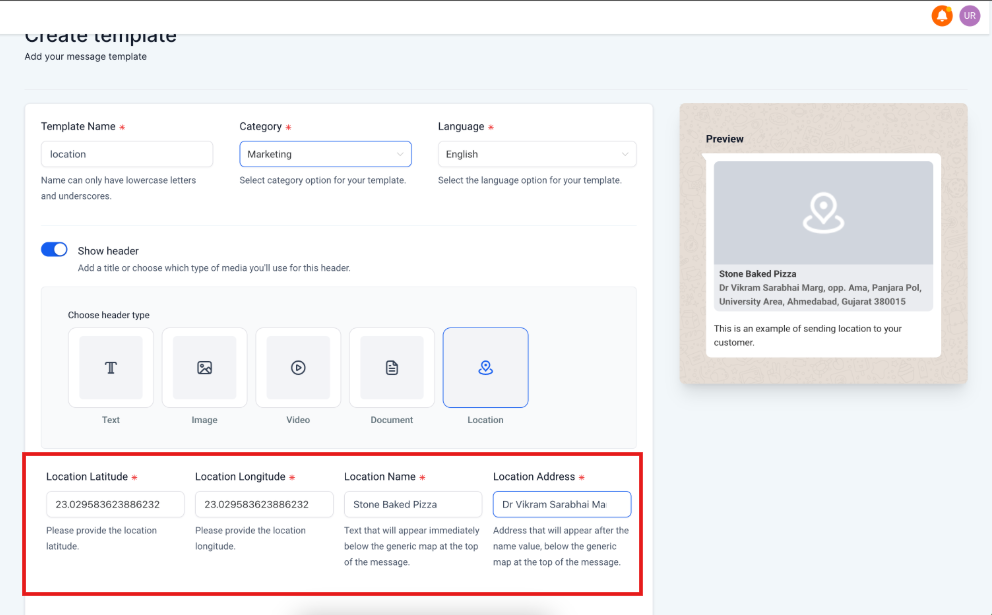
Location templates are perfect for sharing your center's address with families scheduling tours:
- Go to Settings → WhatsApp → Templates → Create Template
- Select Location as the media type
- Add the location latitude and longitude
- Add your location name and address
- Click Create
Send Media Templates from Bulk Actions
Need to send the same media message to multiple families? Use bulk actions:
- Go to Contacts → Select the smart list you want to message
- Select all contacts → Click the WhatsApp icon
- Select your media template → Add an action name
- Click Show Stats to track delivery
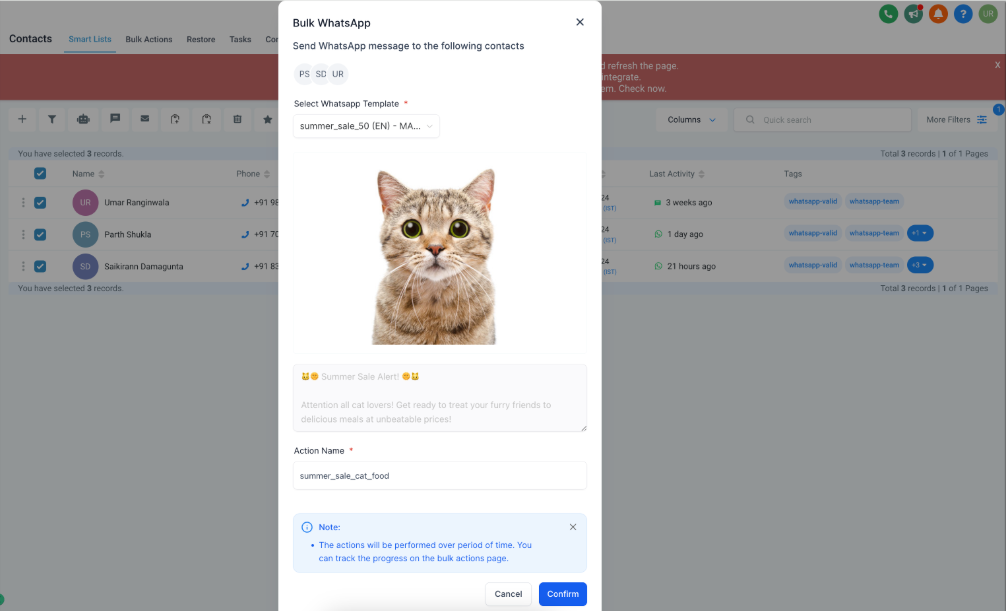
You can view detailed statistics by clicking Processed → View Bulk Action Statistics.
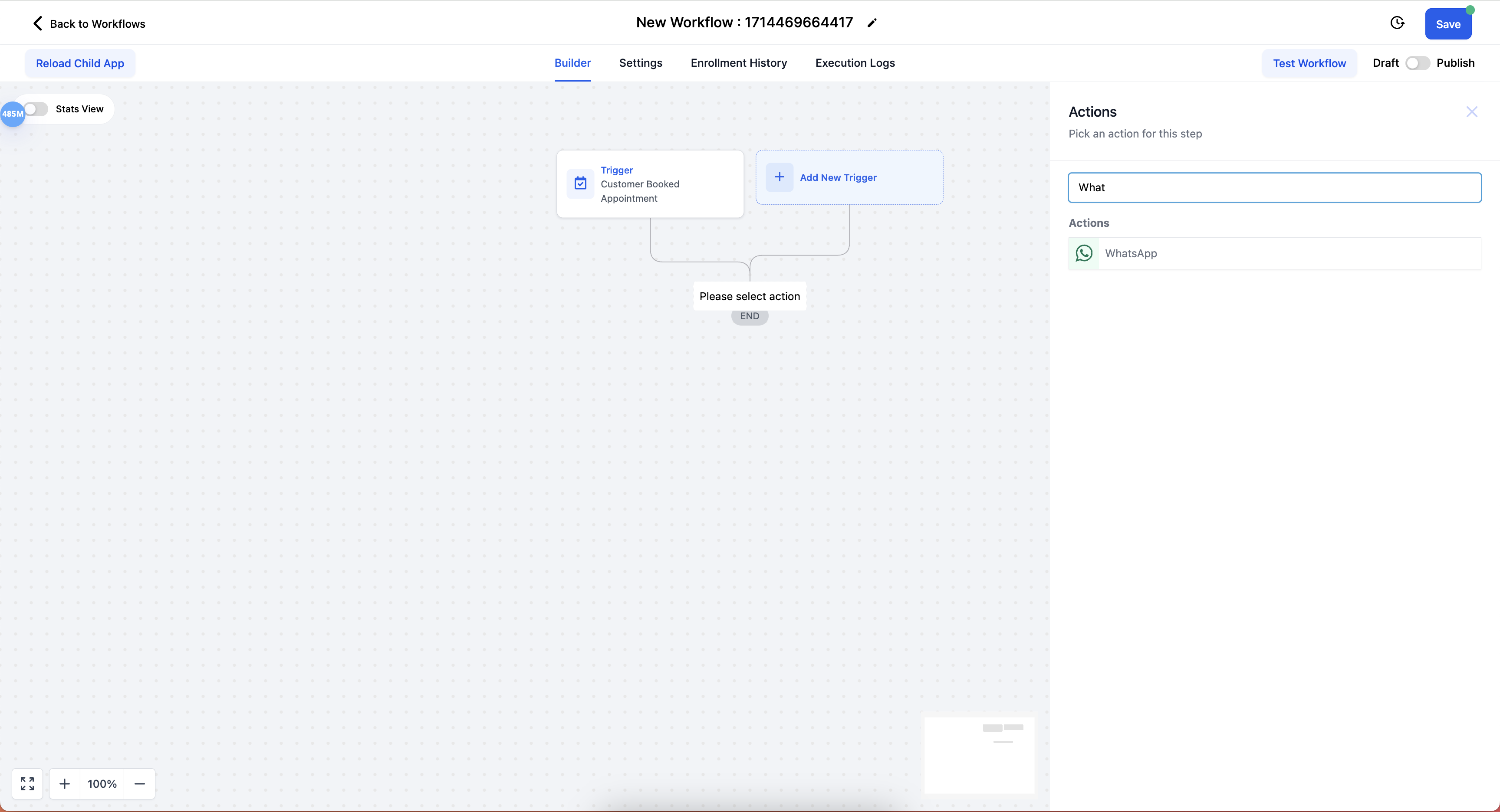
Send Media Templates from Automations
Automate your media messages to save time and ensure consistent communication:
- Go to Automations → Create Automation → Start from Scratch
- Select your trigger (e.g., "New tour scheduled" or "Waitlist enrollment")
- Add a WhatsApp action
- Select your media template
- Click Save Action → Save Automation
Send Media Templates from Conversations
You can also send media templates directly from a conversation with a family:
- Go to Conversations → Select the parent you want to message
- Click Please use a template to initiate a chat
- Select your media template → Click Send
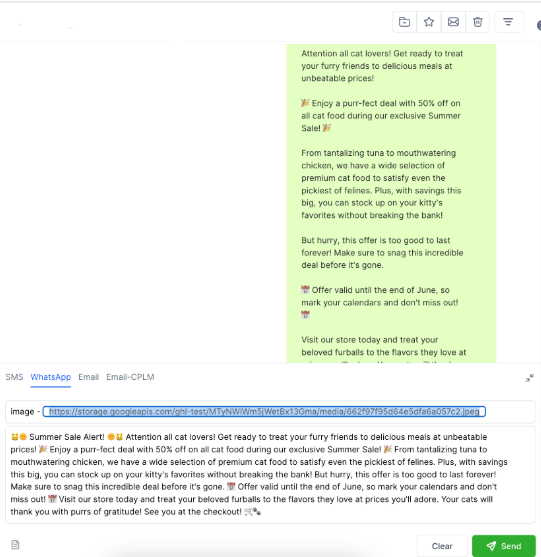
You can customize the media by changing the media URL before sending. The URL must be publicly accessible and contain the same media type as your template (for example, if it's an image template, it will only accept PNG or JPEG files).
Media Guidelines and Limits
WhatsApp has specific requirements for media files:
| Media Type | Supported Formats | Size Limit |
|---|---|---|
| Document | application/pdf | 100MB |
| Image | image/jpeg, image/png (8-bit, RGB or RGBA) | 5MB |
| Video | video/mp4 | 16MB |
If you try to upload a file that exceeds these limits, Enrollio will display an error message. Make sure your media files meet WhatsApp's requirements before creating your template.
Frequently Asked Questions
Do I need approval before using WhatsApp templates?
Yes. All templates must be approved by Meta before you can send them to families. This typically takes a few hours, but can take up to 24 hours during peak times.
What happens if I try to use media that doesn't fit the guidelines?
You'll see an error message, and your template won't send. For example, if you try to add a video file to an image template, or if your file is too large, Enrollio will alert you before you submit for approval.
What factors can lead to a template being rejected?
Common reasons for rejection include:
- Missing or incorrect variable formatting
- Content violating WhatsApp's Business or Commerce policies
- Requests for sensitive information (e.g., full payment card numbers)
- Abusive or threatening language
- Duplicating an existing template
What does it mean if my template is 'Paused'?
A paused template means it received negative feedback from families or had low engagement rates. You cannot send a paused template until its status changes back to 'Active.' Review and revise your message to better resonate with families.
Can I change the media in a template after it's approved?
When sending from conversations, you can replace the media URL with a different file — but it must be the same media type and meet the same guidelines. Any changes to the template itself require resubmitting for approval.