
How To Set Up Google Ads Conversion Actions (Google Platform Side Setup)
This guide explains how to configure Google Ads conversion actions directly in the Google Ads interface. It is a standalone platform-side setup and does not include Enrollio configuration steps. After completing this setup, use the links in Next Steps to connect conversions from Enrollio via Ad Manager or Automations.
What is Google Ads Conversion Actions?
Google Ads conversion actions define the events you want to track and optimize for—such as prospective families, calls, form submissions, or offline enrollments. Creating a clear, well-scoped conversion action ensures Google Ads can attribute performance correctly and helps your campaigns bid toward meaningful outcomes.
A conversion action is a rule in Google Ads that records when a desired action occurs. For offline conversions (e.g., a family marked as enrolled in your CRM), Google Ads matches identifiers like GCLID/GBRAID/WBRAID to attribute results back to ads and keywords.
Key Benefits of Google Ads Conversion Actions
Establishing the right conversion actions improves bidding signals, clarifies measurement, and prevents noisy or duplicated data.
- Accurate Optimization: Feeds Google Ads with clean signals for Smart Bidding
- Clear Reporting: Separates primary outcomes (e.g., qualified tour bookings) from secondary events
- Control Over Counting: Decide whether to count Every or One conversion per ad interaction
- Flexible Attribution: Choose a model that fits your enrollment funnel and data volume
- Offline Compatibility: Supports uploading server-side/CRM events using IDs like GCLID/GBRAID/WBRAID
Prerequisites on the Google Side
Preparing your Google Ads account prevents rework later. Confirm access, account structure, and goal taxonomy before creating actions.
- Admin or standard access to the correct Google Ads account
- Agreement on goal taxonomy (e.g., Lead vs Submit lead form vs Qualified lead)
- Decision on whether this action should be marked as a Primary action used for bidding
- Clarity on identifiers you'll send later (e.g., GCLID/GBRAID/WBRAID) when posting offline conversions from Enrollio
How To Set Up Google Ads Conversion Actions (Google Platform-Side)
Follow these steps in Google Ads to create the conversion action you'll later send data to from Enrollio. Proper setup ensures clean attribution and reliable bidding signals.
- Open Google Ads and select the correct account
- Go to Goals → Summary → Create conversion action
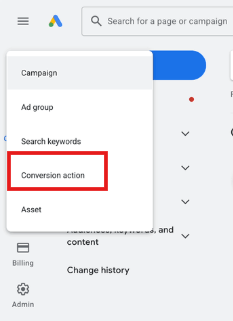
- Choose data sources to measure conversions depending on your current Google Ads UI prompt
- Click on Save and Continue
- Select the most relevant Category (e.g., Lead, Submit lead form, Qualified lead)
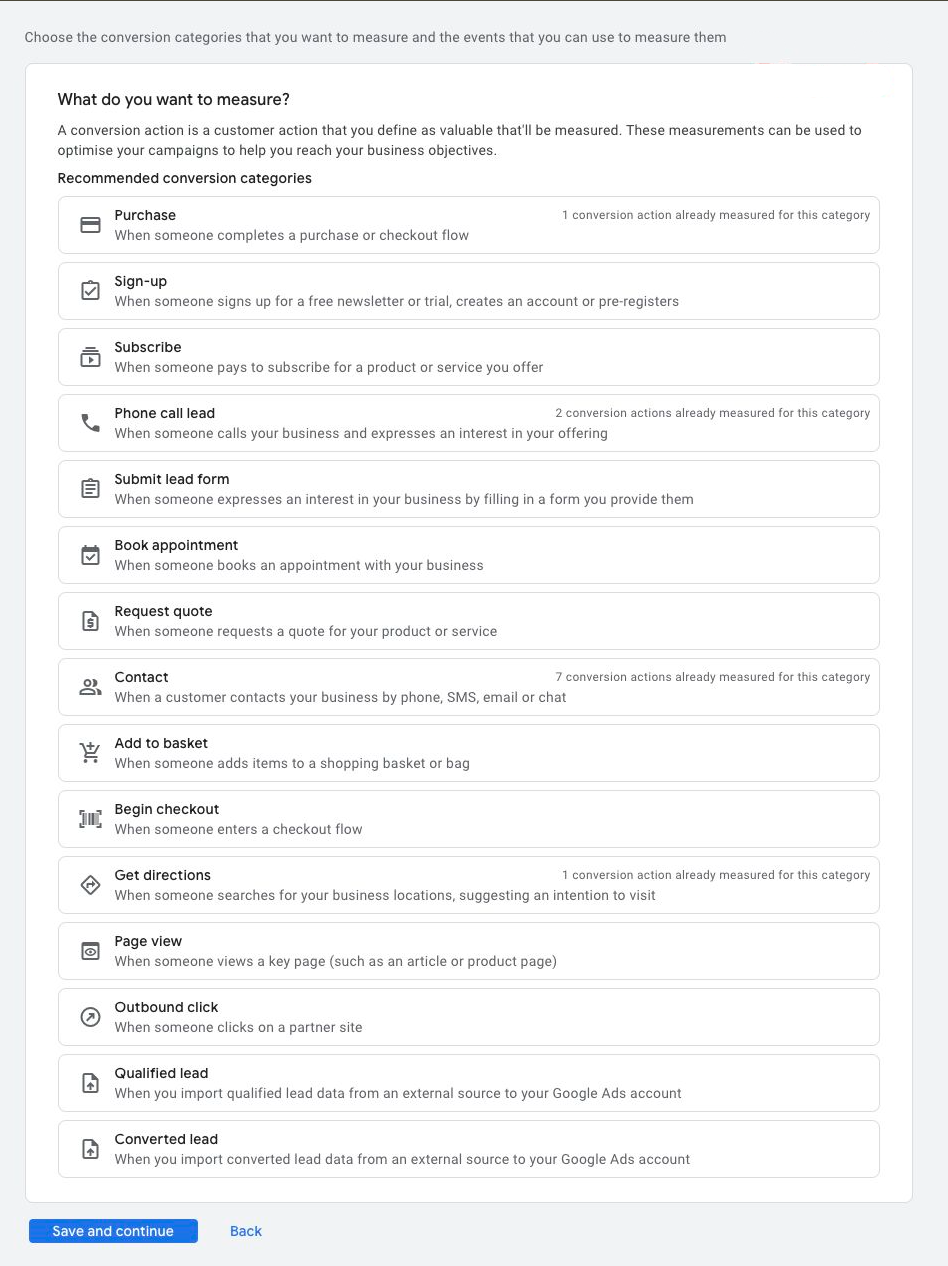
- Configure Conversion once you selected the category of conversion
- Click on Create Conversion and navigate to select data resources
- Click on Save and continue
- Create a conversion by either adding it manually with code or automatically without code
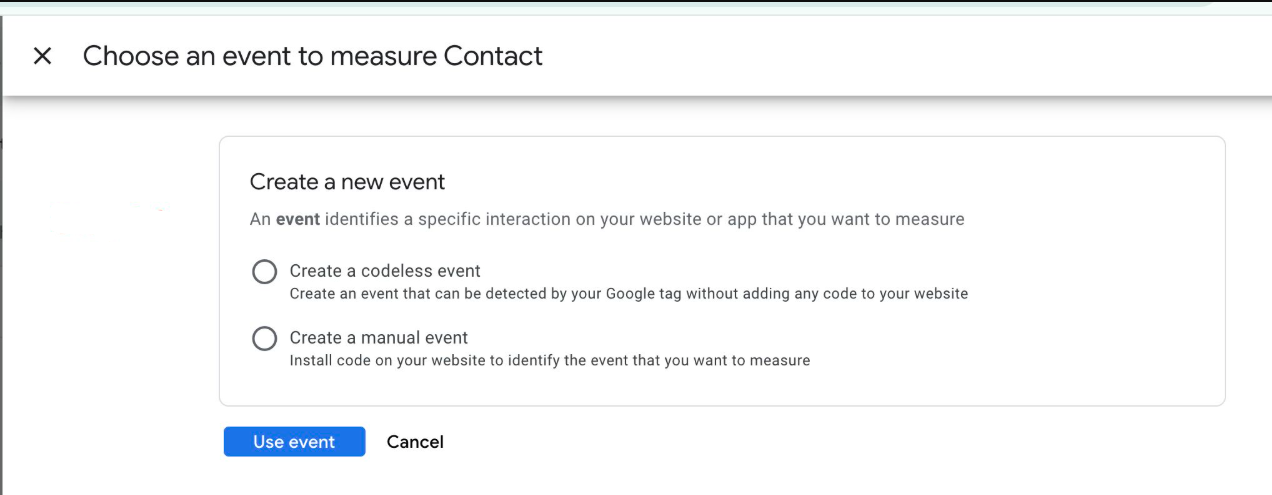
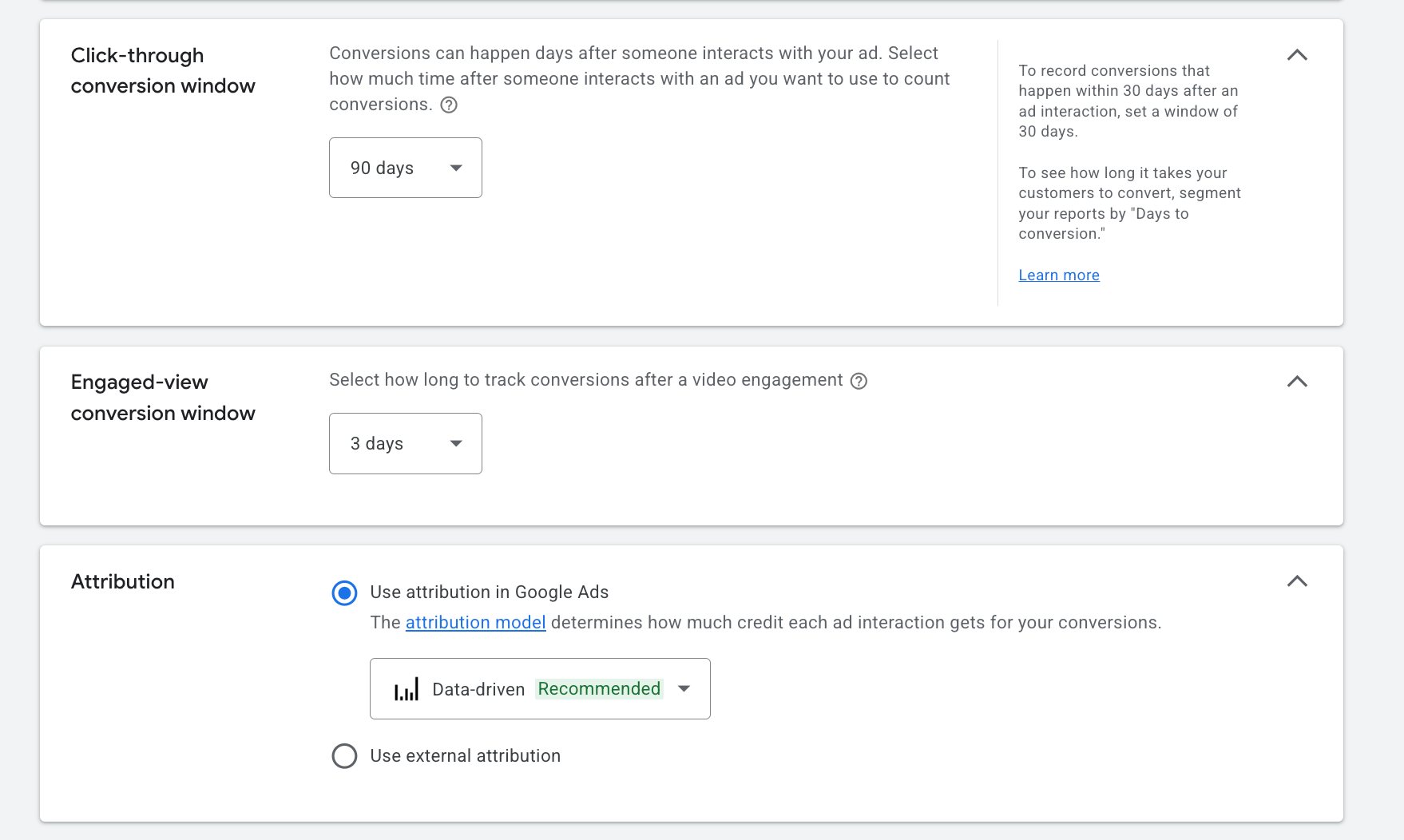
- Click on Conversion Settings and configure:
- Conversion name
- Value
- Count

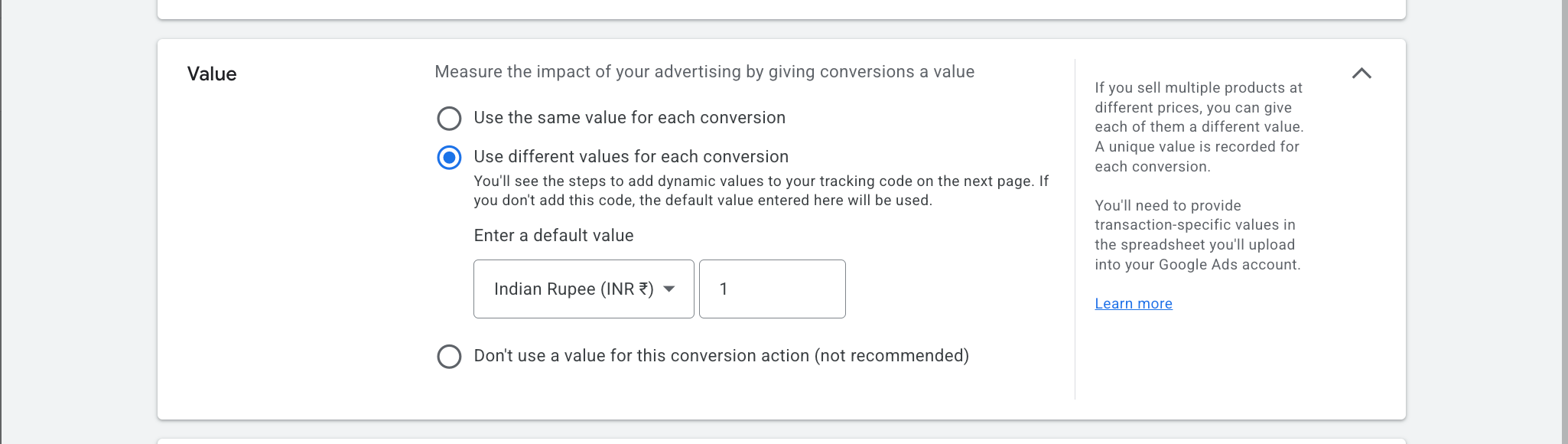

- Set the click-through conversion window to 90 days
- Set the Engaged-view conversion window to Google recommended, 3 days
- Set the Attribution model as Last Click or Data Driven (recommended)
- Click on Agree and finish
Frequently Asked Questions
Q: What should I set for Count—Every or One?
Use One for prospective family generation to avoid inflating conversions when a family repeats the same event. Use Every for revenue events like enrollment fees.
Q: How long until I see conversions in Google Ads?
Processing can take from a few hours up to 24–48 hours depending on volume and method. Reporting latency is normal; use absolute dates when checking reports.
Q: Do I need GCLID, GBRAID, or WBRAID to upload offline conversions?
Yes—at least one identifier is needed for reliable matching. Capture and store whichever is available on first touch, then include it when sending the conversion from Enrollio.
Q: Where do I verify that conversions are being recorded?
In Google Ads: Tools & Settings → Conversions and in campaign reports using Conversion columns. In Enrollio, use Ad Manager reporting for visibility once Enrollio-side sending is configured (see Related Articles).
Q: Should I use Enrollio Ad Manager or Automations to send conversions?
Use Ad Manager if you prefer a centralized ads workspace and built-in mapping. Use Automations if you need granular automation or custom logic. Both can send to the same Google conversion action.
Q: Why don't my uploads match or show results?
Common issues include missing identifiers, incorrect timezones, currency/value mismatches, or sending to the wrong conversion action. Confirm the conversion ID/name, identifier presence, and event timestamps.
Related Articles
- Ad Manager - Create & Manage Google Ads Offline Conversions
- Automation Action – Add to Google Ads
- Overview of Ad Manager Settings
- Overview of Ad Manager
- How to Set Up Google Ad Reporting
- Understanding Attribution Source