
Let parents and prospective families speak directly with your AI assistant right on your website—no phone calls, downloads, or complicated setup required. Voice AI captures and qualifies enrollment inquiries the moment families are interested.
What is the Voice AI Chat Widget?
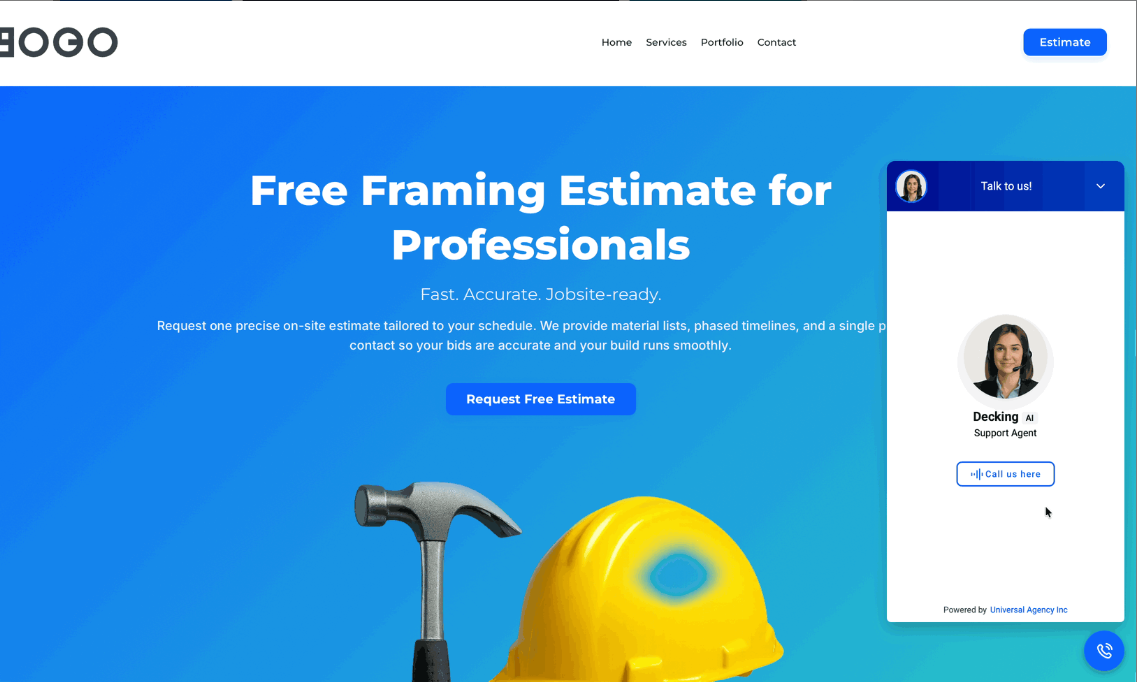
The Voice AI Chat Widget transforms your standard chat bubble into a live conversation tool. Parents visiting your site can click the widget and speak directly with your AI assistant through their browser—no phone number to dial, no app to install.
The conversation streams through WebRTC technology, creating a natural voice experience that feels like talking to a real person on your enrollment team.
Why Voice AI Works for Childcare Enrollment
Parents researching childcare are often multitasking—driving, cooking dinner, or caring for their current children. Voice AI meets them where they are:
- Zero friction: Parents speak instantly without dialing or switching apps
- Natural conversation: Voice feels more personal than typing, building trust faster
- Capture hot leads: Answer questions and book tours while parents are actively interested
- Branded experience: Name your AI assistant (like "Welcome Coordinator Sarah") to reinforce your center's personality
- Built-in compliance: Automatic security features and call notices keep your center protected
How Voice AI Chat Works
Voice-Only Mode
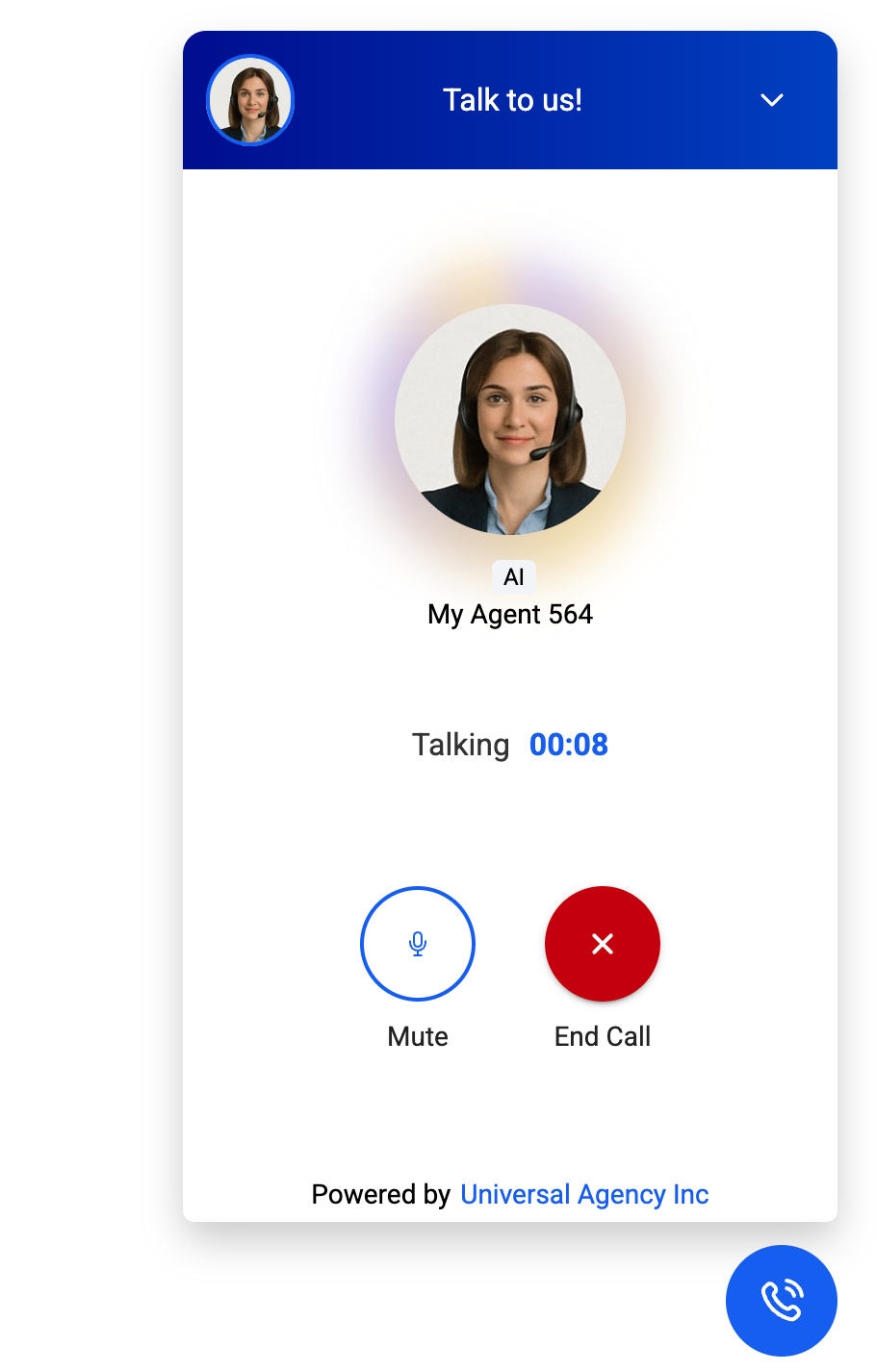
Your Voice AI widget streams audio through the visitor's microphone and speakers. The entire conversation happens inside the chat window on your website—no traditional phone connection needed.
This makes it perfect for quick center tours, answering enrollment questions, or helping parents understand your program offerings hands-free.
Automatic Call Notice
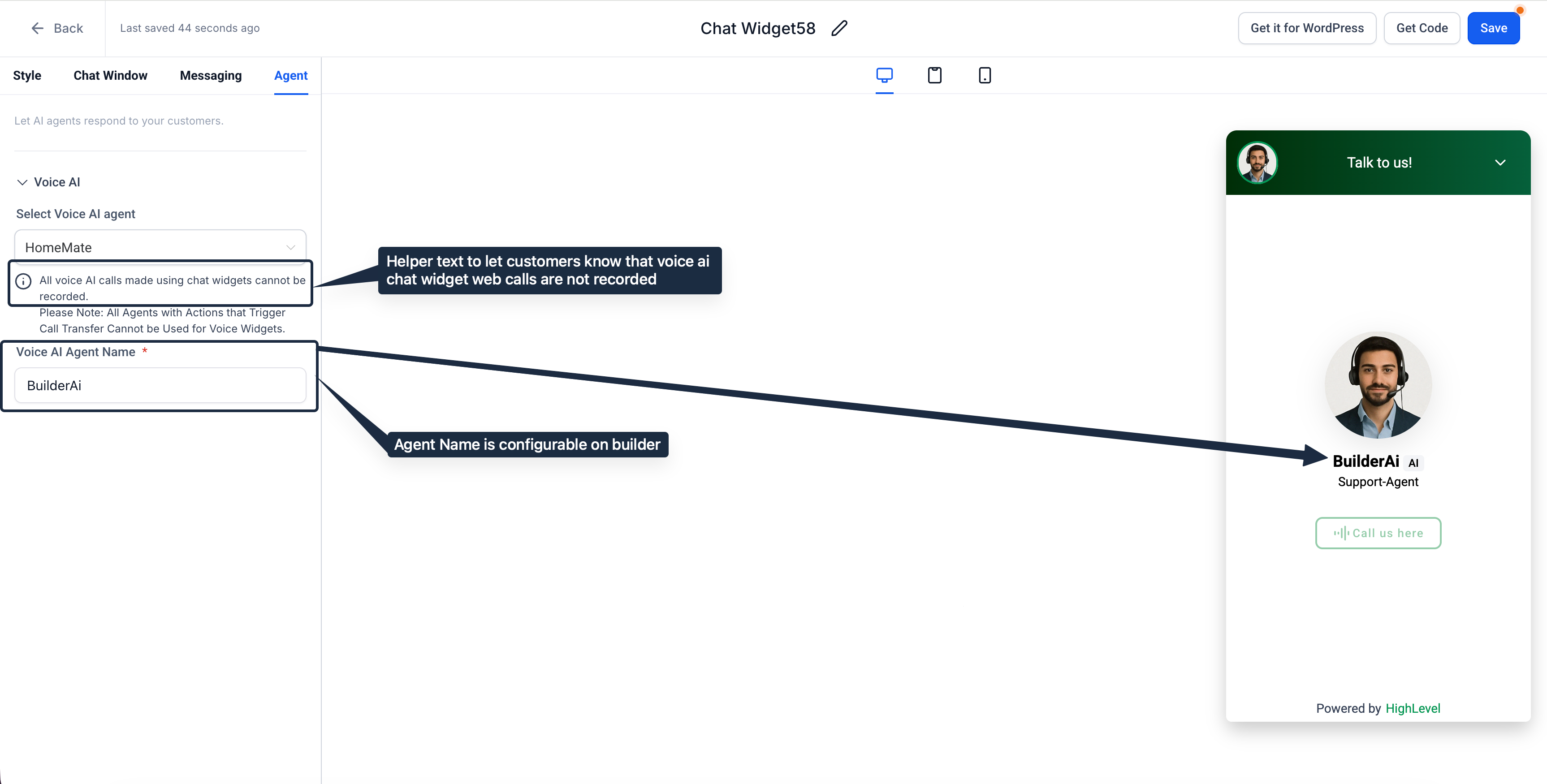
To keep expectations clear, the widget displays a notice that voice calls cannot be recorded. This transparency protects both your center and the families you serve.
Security Protection
If someone connects and disconnects 10 times within 60 seconds, Enrollio prompts them with Google reCAPTCHA to confirm they're human. This stops bots and prevents abuse before it starts.
Browser-Based Conversations
Everything runs directly in the parent's web browser—no special phone setup required on your end. You can embed the Voice AI widget anywhere you'd place a regular chat bubble: your enrollment site, landing pages, or parent portal.
Concurrent Call Limits
You can create up to 100 Voice AI agents for different purposes (main enrollment line, tour scheduling, waitlist inquiries, etc.). Each location supports 20 simultaneous calls.
If you reach your 21st call, that visitor will see a "capacity reached" message and can try again in a moment. Calls at other locations aren't affected—each has its own 20-call limit.
What Parents Can Do with Voice AI
When a parent clicks your Voice AI widget, they can:
- Start a voice conversation with your AI assistant
- Mute the agent if they need to step away briefly
- Provide their contact information during the call
- End or restart the call as needed
Note: Call transfer to live staff isn't available yet while Voice AI is in beta.
How to Set Up Voice AI on Your Site
Adding Voice AI to your enrollment site takes just a few minutes. You'll copy a code snippet from Enrollio and paste it into your website.
Step 1: Create Your Voice AI Widget
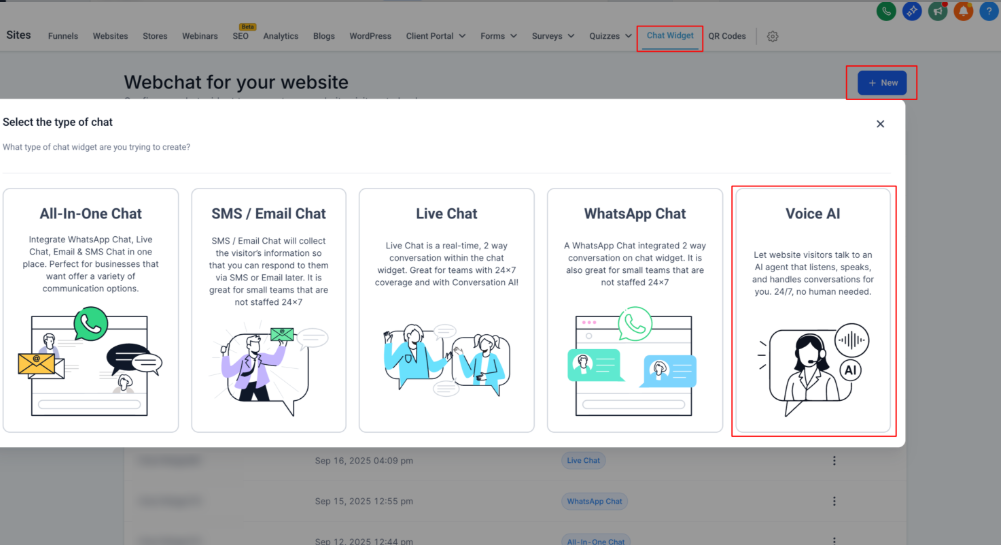
- Navigate to Sites → Chat Widget
- Click New
- Select Voice AI as the widget type
- Configure your AI agent's greeting and behavior
Step 2: Get Your Widget Code
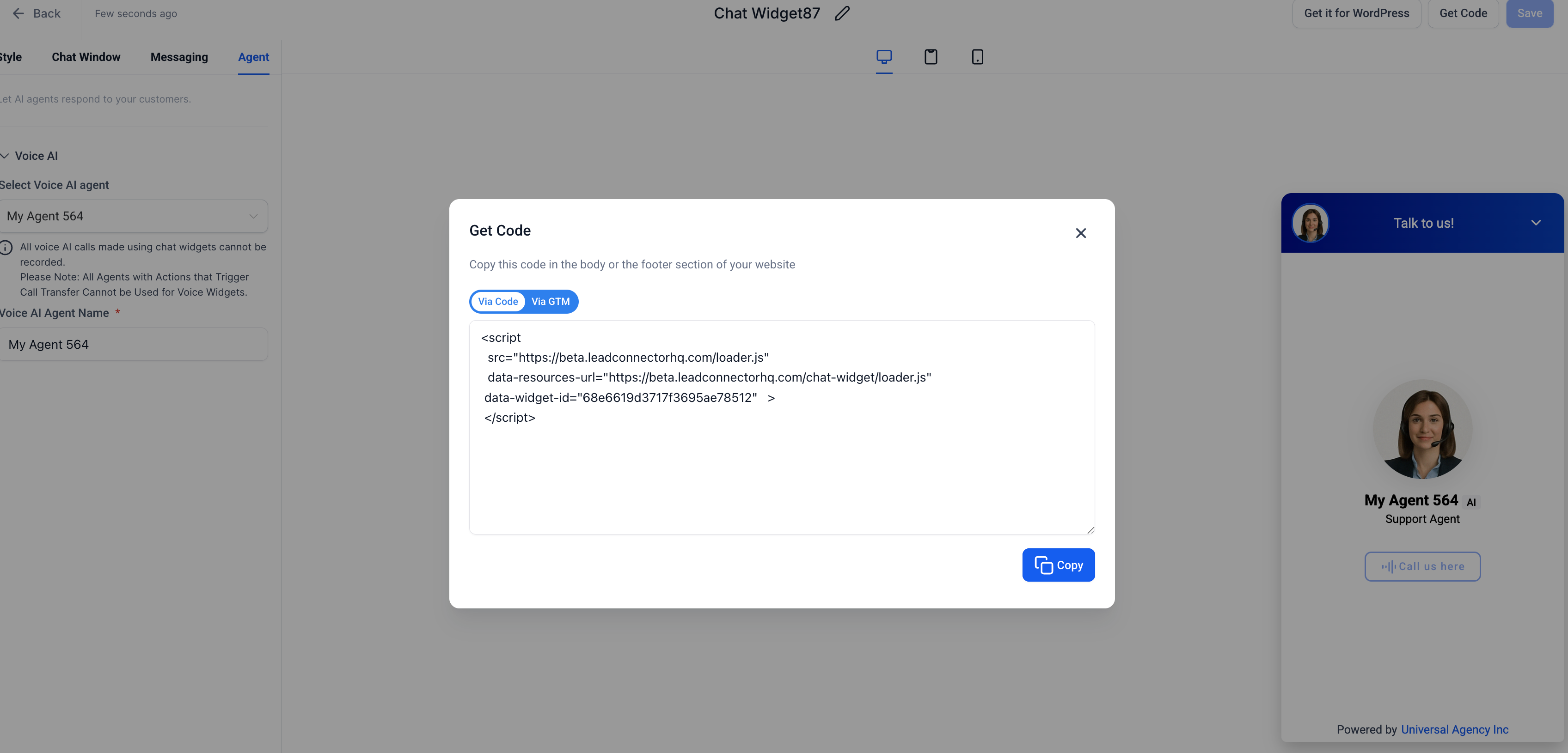
- Click Get Code in your widget settings
- Copy the provided
<script>code
Step 3: Add Code to Your Website
For Enrollio-hosted sites: Paste the code in your site's custom code section (usually in Settings → Custom Code or the footer area).
For external websites: Add the script to your site's <head> or footer section. If you're using a platform like Wix or Squarespace, use their custom code embed feature.
Step 4: Test Your Widget
- Save and publish your changes
- Visit your live enrollment site
- Click the Voice AI widget
- Allow microphone access when prompted
- Start a test conversation to confirm everything works
Customizing Your AI Agent Name
Give your AI assistant a friendly name that matches your center's personality. The name appears with every voice response, building familiarity and trust with prospective families.
To Change Your Agent Name:
- Go to Sites → Chat Widgets
- Click your Voice AI widget to open the editor
- Navigate to the Agent tab
- Enter your preferred name in the Voice AI Agent Name field (for example: "Sarah" or "Enrollment Assistant")
- Click Save in the upper right corner
Common Questions
Do parents need to grant microphone permission every time?
Most browsers remember the permission after parents allow it once. However, if they're using private or incognito browsing, they'll be asked again each time.
Can I offer both text chat and Voice AI in one widget?
Not yet. Voice AI is currently a dedicated voice-only widget. If you want to offer both options, create separate widgets and place them on different pages or let parents choose which one to use.
Are voice conversations recorded in Enrollio?
No. Voice AI calls are streamed live only—recording is disabled for privacy compliance. The AI assistant can still capture contact information and note key details from the conversation in the family's record.
What happens if a parent's connection drops?
The call ends gracefully. Parents can click the microphone icon again to reconnect. If they connect and disconnect repeatedly, reCAPTCHA will ask them to verify they're human.
Does Voice AI work on mobile phones?
Yes—Safari (iOS 16 and newer), Chrome, and Edge all support browser-based audio as long as the parent allows microphone access. Most parents browsing enrollment sites on their phones can use Voice AI without any issues.
Can I use different AI agents for different pages?
Absolutely. Create multiple Voice AI widgets—one for your main enrollment page, another for your waitlist page, and another for current family inquiries. Each widget can have its own agent name and conversation style. Just embed the appropriate widget code on each page.