
What are Chat Attachments
Chat Attachments let parents and prospective families share images and PDFs directly in your website chat widget. Your team can review these files in the inbox and respond quickly — perfect for tour requests, registration documents, or questions about specific forms.
This feature works only in your website chat widget. No setup is needed in the widget builder, but understanding how it works helps you support families better.
Supported File Types & Limits
- File types: .jpg, .jpeg, .png, .heic (iPhone photos), .pdf
- Per-file size limit: up to 25 MB
- Per-message limit: up to 5 files
-
Preview behavior:
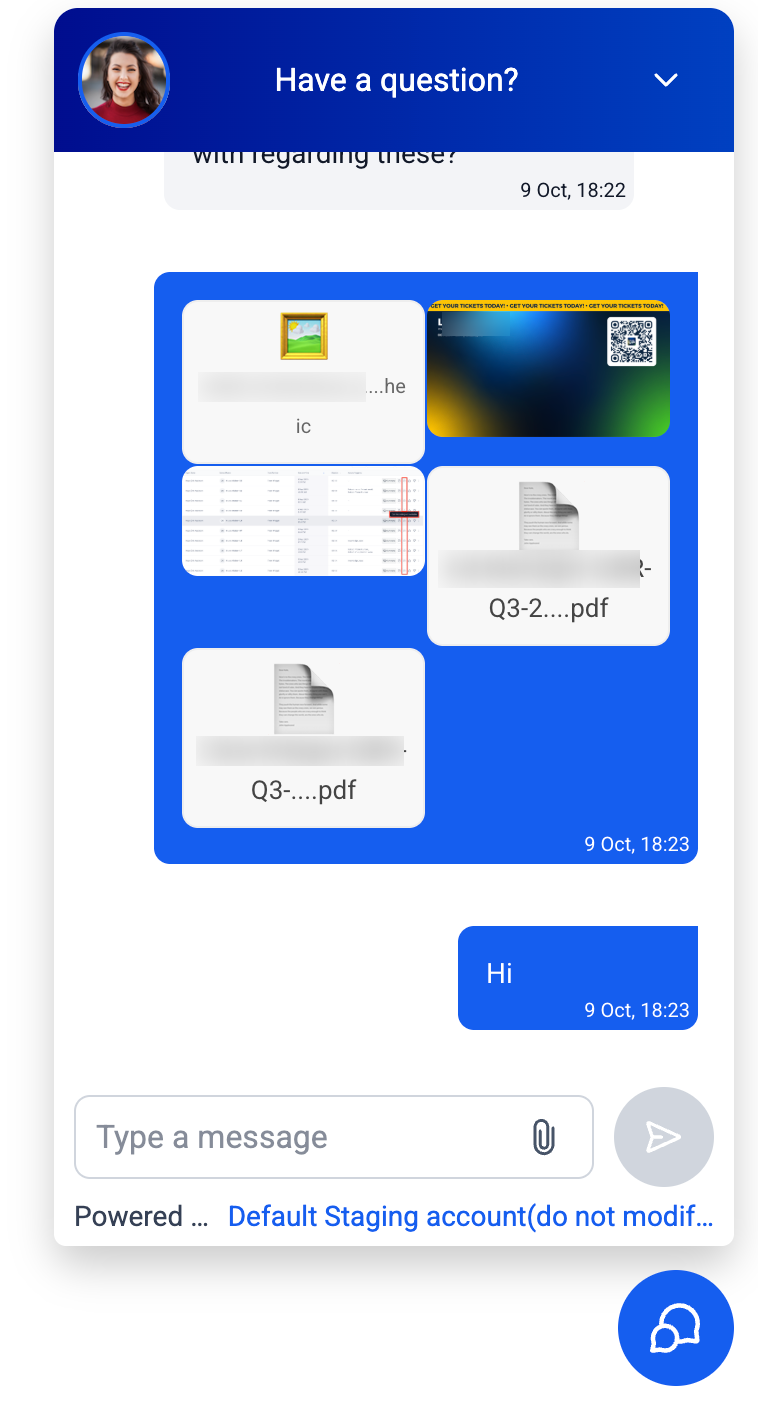
- JPG/PNG: small inline preview in the chat bubble and in your inbox
- HEIC/PDF: shown as a filename with a download option (no inline preview)
- Send rule: A short text message is required to send attachments
What You'll Need
- Live Chat widget installed on your enrollment site
- Team access to your inbox (Conversations)
How Parents Upload Files
Desktop
- Click the paperclip icon in the chat composer or drag files from your file explorer into the chat window.
- Select up to 5 supported files (each ≤ 25 MB).
- Type a short message (required) and click Send.
Mobile
- Tap the paperclip icon.
- Choose Camera or Gallery.
- Pick your file(s), add a short message, and tap Send.
What Parents See
- JPG/PNG images show a small preview directly in the conversation.
- HEIC/PDF files appear as a file name with a download option.
How Your Team Reviews Files
When a parent sends an attachment, it appears in your inbox (Conversations).
- Open the conversation in your inbox.
- Click JPG/PNG files to preview or download.
- Click HEIC/PDF files to download.
Using Enrollio AI with Image Attachments
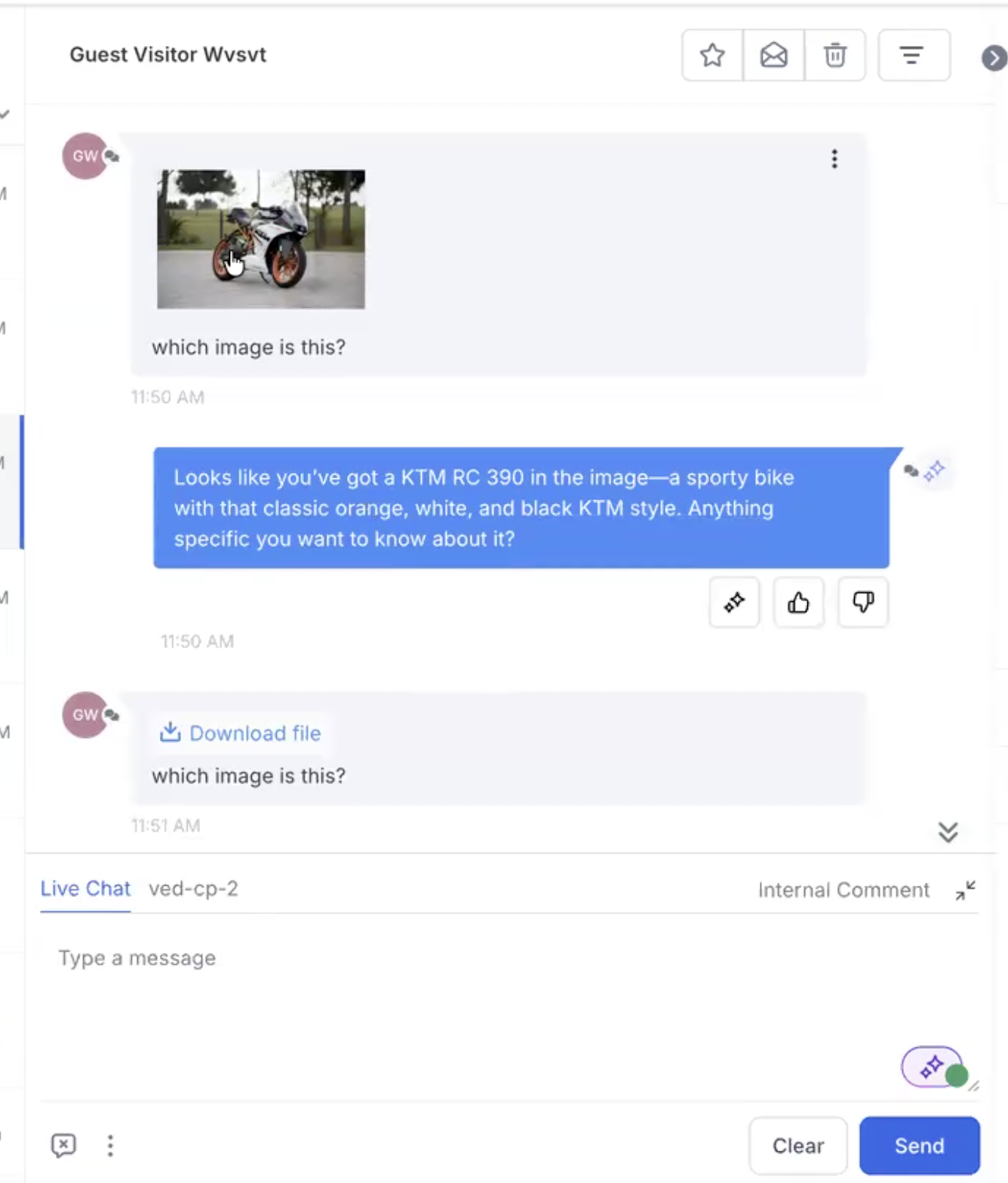
If you use Enrollio AI and want it to respond to images parents send:
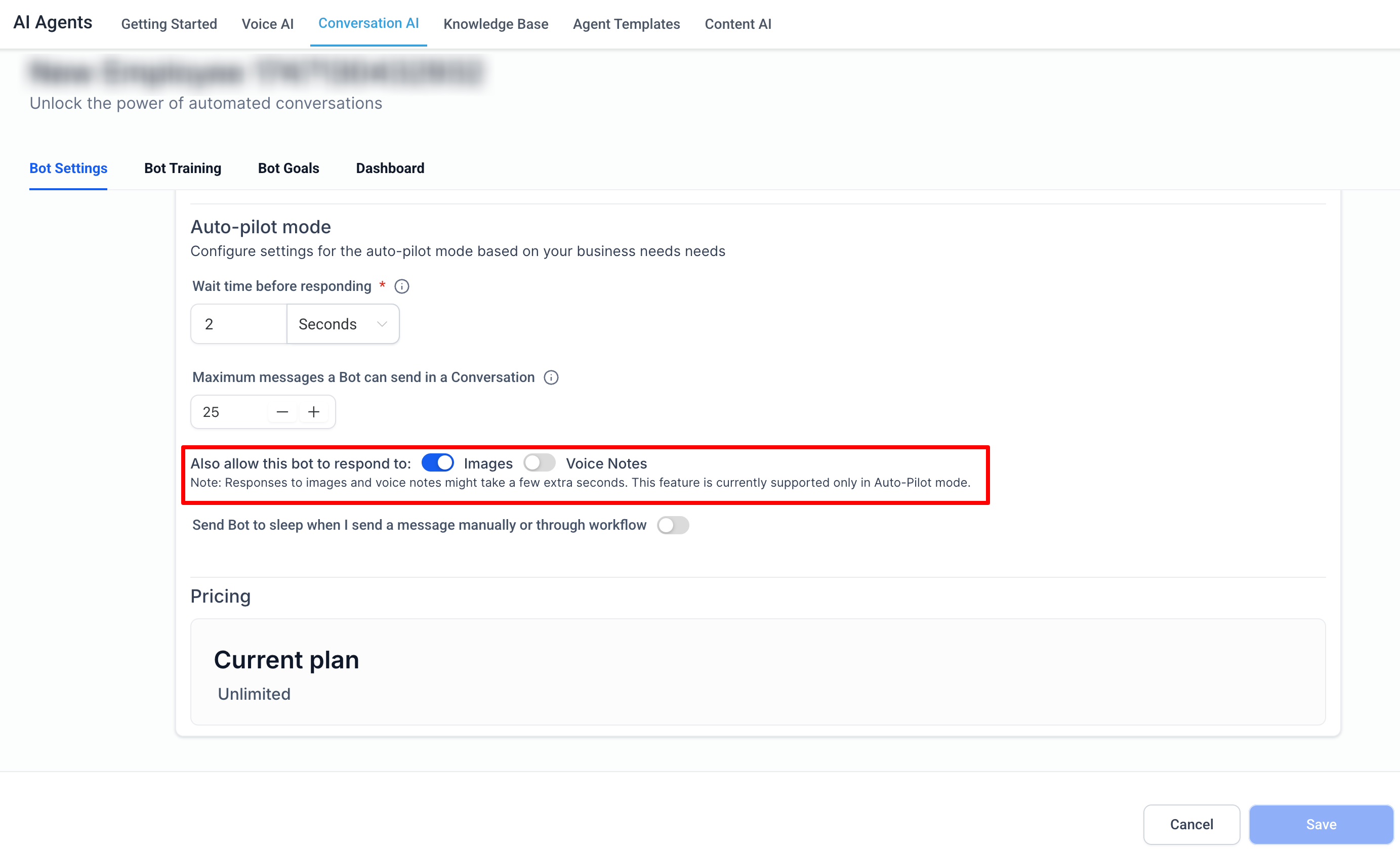
- Go to Settings → Labs (Client Account tab) and enable Respond to images.
- Open your AI Agent settings and toggle Allow this bot to respond to images.
Current limitation: The AI can respond to images only. PDFs are not supported yet.
Best Practices
- Keep file names clean: Use letters, numbers, hyphens, or underscores. Avoid repeated spaces and special symbols.
- Compress large images: Parents on slow networks will appreciate faster uploads. Encourage them to compress large photos before sending.
- Train your team: Make sure everyone knows how to download and review HEIC and PDF files from the inbox.
Frequently Asked Questions
Can parents send more than one file?
Yes. They can attach up to 5 files per message.
Why do parents need to type a message?
It keeps conversations clear and searchable. A short text message is required with every attachment.
Why don't some files show a preview?
Only JPG and PNG files preview inline. HEIC and PDF files appear as a downloadable file name.
Can I upload files from the widget builder?
No. Files are attached from the parent's side of the chat. Your team reviews them in the inbox (Conversations).
Troubleshooting
"This file has already been attached"
Remove the duplicate and attach a different file.
"This file is too big"
Reduce the file to ≤ 25 MB. Consider compressing the image or PDF.
"This file type isn't supported"
Convert the file to JPG, PNG, HEIC, or PDF format.
Drag-and-drop doesn't work
Make sure you're dragging from your file explorer, not from another browser tab. If it still doesn't work, use the paperclip picker instead.
Upload is very slow
Large files or slow internet connections take longer. Compress the file if needed, or wait for the upload to complete.