
Understanding Blog and Blog Post Statuses
A clear understanding of blog and blog post statuses helps you control what appears on your enrollment site and when. This article defines each status and clarifies how it affects visibility and publishing so you can avoid surprises and keep content organized.
What are Blog and Blog Post Statuses?
Blog and blog post statuses in Enrollio indicate visibility and publishing state at two levels: the blog itself (site-level container) and individual blog posts. Understanding these states prevents accidental publication and helps you manage content through drafting, publishing, scheduling, archiving, and deleting.
Key Benefits of Blog and Blog Post Statuses
- Clarity: Plain-language labels show the current state of your blog or post
- Control: Simple actions to move content between draft, published, scheduled, archived, or deleted
- Timing: Built-in scheduling keeps content release aligned with your calendar
- Organization: Archive or draft to keep work-in-progress separate from live content
Blog Statuses (Site-Level)
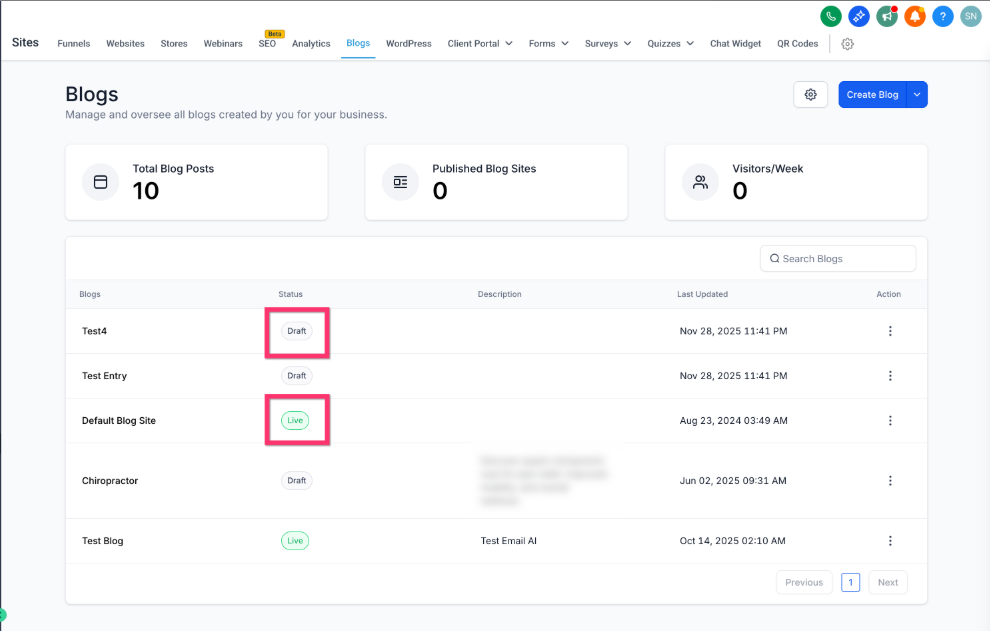
Blog statuses determine whether your entire blog is visible to visitors. This is separate from individual post statuses.
Draft
The blog exists but is not publicly visible. Use this while setting up structure, design, and settings before launching.
Live
The blog is publicly visible on your enrollment site. Any published posts within it can be accessed according to their own status.
Delete
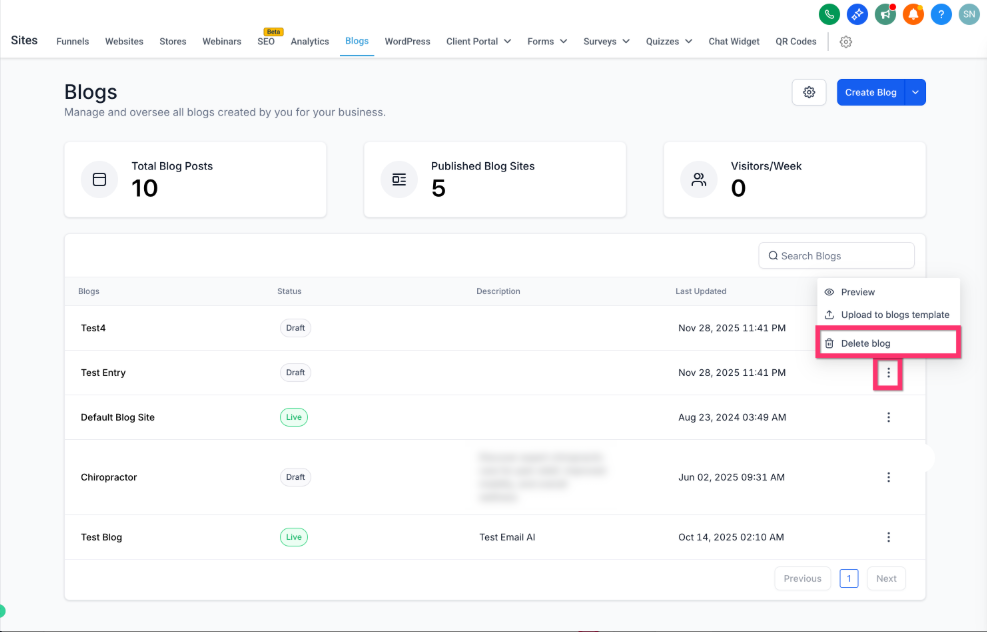
The blog is permanently removed. Use this option with caution—only when the content is no longer needed.
Blog Post Statuses (Post-Level)
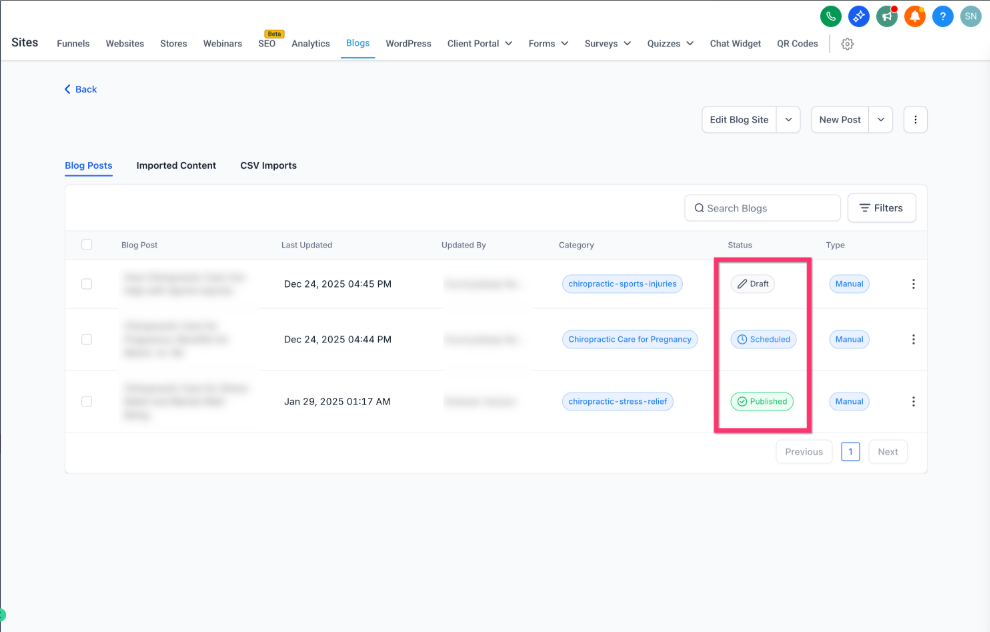
Post statuses control the visibility and timing of individual articles. These apply even when the parent blog is Live.
Draft
The post is saved but not public. Use this to continue writing and editing without exposing the post on your live enrollment site.
Scheduled (Queued)
The post is set to publish automatically at a specified date and time. This keeps content releases on a planned calendar—perfect for announcing upcoming events or seasonal programs.
Published
The post is live and visible to families visiting your site. Click "Update Post" when making changes to an already published post.
Archive
The post is removed from lists and navigation but not deleted. The content remains accessible at its live URL—useful for outdated information you want to keep for reference.
Delete
The post is permanently removed. Use this option with caution—only when the content is no longer needed.
Frequently Asked Questions
Can I keep working on a post without making it live?
Yes. Save the post as Draft until it's ready to publish. You can edit and preview it as many times as needed.
What happens when I archive a post?
The post is hidden from lists and navigation but still available at its live URL. Families with the direct link can still access it.
How do I schedule a post to go live later?
Set the post status to Scheduled and choose your desired publish date and time. The post will automatically go live at that moment.
What if I need to edit a live post?
Edit the post content and click "Update Post" to apply changes. The post remains published while you make updates.
When should I delete a post?
Only when the content is no longer needed and you're certain you won't need it again. Deleted posts are permanently removed and cannot be recovered. Consider archiving instead if you're unsure.