
Connecting Your Facebook Business Account to Ad Manager
When you integrate your Facebook account with Ad Manager, Enrollio requests the necessary permissions to access your Facebook Business page so you can run ads to reach more families.
Before You Start
You'll need a Facebook Business Page for your childcare center. If you don't have one yet, learn how to create a Facebook Page.
Connecting Your Facebook Account
When you first set up Facebook Ads in Ad Manager, you'll grant Enrollio permission to access and manage your Facebook Business account.
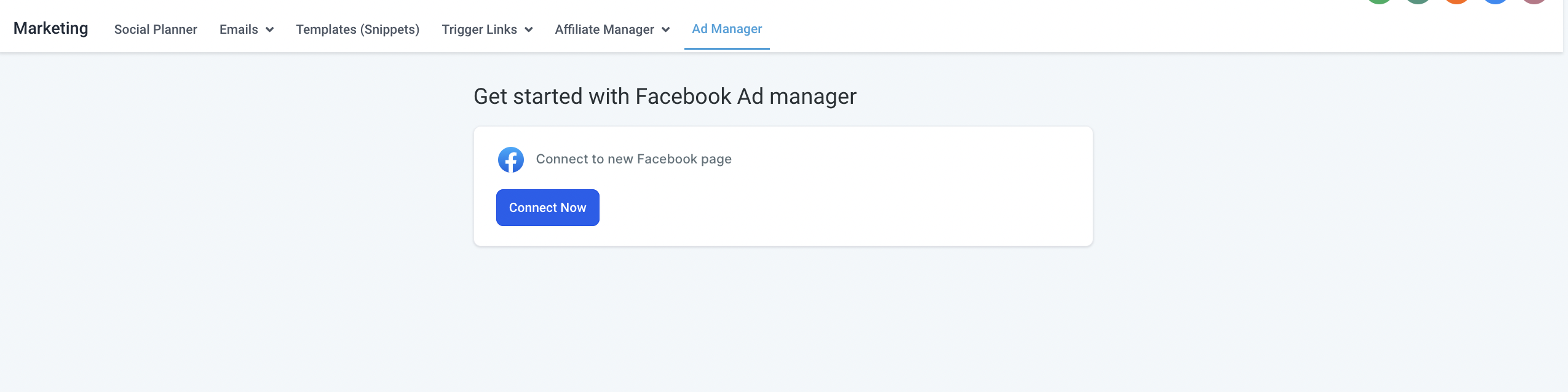
- Go to Marketing > Ad Manager
- Click Connect Now
Note: If you've already connected your Facebook account in Client Account Settings > Integrations, you'll see all the pages where you're an admin.
- Click Connect to Facebook
- Enter your Facebook username and password
- Review the permissions requested
- Make sure all toggles are enabled and checkboxes are selected
- Click to grant permissions
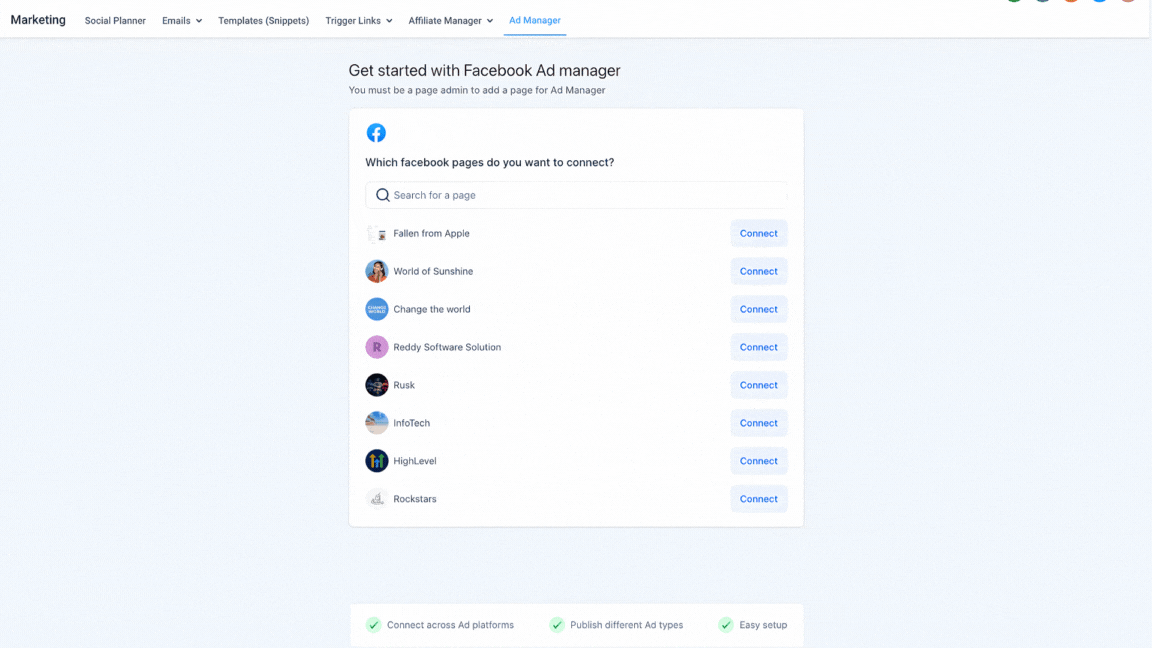
Once you grant permissions, you'll select which Facebook pages you want to connect if you manage multiple business pages.
Troubleshooting: Page Not Found
If your Facebook page doesn't appear when you're connecting Ad Manager, it usually means either permissions are missing or you don't have admin access to that page.
Check Your Admin Permissions
You need admin privileges for any Facebook page you want to connect. Here's how to verify:
- Manage admin privileges in the Page Setup of your Facebook page's professional dashboard menu
- If your Facebook page is part of a Meta Business Portfolio, go to Settings > Accounts > Pages in your Meta Business Suite
Note: If the page is owned by a different Meta Business Manager account, you'll need to contact an admin of that Business Manager account to grant you access.
Verify Integration Permissions
Ad Manager requires specific permissions to work properly. Here's how to check and update them:
- Sign in to your Facebook account where you created your childcare center's page
- Click the dropdown arrow in the top right corner
- Click Settings & Privacy
- Click Settings
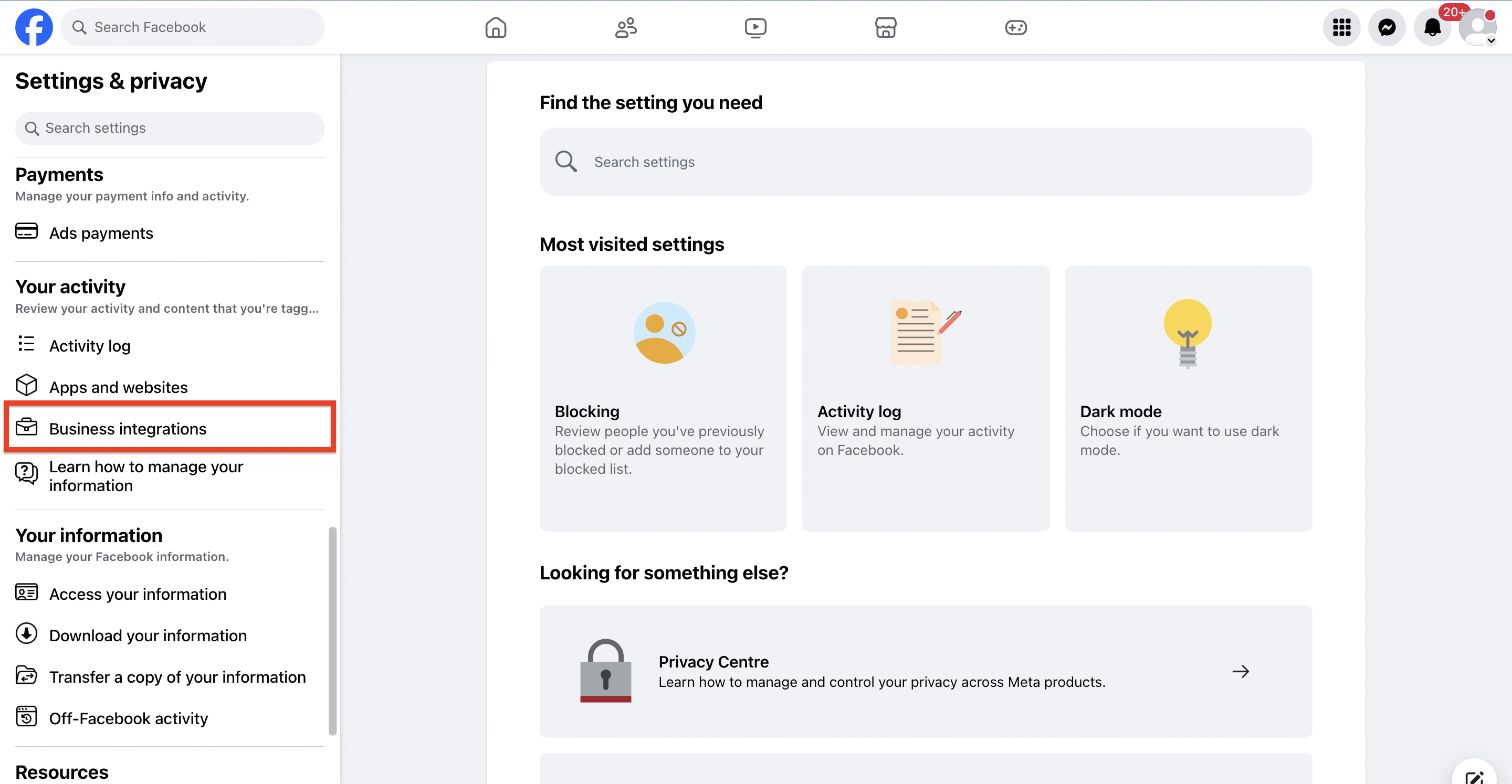
- Click Business Integrations in the left sidebar
Important: Business Integrations is in your Facebook profile settings, not your Facebook page settings.
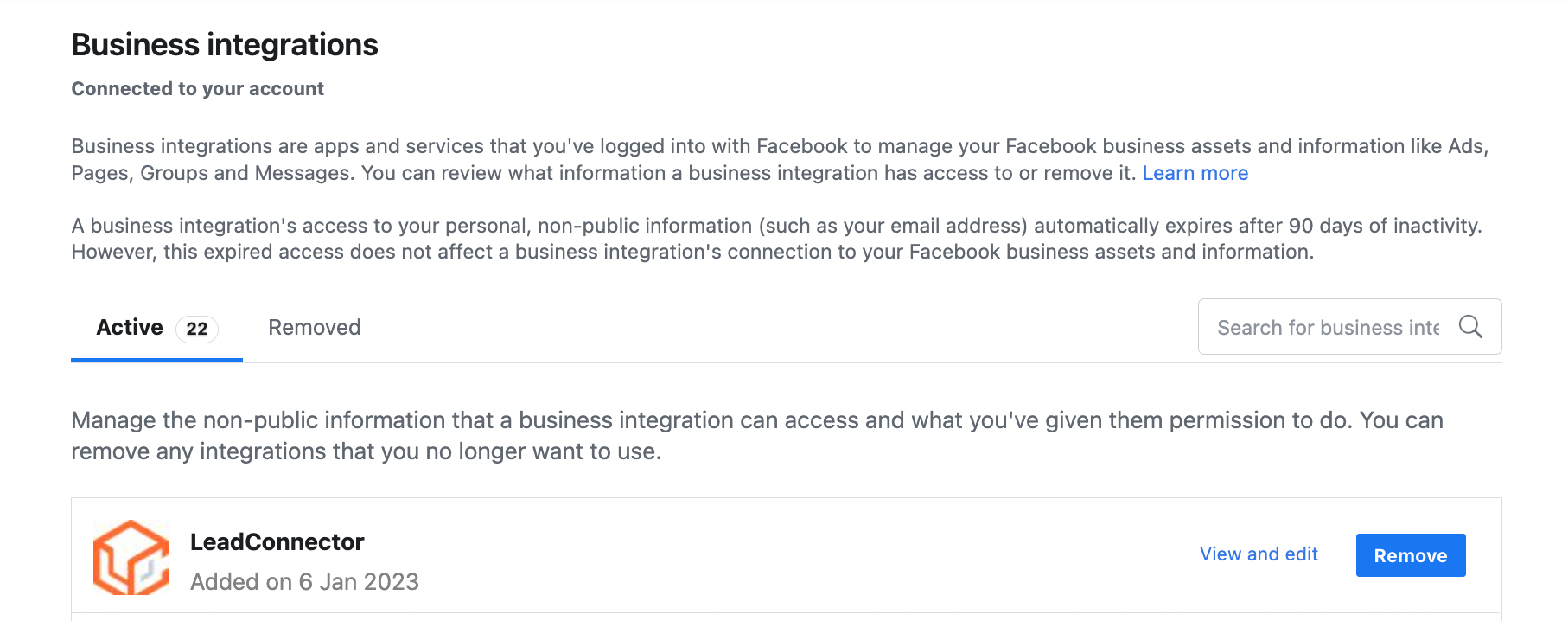
- Select the Active or Removed tab to find Enrollio business integrations
- Click View and edit next to the Enrollio permission entry
- Make sure all permissions are enabled
Required Permissions for Ad Manager
These permissions must be enabled for Ad Manager to work correctly:
- Manage your business — should be toggled ON
- Access leads for your Pages — should be toggled ON
- Show a list of the Pages you manage — should be toggled ON
- Manage ads for ad accounts that you have access to — should be toggled ON
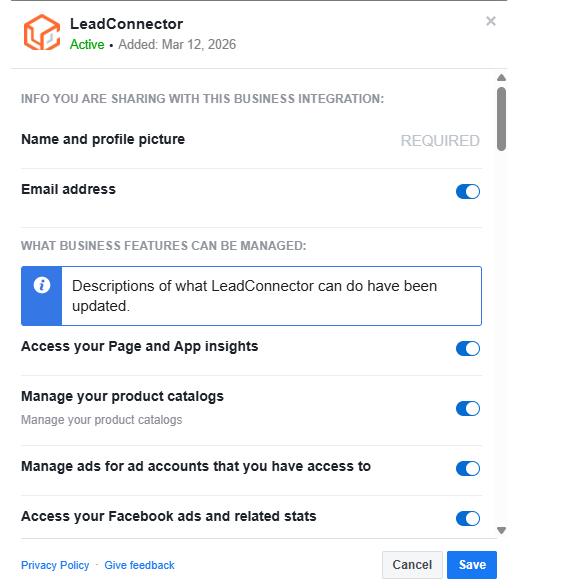
After making changes, click Save.
⚠️ Important: If you remove any of these permissions later, your Facebook account will disconnect from Enrollio. You'll need to reconnect before creating or editing campaigns. However, any ads already running will continue as normal.
Adding Page Admins
To launch ad campaigns, you must be an admin of your Facebook page. If you need to add someone else as an admin:
- Sign in to Facebook
- Click Pages in the left menu from your News Feed
- Go to your childcare center's page
- Click Manage
- Select Page Access in the left panel
- Start typing a name or email and select the person
- Click Editor to choose a role from the dropdown
- Click Add
- Enter your password to confirm
Note: If you're not Facebook friends with the person you're adding, they must accept your invite before they can manage the page.
💡 Pro Tip: Keep your Facebook Business page admin list up to date. Remove former staff members and make sure current marketing team members have the access they need.