
You can now send voice notes to parents directly through WhatsApp in Enrollio. This feature lets you add a personal touch to your communication—whether you're answering questions, confirming tours, or sharing updates about a child's day.
How to Send a WhatsApp Voice Note
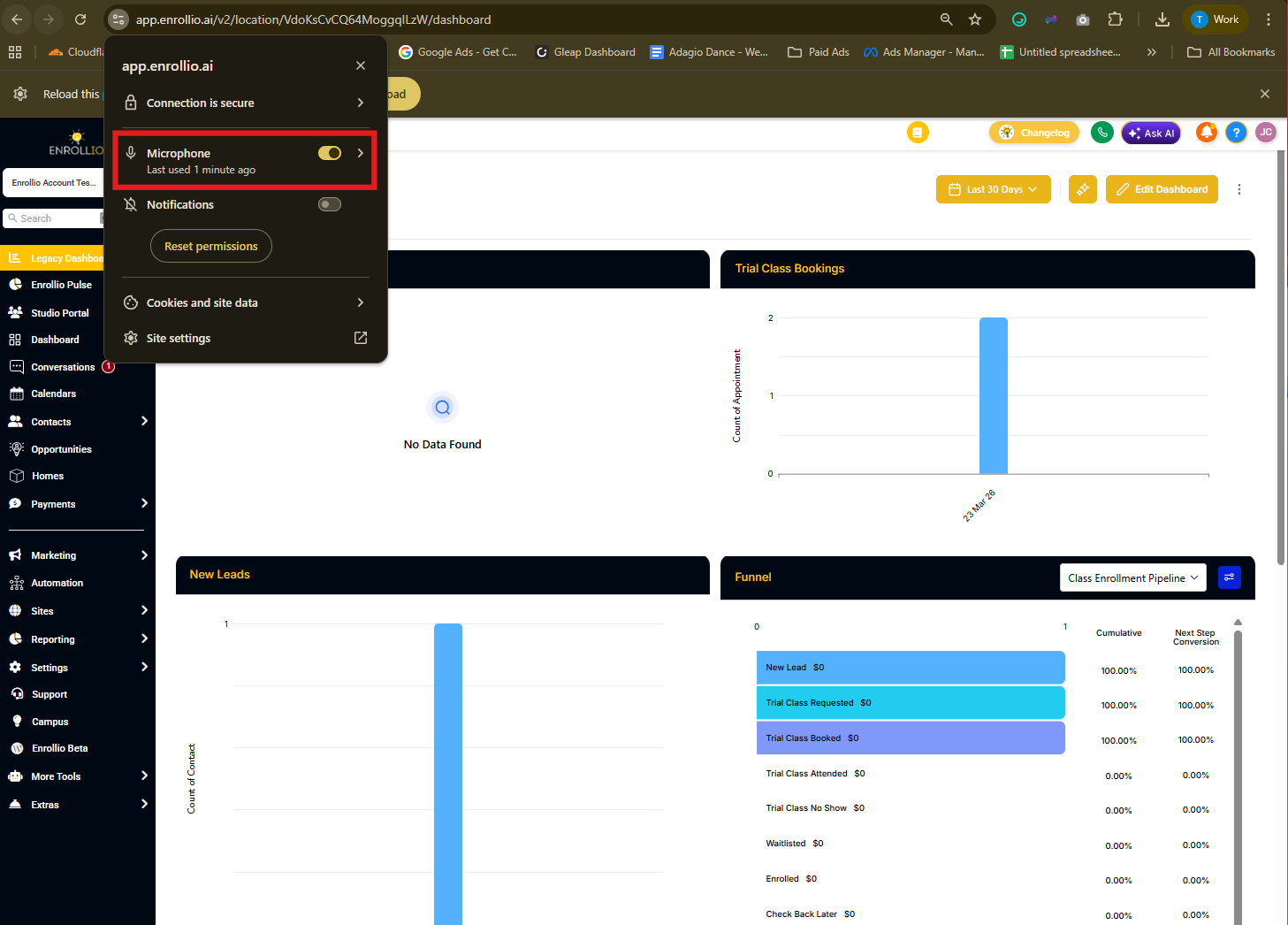
Step 1: Allow Microphone Access
When you first use this feature, your browser will ask for microphone permission. Click "Allow" to enable voice note recording.
Step 2: Open the Conversation
Go to Conversations and select the WhatsApp conversation with the parent you want to message.
Step 3: Record Your Voice Note
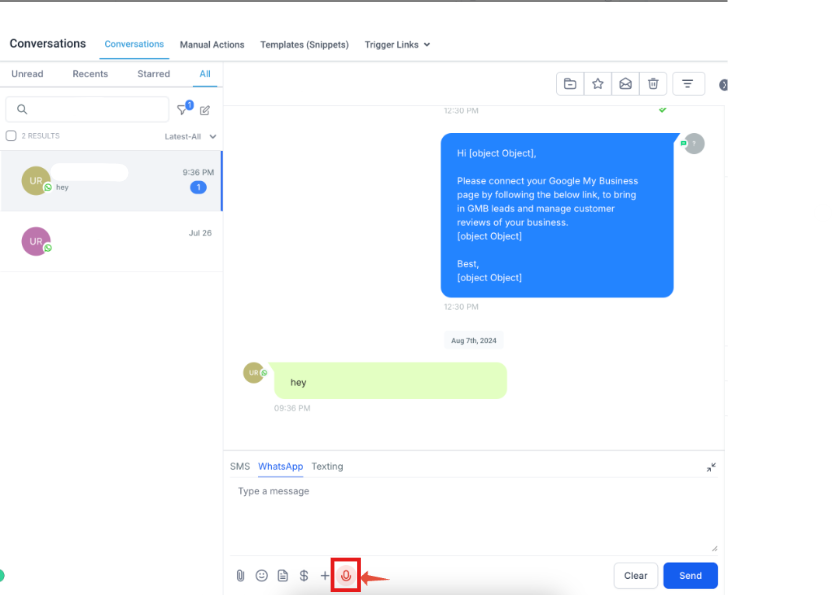
Click the microphone icon in the message box. Hold to record your message—you can record up to 10 minutes.
Step 4: Send
Release the button or click send when you're finished recording. The voice note will be sent immediately to the parent.
When to Use Voice Notes
Answer Parent Questions: Explain enrollment details, program options, or policies with a friendly voice message instead of typing long responses.
Tour Follow-Ups: Send a personal thank-you after a tour and recap what you discussed. Parents remember the warm, human touch.
Appointment Reminders: Record a quick reminder about upcoming orientation sessions or enrollment deadlines.
Share Daily Updates: Let parents know how their child's day went with a brief voice note—especially helpful for younger children who can't report back themselves.
Special Announcements: Share news about upcoming events, curriculum changes, or summer camp openings with enthusiasm that text can't convey.
Request Feedback: Ask parents to share their experience with a personal voice message. They're more likely to respond when they feel valued.
Frequently Asked Questions
What's the maximum length for a voice note?
You can record up to 10 minutes per voice note. This gives you plenty of time to share detailed information or updates.
Can I send a voice note to any parent?
You can only send voice notes when there's an active WhatsApp conversation between your center and the parent. The parent must have messaged you first or responded to a message you sent.
How do I make voice notes feel more personal?
Use the parent's name, reference their child by name, and tailor your message to their specific situation or question. This personal approach strengthens relationships and builds trust.
What if I make a mistake while recording?
If you haven't sent the voice note yet, you can cancel and start over. Once sent, you cannot delete or edit the recording.