
WhatsApp Delivery Status in Automations
Track WhatsApp message delivery and create smart fallback strategies when messages don't go through. This feature lets you build automations that respond based on whether your WhatsApp messages successfully reach parents.
What You'll Need
Before you can use WhatsApp delivery status in your automations, make sure you have:
- WhatsApp enabled on your Enrollio account
- Approved templates if you're sending business-initiated messages (like reminders or updates)
Need help setting up WhatsApp? Check out our WhatsApp Setup Guide and How to Create WhatsApp Templates.
Using the Pre-Built Recipe
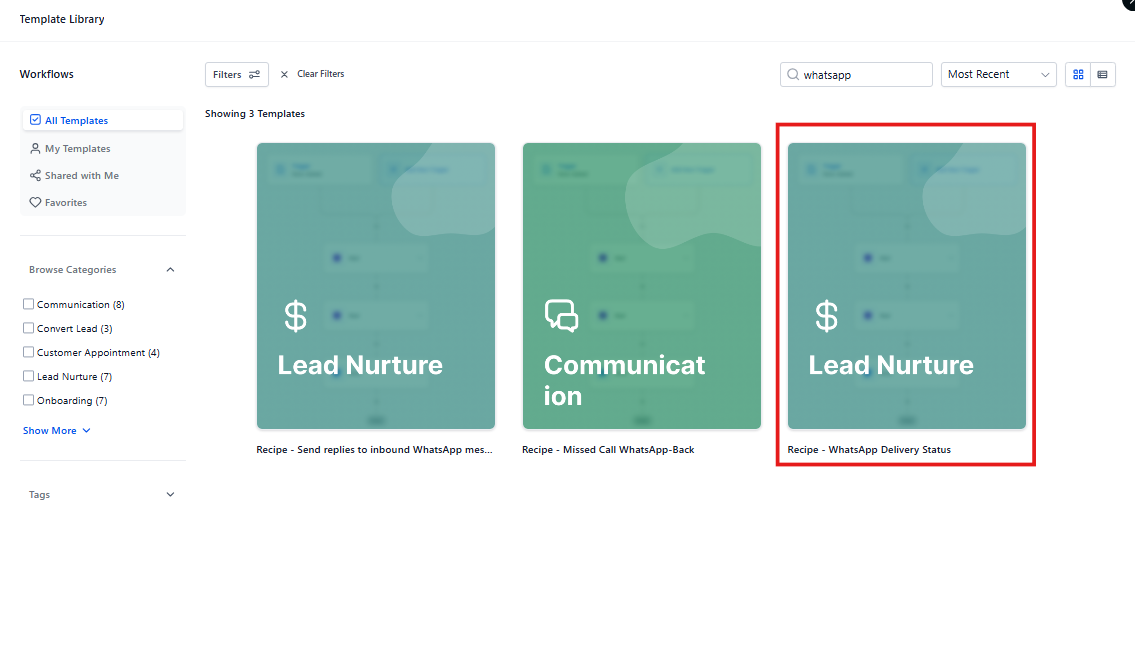
The fastest way to get started is with our WhatsApp Delivery Status recipe. You'll find it under Automations in your dashboard.
Building Your Own Delivery Status Automation
Want to customize the automation for your center's needs? Here's how to build it from scratch:
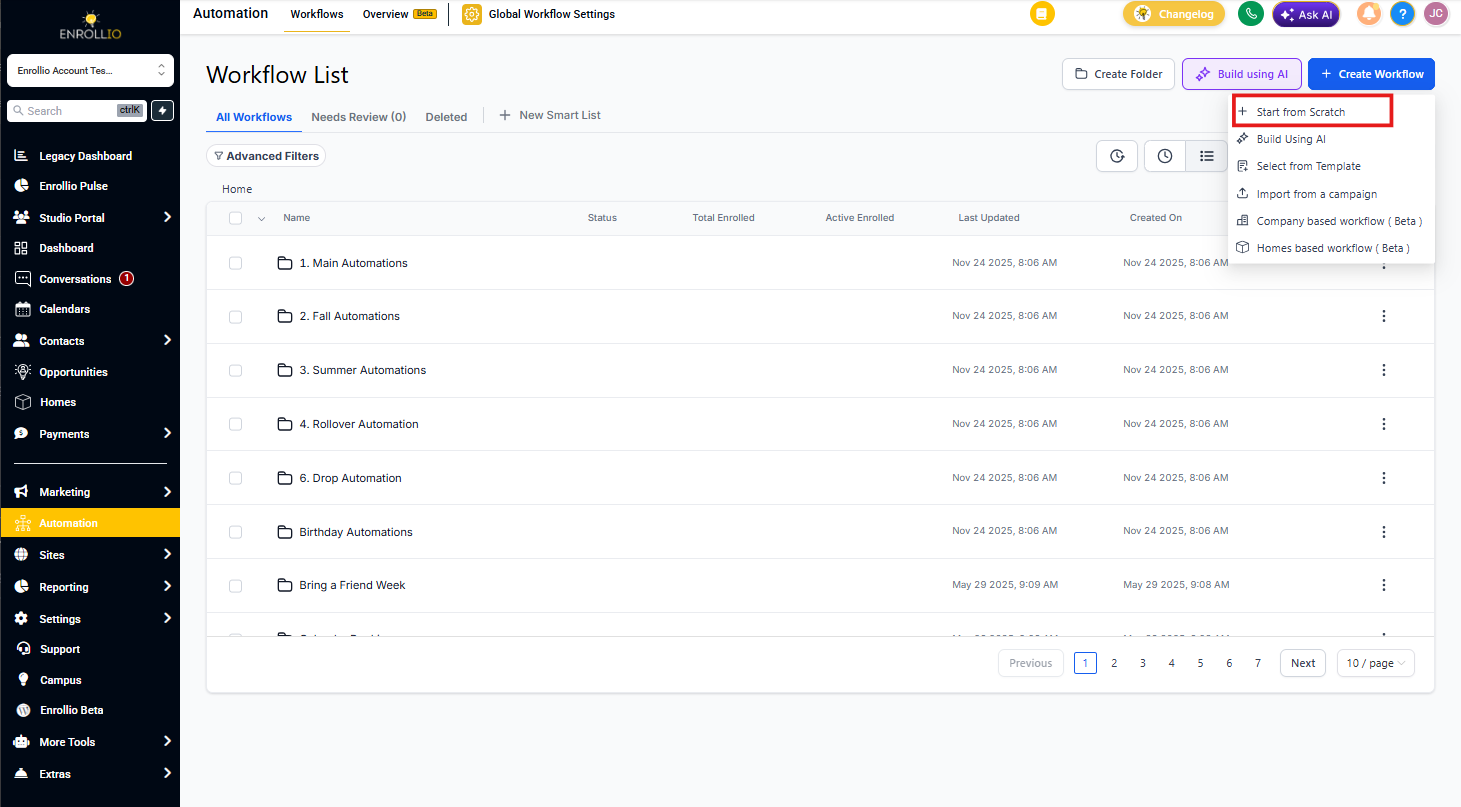
Step 1: Create Your Automation
Go to Automations → Create Automation → Start from Scratch
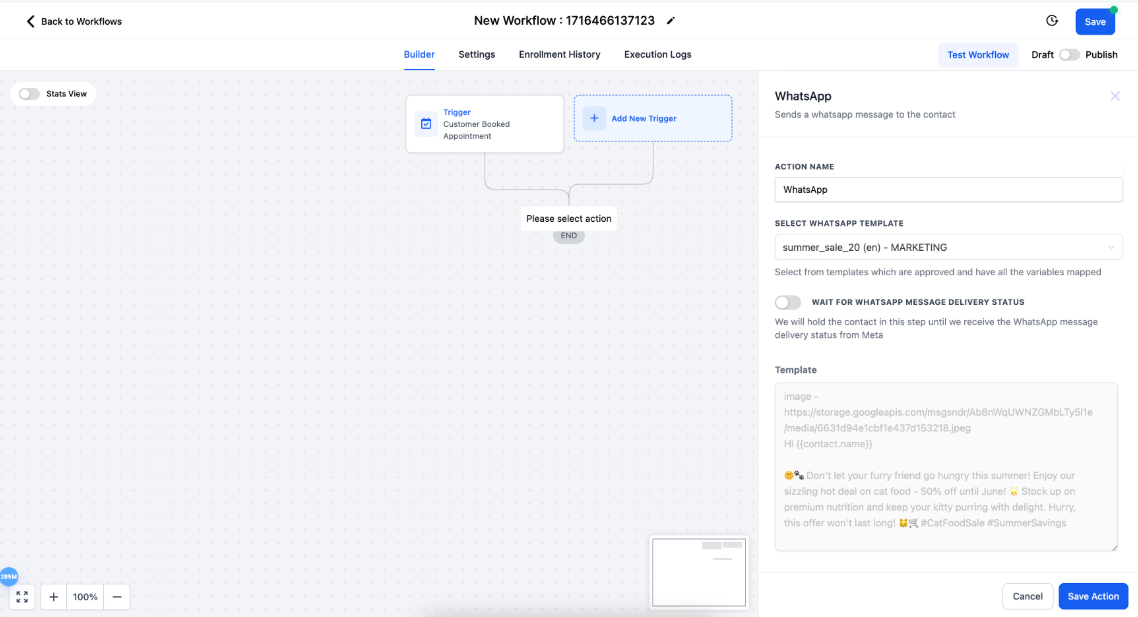
Step 2: Set Up Your WhatsApp Trigger
Click Add Trigger → WhatsApp Action → Select your WhatsApp template
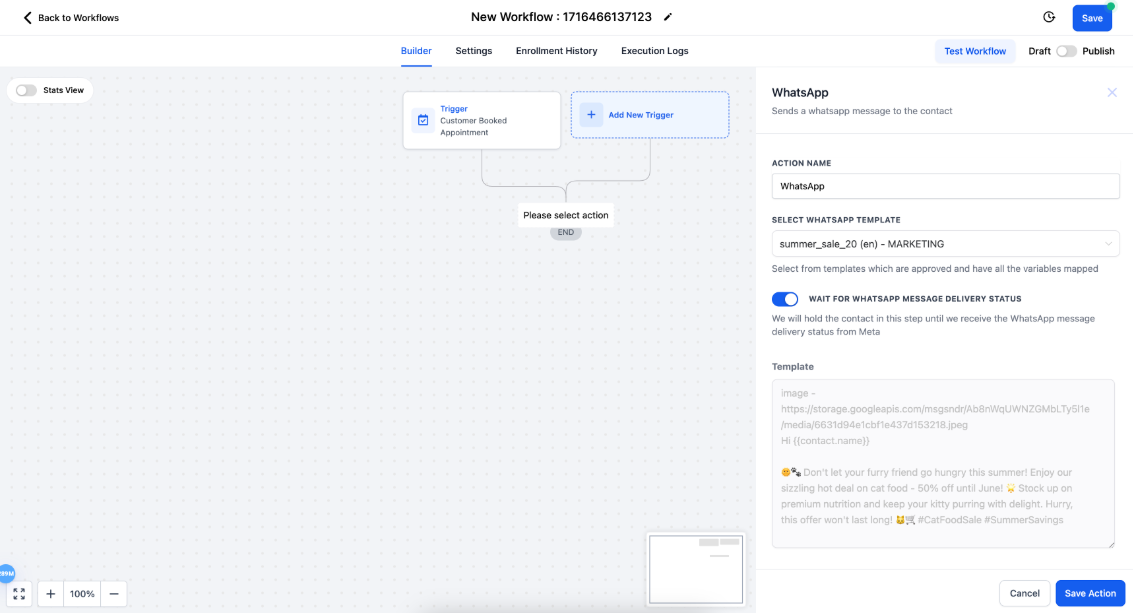
Step 3: Enable Delivery Status Tracking
Toggle on "Wait for WhatsApp Message Delivery Status" and click Save Action
This tells Enrollio to pause the automation until we know whether the message was delivered.
Step 4: Add Conditional Logic
Click Add Action → If/Else
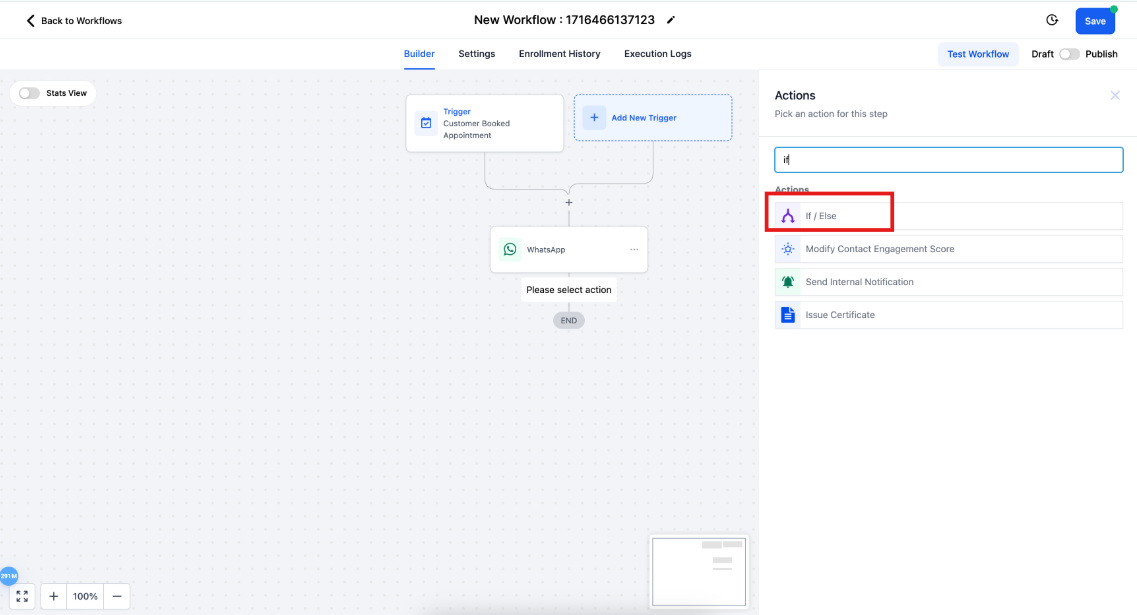
Step 5: Create Your Delivery Branches
Set up conditions based on Contact Details → Valid WhatsApp
You'll have three branches to work with:
- True: Message delivered successfully
- False: Message failed to deliver
- None: No delivery status received
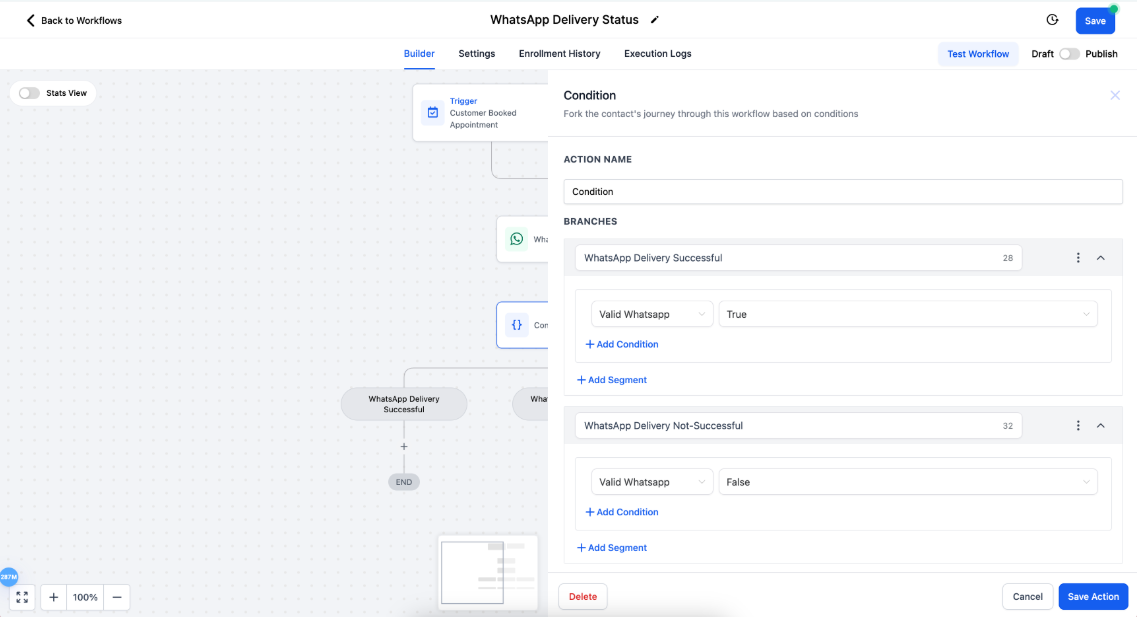
Step 6: Add Your Fallback Options
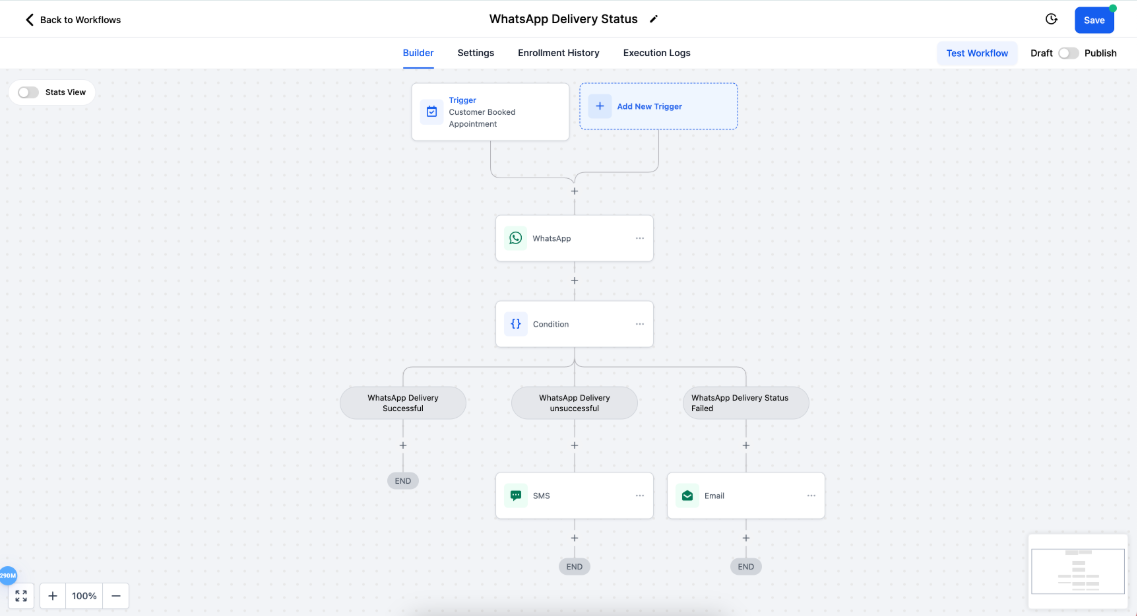
For the False and None branches, add backup communication methods like:
- Send an SMS instead
- Send an email
- Create a task for your staff to follow up
This ensures parents never miss important information, even if WhatsApp isn't working.
💡 Pro Tip
Set up SMS fallback for critical messages like tour confirmations or enrollment deadlines. For routine updates, an email fallback might be enough.
Common Questions
Why would a WhatsApp message fail to deliver?
Messages might not deliver if the parent doesn't have WhatsApp, changed their number, or hasn't opted in to receive business messages from you.
How long does the automation wait for delivery status?
When you enable "Wait for WhatsApp Message Delivery Status," the automation holds the parent in that step until we receive confirmation from WhatsApp. This usually happens within seconds, but the automation will wait to ensure accurate routing.
What's the difference between the three branches?
- True: WhatsApp confirmed the message was delivered
- False: WhatsApp couldn't deliver the message (invalid number, not on WhatsApp, etc.)
- None: We didn't receive a delivery status (rare, but can happen)
Should I always add fallback options?
For important communications (tours, enrollments, billing), definitely add fallbacks. For general updates or marketing messages, you might choose to only send via WhatsApp.
What's Next?
Now that you understand delivery status, explore these related features: