
Overview
Send approved WhatsApp template messages to multiple families at once and track delivery, read rates, and errors. This is perfect for sending enrollment reminders, event announcements, or important updates to groups of parents.
Recent updates make bulk messaging easier with live template previews, category and language information, and one-click media replacement before you send.
Important: Only approved WhatsApp templates can be used for bulk messages. Meta messaging limits and WhatsApp policies apply.
How to Send Bulk WhatsApp Messages
Step 1: Select Your Families
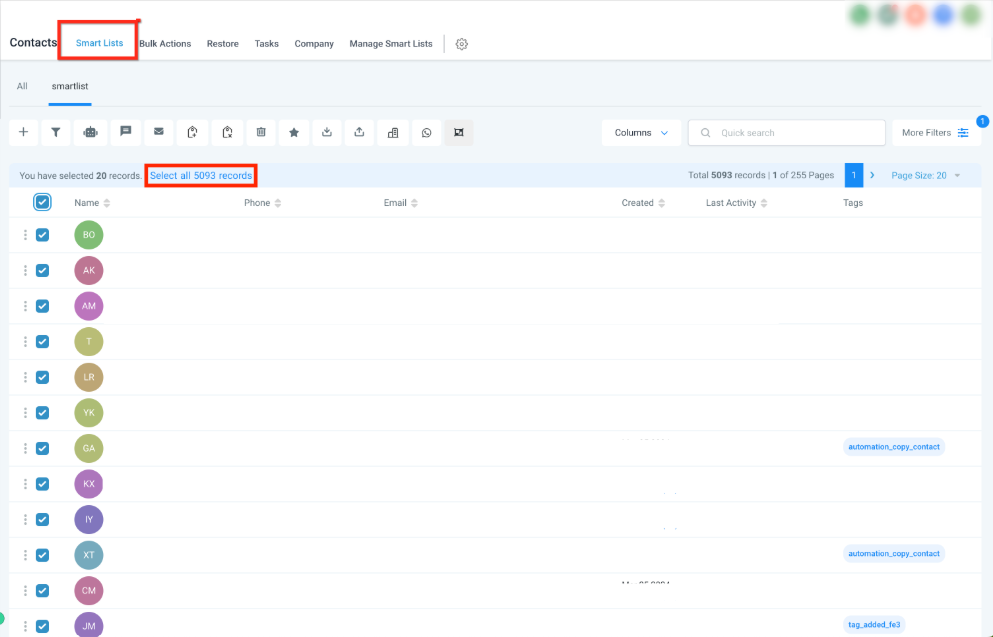
- Go to Contacts.
- Use filters or Smart Lists to find the families you want to message.
- Select families individually or click Select all records to include everyone in the list.
Step 2: Start a Bulk WhatsApp Action
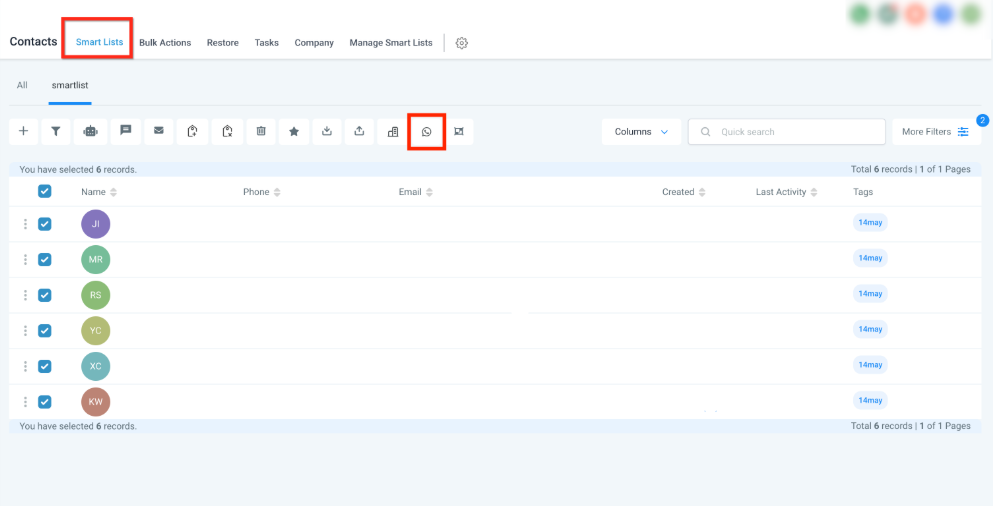
- With your families selected, click the WhatsApp icon in the Bulk Actions toolbar.
- Choose Send WhatsApp to begin your bulk campaign.
Step 3: Select and Preview Your Template
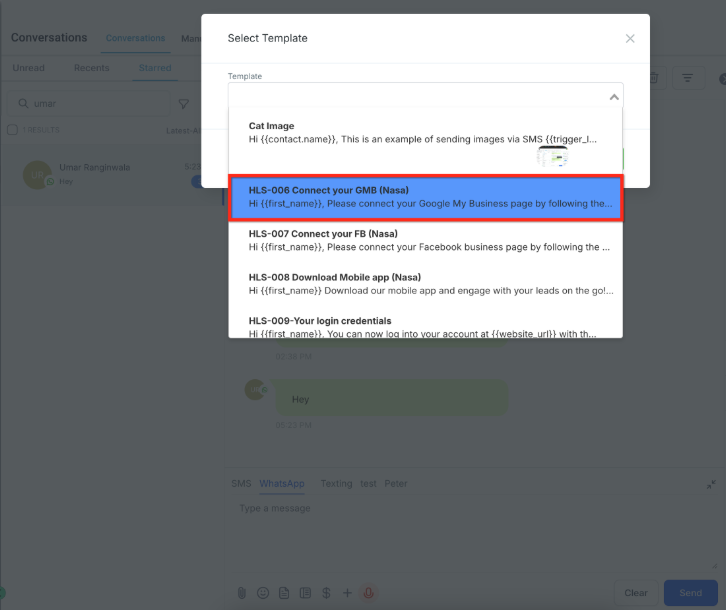
- Choose a WhatsApp template from the list.
- Review the live preview that appears, showing:
- Your message content
- Template category (Marketing or Utility)
- Template language
- Enter an Action Name to help you identify this campaign later.
- Choose when to send:
- Send immediately
- Schedule for a specific date and time
- Drip mode to space messages over time
Note: Only approved templates appear in your template list.
Step 4: Replace Media (Optional)
If your template includes an image or video:
- Click Replace media in the template preview.
- Select a file from your computer.
- The preview updates instantly with your new media.
This only changes the media for this campaign—your approved template stays unchanged.
Step 5: Launch Your Campaign
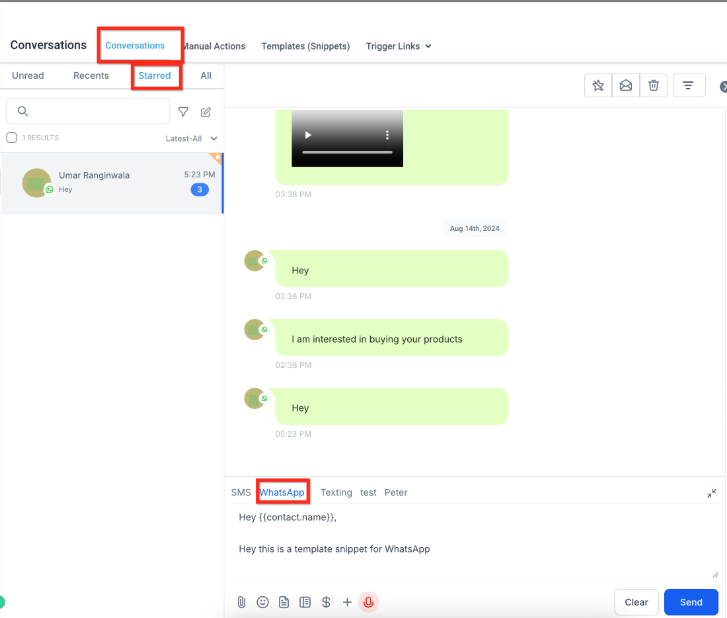
- Review all campaign details one final time.
- Click to confirm and launch.
- Your bulk WhatsApp campaign begins processing.
Step 6: Monitor Progress
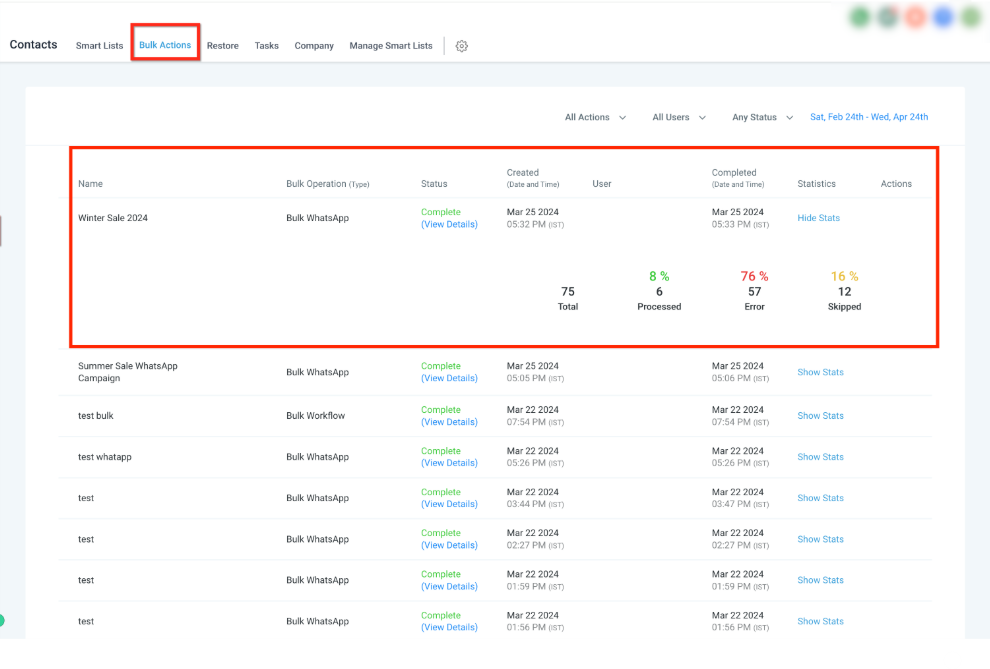
- Go to Contacts → Bulk Actions.
- Find your WhatsApp campaign in the list.
- Click View Details or Show Stats to see real-time progress.
Step 7: View Detailed Statistics
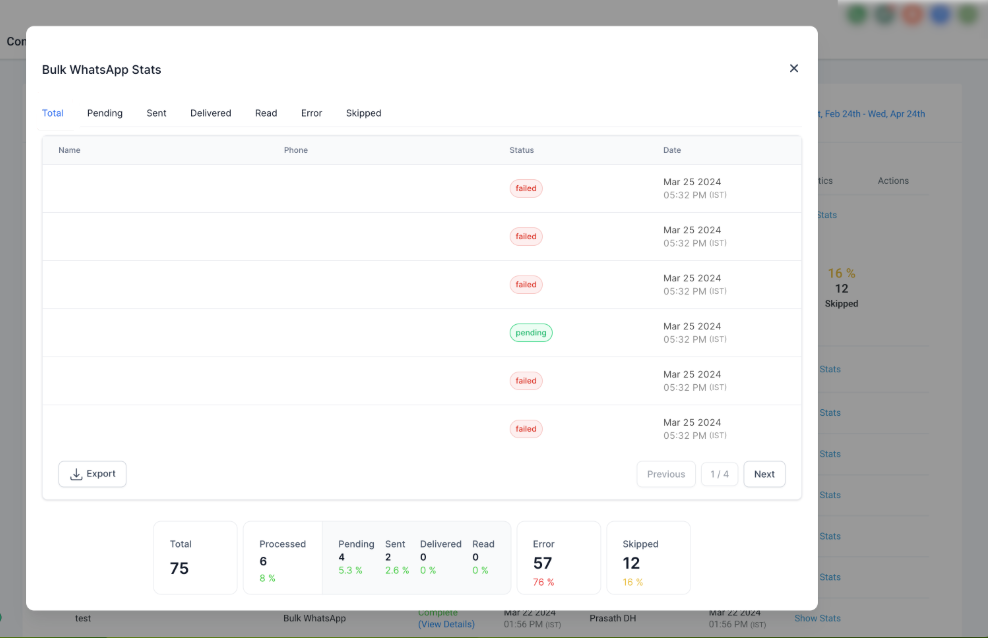
Click into your campaign statistics to see detailed tabs:
- Total
- Pending
- Sent
- Delivered
- Read
- Error
- Skipped
You can export these statistics for your records or reporting.
Campaign Statistics Explained
Total
Total number of families included in your bulk action.
Pending
Families for whom the WhatsApp message hasn't been sent yet (scheduled or in queue).
Sent
Families to whom the WhatsApp message has been sent.
Delivered
Families who successfully received your WhatsApp message.
Read
Families who opened and read your WhatsApp message.
Error
Families for whom message delivery failed. Common reasons include:
- Family not on WhatsApp
- Template issues
- Meta messaging limit exceeded
- WhatsApp account restrictions
Skipped
Families excluded from the campaign due to:
- DND (Do Not Disturb) settings
- Missing phone number
- Messaging restrictions
💡 Pro Tip
Check your campaign statistics within the first hour to catch any delivery issues early. If you see high error rates, you may need to adjust your template or check your Meta messaging limits.
Frequently Asked Questions
What happens if I hit my Meta messaging limit during a campaign?
Messages for families beyond your limit will fail and appear under Error in your campaign statistics. Your campaign will pause until your limit resets.
How fast are bulk WhatsApp messages sent?
WhatsApp messages are sent at a rate of up to 1,000 messages per hour, subject to Meta's limits.
What is Meta's messaging limit?
Meta messaging limits control how many new business-initiated conversations you can start within a rolling 24-hour period. These limits are based on your WhatsApp account tier.
What happens when my tier quota is complete?
You won't be able to start additional business conversations until your quota resets (after 24 hours).
How do I check my current messaging limits?
Go to WhatsApp Manager → Overview Dashboard → Insights in Meta to see your current limits and usage.
What is a quality rating and how does it affect my limits?
Your quality rating reflects parent feedback over a seven-day period. Low ratings can reduce your messaging limits. Keep your rating high by sending relevant, helpful messages to families who have opted in.
How can I maintain a high quality rating?
- Follow WhatsApp Business and Commerce policies
- Message only families who have opted in
- Personalize your messages
- Avoid sending too many messages too frequently
- Send relevant content that parents find valuable
💡 Pro Tip
Use Smart Lists to segment your families before sending bulk messages. For example, create separate lists for enrolled families, waitlist families, and tour-booked families so you can send more targeted, relevant messages.