
Understanding Traffic Sources for Chat Conversations
When prospective families start a conversation through your chat widget, Enrollio automatically tracks where they came from. This helps you understand which marketing efforts are bringing in the most engagement.
View Chat Widget Source on Family Detail Page
When a prospective family initiates a chat through your website widget, you'll see that conversation appear in the Activity tab on their profile in your Families section.
To view the source:
- Open the family's profile in your Families section
- Click the Activity tab
- Find the chat conversation event
- Click the clipboard icon next to the conversation
This opens the initial message details, where you can see the traffic source (Organic Search, Direct Traffic, Paid Ad, etc.).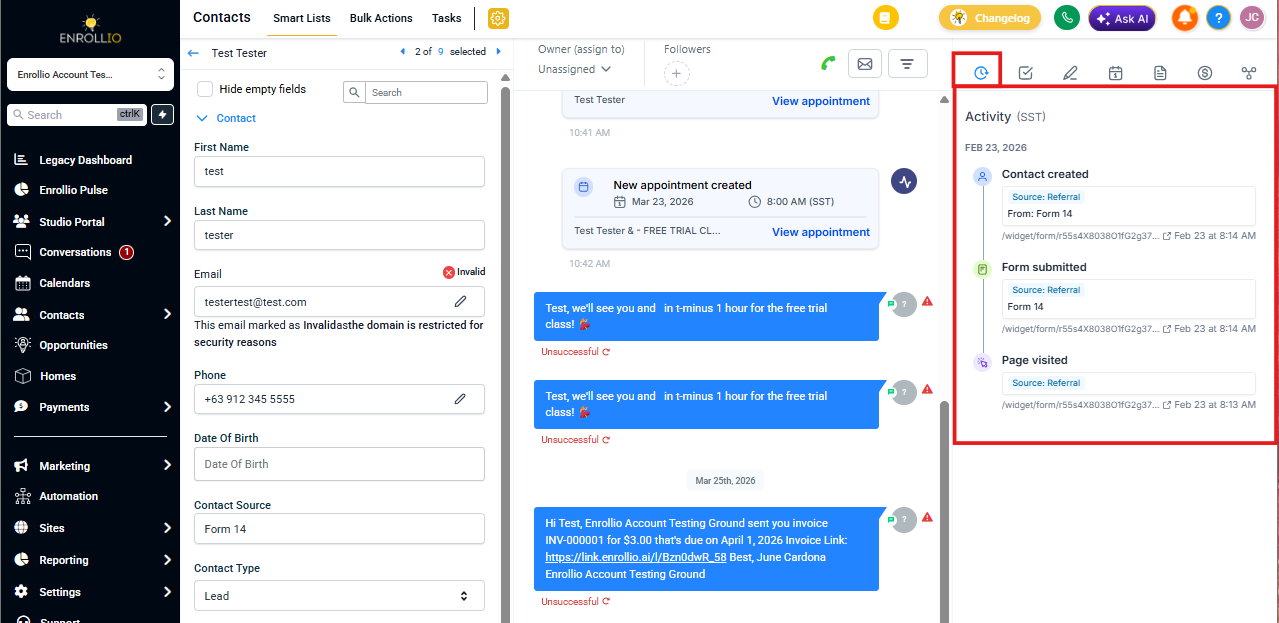
View Chat Widget Sources in Form Submissions
You can also review all chat conversations and their sources in one place:
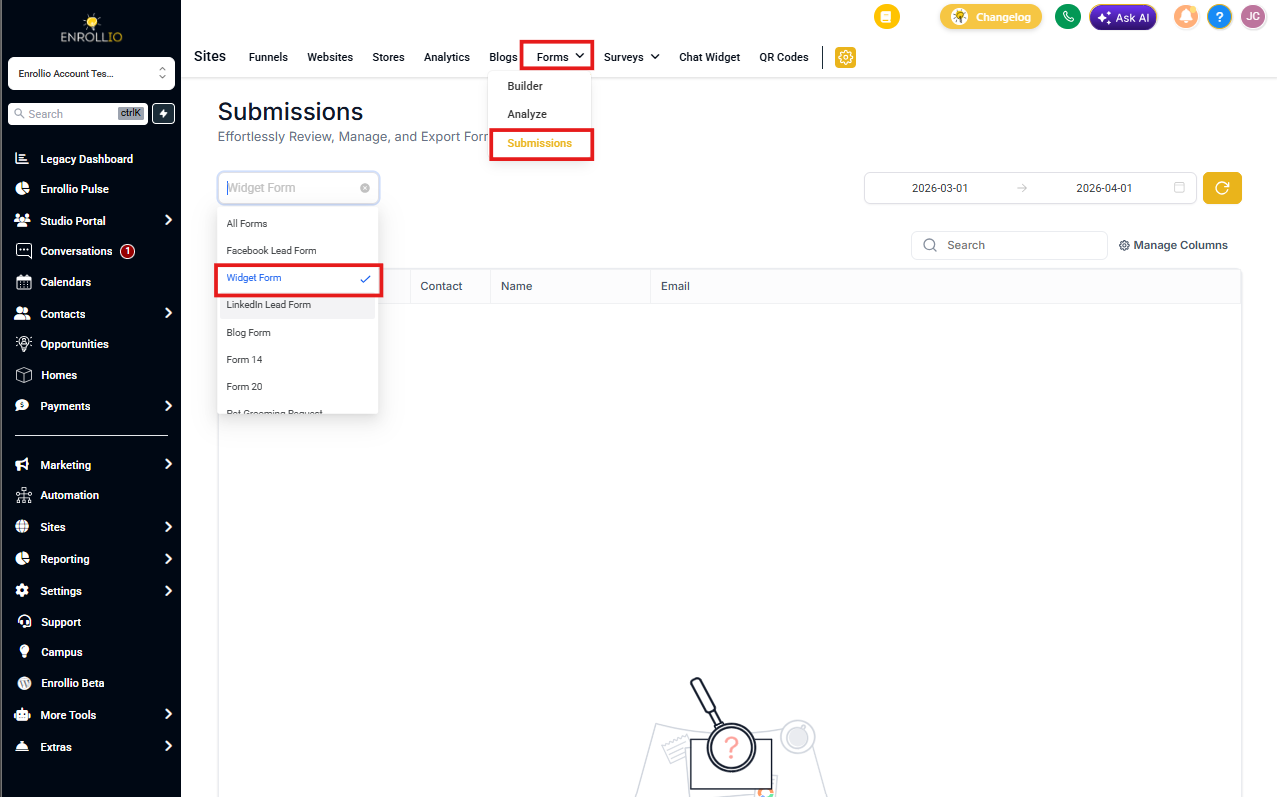
- Go to Marketing in your main navigation
- Click Form Builder
- Select the Submissions tab
- From the Form Selector dropdown, choose Widget Form under the Chat Widget section
You'll see a list of all chat conversations started through your widget, along with their traffic sources.
💡 Pro Tip
Use this data to identify which marketing channels generate the most parent inquiries. If you're seeing lots of organic search traffic, your SEO is working. High direct traffic means parents are remembering your URL and coming back.
Important Notes About Attribution
Works on external websites: Attribution tracking works even when you embed your chat widget on websites outside of Enrollio, including custom childcare center sites.
Privacy limitations: Attribution may not work for some iOS users or anyone browsing with privacy mode enabled, as these settings block tracking cookies. This is a small percentage of users but worth noting when reviewing your data.