
How to Set Up Facebook Ad Tracking for Enrollio
When running Facebook ads to attract new families, Enrollio tracks which ads and ad sets drive the best results. For accurate reporting that helps you identify winning campaigns, use Facebook UTM parameters, the Facebook pixel, and Conversion API in your automations.
What You'll Learn
- Entry points that trigger attribution tracking
- Available UTM tracking parameters in Enrollio
- How to label campaigns in Facebook for accurate reporting
- How to add UTM parameters in Facebook Ads Manager
- Troubleshooting common tracking issues
Before You Start
Important Notes:
- Set up your Facebook pixel and Facebook Conversion API in your automations if you're driving traffic to a landing page
- Facebook won't add UTM parameters when you preview your ad — they only appear when the ad is live
- Don't use special characters or emojis in UTM parameters or anything you need to track
Entry Points for Attribution Tracking
Enrollio records first attribution data when families enter your system through these touchpoints:
- Form submissions
- Survey submissions
- Calendar bookings
- Facebook Lead Ads
- Two-step order forms
- Chat widget
- Inbound calls (click-to-call only — not if they dial your number pool directly)
For other entry points, first attribution data will be empty.
Available UTM Tracking Parameters
You can access these tracking parameters at the parent/family contact level in Enrollio:
- Source: {{contact.attributionSource.source}}
- Campaign Name: {{contact.attributionSource.utmCampaign}}
- Ad Set Name: {{contact.attributionSource.utmMedium}}
- Ad Name: {{contact.attributionSource.utmContent}}
- Campaign ID: {{contact.attributionSource.campaignId}}
- fbclid: {{contact.attributionSource.fbclid}}
- gclid: {{contact.attributionSource.gclid}}
- Referrer: {{contact.attributionSource.referrer}}
How to Label Your Facebook Campaigns
Proper naming ensures accurate reporting in Enrollio. Follow these guidelines:
Critical Rules:
- Make campaign names, ad sets, and ads unique
- Never change names during a campaign's lifetime
- If you need to change a name, create a new campaign/ad set/ad instead
- If you edit without creating new items, Enrollio will continue using the original names
Correct Setup Example
Campaign Name: Spring Enrollment 2024
Ad Set: Spring Enrollment 2024 - Parents 25-40 - Seattle 15mi
Ads (each unique):
- Ad #1: Spring Enrollment - Carousel - Seattle Parents
- Ad #2: Spring Enrollment - Video - Seattle Parents
- Ad #3: Spring Enrollment - Image - Seattle Parents
How to Add UTM Parameters in Facebook Ads Manager
Follow these steps to set up tracking for your Facebook ads:
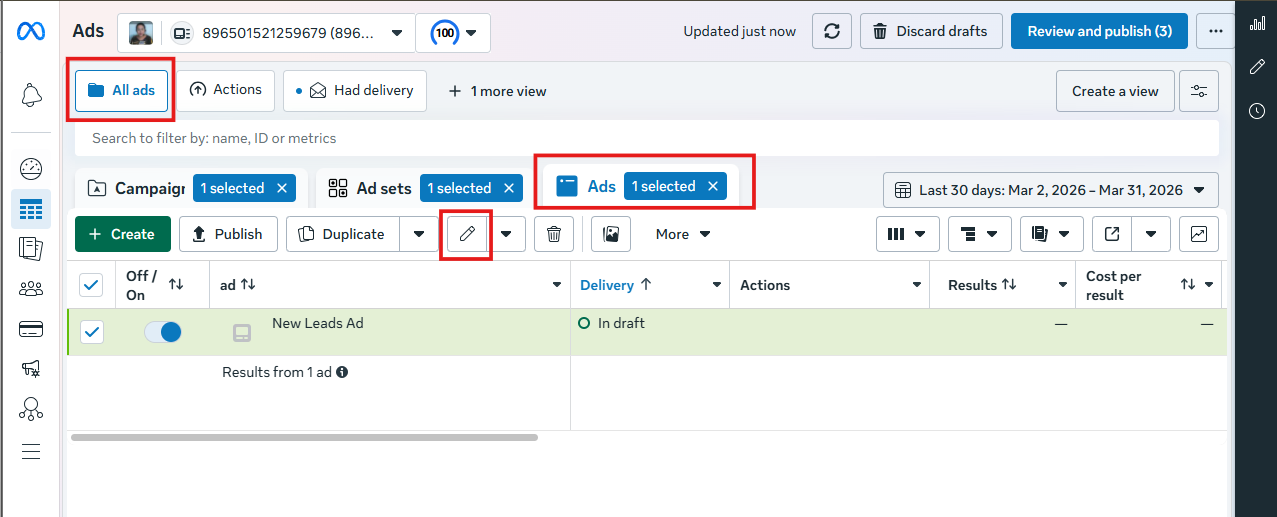
Step 1: Access Your Ads
- Go to your Facebook Ads Manager
- Select the campaign you want to track
- Navigate to Manage Ads → Ads → Edit
Step 2: Open Tracking Settings
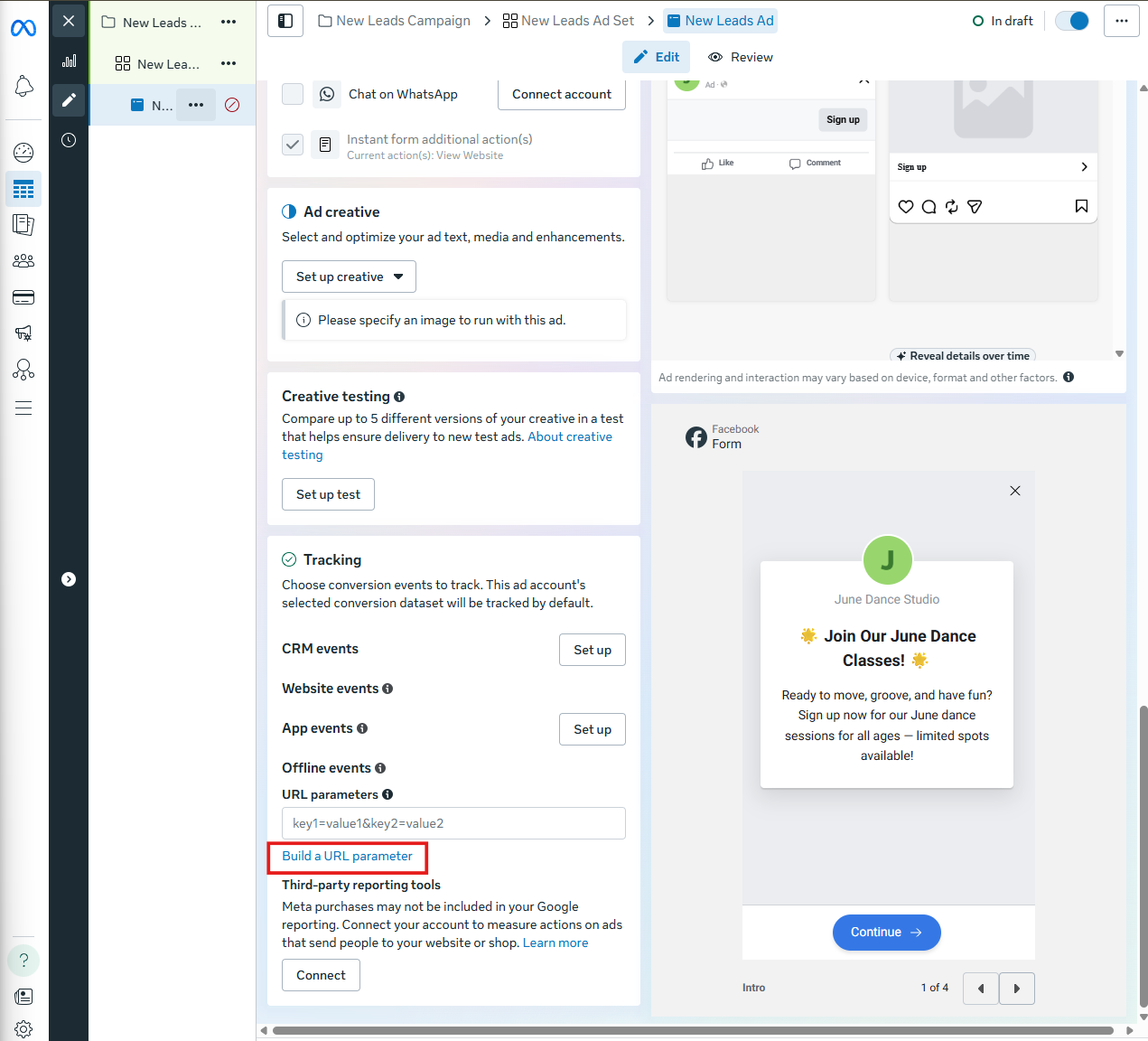
- Scroll down to the Tracking section
- Click Build a URL parameter
Step 3: Configure UTM Parameters
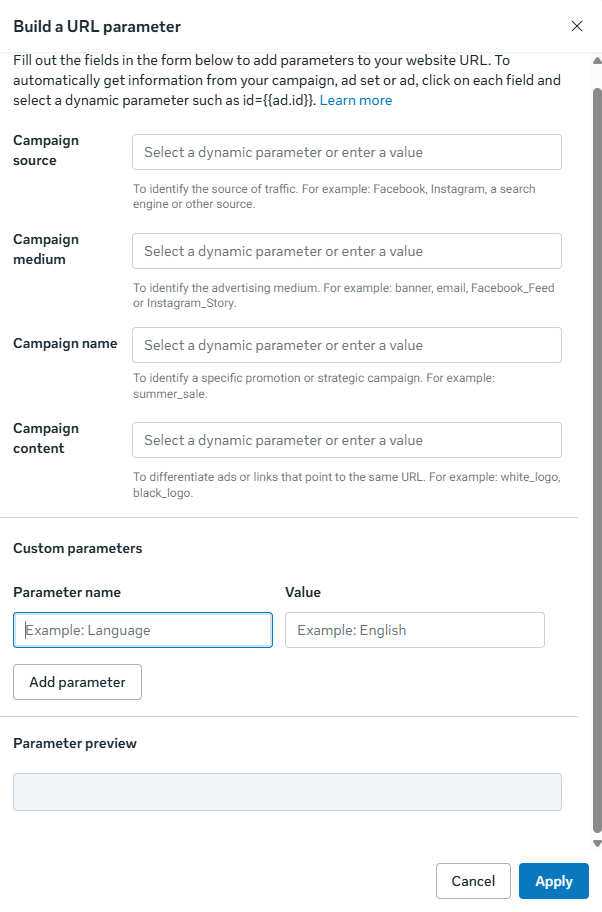
Complete these 7 steps in order:
- Campaign Source: Type "fb_ad" in the field
- Campaign Medium: Select {{adset.name}} from the dropdown
- Campaign Name: Select {{campaign.name}} from the dropdown
- Campaign Content: Select {{ad.name}} from the dropdown
- Click the Add Parameter button
- Enter "campaign_id" as the Parameter name
- For Value, select {{campaign.id}} from the dropdown
Step 4: Save and Launch
- Click Apply to save your changes
- Submit your ad for Facebook review
Viewing Attribution Reports
After your ads are live, you can view attribution data in Enrollio's reporting dashboard. This shows which campaigns, ad sets, and individual ads are driving the most tour bookings and enrollments.
Troubleshooting
Q1: I don't see UTM parameters when previewing my ad
This is normal. Facebook doesn't add UTM parameters to preview links — they only appear when your ad is live and someone actually clicks it.
Q2: I'm not seeing first attribution data from contacts
First attribution data only records for the entry points listed above (forms, surveys, calendar bookings, etc.). If families are entering through other channels, this data will be empty.
Q3: I changed my ad/ad set/campaign and now reporting is broken
Campaign names, ad sets, and ads must remain unchanged once created. If you edited names instead of creating new items, Enrollio continues referencing the original names. To fix this:
- Create a new campaign/ad set/ad with the correct name
- Pause or delete the old one
- Never rename active campaigns
Q4: I don't have a Facebook Business Account or Ads Manager
Facebook Ads Manager is required to run paid campaigns. If you haven't set one up yet:
Q5: Do I need UTM parameters for Facebook Lead Ads?
Yes. Even when using Facebook Lead Ads (where families submit their information directly in Facebook), we recommend adding UTM parameters for complete reporting. Follow the same steps outlined above.
Q6: Where do I add UTM parameters — tracking or destination URL?
Add UTM parameters in the Tracking section (as shown in the steps above). This tracks each link click and page visit with unique fbclid values.
Q7: What is the Objectives dropdown for?
You'll see an Objectives dropdown in your Enrollio ad reports. This helps you define what goal you had for the campaign when you created it — whether you were aiming for tour bookings, enrollment applications, or another outcome.