
Overview
The All-in-One Chat widget lets you offer multiple communication channels—Live Chat, SMS/Email, WhatsApp, Facebook, Instagram, and Voice AI—in one unified interface. This saves you from managing multiple widgets and gives parents a seamless experience when choosing how to reach you.
Key Benefits
- Manage Live Chat, SMS/Email, WhatsApp, and optional Facebook, Instagram, and Voice AI channels from one widget
- Customize the initial welcome message to guide visitors into the right channel
- Consistent branding with a unified color scheme
- Simple setup and channel selection based on your active communication channels
Supported Channels & Requirements
Make sure you have the appropriate permissions to create or edit chat widgets in your account.
The All-in-One Chat widget can surface multiple channels, but some options only appear when you meet their prerequisites:
- Facebook - Shows in the Chat Type selector only if a Facebook Page or account is connected in your account
- Instagram - Shows only if your Instagram account is connected
- Voice AI - Shows only if a Voice AI widget is configured in your account
- WhatsApp - Can be selected only if a WhatsApp number is connected and a WhatsApp chat widget exists
If a channel doesn't meet its prerequisites, it won't appear as an option in the Chat Type multi-select for that widget.
Step-by-Step Setup
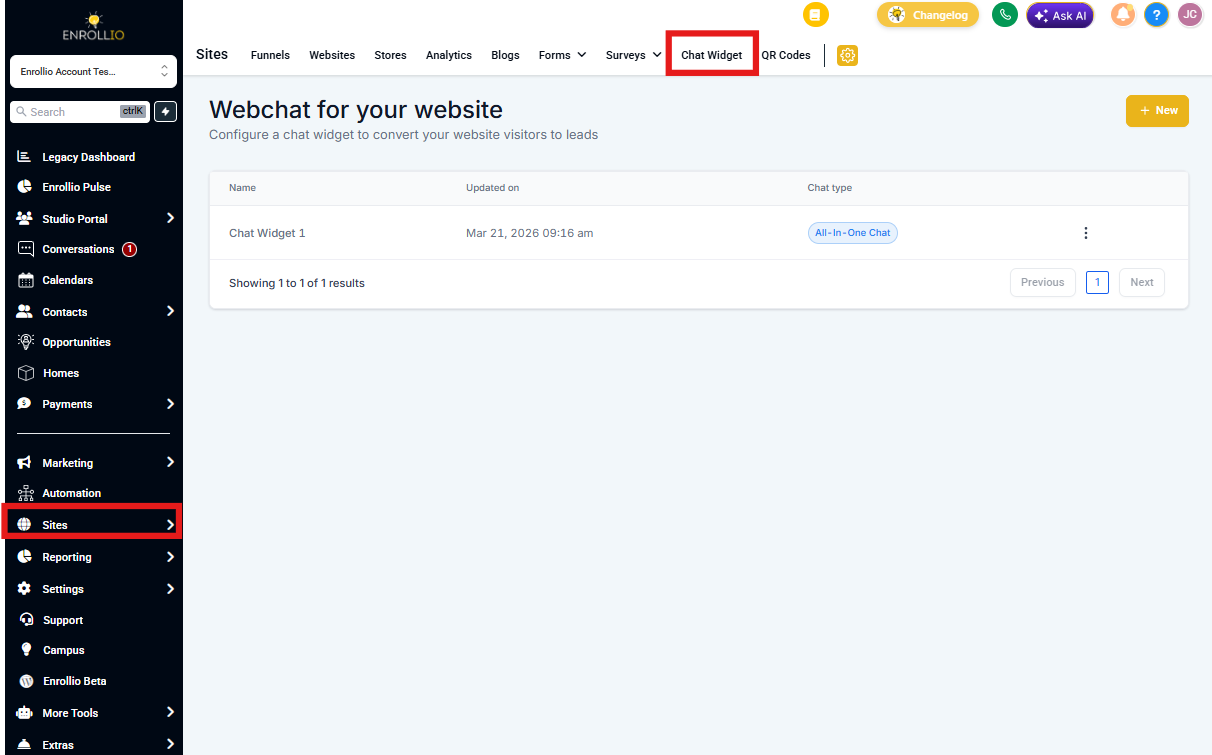
Navigate to the Chat Widget Section
- Log in to your Enrollio account
- In the left-hand navigation menu, go to Sites → Chat Widget
Create a New Chat Widget
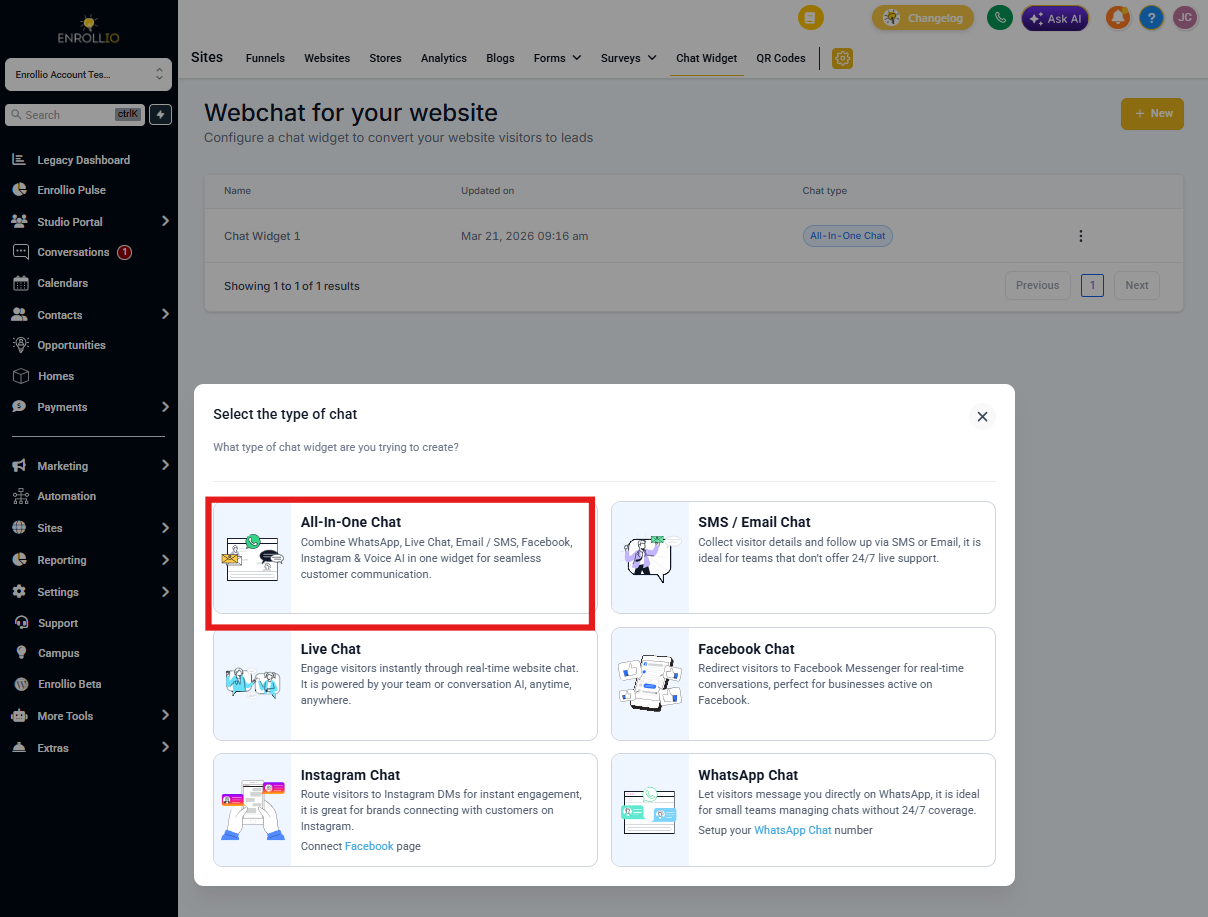
- Click to create a new chat widget
- Choose All-in-One Chat from the list of chat types
Note: If you don't see "All-in-One Chat," ensure your account has access to the latest updates. You may need to refresh or log out and log back in.
Select Channels
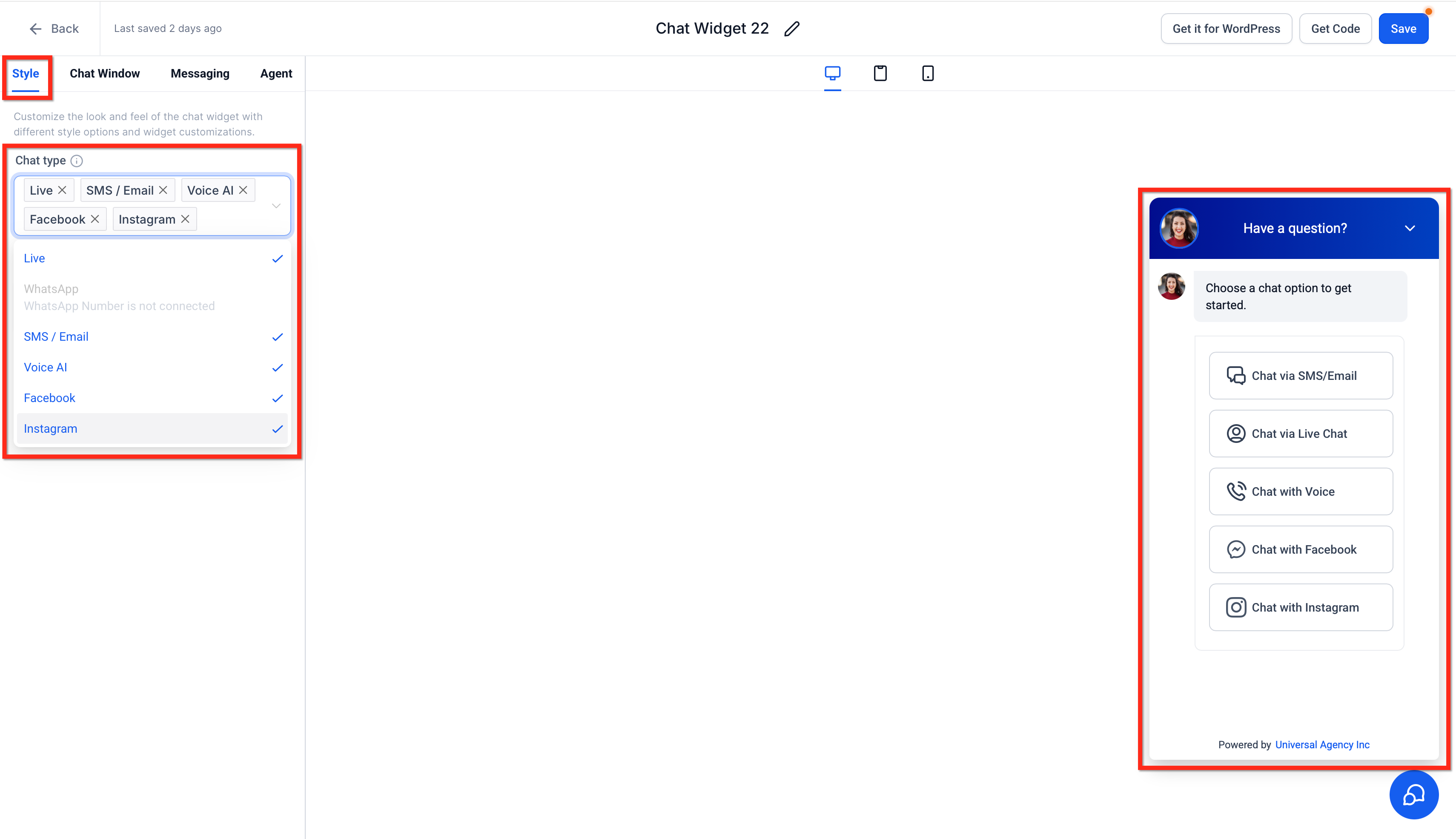
- After creating the All-in-One Chat widget, open it and go to the Style tab
- In Chat Type, use the multi-select dropdown to choose any combination of:
- Live Chat
- SMS/Email
- Voice AI
- You can enable any number of these channels at once
- The preview updates instantly to reflect your selection
Customize Widget Settings
General Settings
- Name your widget for easy reference (e.g., "Main Enrollment Site Widget")
- Configure widget color to match your brand
Channel Settings
- Live Chat: Set your display name, greeting message, and offline behavior
- Email Chat: Add messages and customize the form fields to greet parents
- WhatsApp: If enabled, confirm your WhatsApp number and default greeting message
- Initial Message: Personalize the message that appears when visitors open the widget (e.g., "Hello! How can we help you today?")
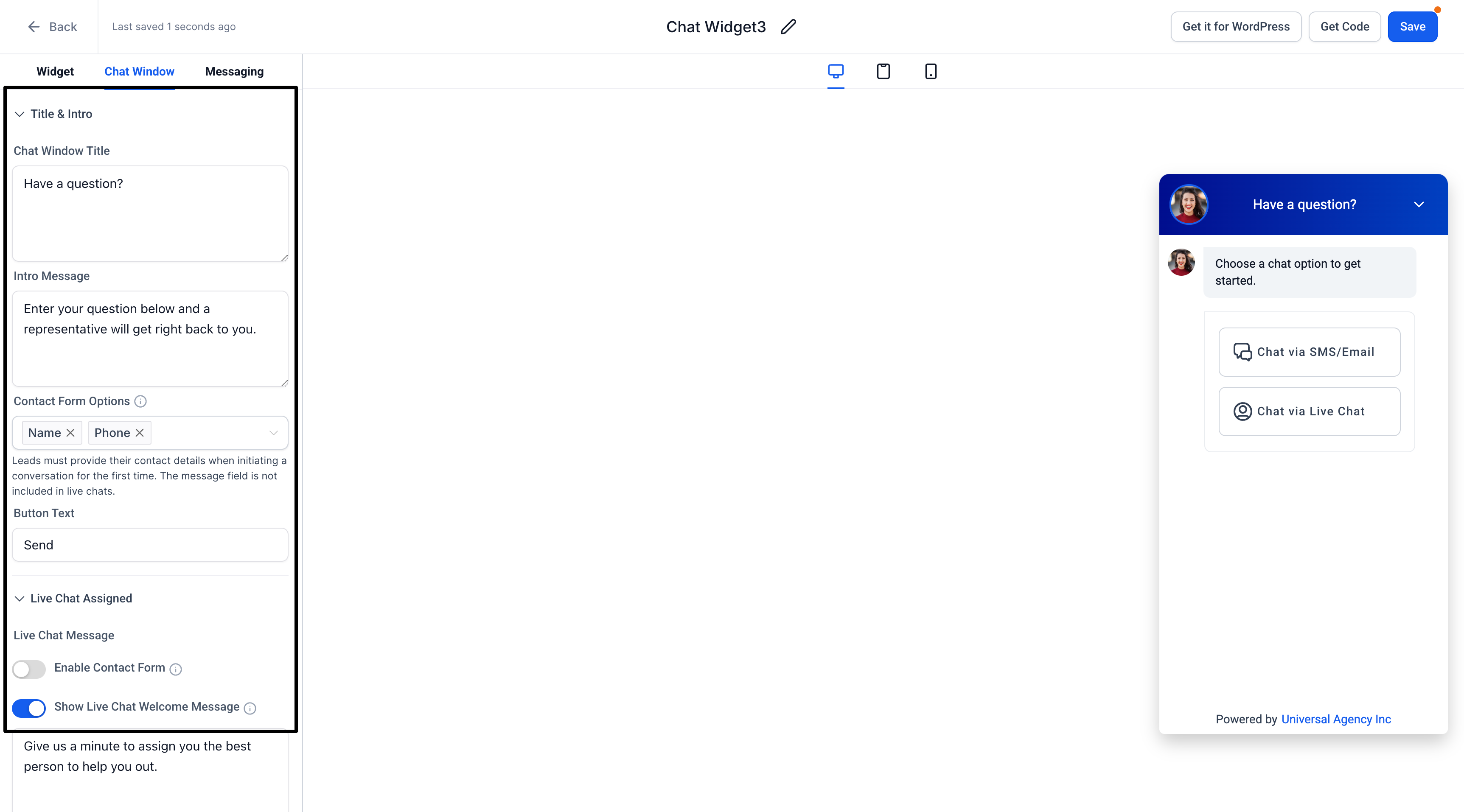
Pro Tip: Live Chat within the All-in-One chat also supports two editable prompts in the Chat Window tab: the Contact Form Intro Message and the Contact Form System Message. Leaving either field blank skips the prompt and opens the form.
Save and Preview
- Click Save to store your changes
- Preview the widget on your enrollment site or within Enrollio to confirm that each channel is functioning as intended
Using the All-in-One Chat Widget
Switching Channels
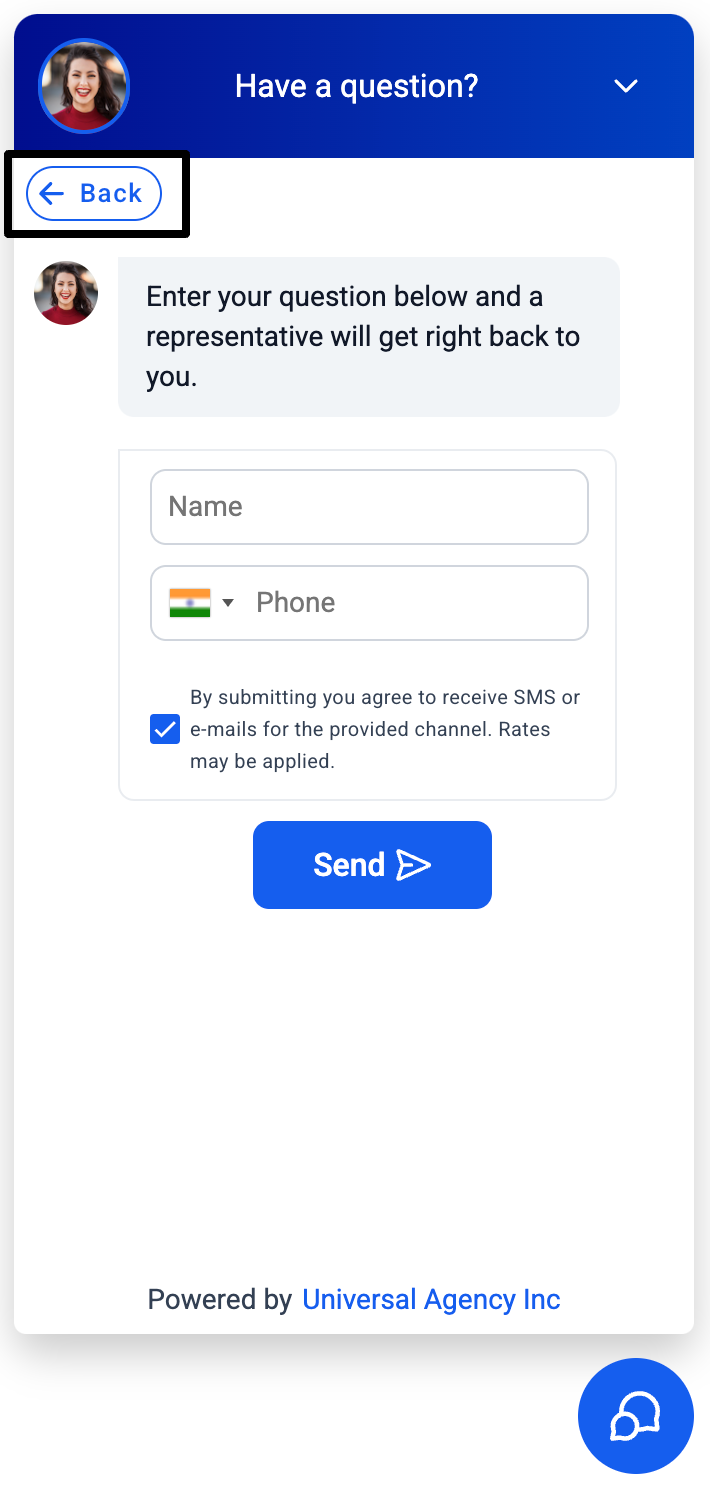
Parents can switch between any enabled channels (for example, Live Chat, SMS/Email, WhatsApp, Facebook, Instagram, or Voice AI) using the controls in the chat header. Only the channels you selected in the Chat Type multi-select appear in the widget.
Active Conversations
Chat sessions remain active until manually ended by your staff or closed due to inactivity based on your widget's timeout settings.
Contact Form Fields
For Email and WhatsApp Chat, a standard contact form field (e.g., "Message") is available to capture parent information.
Frequently Asked Questions
What if I don't have a WhatsApp number?
You can still use the All-in-One Chat widget with just Live Chat and Email Chat. WhatsApp Chat will be hidden until a valid number is added.
Can I customize the color for each channel?
The All-in-One Chat widget applies one unified color scheme across all channels to maintain a consistent brand experience.
Do I need special permissions to set this up?
Typically, users with access to Sites → Chat Widget can create and configure widgets. If you don't see the option, contact your admin.
How do I end a Live Chat session?
Your staff can end the session from the Conversations panel in Enrollio, or it will automatically close after the specified inactivity timeout.
Troubleshooting
Widget Not Showing Up
Ensure you've embedded the widget code on your enrollment site correctly. You can find this code under Sites → Chat Widget → Install Code.
WhatsApp Not Available
Confirm you have an active WhatsApp number. If it's still not visible, double-check your WhatsApp integration settings.
Email Not Sending
Make sure your email address is verified and properly set up in your account settings.