
Social Planner Template Library
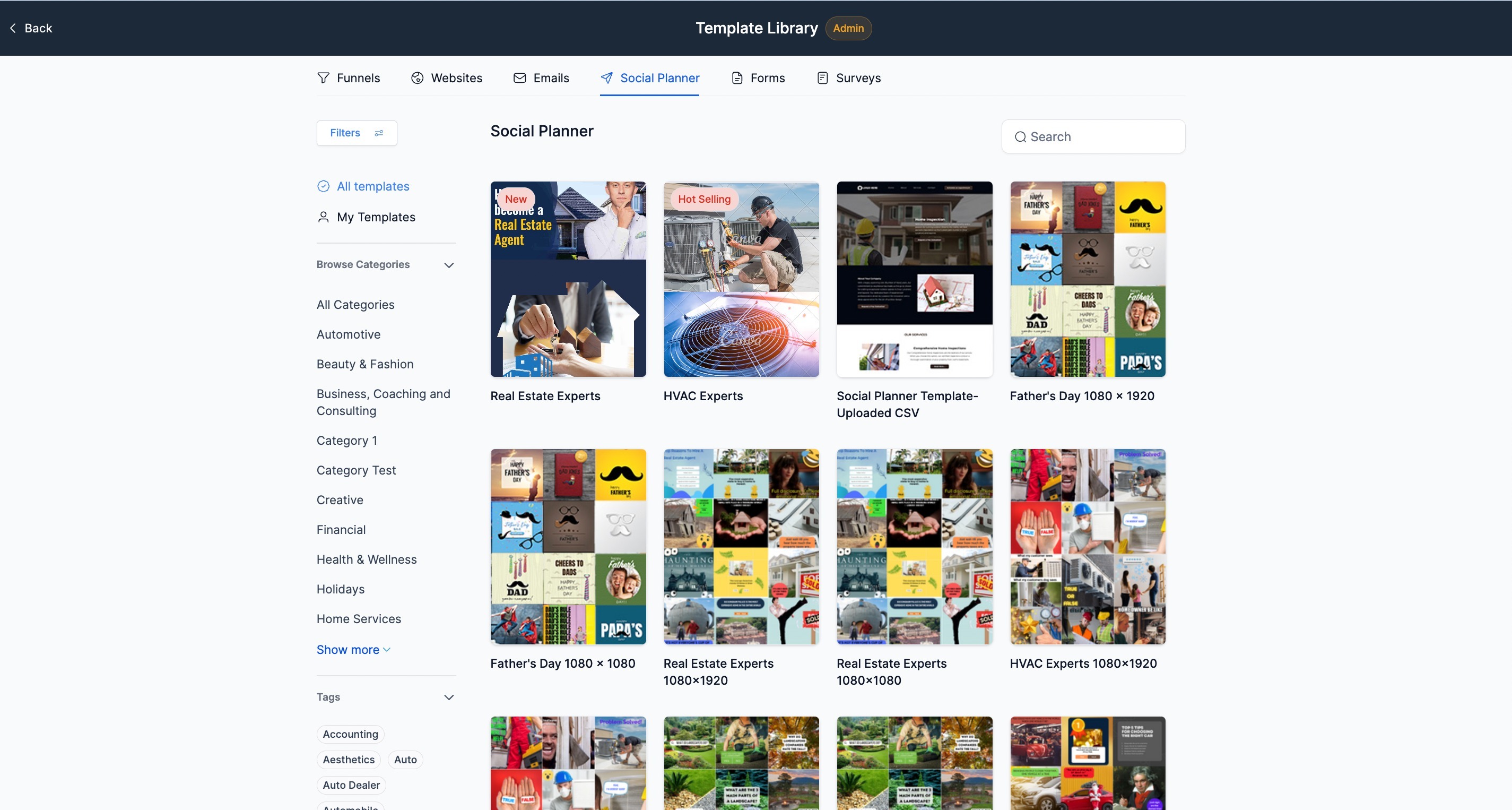
Jumpstart your social media posts with our Template Library — a collection of professionally designed, ready-to-use templates. You can even save your best-performing posts to reuse them later!
Who Can Access What
Here's how template access works across your team:
| Role | Upload Templates | Use Templates |
|---|---|---|
| Enrollio Admin | Yes (Premier plan required) | Yes |
| Enrollio User | No | Yes |
| Client Account Admin | No | Yes |
| Client Account User | No | Yes |
Note: Only Enrollio admins on the Premier plan ($497) can upload custom templates to the library. Everyone can use the templates.
Why Use Template Library?
Save time and maintain consistency across your social media presence:
- Boost creativity: Share successful post designs with your team
- Save time: Stop creating the same posts from scratch
- Stay consistent: Keep your childcare center's brand voice unified across all platforms
- Stay current: Access continuously updated templates designed for childcare marketing
How to Use Templates
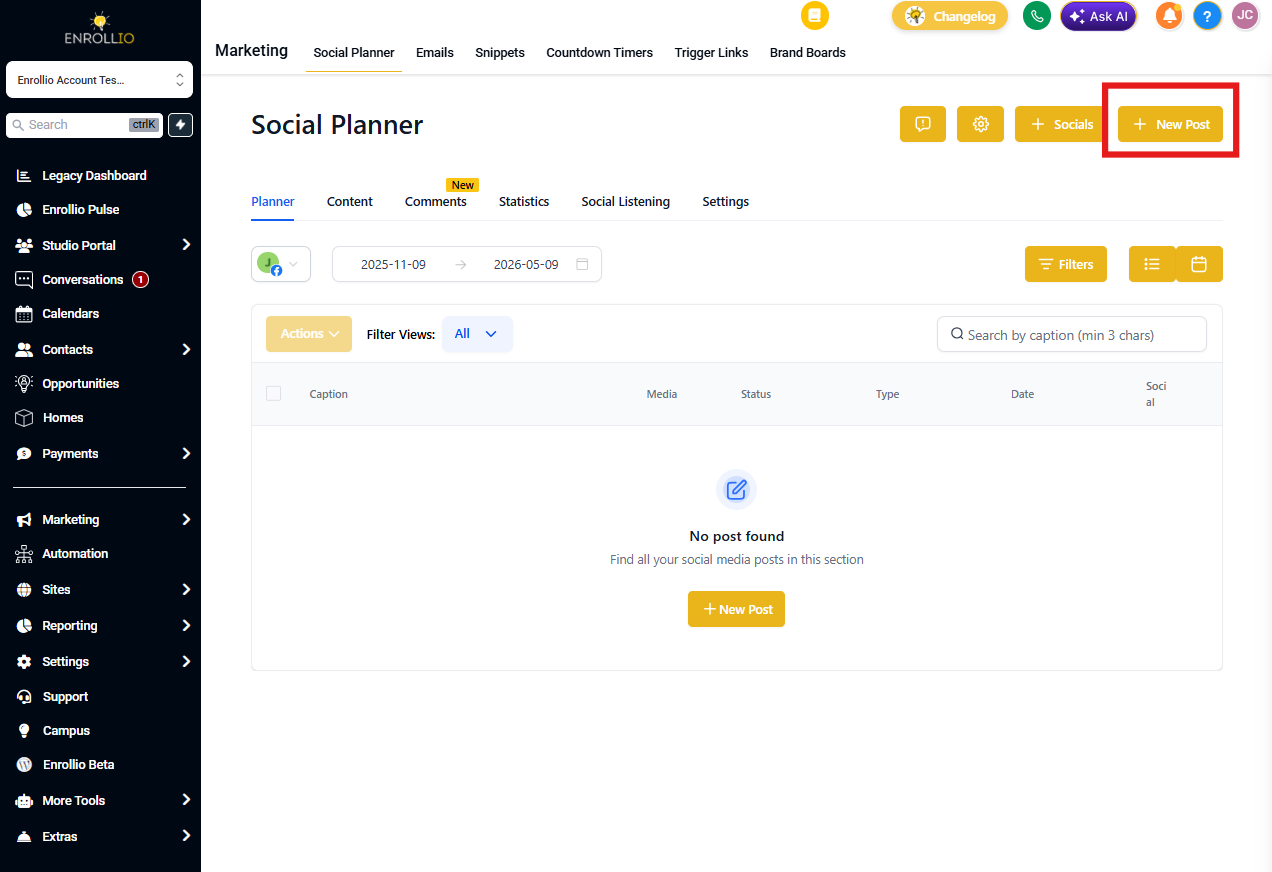
Step 1: Start a New Post
Navigate to Social Planner and click "New Posts."
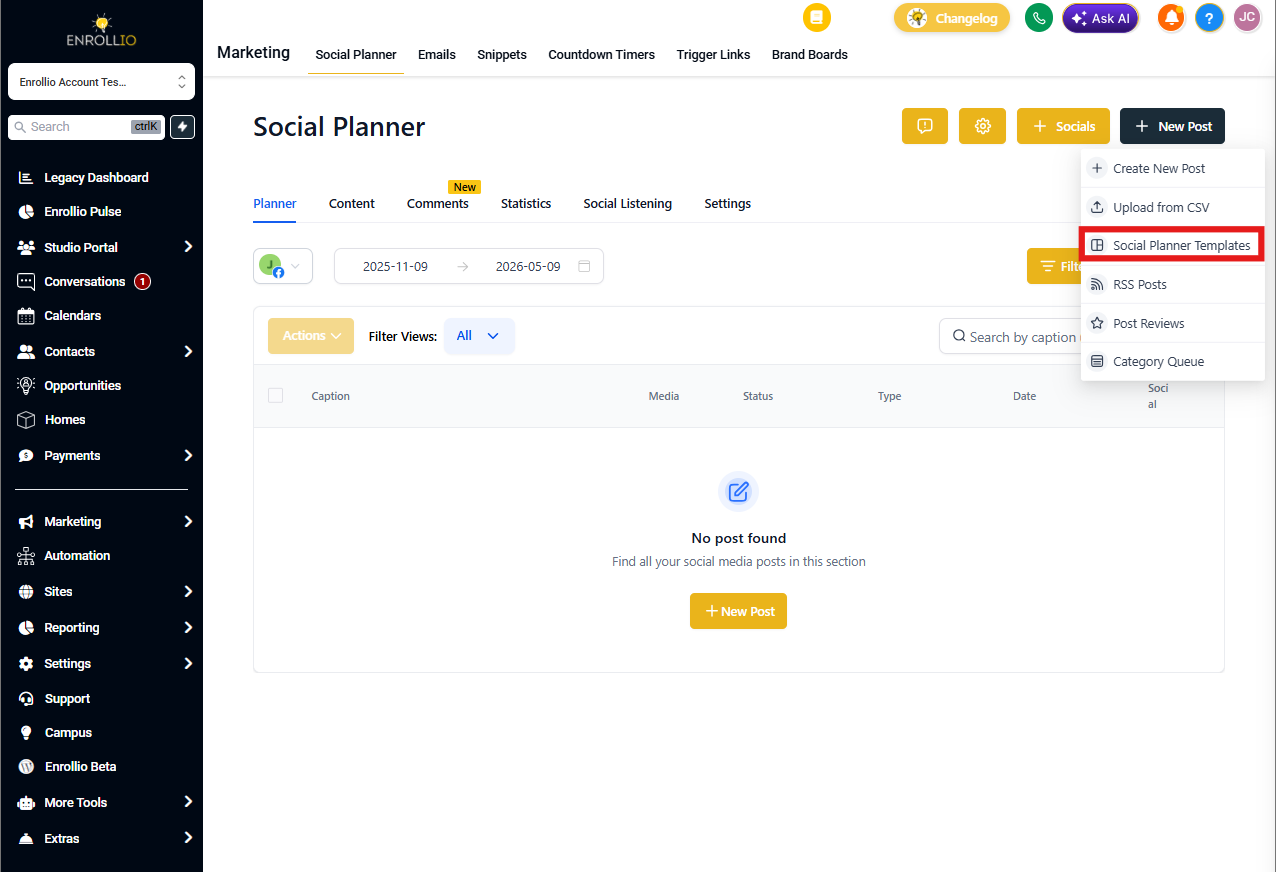
Step 2: Choose Social Planner Templates
Select "Social Planner Templates" from the options to browse available templates.
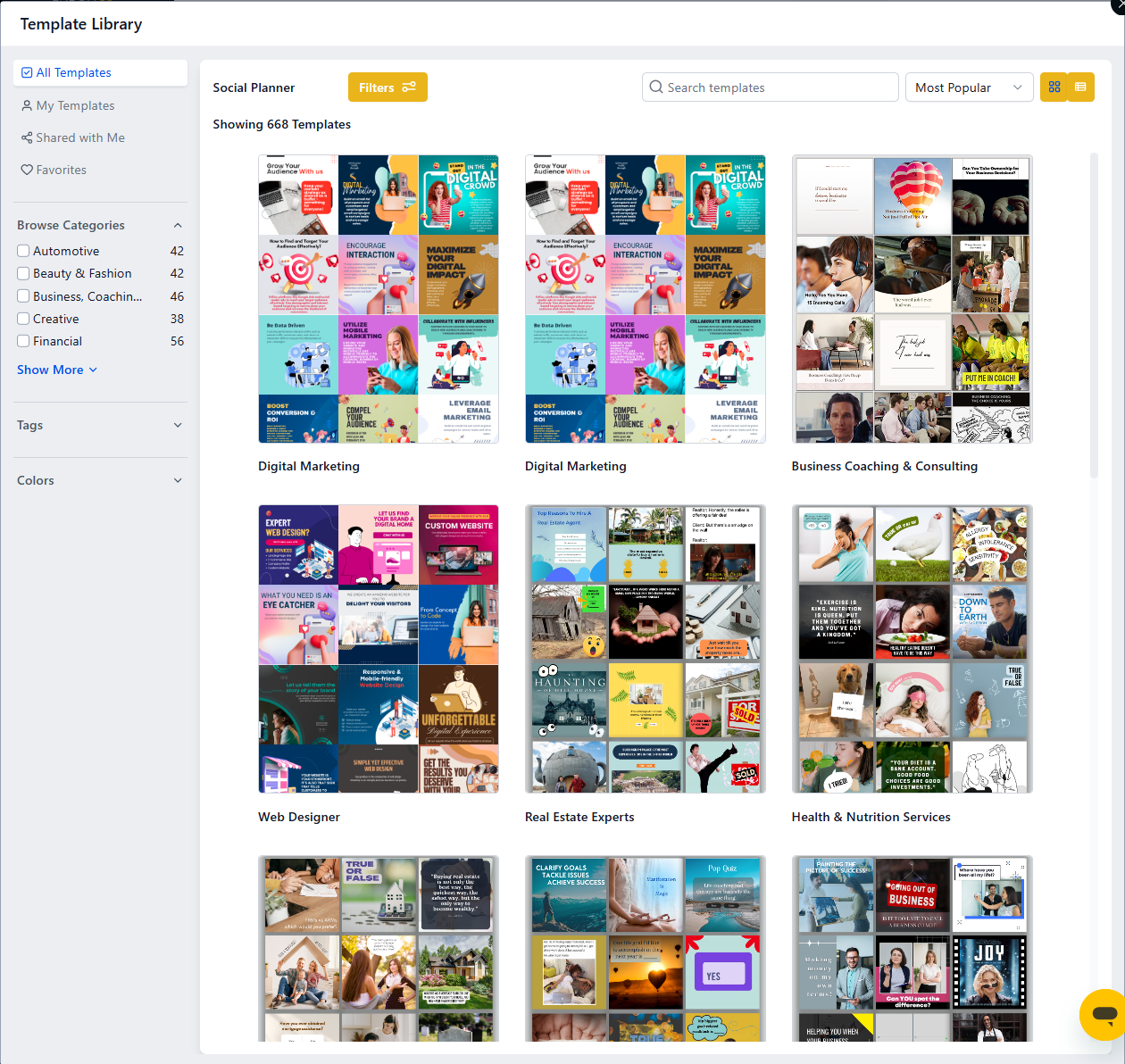
Step 3: Browse and Select
Browse the template library and choose one that fits your needs. Click "Continue" to proceed.
Step 4: Select Your Social Channels
Choose which social media platforms you want to post to.
Step 5: Review and Schedule
Click "Review & Schedule" to see your post details.
Step 6: Set Your Schedule
Choose the date, time, and channels for your post. Click "Schedule" to save.
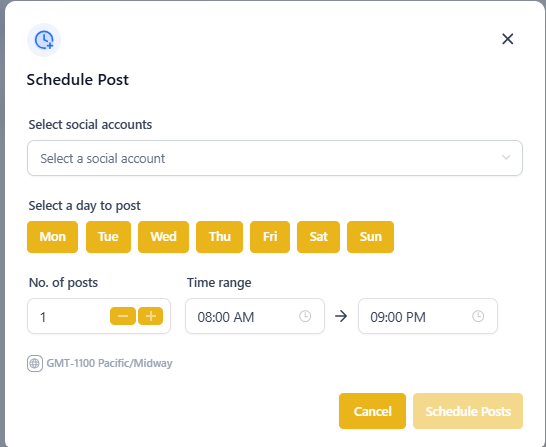
Step 7: Final Review
After a moment, click "Review & Schedule" again to see everything one more time. Make any final edits to text, images, or settings.
Step 8: Import and Finish
When everything looks good, click "Import" to add the post to your Social Planner.
Filter Templates by Type
Templates come in two formats to match your posting needs:
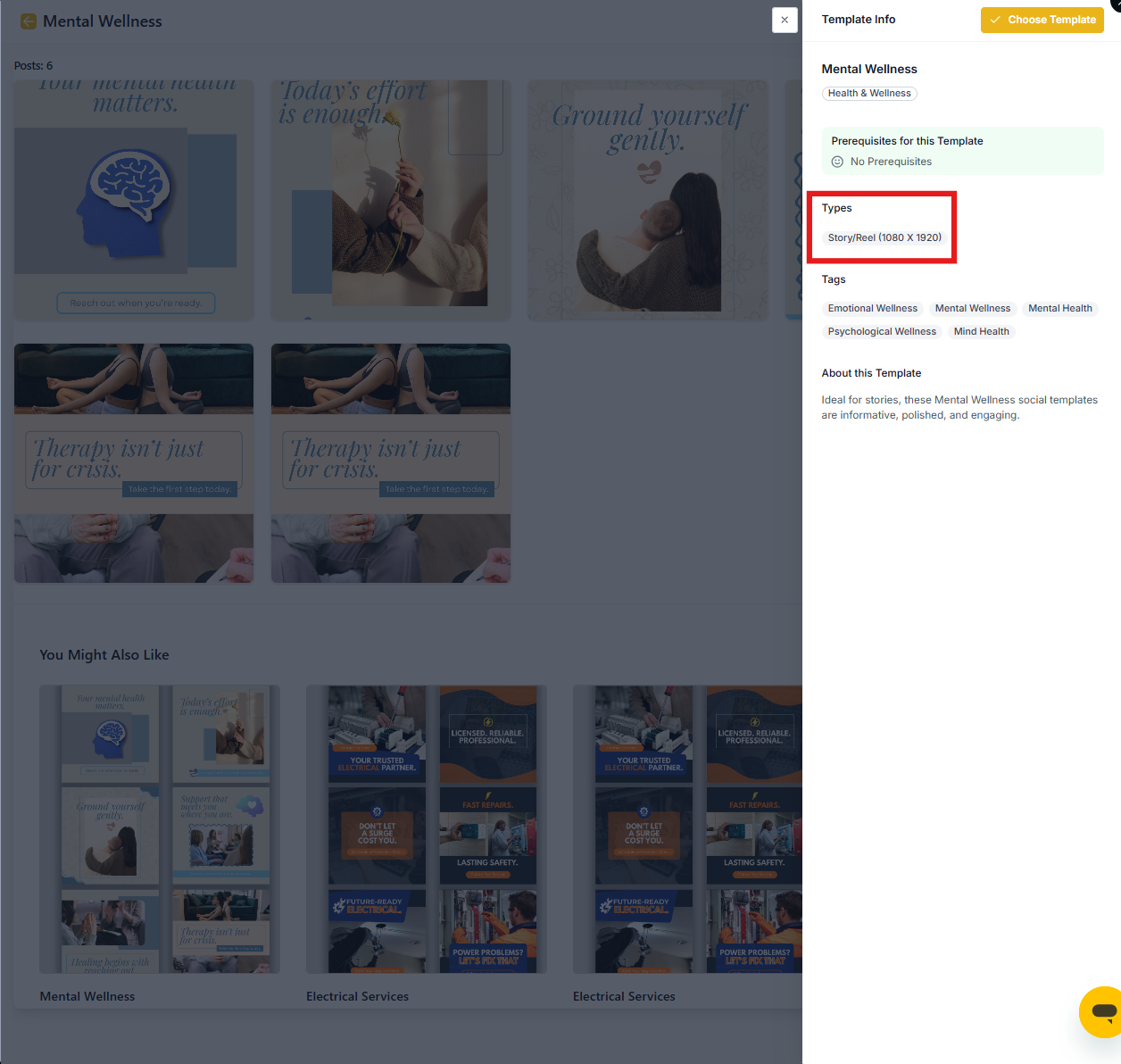
- Post (1080×1080): Square format for feed posts
- Story/Reel (1080×1920): Vertical format for stories and reels
To see a template's type, open any template and check the Type label in the Template Info panel.
How to Upload Your Own Templates (Premier Plan Only)
Turn your best posts into reusable templates:
Step 1: Open Social Planner
Navigate to Social Planner in your Enrollio dashboard.
Step 2: Find Your Post
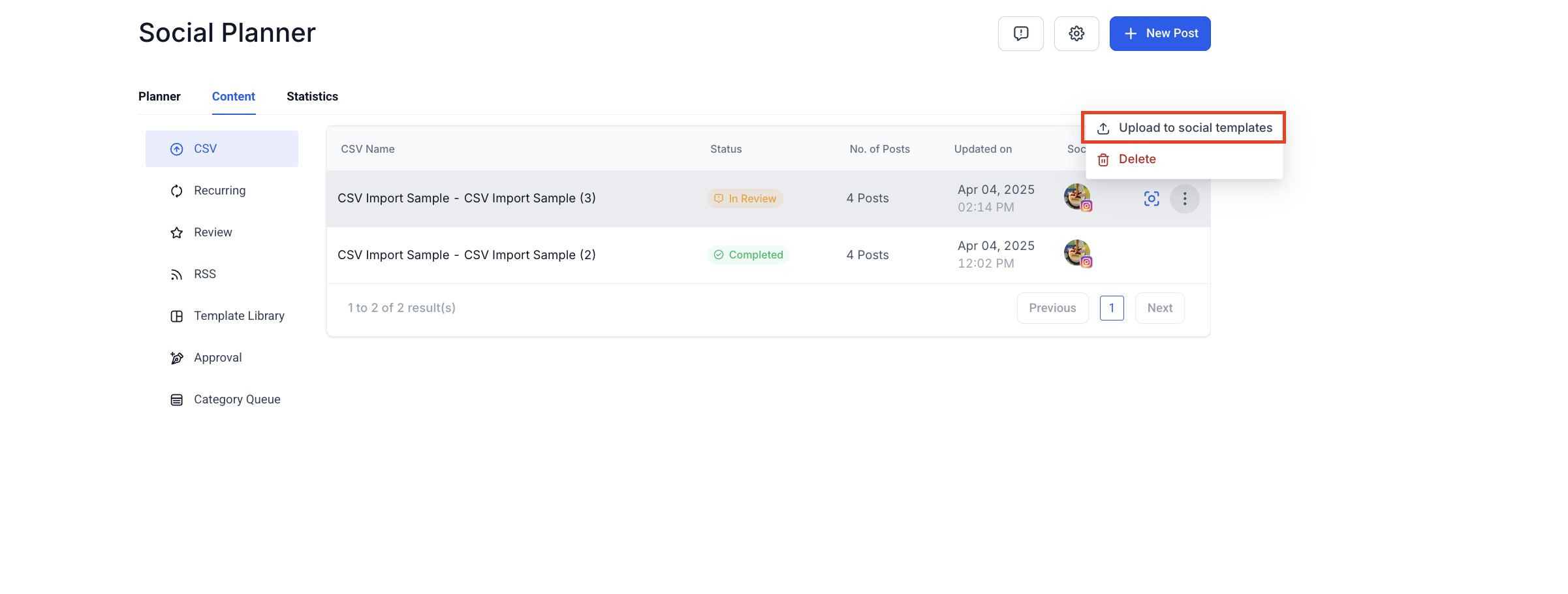
Go to the Content section and locate the post you want to save as a template.
Step 3: Upload to Library
Click the three-dot menu and select "Upload to Template Library."
Step 4: Name Your Template
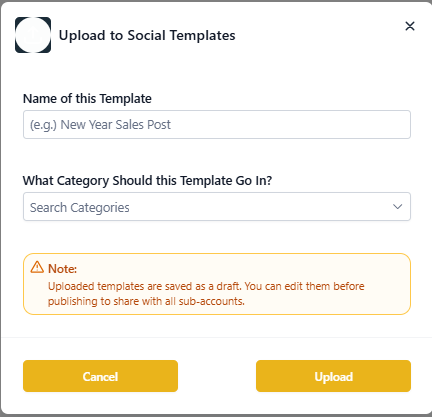
Give your template a descriptive name and select a category.
Step 5: Add Details
You'll be redirected to the Template Library admin panel where you can:
- Add a cover photo
- Add tags for easier searching
- Edit the template name
- Select a category
- Write a brief description
- Note any requirements (like "Best for summer camp enrollment")
- Add featured tags to make your template stand out
Step 6: Publish or Save as Draft
Make it Public: Your template becomes available for all client accounts to use.
Save as Draft: Keep the template in the admin panel for further editing before sharing.
Client Account View vs. Enrollio Admin View
Client Accounts see a streamlined template library with all public templates ready to use.
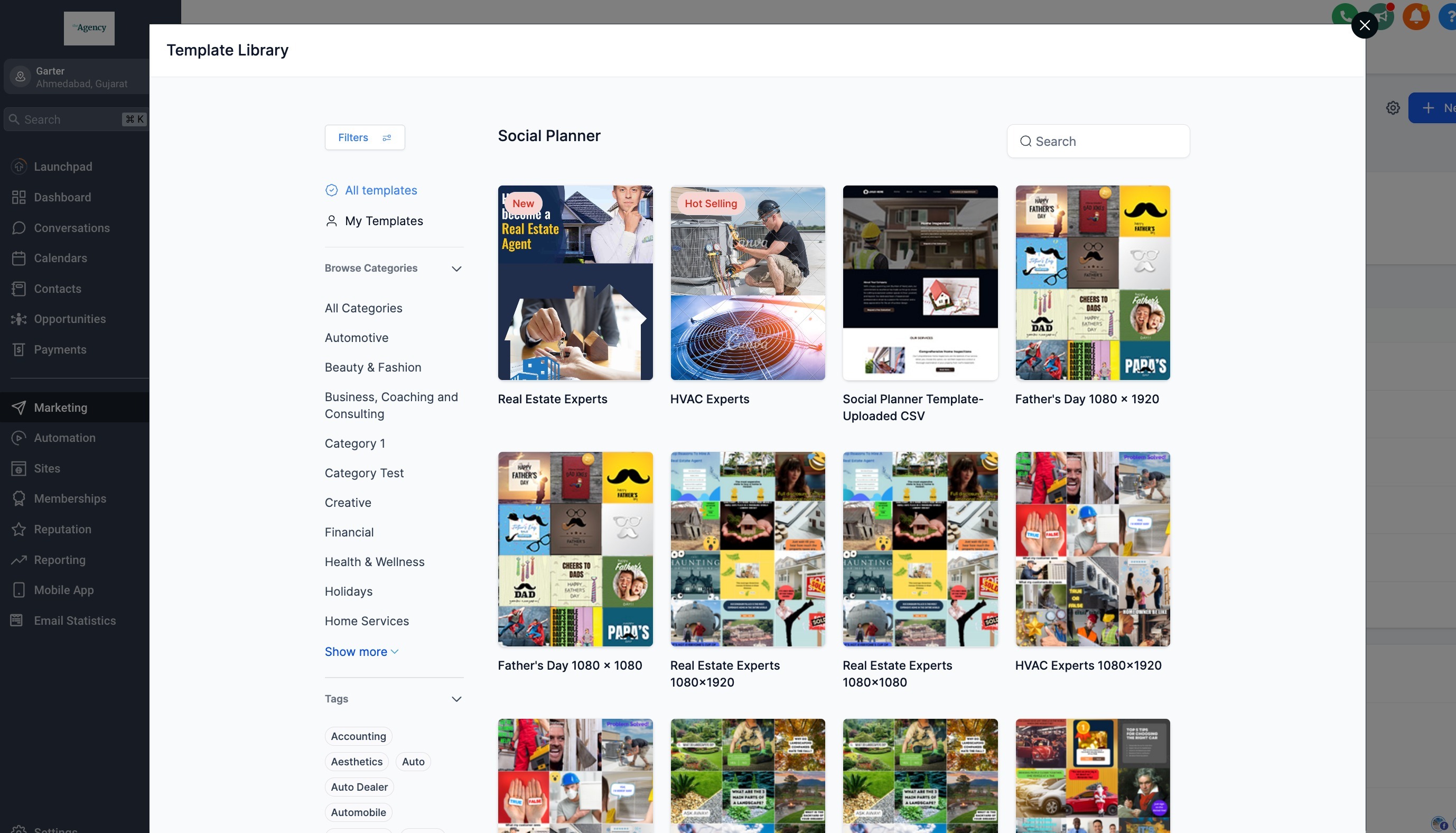
Enrollio Admins see the full admin panel with options to upload, edit, hide, and manage all templates.
Frequently Asked Questions
Who can add or edit templates?
Only Enrollio admins can add templates from client accounts and manage them in the Template Library.
Is template uploading available on all plans?
No. Template uploading is only available on the Premier plan ($497) and above. Using templates is available on all plans.
What happens if I update a post that's already a template?
- Draft templates: Updates automatically sync to the template
- Public templates: The template stays as-is and won't update automatically (you can manually update it if needed)
Can I hide templates from the library?
Yes. Enrollio admins can hide any template, including pre-loaded templates, to keep the library relevant for your team. Click "Hide" to remove it from client account view.
Pro Tip: Create templates for your most common posts — enrollment announcements, program updates, and seasonal promotions. This keeps your team's messaging consistent and saves hours each month.