
Instagram Ads: Overview
Want to reach more families where they spend their time? Running Instagram ads alongside your Facebook campaigns helps you connect with parents on both platforms, maximizing your visibility and engagement.
Enrollio's Ad Manager lets you publish ads to Instagram using either your own Instagram business account or your connected Facebook page.
Why Use Instagram Ads with Facebook Ads?
Running ads on both platforms gives your childcare center broader reach. Instagram attracts a younger, visually-driven audience, while Facebook reaches a wider age range. Together, they let you:
- Reach more families across different demographics and platforms
- Engage through different formats — Instagram Stories, Facebook Carousel Ads, and more
- Retarget effectively — increase conversion opportunities by staying top-of-mind
- Manage everything in one place — unified reporting and campaign management in Enrollio
The result? Better visibility, higher engagement, and more tour bookings.
How to Connect Your Instagram Account to Facebook
Before you can run Instagram ads through Enrollio, you need to connect your Instagram business account to your Facebook page. This setup happens on Meta's platform and only takes a few minutes.
Note: Once connected, your Instagram account will automatically be selected whenever you choose that Facebook page for ad campaigns. Only one Instagram account can be connected to each Facebook page.
Step 1: Switch to an Instagram Business Account
Skip this step if your Instagram is already a business account.
- Open the Instagram app and go to your profile
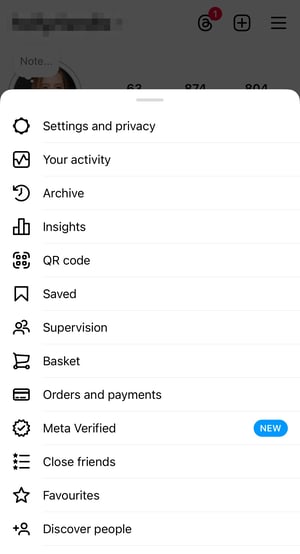
- Tap the ☰ Menu (top right) to access Settings and activity
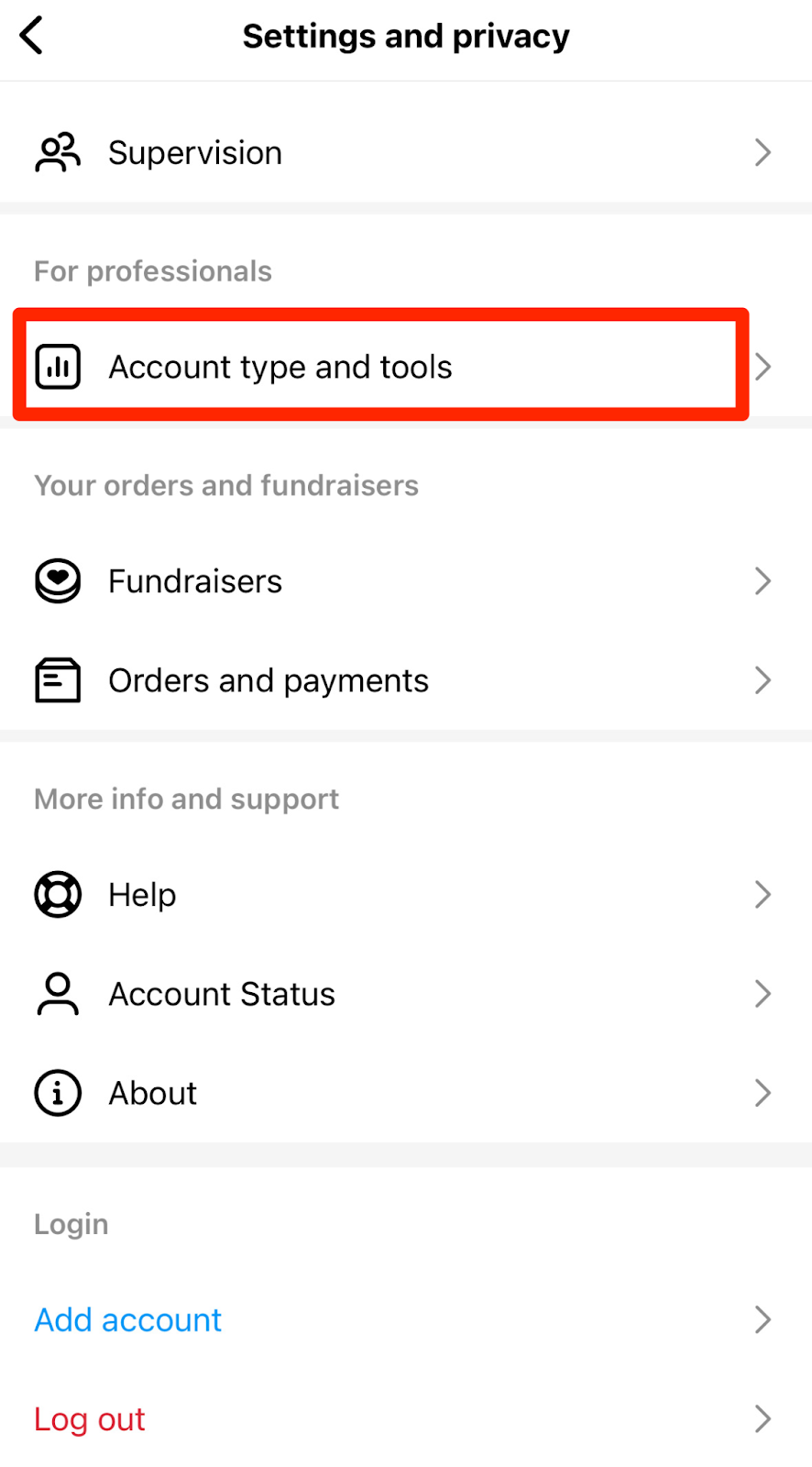
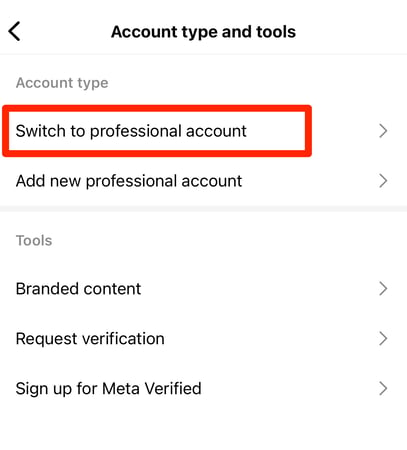
- Scroll down and tap Account type and tools → Switch to professional account
- Choose Business (recommended for ads)
- Select your business category (e.g., Child Care, Education)
- Tap Next and follow the prompts to complete setup
Step 2: Connect Instagram to Your Facebook Page
Option A: Via Facebook Page Settings (Recommended)
- Go to Facebook and open your business page
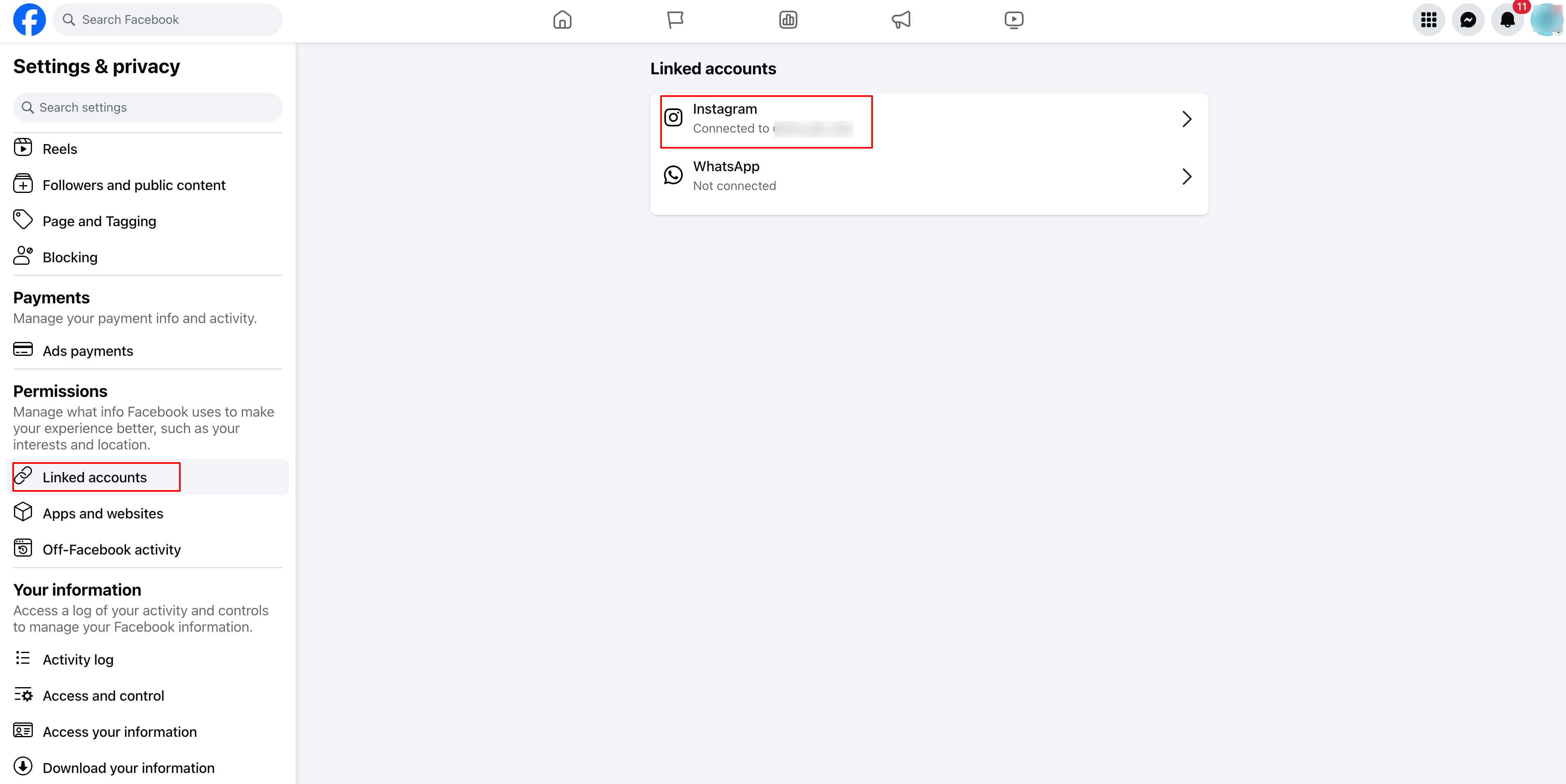
- Click Settings in the left sidebar
- Select Linked Accounts → Instagram
- Click Connect Account and log in to your Instagram account
- Make sure Allow Access to Messages & Connected Experiences is enabled
- Click Confirm to complete the connection
Option B: Via Instagram App
This option is only available if you have a professional Instagram account.
- Go to your Instagram profile
- Tap Edit Profile → scroll to Public Business Information
- Tap Page → Connect or Create a Facebook Page
- Select your existing Facebook page
- Tap Done to save changes
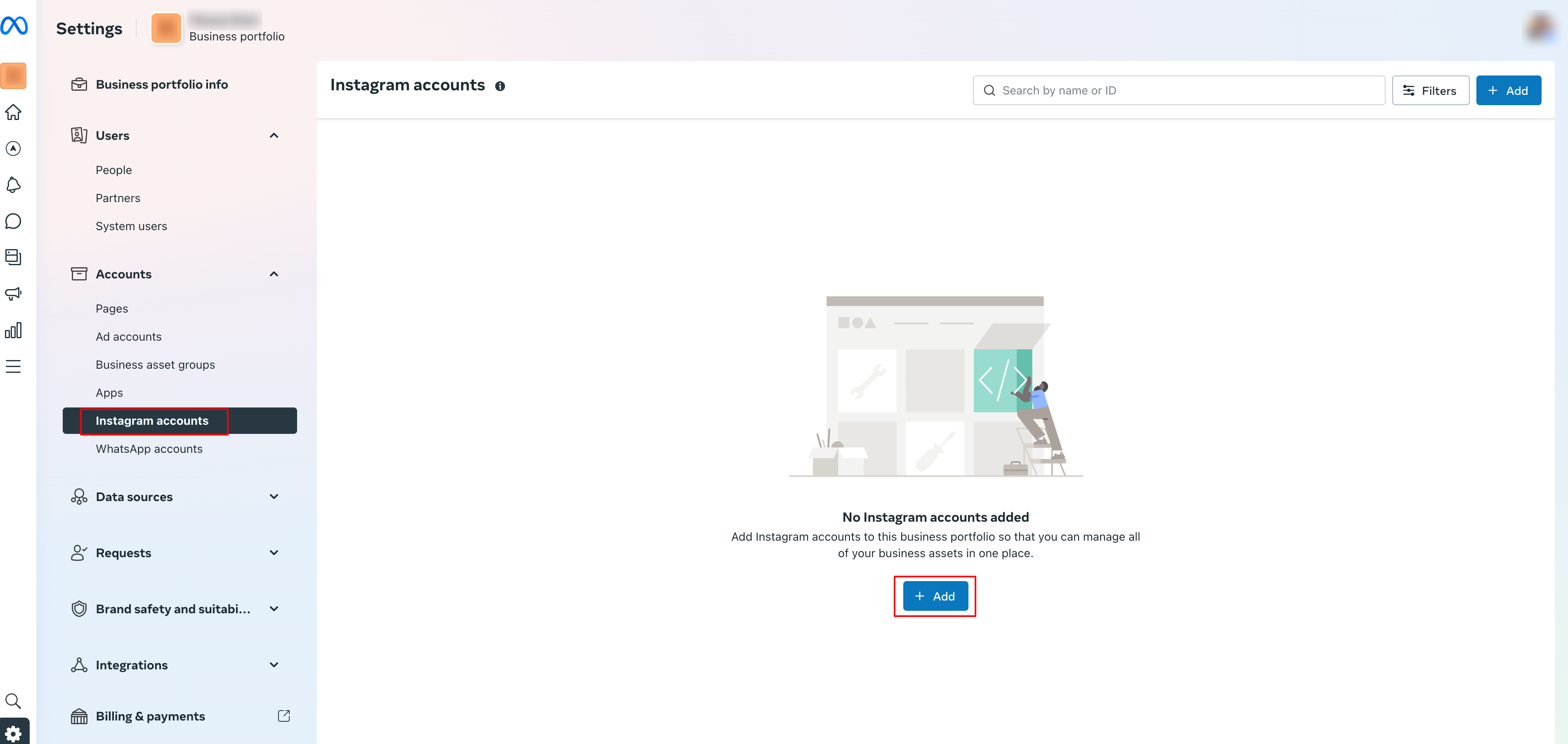
Step 3: Verify the Connection in Meta Business Suite
- Open Meta Business Suite at business.facebook.com
- Click Settings → Instagram Accounts
- Your Instagram account should be listed
- If not listed, click Add Instagram Account and follow the login steps
Final Checklist:
- ✔ Instagram is set as a professional account
- ✔ Connected to the correct Facebook page
- ✔ Verified in Meta Business Suite
You're ready to publish ads on Instagram!
How to Publish Ads on Instagram
Once your Instagram account is connected, creating ads that run on both Facebook and Instagram is straightforward.
- In Enrollio's Ad Manager, click Create Campaign
- Select your desired Facebook page (your default page is pre-selected, but you can change it)
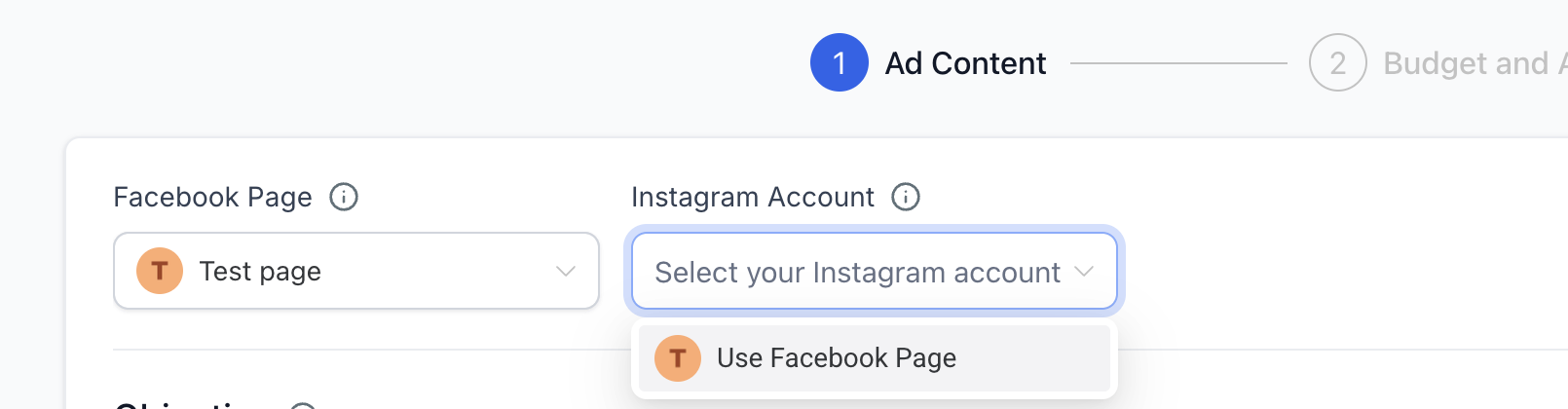
- Choose your Instagram account:
- If no Instagram account is connected: Select "Use Facebook page" from the dropdown. Your ad will use your Facebook page's name, profile picture, and details on Instagram.
- If an Instagram account is connected: That account is automatically selected and will be used for your Instagram ads.
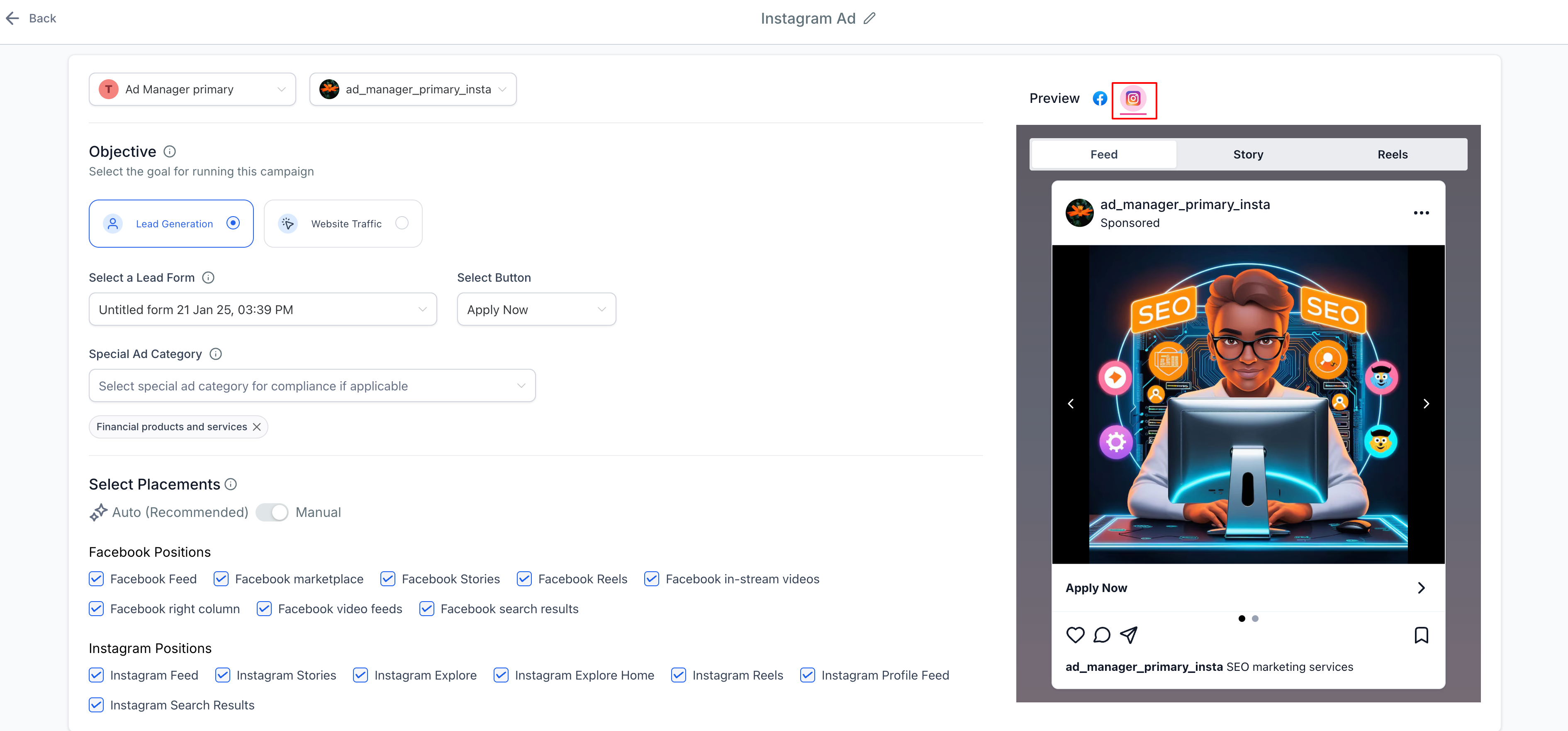
- Under placements, select where you want your ads to appear:
- Choose Automatic Placements to run ads across all available Instagram placements
- Or select Manual Placements and choose specific Instagram placements (Feed, Stories, Explore, etc.)
- Add your ad text, images or video, budget, target audience, and other details
- Use the preview window to see how your ad will look on Instagram by selecting the Instagram tab
- Click Publish to reach families on both Facebook and Instagram
Tracking Instagram Ad Performance
Your Instagram ad metrics appear in Enrollio's Ad Manager shortly after your ads start running, right alongside your Facebook ad data.
Instagram and Facebook ads share the same reporting dashboard, so you'll see combined metrics that give you the full picture of your campaign performance. You can view:
- Overall campaign metrics — total reach, engagement, and conversions across both platforms
- Individual campaign performance — drill down to see how specific ads perform
- Platform breakdowns — compare results between Facebook and Instagram
Track the metrics that matter most for your childcare center: tour bookings, website visits, and parent engagement.
How to Disconnect an Instagram Account from Facebook
Need to switch which Instagram account is connected to your Facebook page? You'll need to disconnect the current Instagram account first.
This is managed through Meta's platform. Follow Meta's official guide to connect or disconnect an Instagram account from your Facebook page.
Once disconnected, you can connect a different Instagram business account following the steps above.
Remember: Only one Instagram account can be connected to each Facebook page at a time.