
Social Planner lets you connect all your Facebook business pages so you can publish posts and engage with families directly from Enrollio.
Before You Begin
You'll need admin access to the Facebook pages you want to connect. Make sure you're logged into Facebook with the profile that has admin rights to your pages.
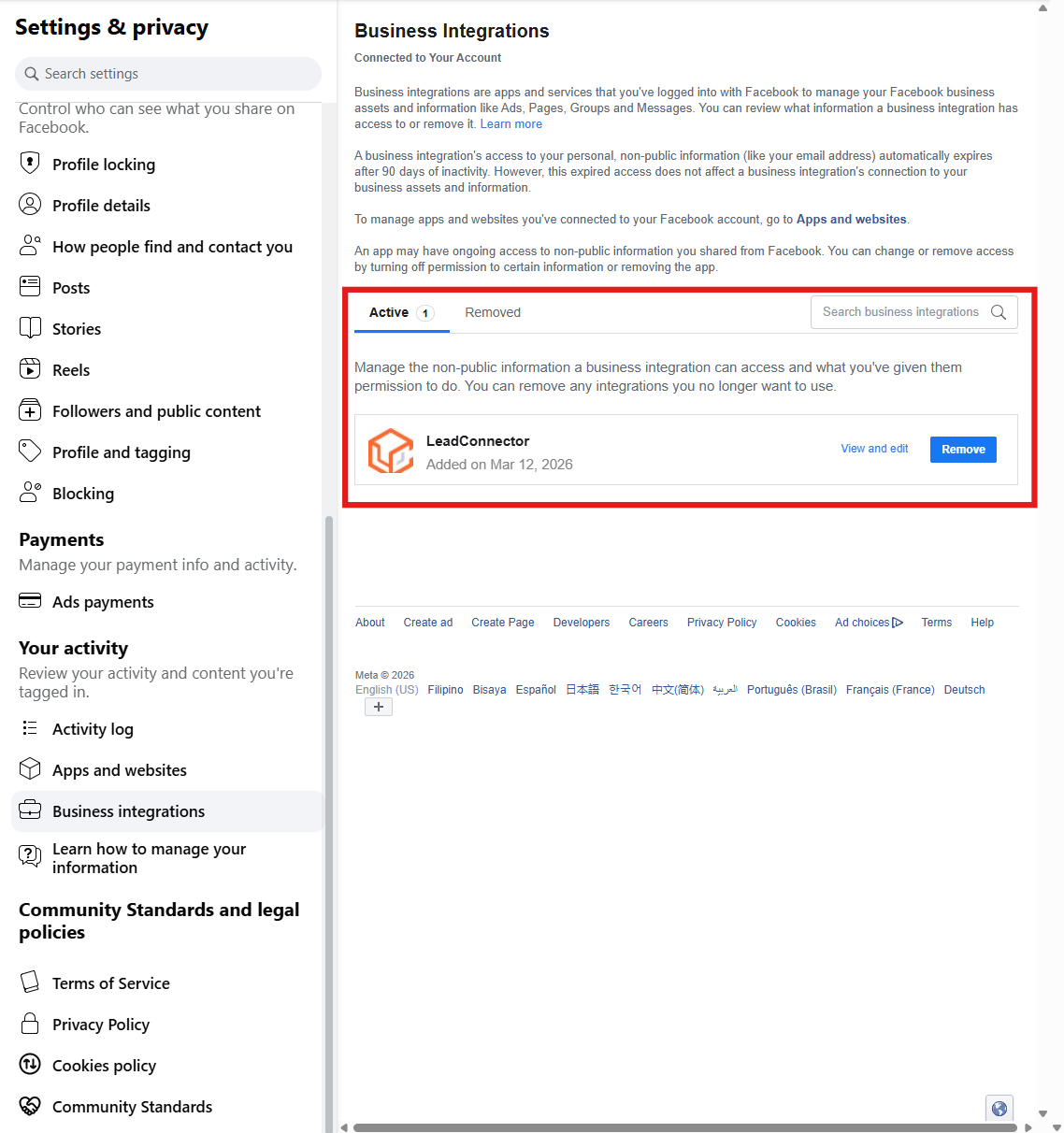
If You're Reconnecting Pages
If you've previously connected Facebook pages and want to add new ones, you'll need to remove Enrollio from your Facebook settings first:
- Go to your Facebook Settings
- Navigate to Business Integrations
- Remove the Enrollio application
- Follow the connection steps below
How to Connect Your Facebook Pages
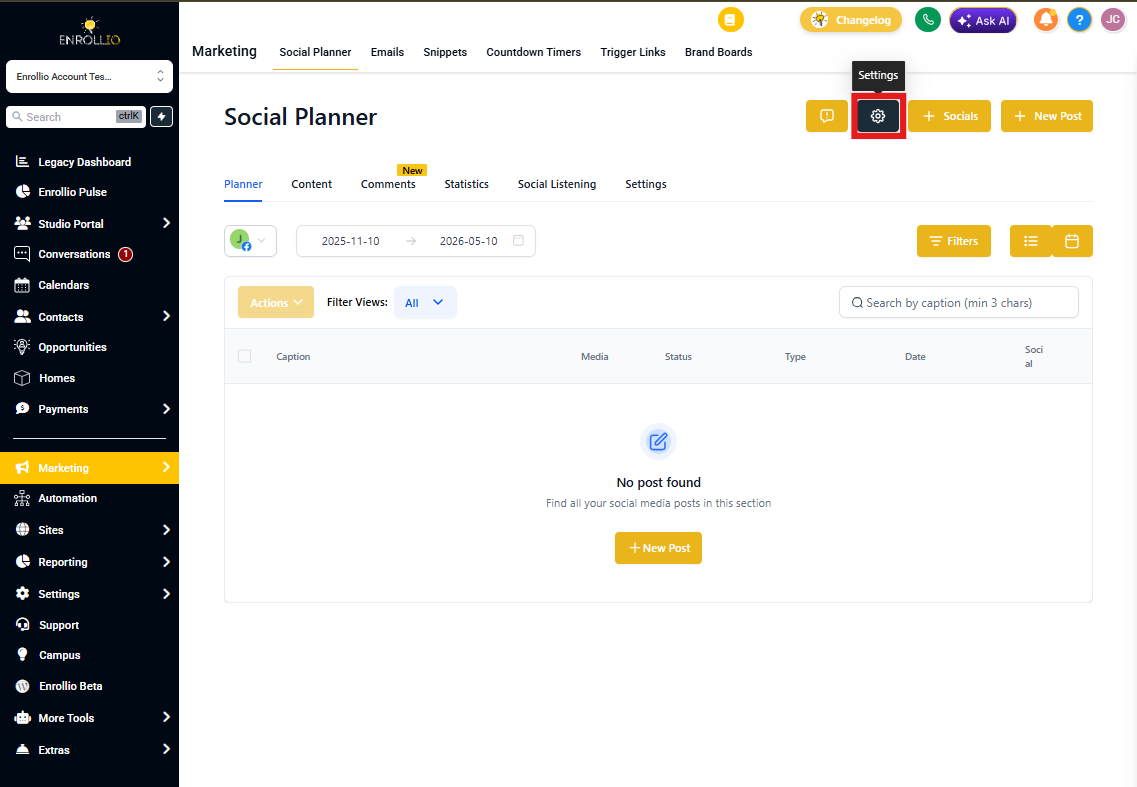
Step 1: Open Social Planner Settings
Go to Social Planner in your Enrollio dashboard. Click the gear icon in the top right corner to open Settings.
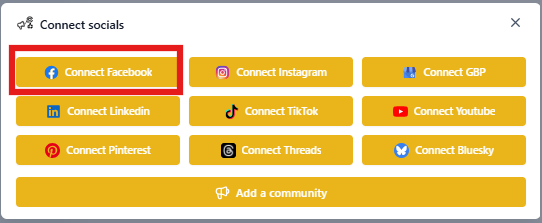
Step 2: Start the Connection Process
Click Connect a new Facebook page.
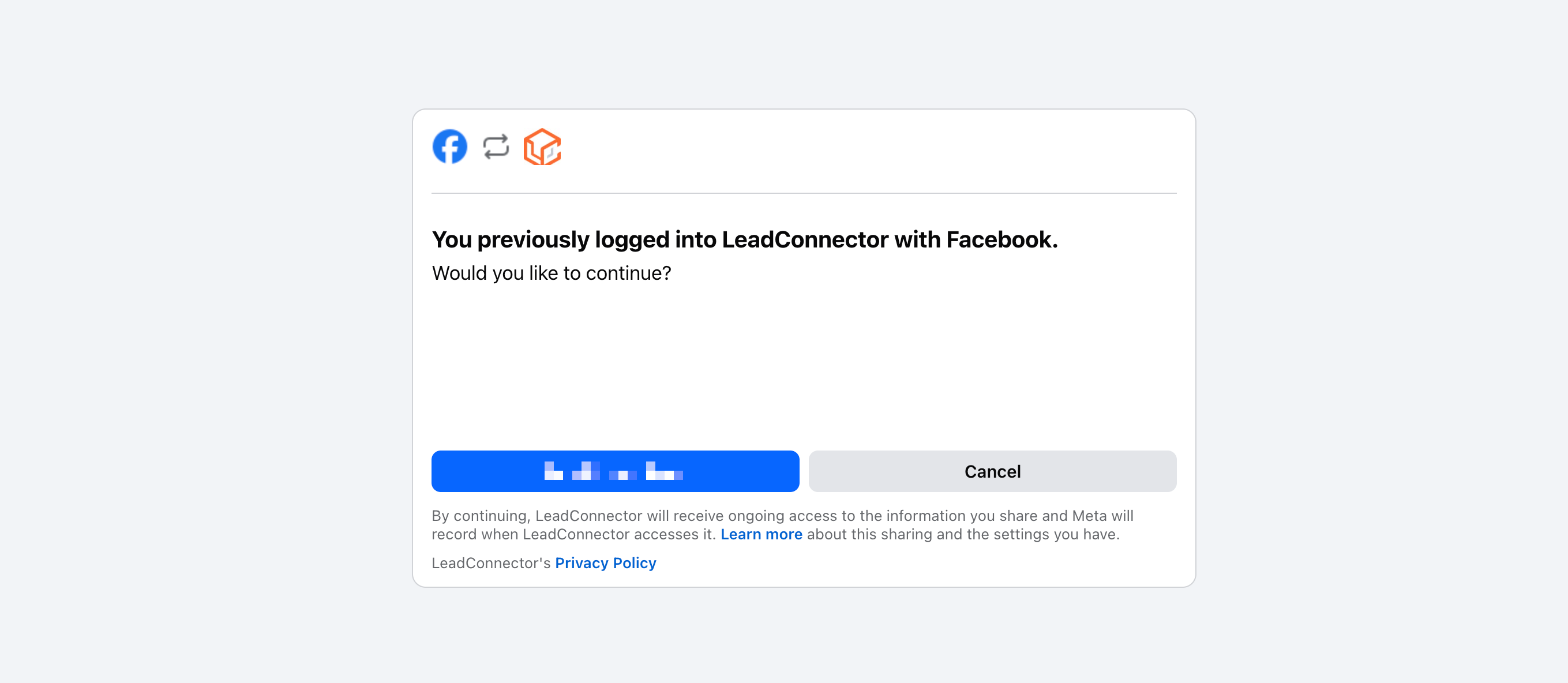
Step 3: Grant Permissions
If this is your first time connecting, Facebook will ask for permissions. Click Continue to authorize Enrollio to access your Facebook pages.
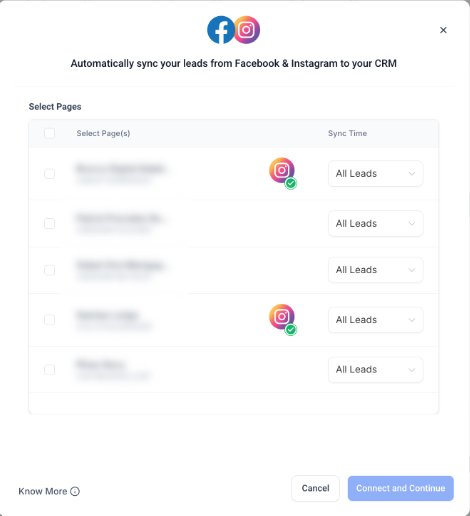
Step 4: Select Your Pages
Facebook will display all the pages where you're an admin. Check the boxes next to the pages you want to connect to Enrollio.
Step 5: Verify the Connection
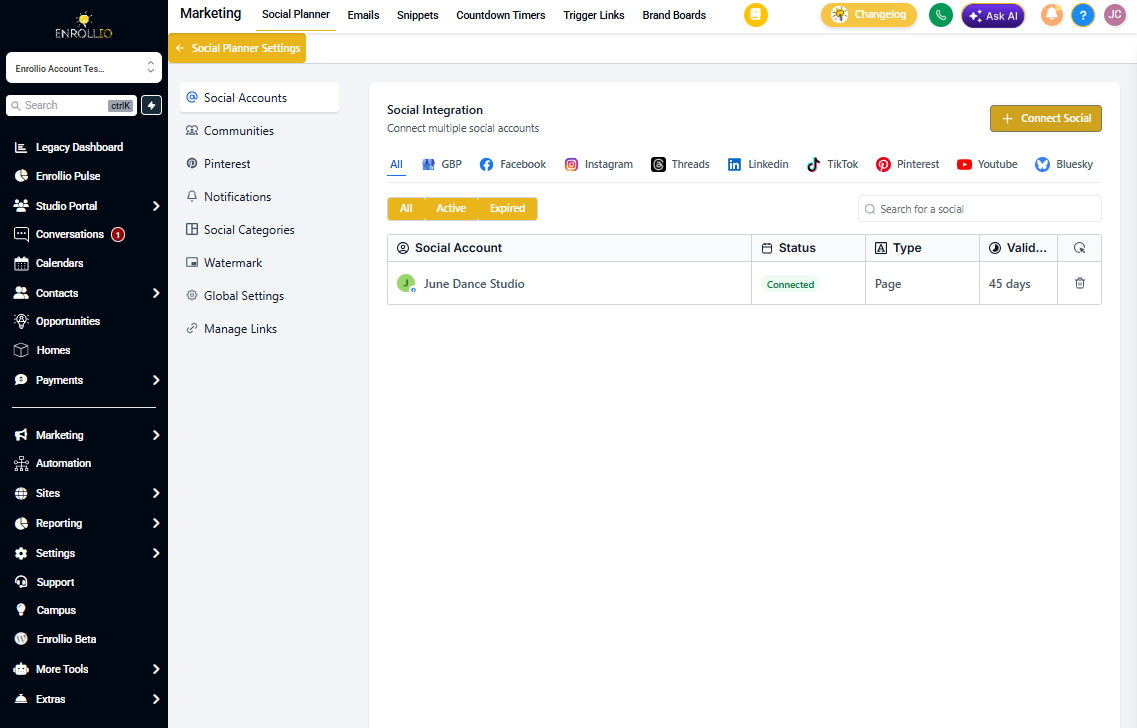
Once connected, you'll see all your selected pages listed in Social Planner Settings. Each page will show a green checkmark indicating a successful connection.
Managing Multiple Pages
You can connect as many Facebook pages as you need, even if they're managed by different Facebook profiles. Just repeat these steps while logged into each Facebook profile.
Need Help?
If you're having trouble connecting your pages, make sure:
- You're logged into Facebook with the correct profile
- You have admin access to the pages you're trying to connect
- You've granted all requested permissions
- Your Facebook business page is published (not in draft mode)