
Social media posts can fail for various reasons. This guide walks you through the most common errors and how to fix them quickly.
Quick Troubleshooting Steps
Before diving into specific errors, try these steps first:
- Refresh your browser (clear cache)
- Check that your social account is still connected in Enrollio
- Verify you have posting permissions on the social platform
- Wait a few minutes and try again (some errors are temporary)
Facebook Error Messages
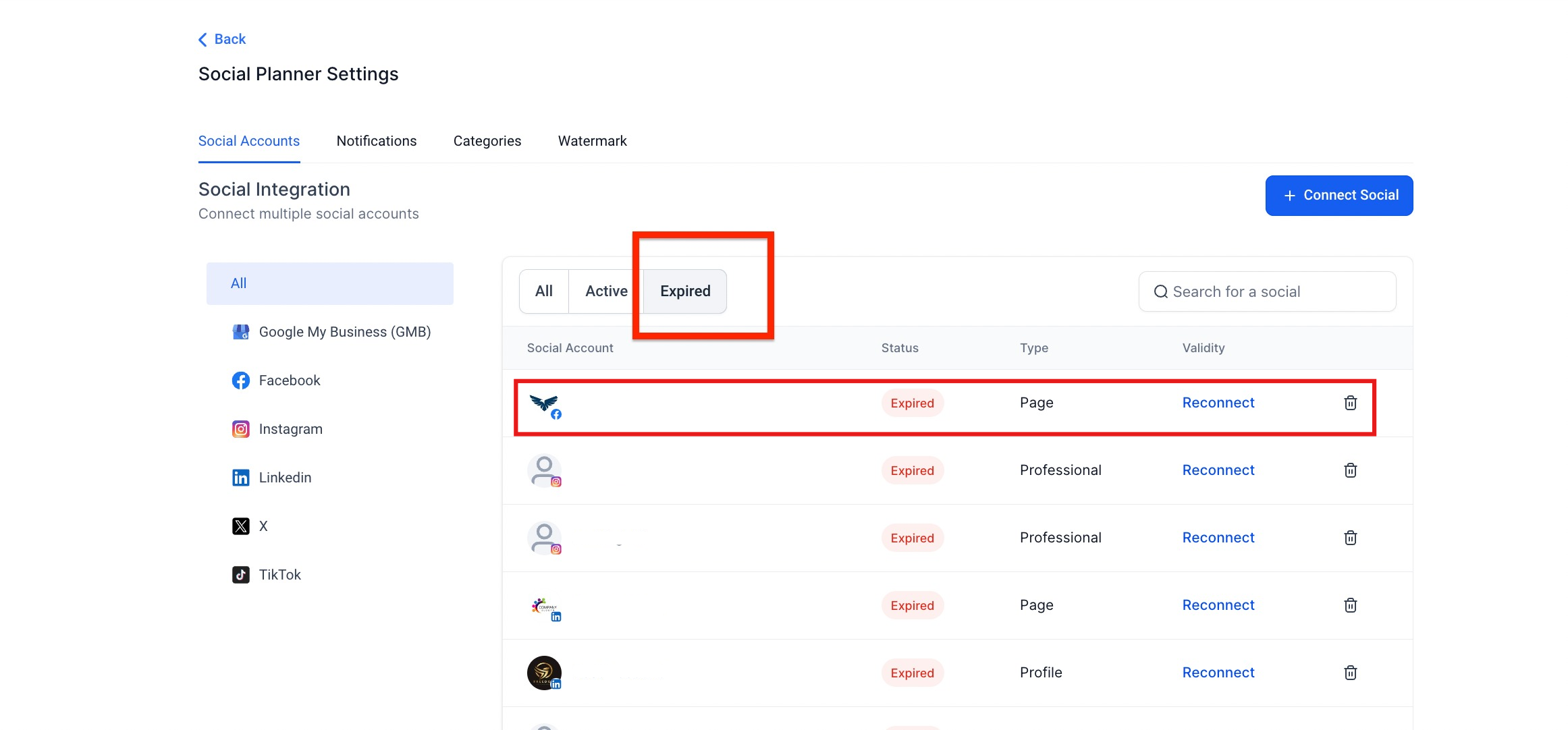
Expired Token (Error Codes: 102, 109, 463, 467)
Problem: Your Facebook account connection has expired.
Solution: Reconnect your Facebook account in Social Planner.
Temporary Facebook Error (Error Codes: 1, 2, Unexpected Error)
Problem: Facebook is experiencing a temporary issue.
Solution: Clear your browser cache and wait a few minutes before trying again.
Permission Issues (Error Code: 3 or 200-299)
Problem: The connected Facebook account doesn't have permission to post.
Solution: Reconnect your Facebook account using an account that has admin or posting permissions for your Page or Group.
Missing Enrollio App (Error Code: 10)
Problem: The Enrollio app isn't added to your Facebook Page or Group.
Solution:
- Log into Facebook
- Navigate to your Page or Group settings
- Add the Enrollio app
- Reconnect in Social Planner
Community Standards Violation (Error Code: 368)
Problem: Your post content violates Facebook's community standards.
Solution: Review Facebook's community guidelines and edit your post content before trying again.
Duplicate Content (Error Code: 506)
Problem: You're trying to post identical content within 12 hours.
Solution: Wait 12 hours or modify your post content to make it unique.
Invalid Link (Error Code: 1609005)
Problem: The link in your post is broken or invalid.
Solution: Check that your link works properly and update it in your post.
User Checkpoint (Error Codes: 459, 460, 464)
Problem: Facebook requires you to verify your account or the Enrollio app connection.
Solution:
- Log into Facebook directly
- Complete any security checks
- Verify the Enrollio app is connected to your Page/Group
- Reconnect in Social Planner
Token Issues (Error Code: 492)
Problem: Your connection token expired or has insufficient permissions.
Solution: Reconnect your Facebook account and verify all posting permissions are enabled.
Temporary Block
Problem: Facebook has temporarily blocked your account from posting.
Solution: Wait for the specified period (usually 24 hours) before posting again. This happens when Facebook detects unusual activity.
Instagram Error Messages
File Upload Timeout (Error Code: 400-2207003)
Problem: Your image or video file is too large.
Solution: Use a smaller file size. Compress your images or videos before uploading.
General Instagram Error (Error Codes: 400-2207001, 2207053)
Problem: Instagram is experiencing a temporary issue.
Solution: Wait a few minutes and try again. This usually resolves itself quickly.
Community Standards Violation (Error Code: 400-2207051)
Problem: Your post violates Instagram's community guidelines.
Solution: Review Instagram's guidelines and modify your content.
Daily Post Limit (Error Code: 400-2207042)
Problem: You've reached Instagram's daily posting limit.
Solution: Wait until the next day to post more content. Instagram limits the number of posts per day through their API.
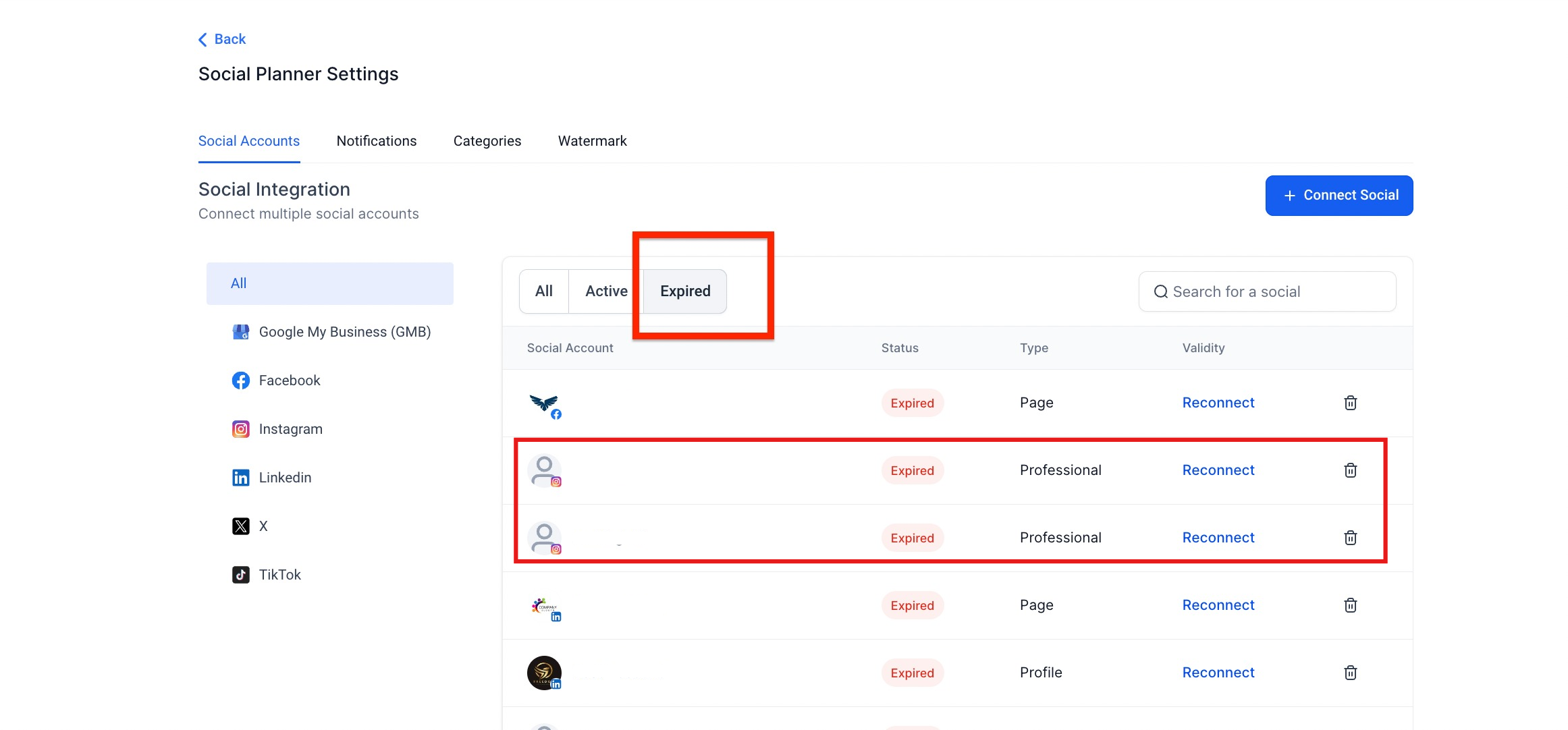
Expired Instagram Token (Error Code: 400-2207006)
Problem: Your Instagram Business account connection has expired.
Solution: Reconnect your Instagram Business account in Social Planner.
Account Type Issue (Error Code: 400-2207050)
Problem: Your Instagram account isn't set up as a Business Account.
Solution: Convert your Instagram account to a Business Account, then reconnect in Enrollio.
Carousel Post Limits (Error Code: 400-2207028)
Problem: Your carousel post has too few or too many items.
Solution: Instagram carousels must have 2-10 images or videos. Adjust your post accordingly.
Too Many Tags (Error Code: 400-2207040)
Problem: Your post has more than 30 hashtags.
Solution: Reduce the number of hashtags to 30 or fewer.
Permission Issues (Error Code: 400-2207005)
Problem: The connected account doesn't have posting permission.
Solution: Reconnect using an Instagram account with proper posting permissions.
LinkedIn Error Messages
Expired LinkedIn Token (Error Codes: 400, 403)
Problem: Your LinkedIn connection has expired or is invalid.
Solution: Reconnect your LinkedIn account in Social Planner.
General LinkedIn Error (Error Codes: 404, 500, 504)
Problem: LinkedIn is experiencing a temporary issue.
Solution: Wait a few minutes and try again.
Duplicate Content (Error Code: 422)
Problem: You're trying to post identical content within 12 hours.
Solution: Wait 12 hours or modify your post to make it unique.
Missing or Large Content (Error Code: 422)
Problem: Required fields are missing or your post is too long.
Solution: Check that all required fields are filled and reduce your post length if needed.
Permission Error (Error Code: 400)
Problem: The connected account doesn't have posting permission.
Solution: Reconnect using a LinkedIn account with proper posting permissions.
Temporary LinkedIn Error (Error Code: 409)
Problem: LinkedIn is experiencing a temporary issue.
Solution: Clear your browser cache and try again in a few minutes.
Google Business Profile Error Messages
Missing or Invalid Values
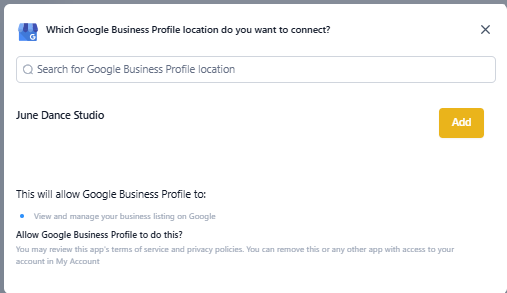
Problem: Your Google Business Profile setup is incomplete.
Solution: Complete your Google Business Profile setup, then reconnect in Social Planner.
Character Limit Exceeded
Problem: Your post is too long for Google Business Profile.
Solution: Reduce the number of words in your post.
Expired Token
Problem: Your Google Business Profile connection has expired.
Solution: Reconnect your Google Business Profile in Social Planner.
Media Upload Failed
Problem: The image or video couldn't be uploaded.
Solution: Try using a different image or video file, or a smaller file size.
Operation Not Supported
Problem: Your account conditions don't allow this posting operation.
Solution: Check your Google Business Profile account status and settings.
Local Post API Disabled
Problem: Your location is part of a chain and has Local Post API disabled.
Solution: This typically happens with franchise or chain locations. Contact Google Business Profile support for assistance.
Still Having Issues?
If you've tried these solutions and are still experiencing problems:
- Check the social platform's status page for known outages
- Contact Enrollio support with your error code and screenshot
- Try posting directly on the social platform to rule out platform-specific issues