
Automatically share new blog posts, videos, or updates from any RSS feed to your connected social media accounts. Set it up once in Social Planner, and Enrollio will publish new items on your schedule—no manual posting required.
Why Auto-Post From RSS Feeds?
RSS feeds help busy childcare owners stay active on social media without adding to your workload:
- Save Time: New content posts automatically—no copy-pasting or manual scheduling
- Stay Consistent: Keep your social presence active even during your busiest enrollment seasons
- Share Industry News: Subscribe to childcare industry blogs and auto-share relevant updates
- Promote Your Content: Automatically post your latest blog articles, parent resources, or video tours
- Reduce Overwhelm: Pull content from multiple sources into one organized feed
What You'll Need
- A valid RSS or Atom feed URL (from your blog, YouTube channel, industry news site, etc.)
- At least one social account connected in Marketing → Social Planner → Settings (Facebook, Instagram Business, LinkedIn, Google Business Profile, or Pinterest)
Finding Your RSS Feed URL
Most websites still offer RSS feeds, but they're not always obvious. Here's how to find them:
Quick Methods by Platform
For most blogs: Add /feed to the end of the URL
Example: https://yourchildcareblog.com/feed
For YouTube channels: Just copy the channel URL—your RSS reader will handle the rest
Example: https://youtube.com/@YourChildcareChannel
For Tumblr sites: Add /rss to the URL
Example: https://example.tumblr.com/rss
For Blogger sites: Add feeds/posts/default to the URL
Example: example.blogspot.com/feeds/posts/default
For Medium publications: Insert /feed/ before the publication name
Example: medium.com/feed/childcare-insights
If Those Don't Work
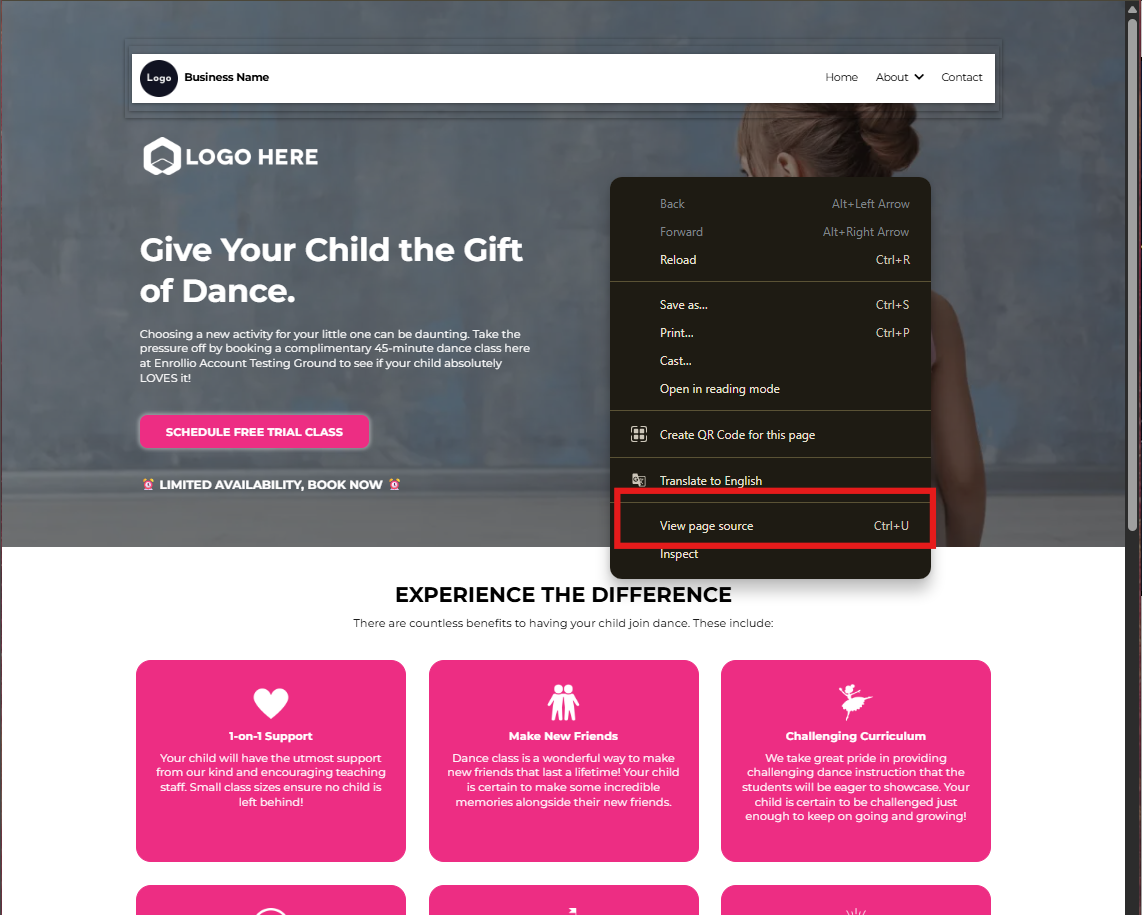
You can check the page source code (easier than it sounds):
- Right-click on an empty space on the website
- Select "View Page Source"
- Press Ctrl+F (Windows/Linux) or Command+F (Mac)
- Search for "RSS" or "atom"
- Look for a URL that contains "rss" or "feed"—that's your feed URL
Setting Up Auto-Posts From Your RSS Feed
Once you have your RSS feed URL, you can create automatic social posts in just a few steps.
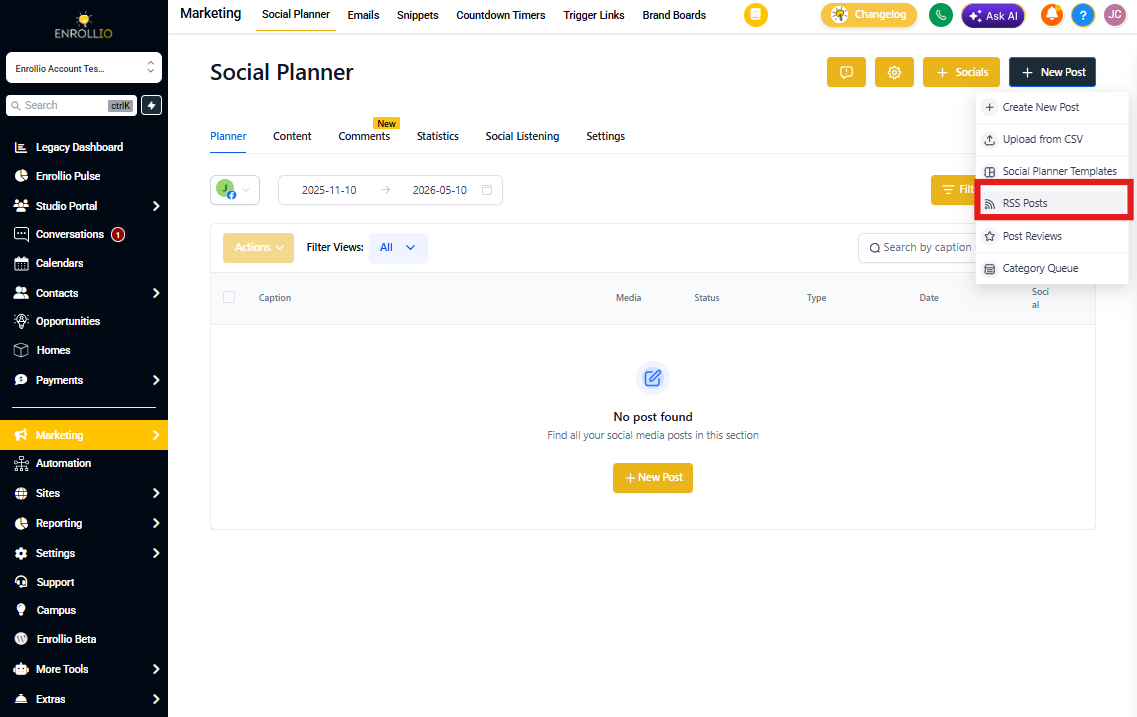
Step 1: Navigate to RSS Post
- Go to Marketing → Social Planner
- Click New Post
- Select RSS Post
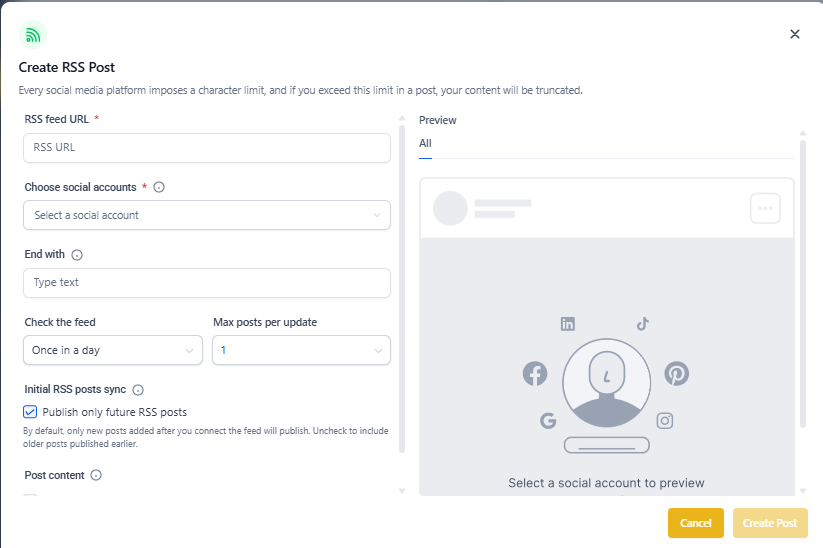
Step 2: Add Your RSS Feed URL
Paste the RSS feed URL you found earlier into the URL field.
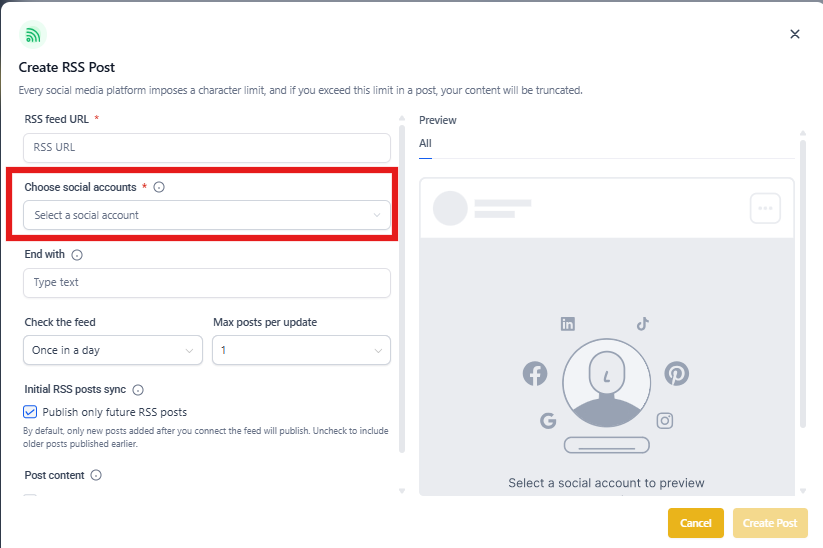
Step 3: Select Your Social Accounts
Choose which connected social accounts should receive these automatic posts. You can select multiple accounts to post to all of them at once.
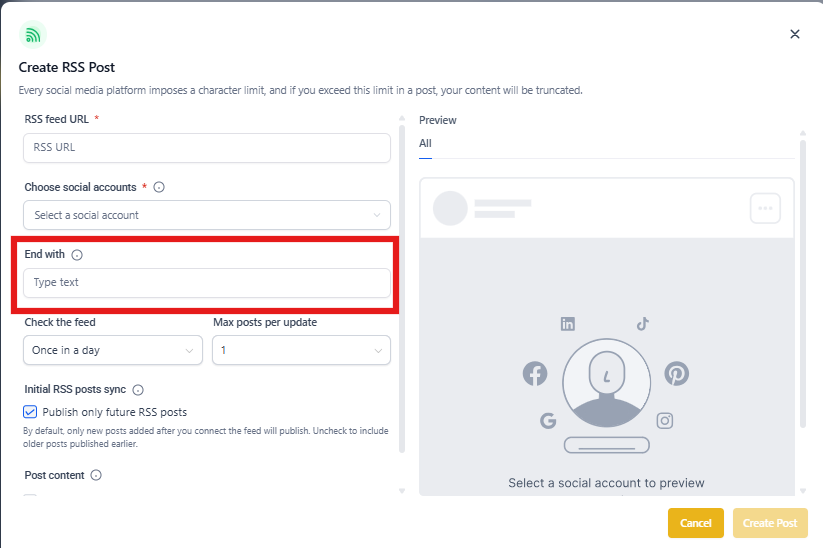
Step 4: Add Custom Text (Optional)
Use the "End with" field to add custom text, hashtags, or links to every post. This is perfect for:
- Adding your enrollment call-to-action: "Schedule a tour today!"
- Including branded hashtags:
#YourCenterName #QualityChildcare - Adding your enrollment page link
Step 5: Set Your Update Frequency
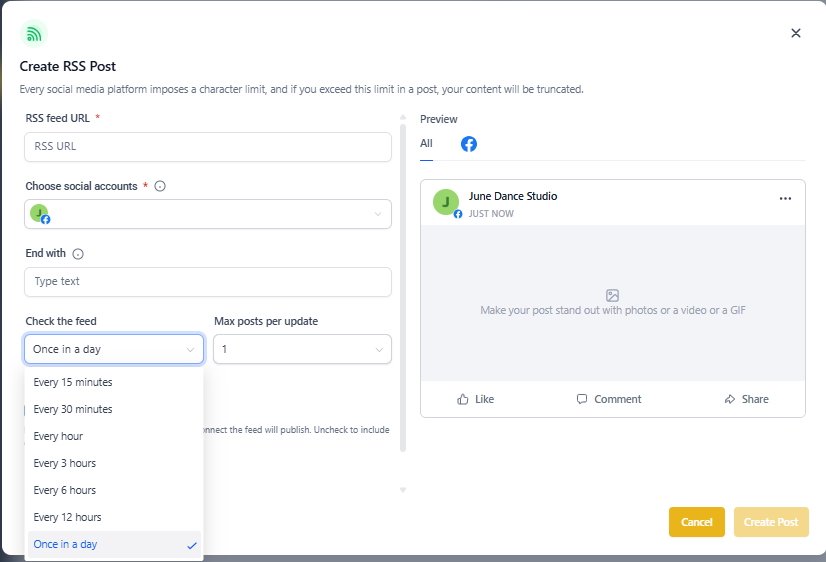
Choose how often Enrollio should check the RSS feed for new content:
- Every 5 minutes (for time-sensitive updates)
- Every 15 minutes
- Every 30 minutes
- Every hour
- Every 6 hours
- Once a day (recommended for most blogs)
Step 6: Set Maximum Posts Per Check
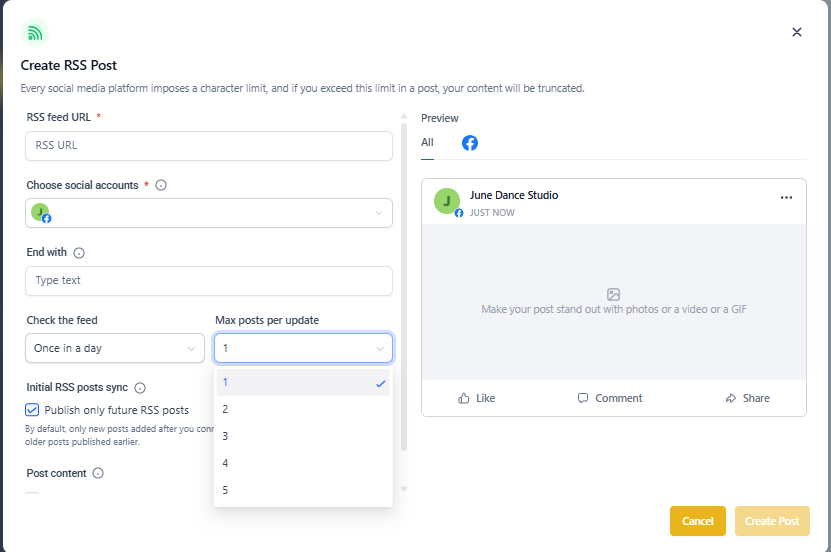
Choose how many new items to post each time the feed updates (1-5). If you select 3, Enrollio will publish the 3 most recent items from the feed.
Important: Each item posts only once. If the feed has no new content, nothing is posted—you'll never see duplicates.
Step 7: Include Descriptions (Optional)
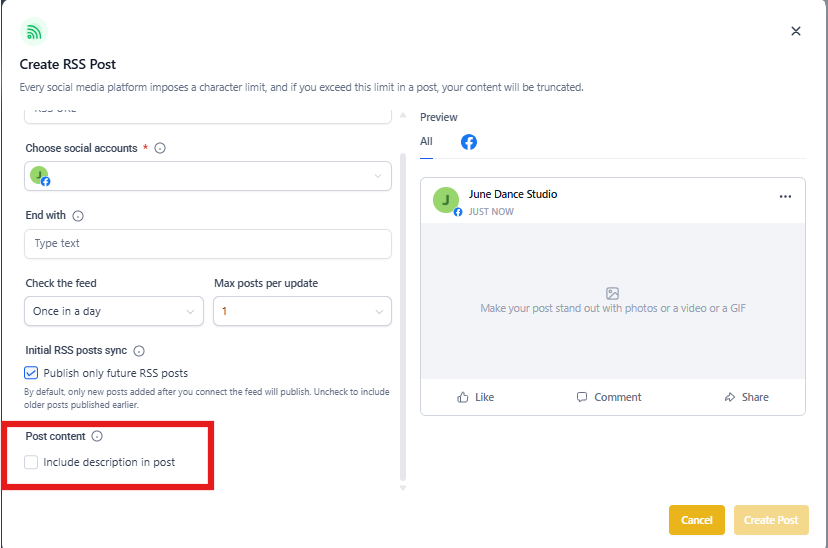
Toggle whether to include the full RSS item description in your posts:
- Enable: Posts include both the title and description from the RSS feed
- Disable: Posts include only the title (cleaner for some platforms)
Use the preview to see how your posts will look with different content lengths before you save.
Frequently Asked Questions
Can I change the frequency or maximum posts later?
Yes. Just edit the RSS post in Social Planner to adjust the update frequency or maximum posts at any time.
Will the same article post multiple times?
No. Enrollio tracks which items have been published. Each item from your RSS feed posts only once. If there's no new content when the feed is checked, nothing is posted.
Which social networks support RSS posting?
Most networks connected in Social Planner work with RSS feeds, including:
- Facebook Pages
- Instagram Business accounts
- LinkedIn Profiles and Pages
- Google Business Profile
Not supported: X (formerly Twitter) due to API restrictions.
Will images from my blog appear in the social posts?
Link previews (including images) are generated by each social network, not by Enrollio. For the best results:
- Make sure your blog posts include featured images
- Add Open Graph meta tags to your source pages
- Test a post manually first to see how the preview looks
What if I don't have a blog or RSS feed?
You can subscribe to RSS feeds from childcare industry blogs, news sites, or educational resources. Just be sure to add your own custom ending text so the posts feel branded to your center.
Can I pause or delete an RSS post?
Yes. Go to Marketing → Social Planner, find your RSS post, and edit or delete it anytime. Pausing or deleting stops future posts but doesn't remove posts that are already published.