
What is the Contact Form in Chat Widget?
The Contact Form is a pre-chat prompt that appears inside your Live Chat widget. When enabled, parents and prospective families must submit their contact details before they can start chatting with your team.
This ensures you always know who you're talking to and can follow up after the conversation ends—no more anonymous chats from interested families.
Key Benefits of Collecting Contact Details Up Front
- Guaranteed Lead Capture: Every conversation is associated with a family record—no anonymous inquiries slip through.
- Streamlined Follow-Up: Contact details collected upfront let your team (or automations) follow up without delay.
- Smart Re-entry for Return Visitors: Returning parents with an active chat skip the form and resume instantly. If their prior chat ended, the form re-appears.
- Reliable Session Continuity: Auto-reconnect preserves message history even after a page refresh.
- Cleaner CRM Data: Standardized intake reduces incomplete conversations and improves reporting.
How to Enable or Disable the Contact Form
Setting up the Contact Form takes just a few clicks and gives you full control over what information is collected before chat begins.
- Navigate to Sites → Chat Widget in your account.
- Select the Chat Widget you want to configure.
- Go to the Chat Window tab and open the Live Chat Assigned drop-down.
- Toggle ON the Enable Contact Form option.
- Click Save to publish the changes.
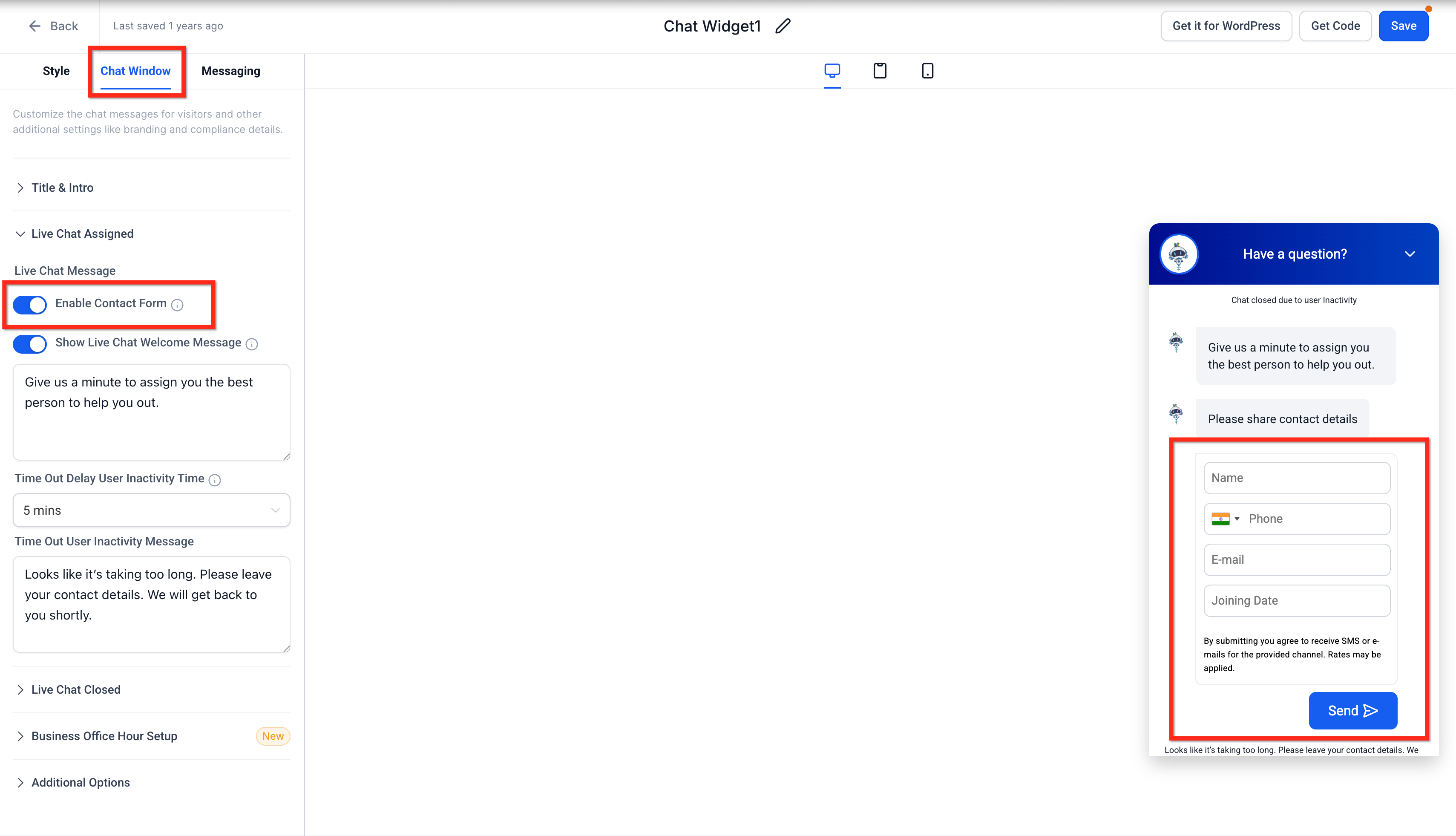
Note: To disable the form, simply toggle OFF the Enable Contact Form option. When disabled, the chat widget will not ask for contact details upfront and will start the conversation immediately.
Customize Contact Form Messages
You can customize the "Please share your contact details" prompt shown in your Chat Widget. There are two editable message fields, giving you full control over how and when contact details are requested.
Contact Form Intro Message (Auto Prompt)
When Enable Contact Form is ON, this message appears automatically just before the contact form displays.
The default copy is "Please share your contact details." If you leave the field blank, the widget skips the prompt and shows the form immediately.
To edit this message:
- Go to the Chat Window tab.
- Update the copy in the Contact Form Intro Message field.
Note: This field is only visible in the builder when the Enable Contact Form toggle is ON.
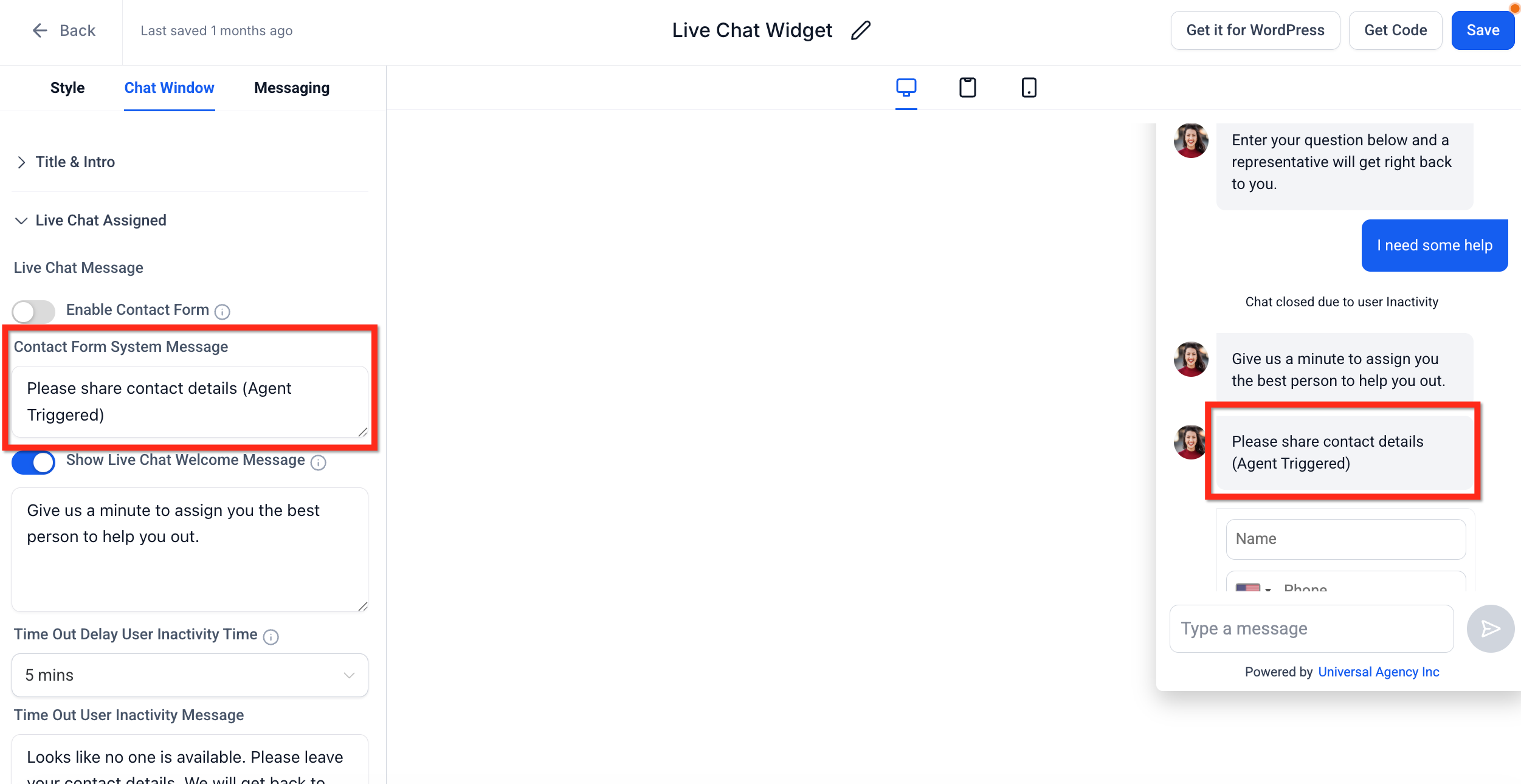
Contact Form System Message (Agent-Triggered)
When your team member clicks Request Contact Details in Conversations, this message displays. Staff can trigger it even if the Intro Message has already appeared.
To edit this message:
- Go to the Chat Window tab.
- Update the copy in the Contact Form System Message field.
The default copy is "Please share your contact details." If you leave the field blank, the widget skips the prompt and opens the form directly.
Note: This field is visible in the builder regardless of the Enable Contact Form toggle being ON or OFF.
Frequently Asked Questions
Which fields can I mark as required in the contact form?
Name is mandatory. Phone or Email is required to create a family record (at least one). You can also add supported custom contact fields within the five-field total.
If you mark any custom contact fields as required in the widget builder, visitors must complete them before they can submit the form.
What exactly counts as an "active chat" for smart re-entry?
An active chat is a session that hasn't been manually ended and hasn't expired due to inactivity. If it's still active, parents resume without filling the form again.
What happens if a visitor refreshes the page during a chat?
The widget auto-reconnects and preserves the conversation—no messages are lost.
Does the contact form requirement apply to all widgets or just one?
It applies to the specific widget you configure. Be sure you've selected the correct widget before enabling the toggle.
How does this interact with Business Office Hours?
During off hours, the widget still sends the contact details form. After submission, the chat is automatically closed and your team can follow up during business hours.
Can I trigger automations based on Contact Form submissions?
Yes. You can use triggers like "Parent Replied" to start automated follow-ups or task assignments for your enrollment team.
Do I need to add a privacy policy link when collecting personal data?
It's recommended. You can link your Privacy Policy from the chat window text/description for compliance transparency.
I have multiple chat widgets on my site. Will each follow its own form rules?
Yes. Each widget has its own configuration, so you can enforce the form on some widgets/pages and not others.