Editing Published or In-Review Meta Ad Campaigns
Running ads to attract families to your childcare center? Sometimes you need to tweak a live campaign without starting from scratch. Here's how to edit campaigns that are already published or under review in Meta Ad Manager.
Why Edit a Published Campaign?
Making changes to live campaigns lets you respond quickly to what's working (and what's not). You can:
- Fix mistakes from your initial setup
- Adjust targeting based on which families are responding
- Update your ad copy or images to better showcase your center
- Refine your budget as enrollment goals shift
Most importantly, you can make these changes without pausing your campaign and losing momentum with prospective families.
How to Edit a Published or In-Review Campaign
You can now edit most details of live campaigns or those waiting for Meta's approval—not just the budget.
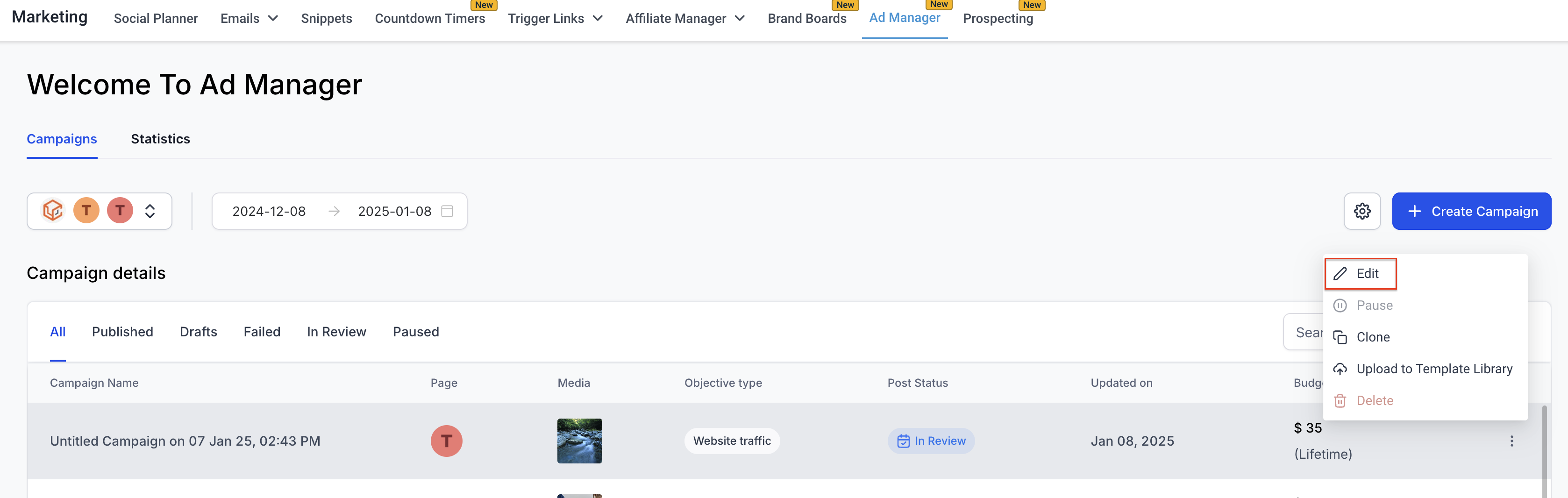
- Navigate to Ad Manager from your Enrollio dashboard
- Find the campaign you want to edit in your campaign list
- Click the three-dot menu next to the campaign
- Select Edit
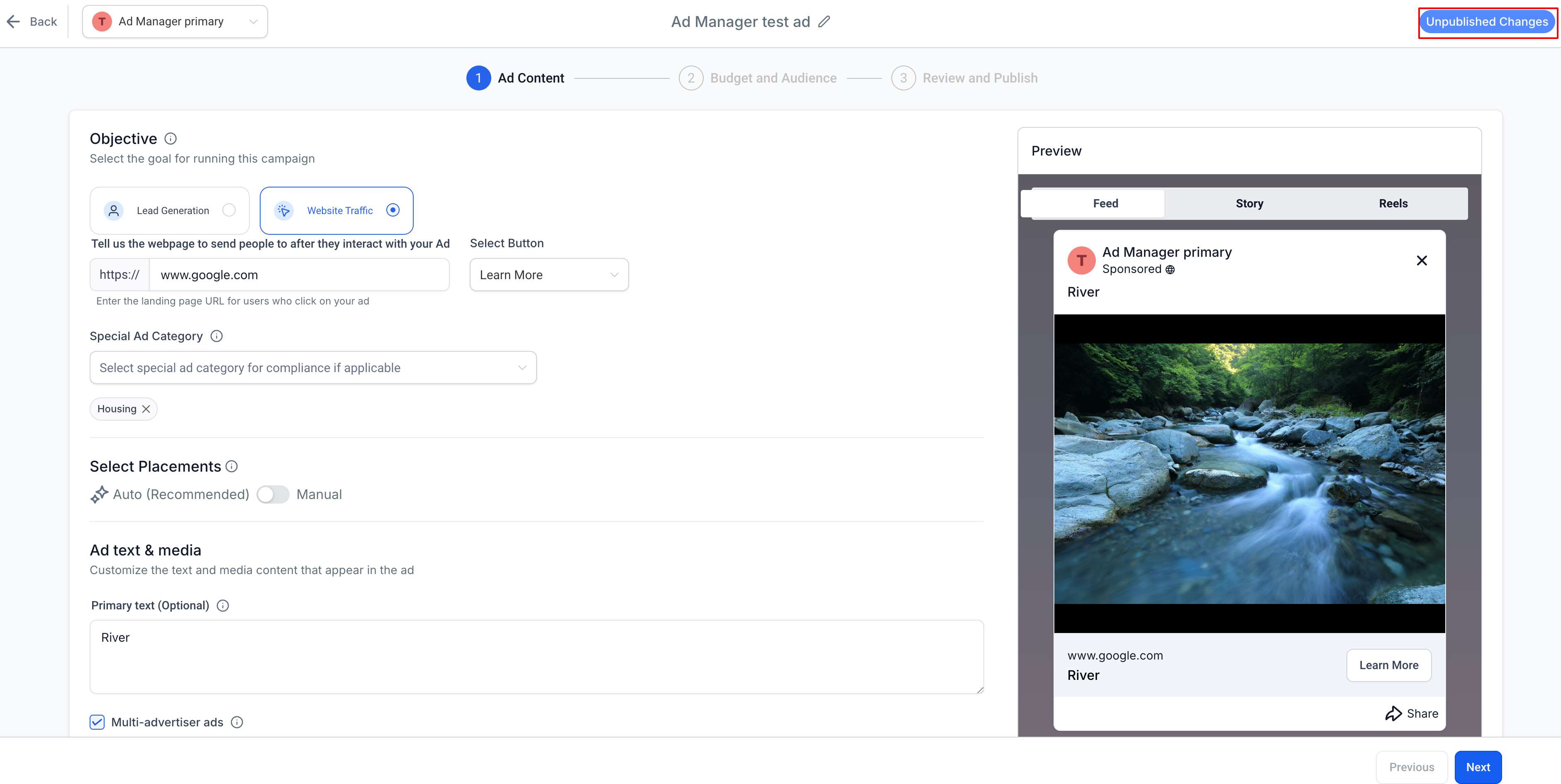
The campaign builder will open, letting you modify any editable fields.
Note: Once you make changes, you'll see an "Unpublished Changes" tag at the top right of your screen.
What You Can Edit
For published campaigns, you can modify:
- Campaign Name — Update to better reflect your promotion
- CTA Button — Change your call-to-action (like "Book a Tour" or "Learn More")
- Lead Generation Form — Switch forms or create a new one to capture parent information
- Website URL — Update the destination link for your enrollment site
- Special Ad Category — Add or change if required by Meta
- Placements — Adjust where your ads appear (Facebook, Instagram, etc.)
- Ad Text and Media — Revise your copy or swap images and videos
- Budget — Increase or decrease your daily or lifetime spend
- Geographic Location — Refine which neighborhoods or cities you're targeting
- Target Audience — Update interests, demographics, or retargeting settings
- End Date — Extend or shorten your campaign timeline (for lifetime budgets)
What You Can't Change
Some fields are locked once a campaign is published:
- Campaign Objective — You can't switch from lead generation to traffic, for example
- Facebook Page — The page running the campaign stays the same
- Start Date — Can't be changed once the campaign is live
- Budget Type — You can't switch between daily and lifetime budgets
If you need to change any of these, you'll need to create a new campaign.
Discarding Your Changes
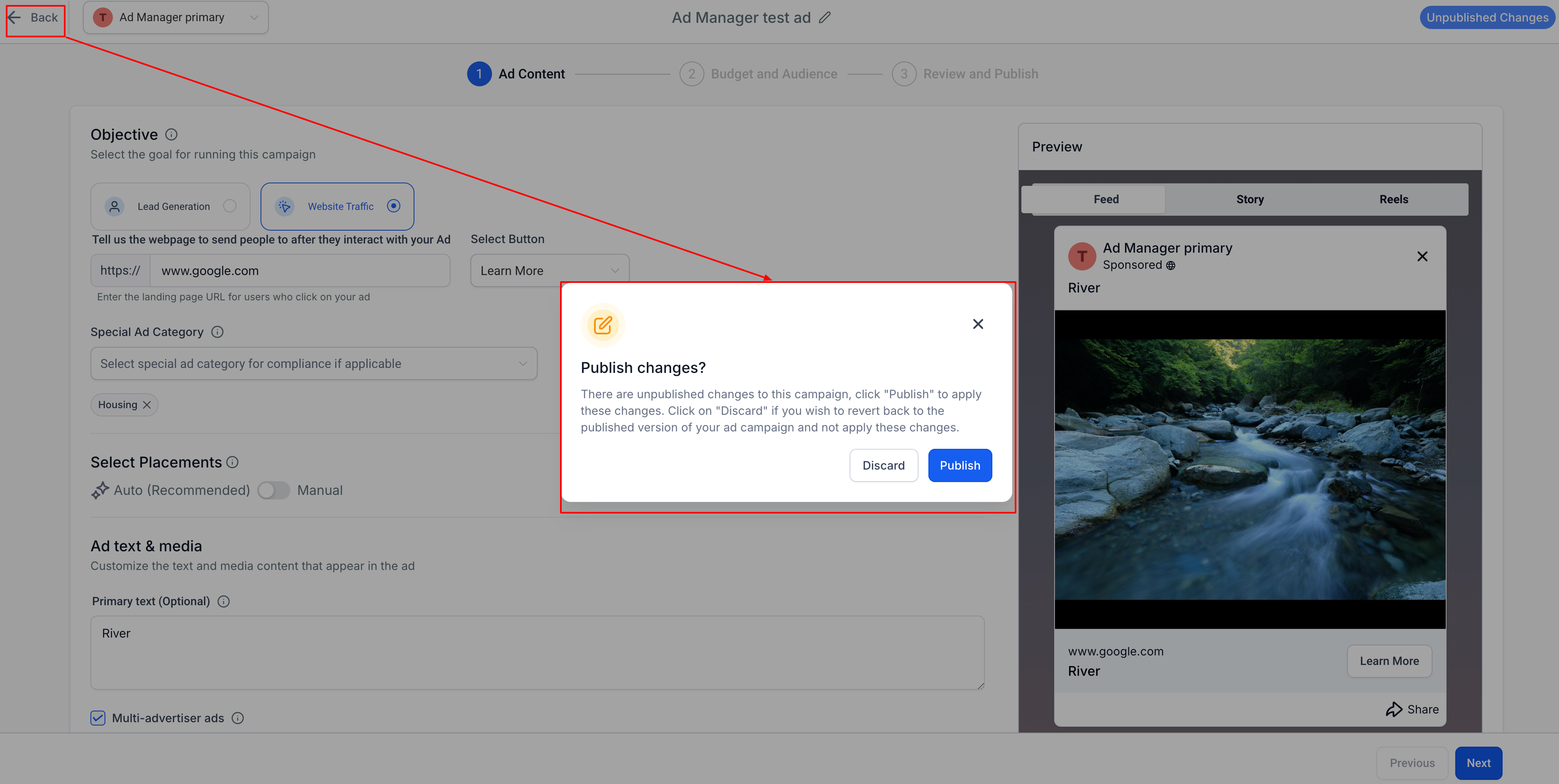
Changed your mind? You can revert to the original campaign settings before publishing.
- Click the Back button at the top left of the campaign builder
- When prompted, select Discard
Your campaign will remain in its original state, and none of your edits will be applied.
Publishing Your Updated Campaign
Ready to apply your changes?
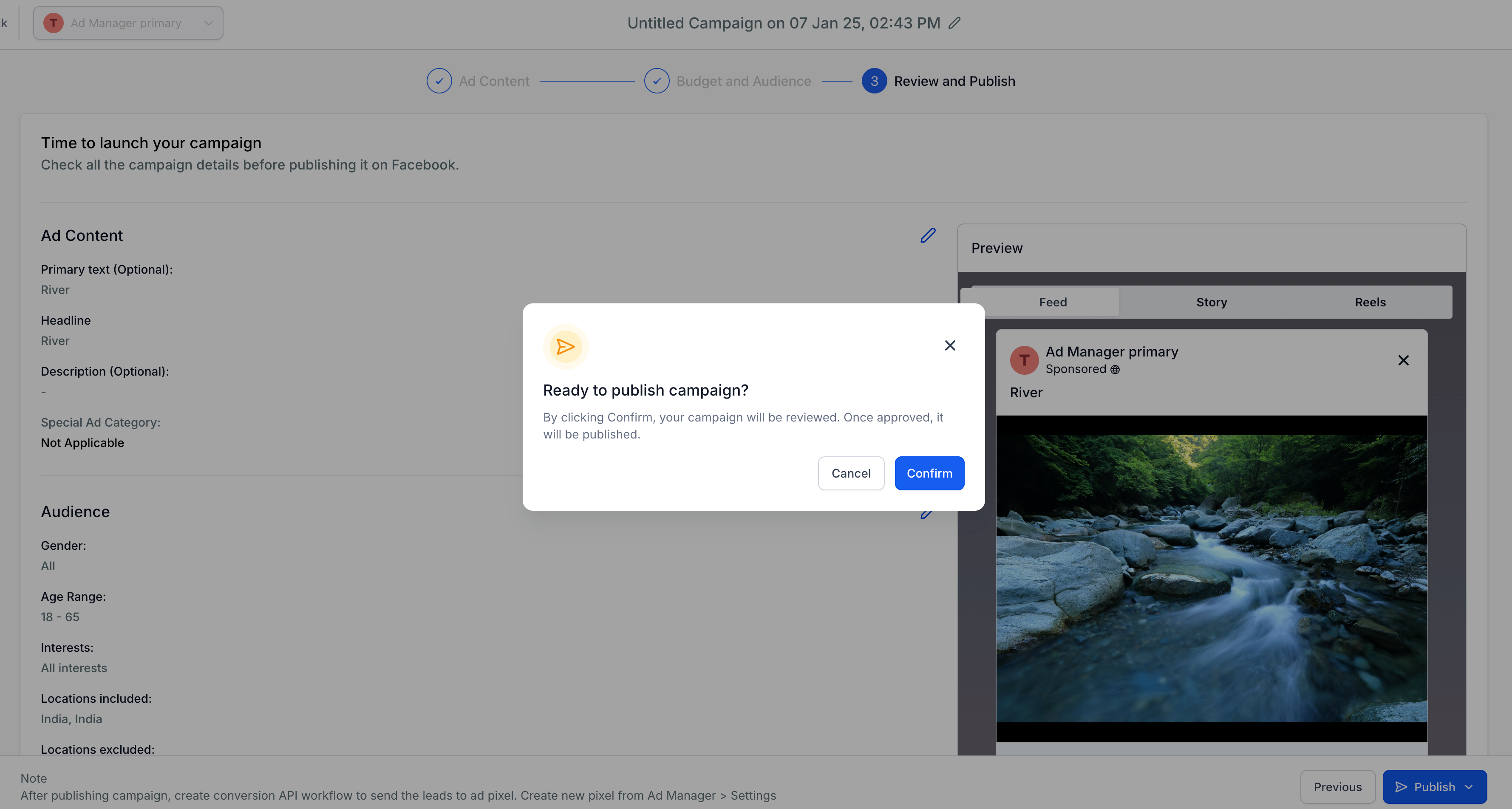
- Review your edits on the review page
- Click Publish Ad Now
- Confirm when prompted
Your campaign will move to "In Review" status while Meta approves the changes. Once approved, your updated campaign will go live and start reaching prospective families with your new settings.
If there's an issue with your edits, the campaign status will change to "Failed" with an explanation in the tooltip next to the status.