
Recurring posts help you maintain a consistent social media presence by automatically scheduling evergreen content. Share enrollment tips, center updates, or seasonal reminders on a daily, weekly, monthly, or yearly schedule—without manual posting.
What Are Recurring Posts?
Recurring posts let you schedule content to repeat automatically across your social media platforms. Perfect for childcare centers that want to:
- Share weekly enrollment tips or parent resources
- Post daily inspirational quotes or activity ideas
- Announce seasonal programs at the start of each session
- Celebrate monthly milestones or achievements
- Remind families about recurring events like parent nights
Create your content once, set your schedule, and Enrollio handles the rest.
How to Create a Recurring Post
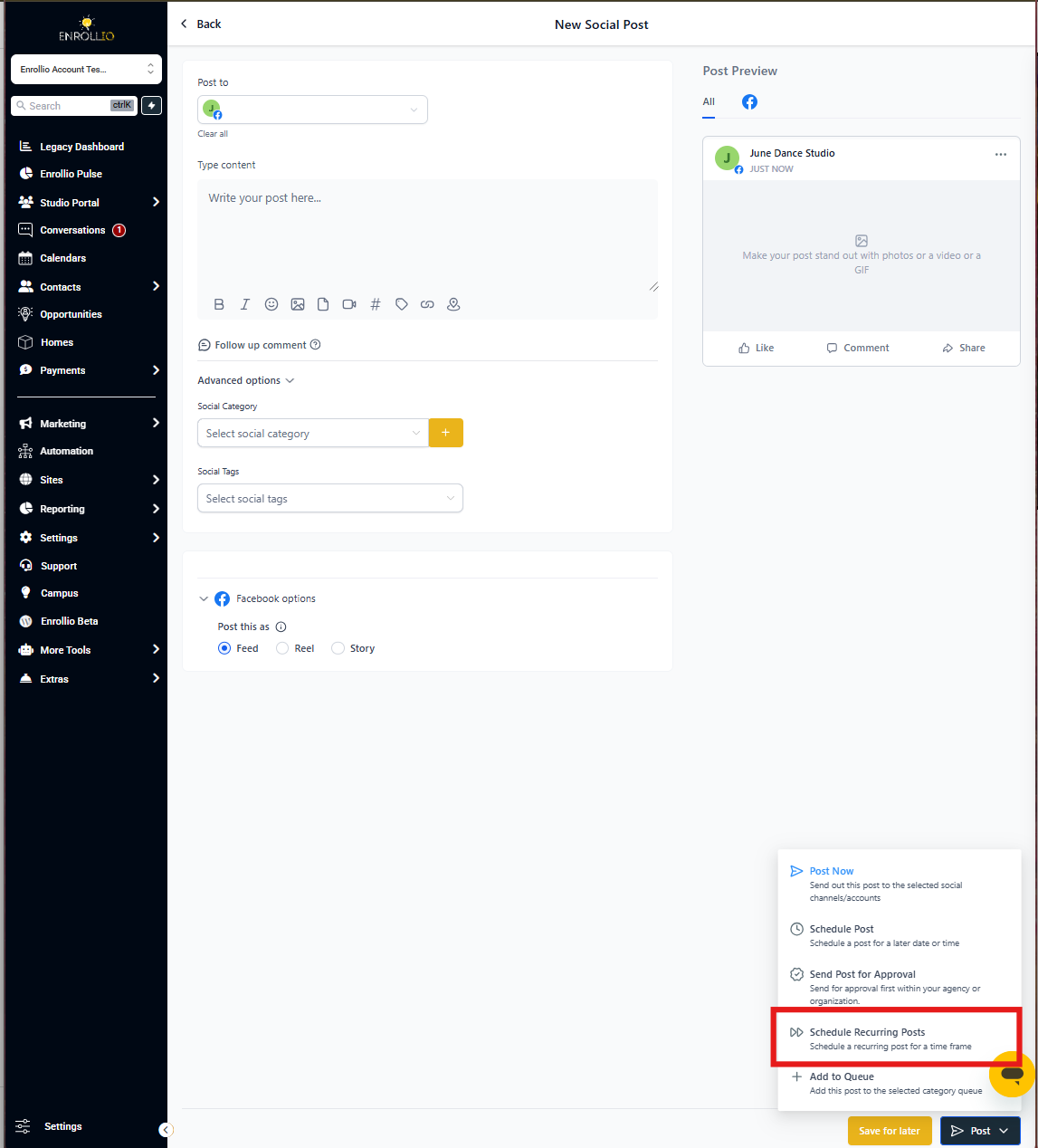
- Go to Marketing → Social Planner
- Click New Post → Create New Post
- Select the social platforms where you want to post
- Write your post content (or use AI to generate it)
- Toggle on Recurring Schedule
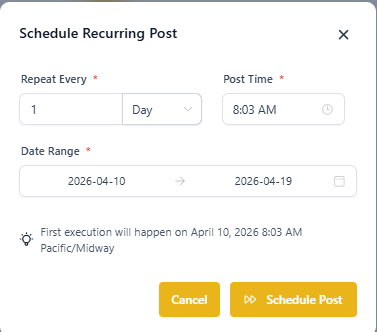
- Choose your repeat frequency (see options below)
- Set your date range and posting time
- Click Schedule
Scheduling Options
Daily
Post the same content every day within your date range. Choose the time of day you want it published.
Great for: Daily reminders, motivational quotes, or enrollment deadlines
Weekly
Select specific days of the week when you want your post to repeat. Choose your posting time and date range.
Great for: Weekly tips for parents, Thursday tour reminders, or Friday highlights
Monthly
Choose a specific date each month to publish your post. Set your posting time and how long the series should run.
Great for: Monthly tuition reminders, curriculum updates, or enrollment status reports
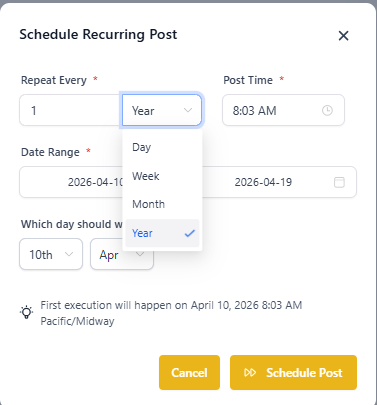
Yearly
Schedule posts to repeat annually on a specific date—perfect for recurring events and celebrations.
Great for: Registration open dates, annual events, or anniversary celebrations
Managing Your Recurring Posts
Once scheduled, your recurring post appears in three places:
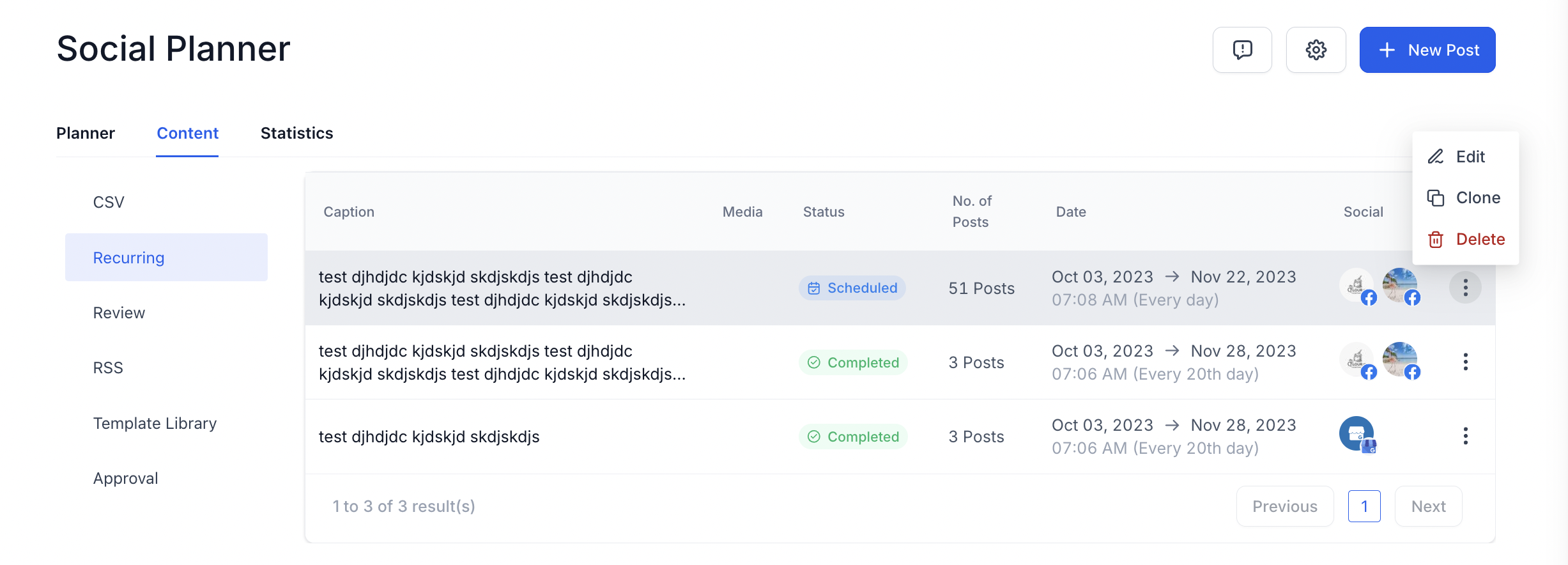
Recurring Posts Tab
Find all your recurring post templates in Content → Recurring Posts. This is your parent post—the master template for all scheduled instances.
- Edit: Updates all future posts in this series
- Delete: Removes the entire recurring series
Calendar View
See individual scheduled posts on your content calendar. Each post can be edited independently.
- Edit: Changes only that specific post, not the series
- Delete: Removes only that individual post
List View
View upcoming posts in chronological order. The next post to publish appears at the top.
- Edit: Modify that specific scheduled post
- Delete: Cancel that individual post
Editing Recurring Posts
Editing the parent post: Changes apply to all future posts in the series. Already-published posts remain unchanged.
Editing an individual post: Changes apply only to that specific instance. The parent template and other scheduled posts stay the same.
Best Practices for Recurring Posts
Review Regularly
Check your recurring posts every quarter to ensure content stays current—especially if you've updated programs, tuition, or policies.
Add Variety
Mix recurring posts with real-time updates and photos from your center. Recurring content keeps you consistent; fresh content keeps you authentic.
Avoid Over-Automation
Some platforms (like Twitter/X) flag repetitive content. Vary your wording slightly or add different images to keep posts fresh.
Use AI Thoughtfully
Let AI help generate post ideas, but add your center's personality and specific details before scheduling.
Match Platform Policies
Each social platform has different rules about automated posting. Facebook and Instagram are generally friendly to recurring content; Twitter/X is more sensitive to repetition.
Ideas for Childcare Centers
- Weekly enrollment tips: Share enrollment deadlines, tour availability, or application steps every Monday
- Daily parent resources: Post activity ideas, developmental milestones, or parenting tips
- Seasonal program reminders: Announce summer camp, holiday hours, or registration periods at the start of each season
- Monthly milestone celebrations: Highlight staff anniversaries, classroom achievements, or community partnerships
- Yearly event announcements: Promote your open house, fundraiser, or registration launch on the same date annually
- Recurring FAQ content: Reshare popular posts about your curriculum, safety protocols, or tour process for new followers
Frequently Asked Questions
Can I schedule recurring posts for specific holidays or annual events?
Yes! Use the yearly frequency option to create posts that repeat on the same date every year—perfect for registration deadlines, open houses, or annual celebrations.
What happens if I edit the parent post of a recurring series?
Your changes apply to all future scheduled posts. Posts that have already been published won't change. Individual upcoming posts can still be edited separately if needed.
Can I include images and videos in recurring posts?
Absolutely. Add images from your media library or generate them with AI. You can include different media types, but each individual post can only have one media format at a time.
How do time zones work with recurring posts?
Posts publish based on your account's time zone setting. If you operate in multiple time zones, schedule separate recurring posts for each region.
How far in advance can I schedule recurring posts?
You can set date ranges as far into the future as needed—whether that's a few months or several years for annual events.
Can I pause a recurring post series without deleting it?
Not directly, but you can edit the parent post to change the end date to today. This stops future posts from scheduling. To restart, create a new recurring series.
Can I create different recurring posts for different social platforms?
Yes. When creating your recurring post, select only the platforms you want. Create separate recurring posts for different platform strategies.
Can recurring posts be part of a larger campaign?
Definitely. Use recurring posts for consistent messaging while adding one-time posts for timely updates, events, and real-time engagement.
How can I make recurring posts accessible to all families?
Add alt text to images, use clear language, include captions on videos, and ensure proper contrast in graphics. Review accessibility settings when creating your content.
How do I keep recurring posts from feeling automated?
Balance recurring content with authentic, real-time posts featuring your staff and children. Vary your language slightly in the parent template, and personalize individual posts when appropriate. Add current photos instead of stock images.