
How to Customize Posts for Each Social Media Platform
Save time and maximize engagement by customizing your social media posts for each platform — all from one place. Tailor your content to fit different character limits and formats for Facebook, Instagram, LinkedIn, and Google Business Profile without creating separate posts from scratch.
What is the "Customize for Each Post" Feature?
This feature lets you create platform-specific content while managing everything in one interface. Instead of posting the same generic message everywhere, you can craft unique posts that work best for each platform.
Key benefits:
- Multi-platform posting: Select multiple platforms (Facebook, Instagram, LinkedIn, Google Business Profile) and customize content for each one
- Smart content adjustment: Automatically see character limits for each platform so you never exceed them
- Toggle on/off: Switch between customized content and a single post for all platforms with one click
- AI assistance: Use Content AI to generate posts up to 900 words and adapt them for different platforms
- Scheduling: Post immediately or schedule for later to automate your social media presence
This is perfect for childcare centers that want to share enrollment updates, photos from the classroom, or community events while keeping the right tone and length for each platform.
How to Use This Feature
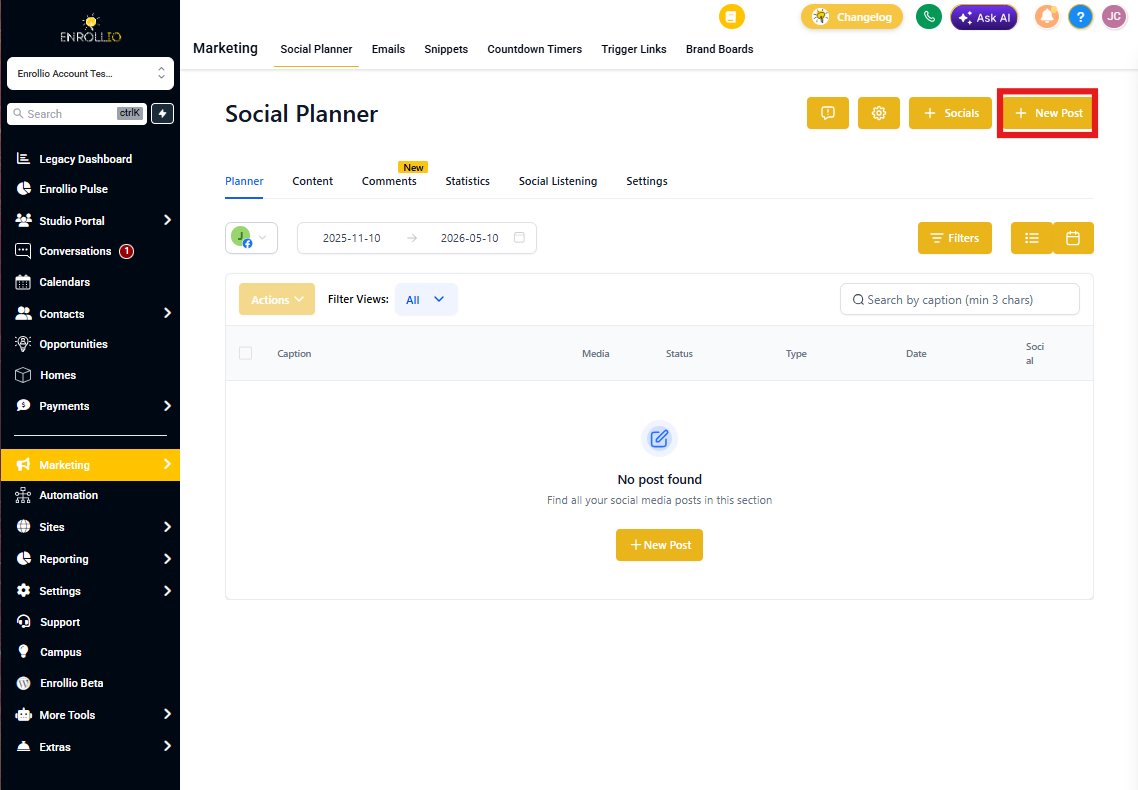
Step 1: Navigate to Social Planner
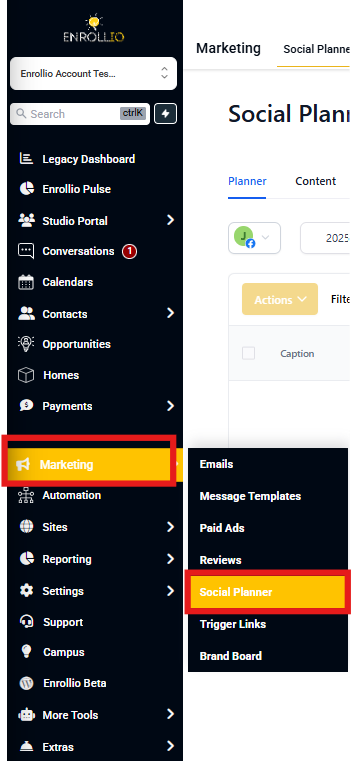
- Click Marketing in the sidebar menu
- Select Social Planner
- Click Create New Post
Step 2: Select Multiple Platforms
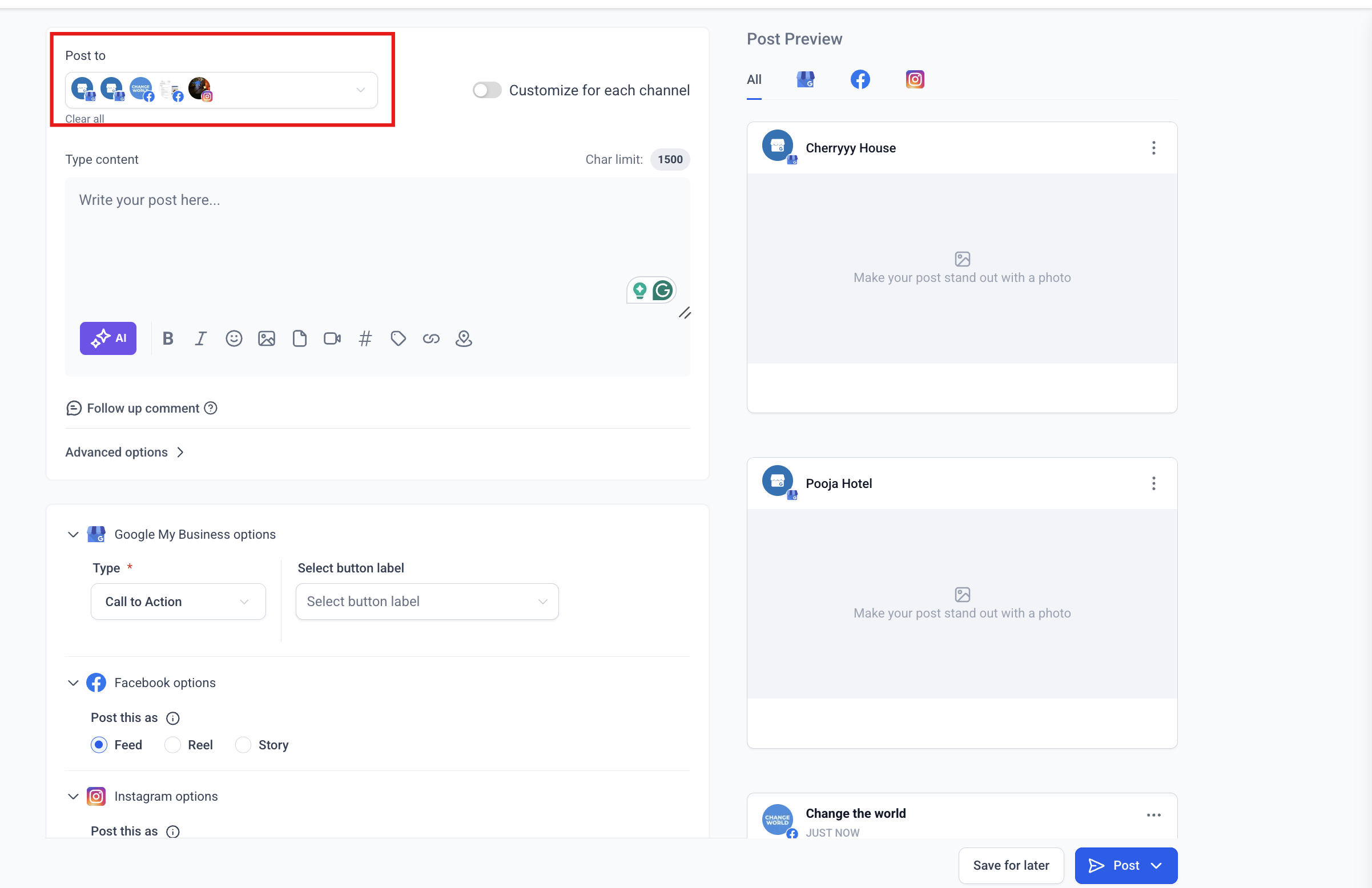
Choose at least two social media platforms where you want to post. The customization option only appears when multiple platforms are selected.
Available platforms:
- Facebook Pages & Groups
- Instagram Business Profiles
- LinkedIn Pages & Profiles
- Google Business Profile
Step 3: Enable Customization
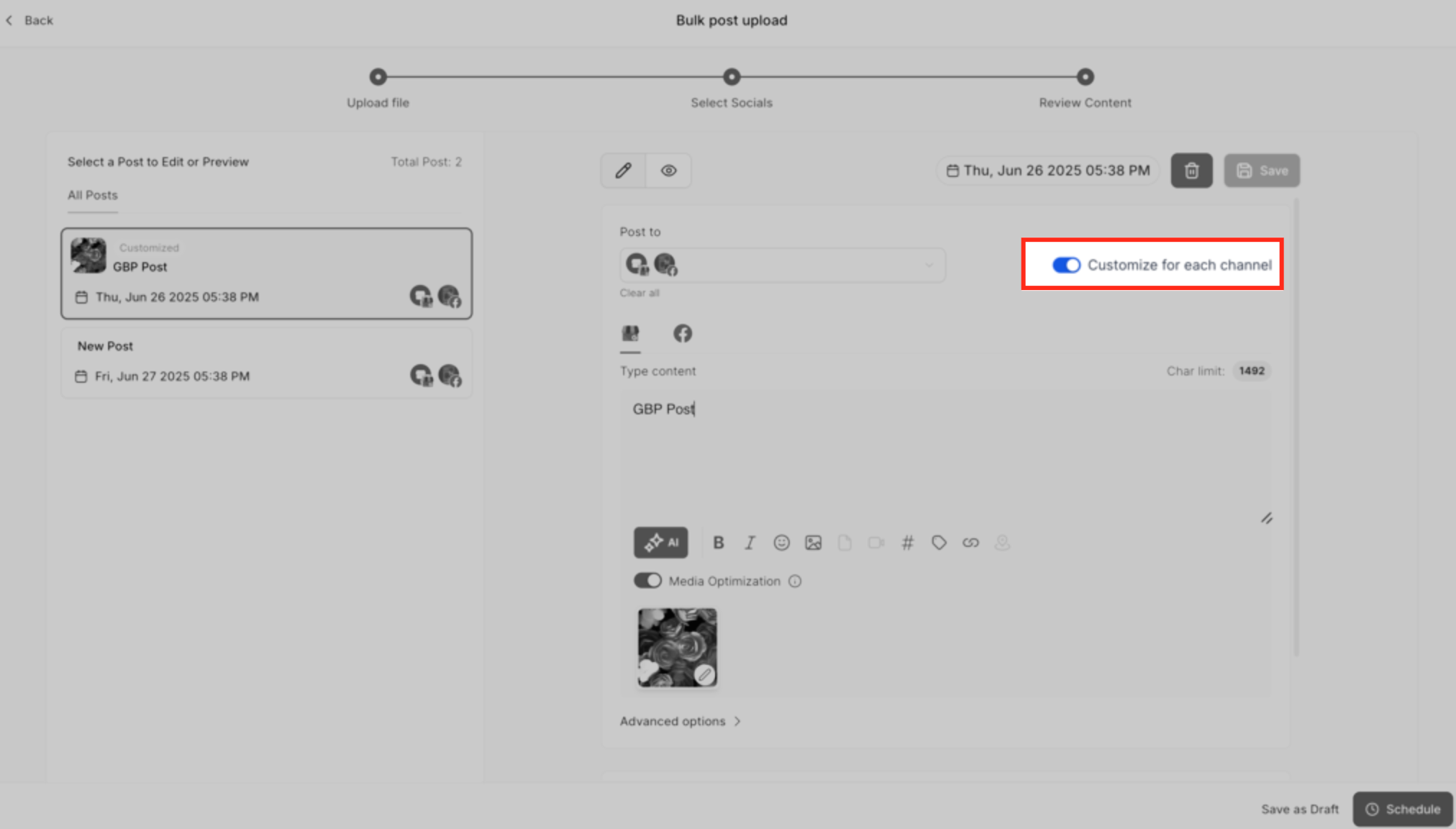
Once you've selected multiple platforms, you'll see a toggle labeled "Customize for Each Post." Turn this on to create unique content for each platform.
Pro tip: If you turn off this toggle later, your customized content will be lost and replaced with whatever is in the active platform's content box. Enrollio will warn you before this happens.
Step 4: Write Platform-Specific Content
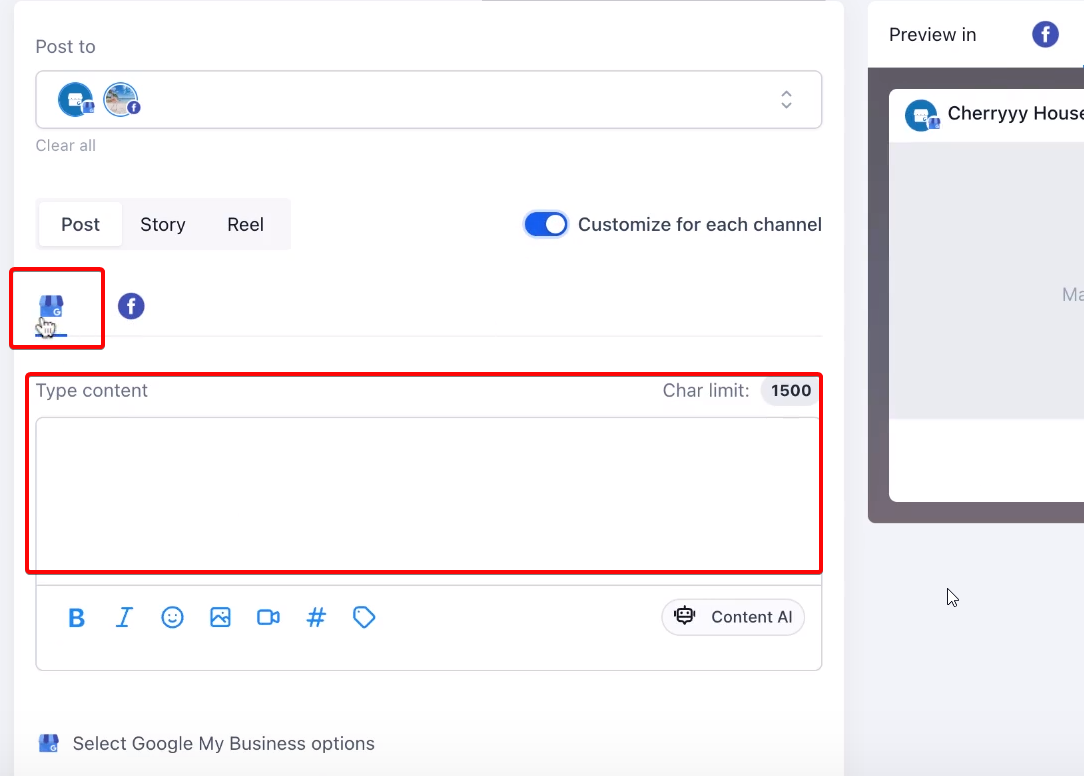
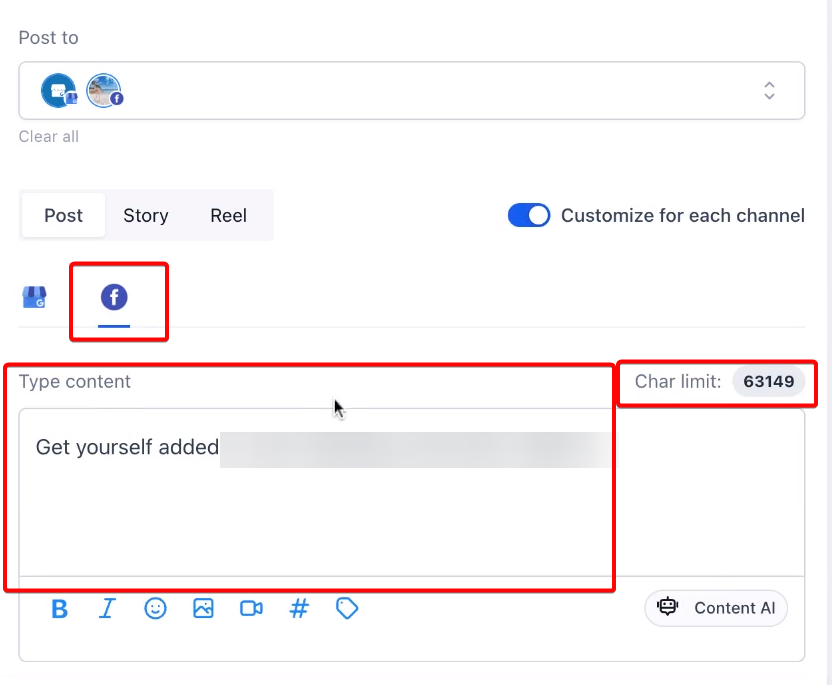
Click between the platform tabs to write unique content for each one. Pay attention to the character limits displayed for each platform.
Character limits by platform:
| Platform | Character Limit |
|---|---|
| Facebook Pages & Groups | 5,000 |
| Instagram Profiles | 2,200 |
| LinkedIn Pages & Profiles | 3,000 |
| Google Business Profile | 1,500 |
The platform will show a warning if your content exceeds the character limit. You'll need to shorten it before posting.
Step 5: Add Images or Videos
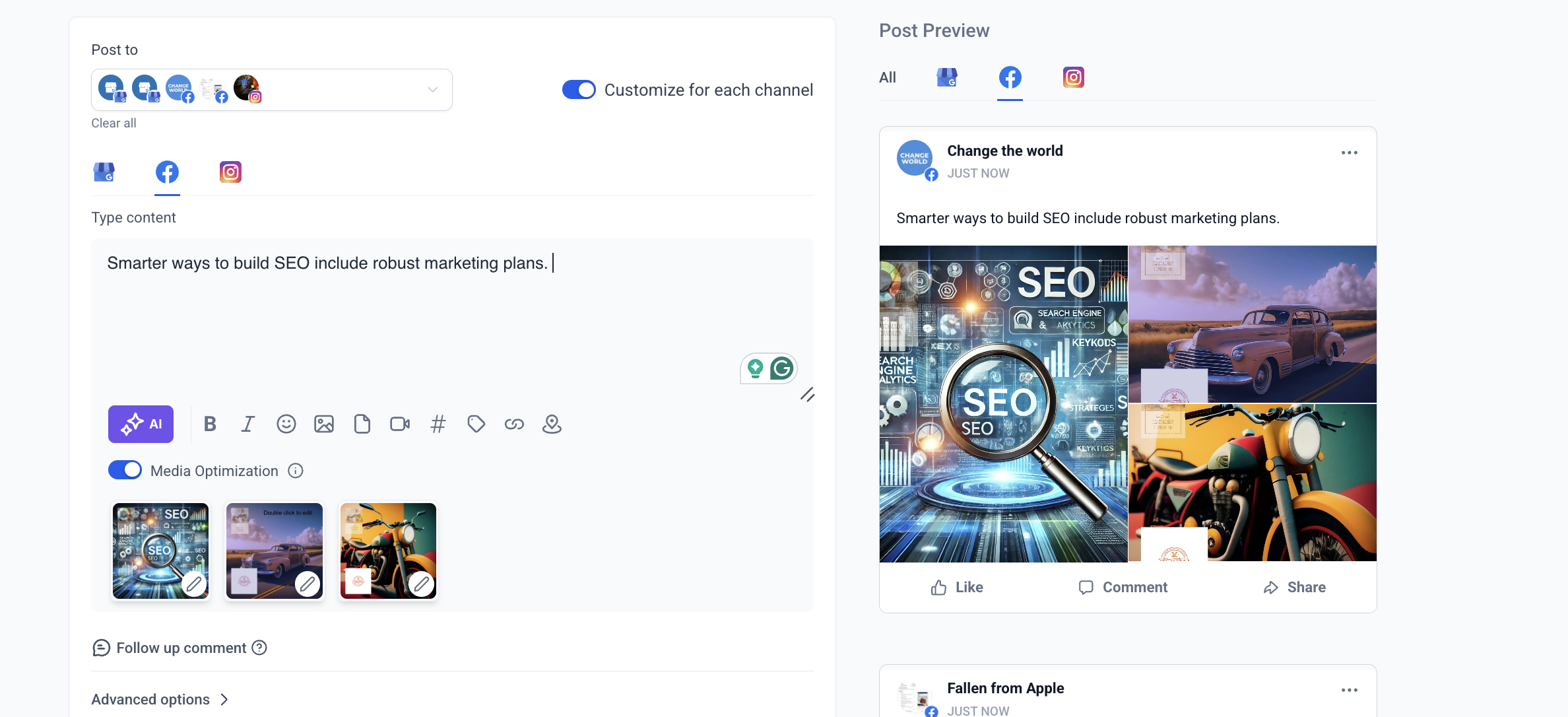
Upload photos from your center, videos of classroom activities, or other visual content to make your posts more engaging. You can add different media to each platform if needed.
Important:
- Don't switch platforms while media is still uploading — it will cancel the upload
- Don't toggle off the customization feature while media is uploading — it will remove the upload in progress
- If you're adding a video thumbnail and switch platforms while it's processing, you may need to reapply the thumbnail
Step 6: Use Content AI (Optional)
If you want help writing your post, click the Content AI option. The AI can generate content up to 900 words and adjust it to fit different platform requirements.
This is especially helpful when you need to create multiple versions of an enrollment announcement or event promotion quickly.
Step 7: Post Now or Schedule
Review your content for each platform one more time, then either:
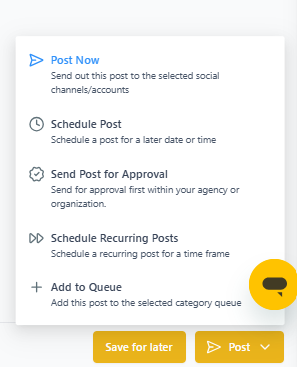
- Post immediately: Click "Post Now" to publish across all selected platforms right away
- Schedule for later: Choose a date and time to automatically post when it makes the most sense for your audience
Real-World Use Cases
Enrollment Announcements
Facebook: Write a longer, warm message about available spots with details about your program
Instagram: Keep it short and visual-focused with a strong call-to-action
LinkedIn: Take a more professional tone highlighting your educational approach
Google Business Profile: Brief, direct message with a clear next step
Event Promotions
Facebook: Full event details with RSVP information
Instagram: Eye-catching image with minimal text and event hashtags
LinkedIn: Professional framing about community involvement
Google Business Profile: Quick event overview with date, time, and location
Daily Updates
Facebook: Share multiple classroom photos with detailed captions
Instagram: Single best photo with engaging caption and relevant hashtags
LinkedIn: Educational focus on child development milestones
Google Business Profile: Brief update about center activities
Frequently Asked Questions
What if my content exceeds the character limit for a platform?
Enrollio will display a warning when you exceed the limit. You'll need to shorten the content before you can post. The character count updates in real-time as you type, so you'll always know where you stand.
What happens if I turn off the customization toggle?
If you turn off "Customize for Each Post," the content from whichever platform tab you're currently viewing will apply to all selected platforms. Enrollio will warn you that any customized content for other platforms will be lost.
Can I save customized posts as drafts?
Yes. If you're not ready to post or schedule, you can save your work as a draft and come back to finish it later. All your platform-specific customizations will be saved.
Do I have to customize content for every platform?
No. You can leave some platforms with the same content while customizing others. Just switch between platform tabs and only change the ones you want to customize.