
Lookalike audiences help you reach new families who are similar to your best current parents. When you create a lookalike audience, Facebook finds people who match the characteristics of your existing families—making your ads more effective and your budget go further.
This article walks you through creating lookalike audiences in Enrollio's Ad Manager and using them in your campaigns.
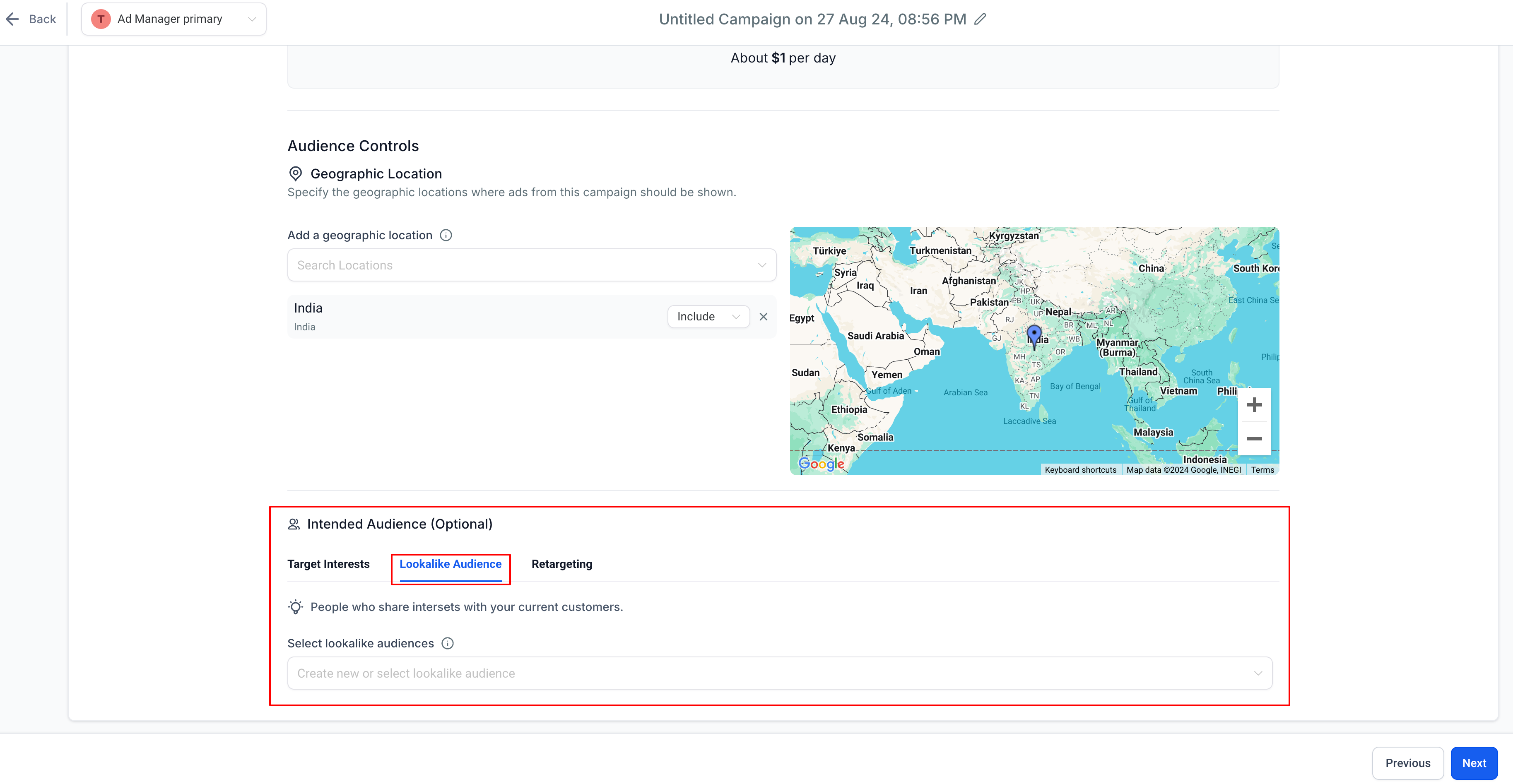
Where to Find the Lookalike Audience Option
You'll create lookalike audiences during the campaign setup process:
- Start creating a new ad campaign in Ad Manager
- Navigate to the Budget and Audience step
- Look for the Audience Controls section
- Click the Lookalike Audience tab
- Open the dropdown menu and select Create a Lookalike Audience
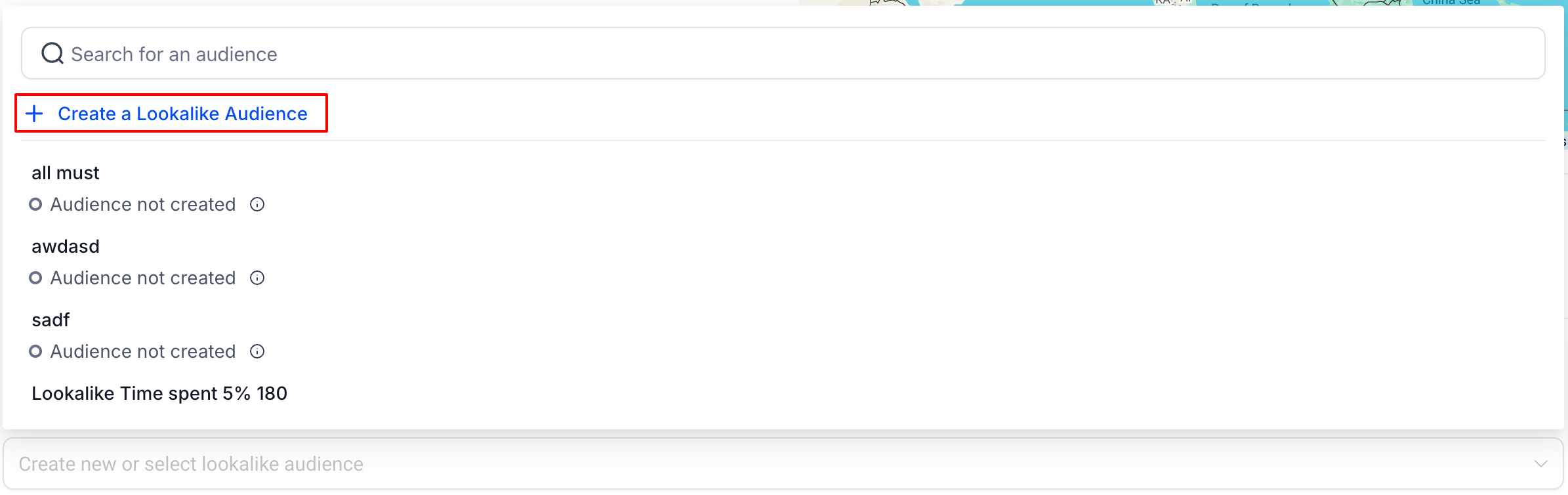
How to Create a Lookalike Audience
A lookalike audience uses your existing families as a template to find new prospective families who share similar characteristics. This means your ads reach people who are more likely to be interested in your childcare program.
Click Create a Lookalike Audience to open the setup dialog. You'll need to define four key details:
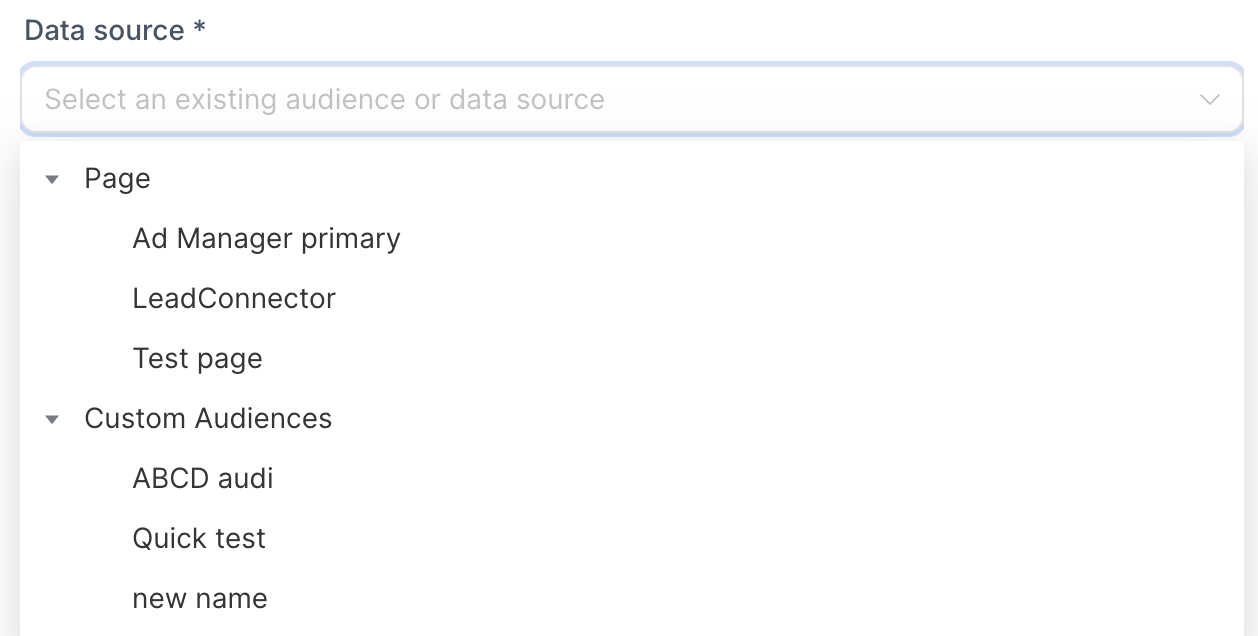
1. Data Source
Choose what Facebook should use as the template for finding similar families. You have two options:
- Page — Select one of your Facebook Pages connected to Ad Manager. Facebook will find people similar to those who engage with your page.
- Custom Audiences — Select an existing custom audience you've already created in Ad Manager (like parents who visited your enrollment page).
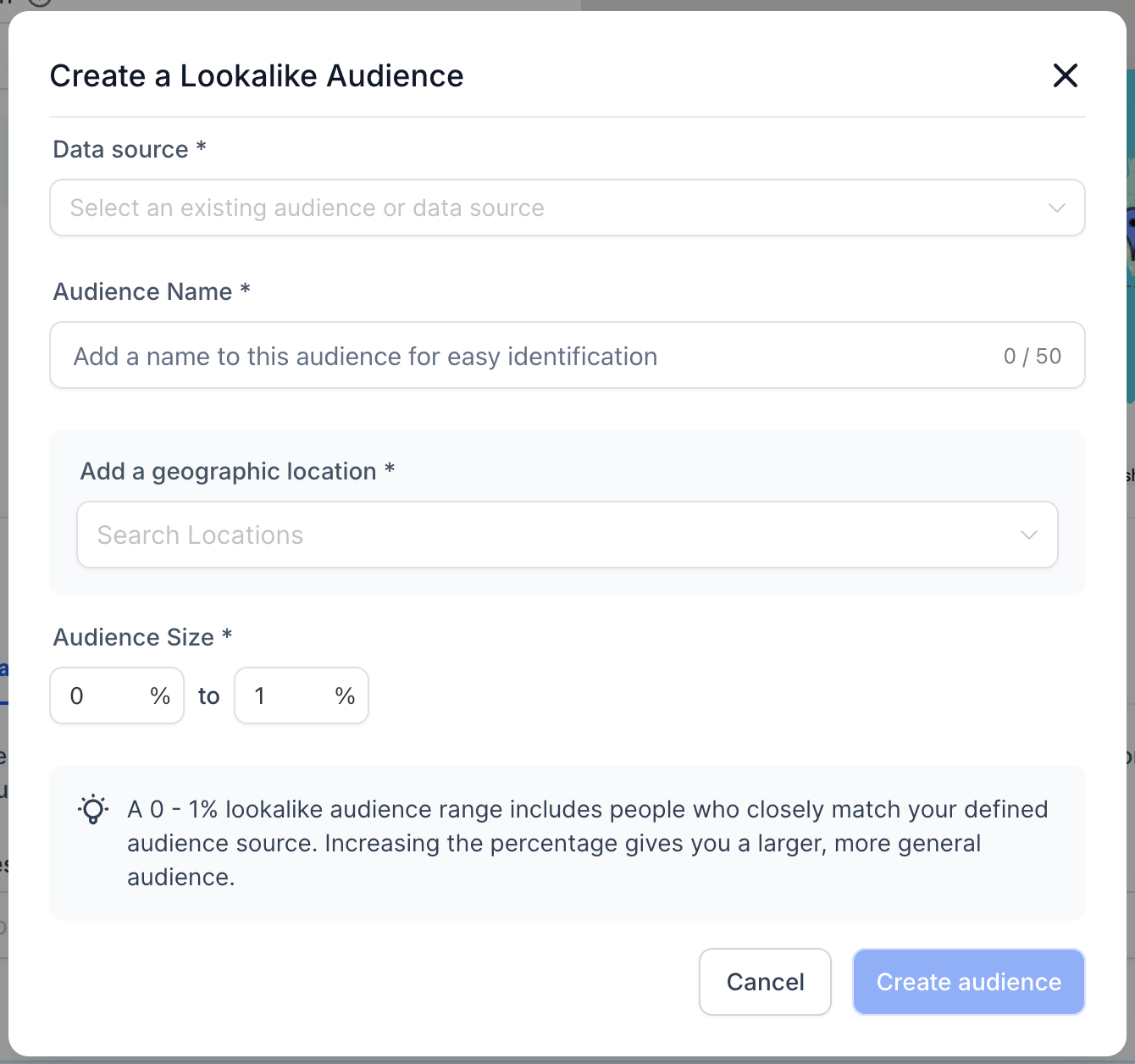
2. Audience Name
Give your audience a descriptive name so you can easily identify it later. For example: "Parents Similar to Tour Requests" or "Lookalike - Website Visitors."
3. Geographic Location
Select the country or countries where you want Facebook to find similar families. Facebook will search for people in these locations who match your source audience's characteristics.
Note: You can only select countries at this time—cities, neighborhoods, or states aren't supported for lookalike audiences.
4. Audience Size
Choose a percentage range from 0-10%. This determines how closely the lookalike audience matches your source:
- 0-1% — Most similar to your source families (smaller, more precise audience)
- 2-5% — Moderately similar (balanced reach and relevance)
- 6-10% — Broadly similar (larger audience, less precise match)
Start with 1-2% for the best match to your existing families. You can always create larger audiences later if needed.
Click Create Audience when you're done. Your new lookalike audience will appear in the dropdown menu, but it won't be ready to use immediately.
Understanding Audience Status
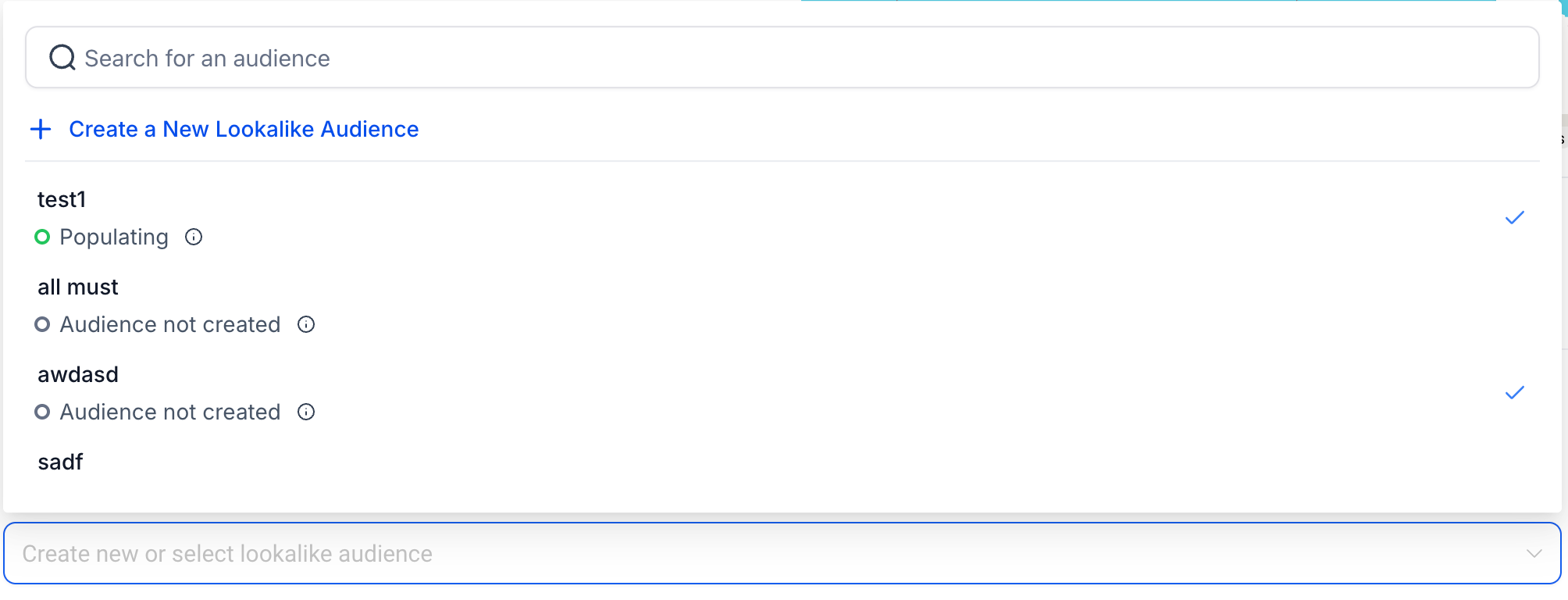
Your lookalike audience goes through different states before it's ready. Here's what each status means:
Populating
Facebook is building your lookalike audience. This takes 6-24 hours. You'll see this status immediately after creating a new audience.
Once your audience is ready and you start using it in campaigns, Facebook will automatically refresh it every 3-7 days to keep it current.
Ready
Your audience is built and ready to use in campaigns. You can select it from the lookalike audience dropdown when setting up ads.
Audience Not Created
Something went wrong during creation. This usually means your source audience was too small—Facebook needs at least 100 people in your source to create a lookalike audience.
If you see this status, try creating a new audience with a larger source, or use a different data source.
Pro Tip
You can use audiences in the "Populating" state when creating campaigns. By the time your ad is approved and ready to run, the audience will likely be ready too. This saves you time waiting.
Using Your Lookalike Audience
Once your lookalike audience shows "Ready" or "Populating" status, you can select it when creating any new campaign:
- Create a new ad campaign
- Go to the Budget and Audience step
- Click the Lookalike Audience tab
- Select your audience from the dropdown menu
Your ads will now reach families who are similar to your best existing parents—helping you fill your enrollment pipeline with qualified leads.