
Overview
This article walks you through connecting your LinkedIn profile or company page to Enrollio's Social Planner. Once connected, you can schedule and manage LinkedIn posts directly from your dashboard — perfect for sharing updates about your childcare center, staff highlights, and community engagement.
What is LinkedIn Integration?
LinkedIn integration lets you connect your personal profile or business page to Social Planner. Once connected, you can schedule, publish, and manage LinkedIn posts right from Enrollio.
This streamlines your social media efforts, saving time and improving your center's visibility in the community.
Key Benefits
Connecting LinkedIn to Enrollio gives you:
- Direct scheduling — Publish posts to LinkedIn profiles or pages without leaving Enrollio
- Unified dashboard — Manage multiple social accounts in one place
- Connection monitoring — See token validity and reconnect when needed
- Team collaboration — Control access and permissions for your staff
Before You Begin
Make sure you have admin access to the LinkedIn Page you want to connect. Your integration token is valid for approximately 60 days — after that, you'll see a "Reconnect" prompt to renew access.
If the connection fails due to missing permissions, the account will show a "Permissions Missing" status. Simply follow the setup steps again to reauthorize.S
Connecting LinkedIn Step-by-Step
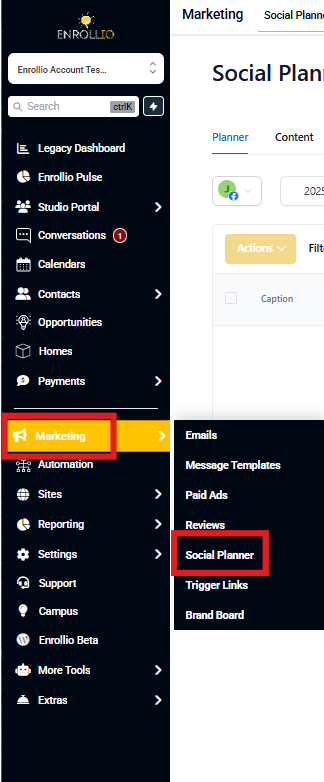
1. Navigate to Social Planner
From the left sidebar, go to Marketing → Social Planner. This is where you manage all your scheduled content across connected platforms.
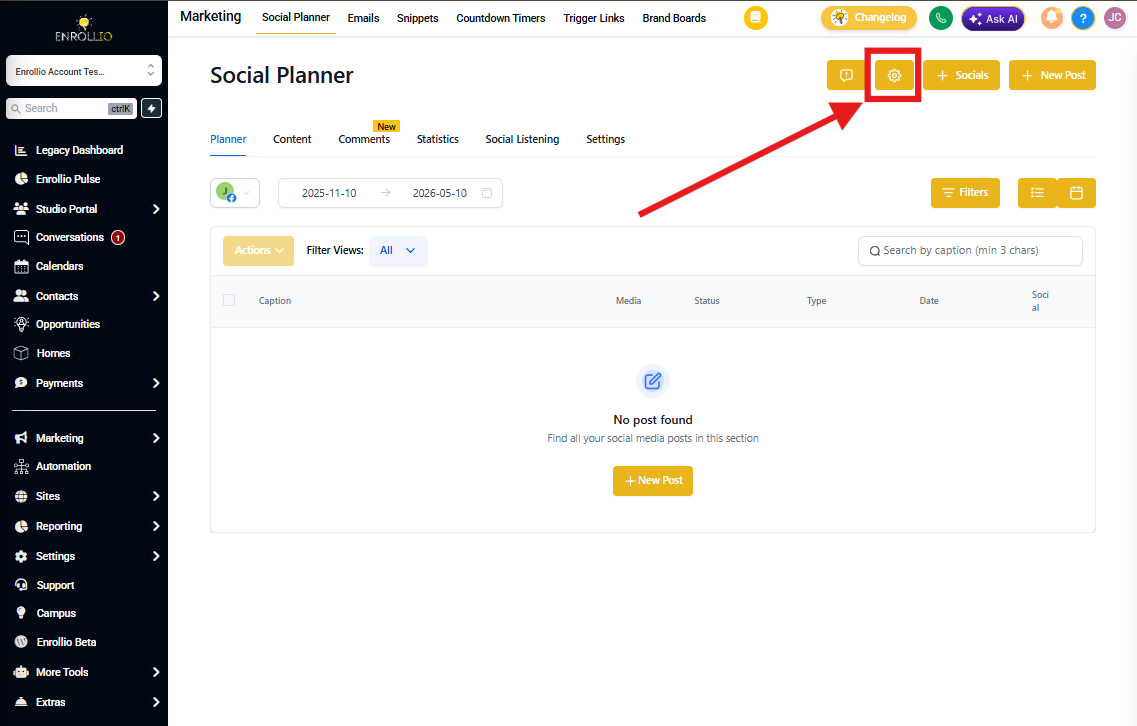
2. Open Social Planner Settings
Click the gear icon in the upper-right corner to open Social Planner settings.
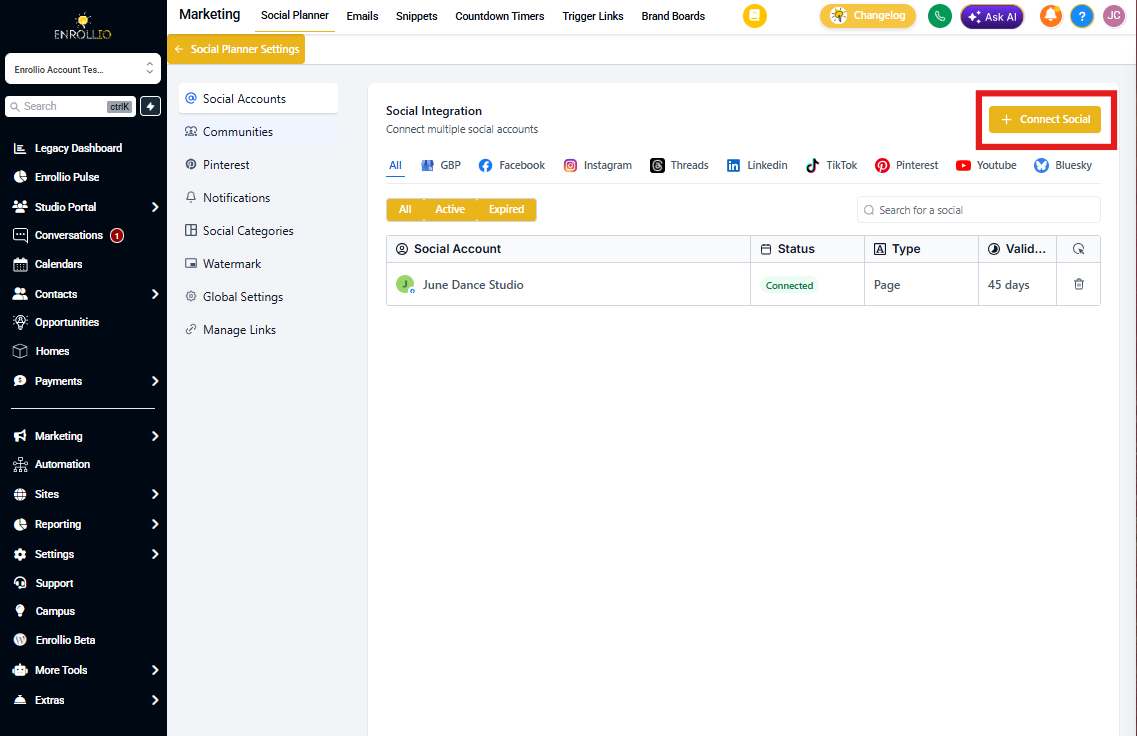
3. Click "Connect Social"
In the Social Accounts tab, click the + Connect Social button to begin linking your LinkedIn account.
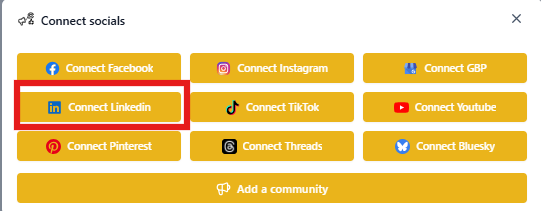
4. Select LinkedIn
A popup will display all available platforms. Click Connect LinkedIn.
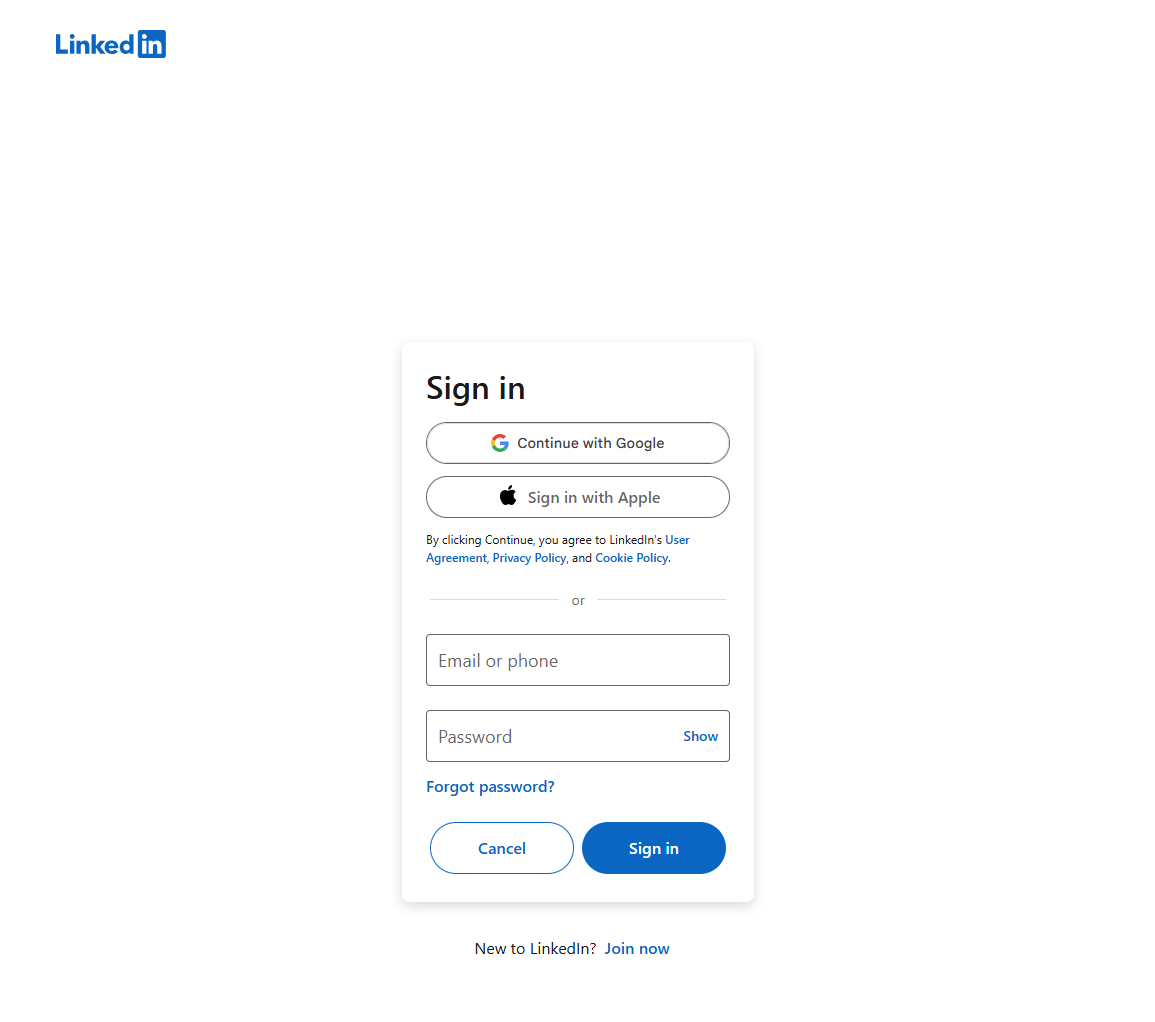
5. Log In to LinkedIn
You'll be redirected to the LinkedIn login screen. Enter your LinkedIn credentials and click Sign In.
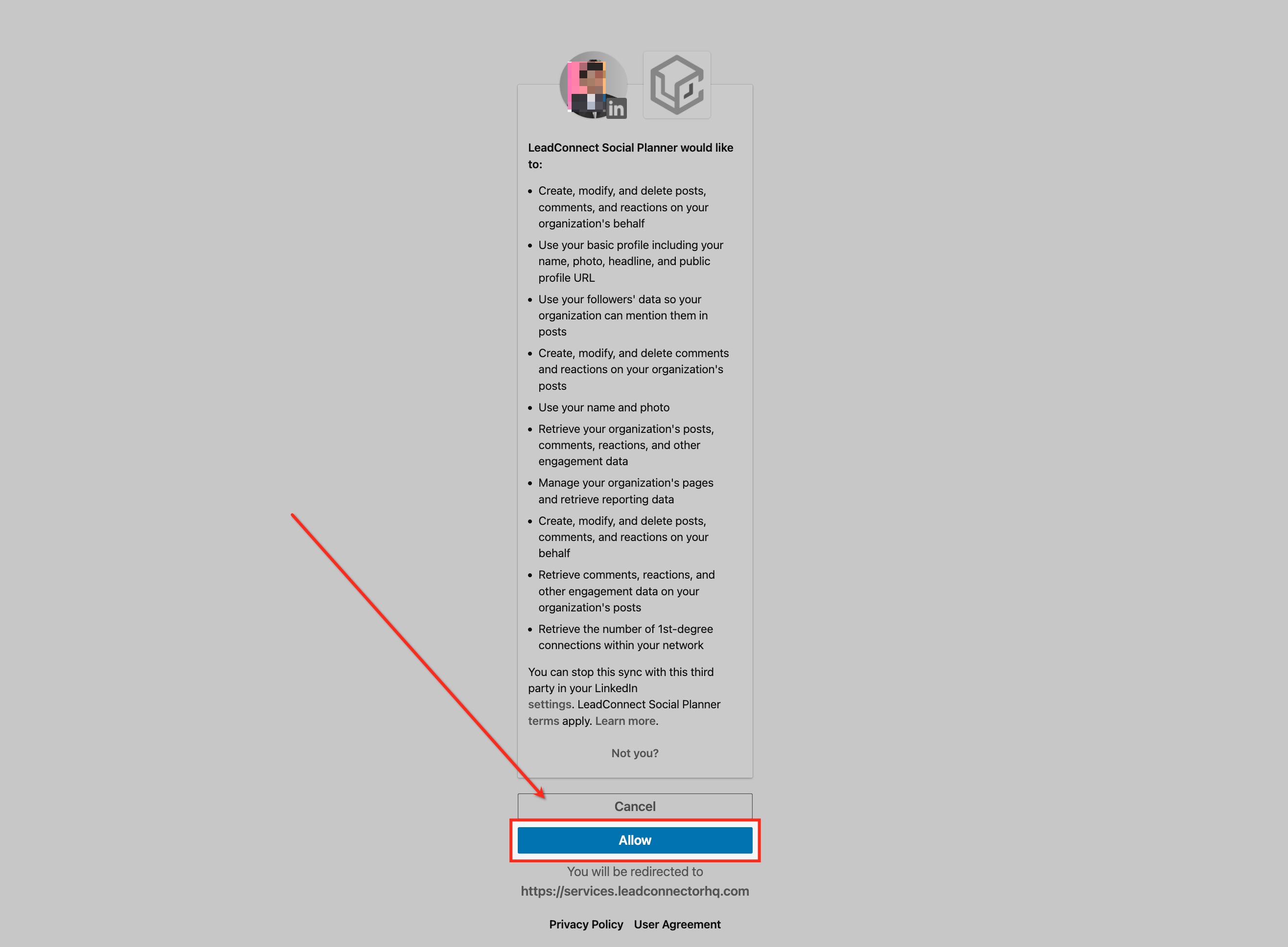
6. Grant Permissions
LinkedIn will ask you to authorize access to your account. Click Allow to proceed.
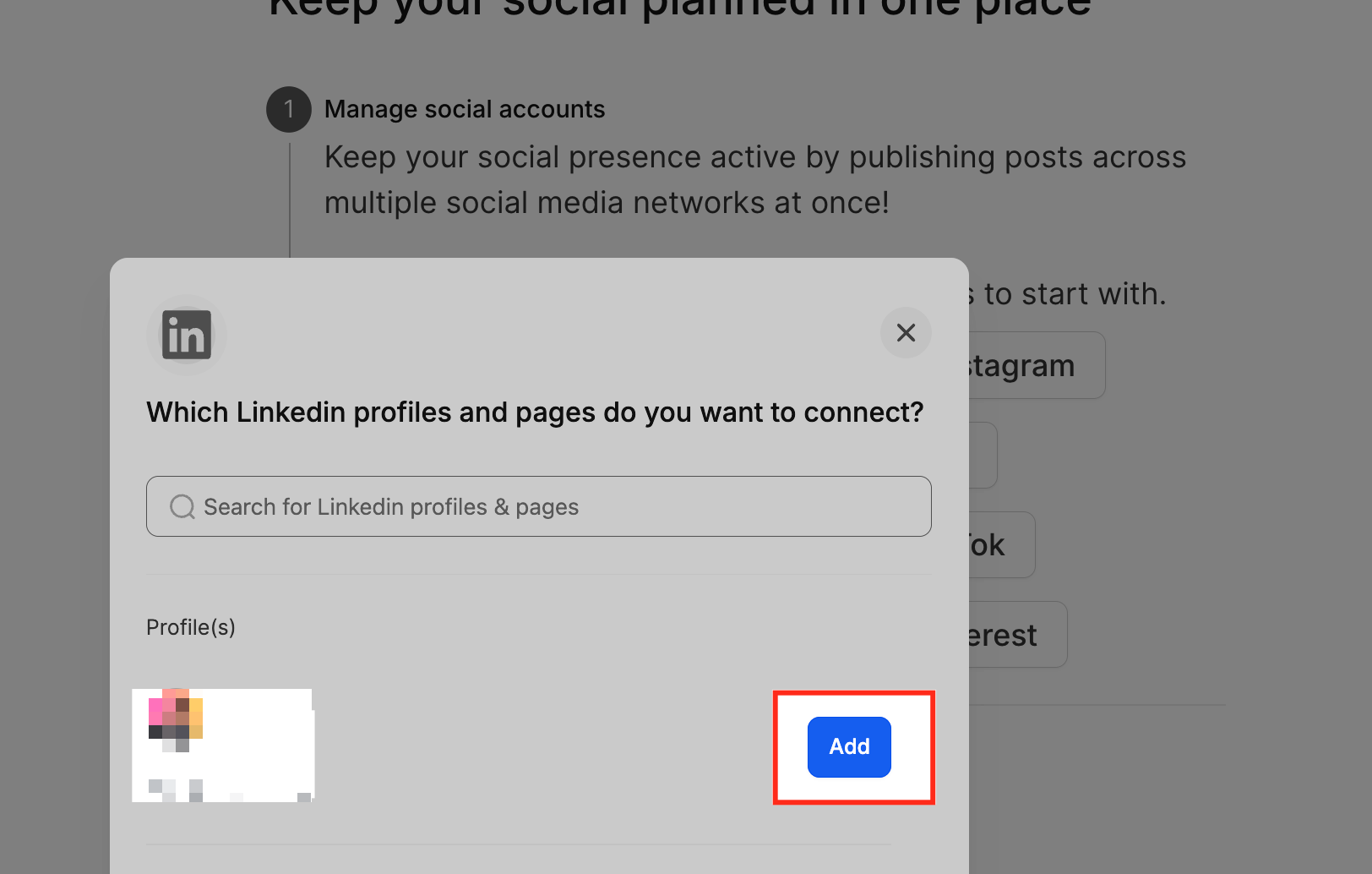
7. Choose LinkedIn Profile or Page
After granting access, select the LinkedIn profile or business page you want to connect and click Add.
8. Confirmation
Once added, the account will show as Connected in the Social Accounts section, along with the account type and token validity.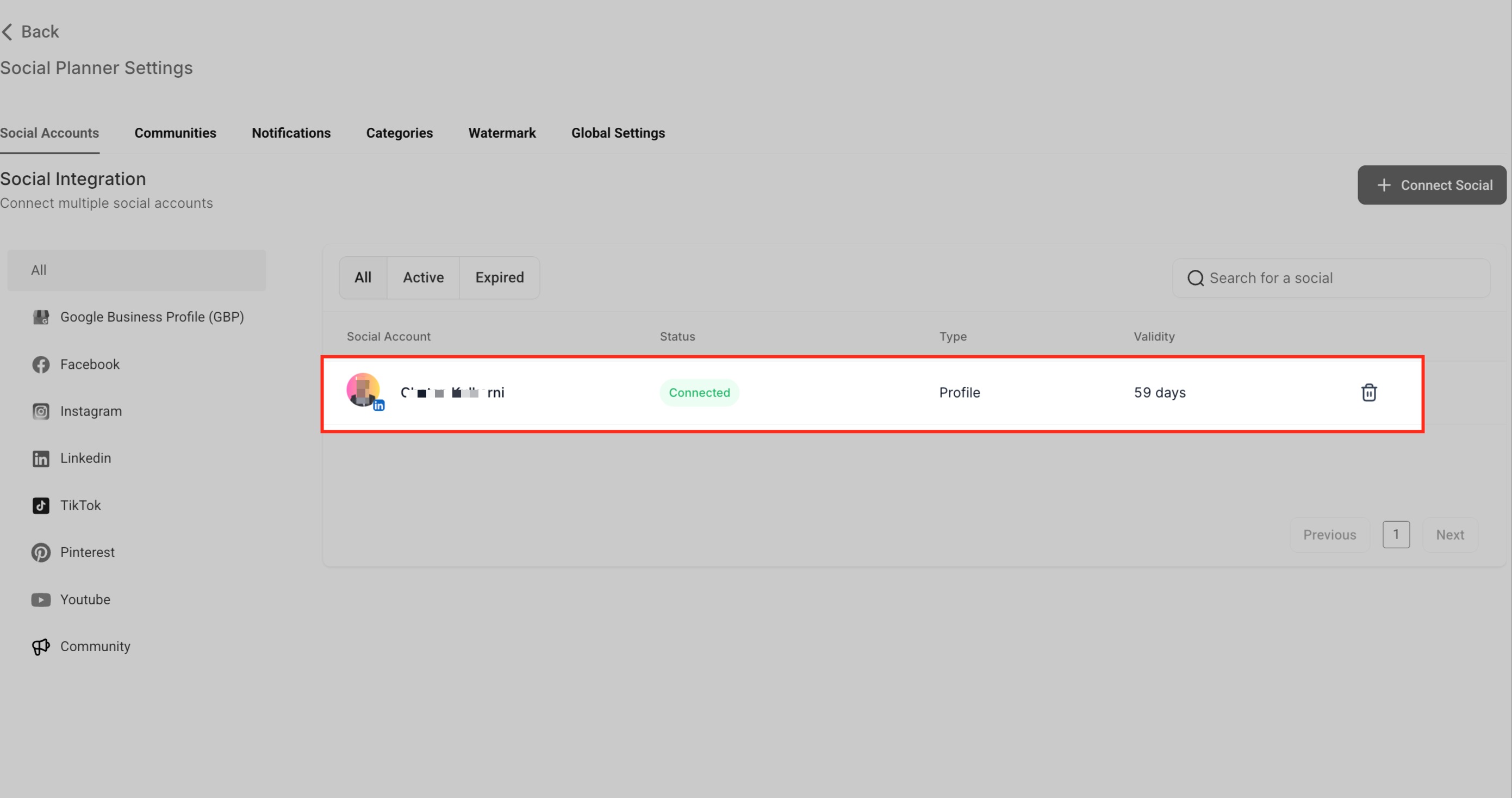
Frequently Asked Questions
Can I connect both a LinkedIn profile and a business page at the same time?
Yes, you can connect multiple LinkedIn accounts — both personal profiles and business pages — based on your available access and permissions.
What happens if my LinkedIn connection expires?
If the token expires, you'll see a "Reconnect" prompt in the Social Accounts tab. Simply click it and reauthorize via LinkedIn.
Why does it say "Permissions Missing" for my page?
This usually means your LinkedIn account doesn't have admin rights on the page, or certain permissions weren't granted during authorization. Reconnect and ensure full access is provided.
Try reconnecting after clearing your cache or using an incognito window.
Can I schedule LinkedIn posts for both personal and company pages?
Yes, once both are connected, you can select where to publish each post during the content creation process.
Is there a limit to how many LinkedIn accounts I can connect?
There's no fixed limit, but the number of accounts you manage should align with your subscription tier and admin permissions.
What's Next?
Now that your LinkedIn account is connected, you can start scheduling posts to share updates about your childcare center, celebrate staff achievements, promote open house events, and engage with families in your community.